
LocalFlux User Guide
LocalFlux is a Windows app for private, local file conversion. It helps you convert common media, image, audio, video, and document files on your PC without uploading them to an online converter or creating an account.
Table Of Contents
- What LocalFlux Does
- Install And Open LocalFlux
- Quick Start
- Main Window Tour
- Add Files
- Understand The Queue
- Choose Output Format
- Choose Output Location
- Run, Stop, And Clear Conversions
- Open Converted Files
- Image Workflows
- Audio Workflows
- Video Workflows
- Extract Audio From Video
- Document And Markdown Workflows
- Advanced Visual Adjustments
- Settings
- Privacy And Legal
- Diagnostics And Support
- Supported Routes
- Troubleshooting
- Keyboard Shortcuts
What LocalFlux Does
LocalFlux converts supported local files on your Windows PC. You add files, choose an output format, run the conversion, and open the converted result from the app.
The app is designed for everyday format problems, such as turning phone photos into more widely supported image files, converting media files, extracting audio from supported videos, and converting common office or document files.
LocalFlux is local-first:
- Your files stay on your device.
- No account is required for the conversion workflow.
- Normal conversion does not upload your files.
- LocalFlux does not track your usage.
LocalFlux does not convert every possible file type into every possible output. It supports explicit conversion routes. See Supported Routes for the guide’s route reference.
Install And Open LocalFlux
Install LocalFlux from the Microsoft Store, then open it from the Start menu or by searching for LocalFlux in Windows.
LocalFlux v1 is built for Windows 11 on x64 PCs. After installation, the normal conversion workflow runs locally on your device using the conversion components included with the app.
When LocalFlux opens, you will see the main conversion window. From there, continue to Quick Start for the shortest first-conversion walkthrough, or go to Add Files if you want to see every way to bring files into the app.
Quick Start
Use this quick start when you want to convert one supported local file and see the result. LocalFlux creates a converted copy and keeps your original file unchanged.
- Open LocalFlux from the Start menu or Windows search.
- Add one file. Use
Browse filesin the empty window, or drag a supported file ontoDrop files here to convert. - Choose the target format from
Outputand theOutput formatpicker. - Select
Convertand wait for the queue item to finish. - When the item shows
Converted successfully, useOpen fileto open the converted copy orOpen folderto view it in File Explorer.
For more detail, see Add Files, Choose Output Format, Choose Output Location, and Open Converted Files.
Main Window Tour
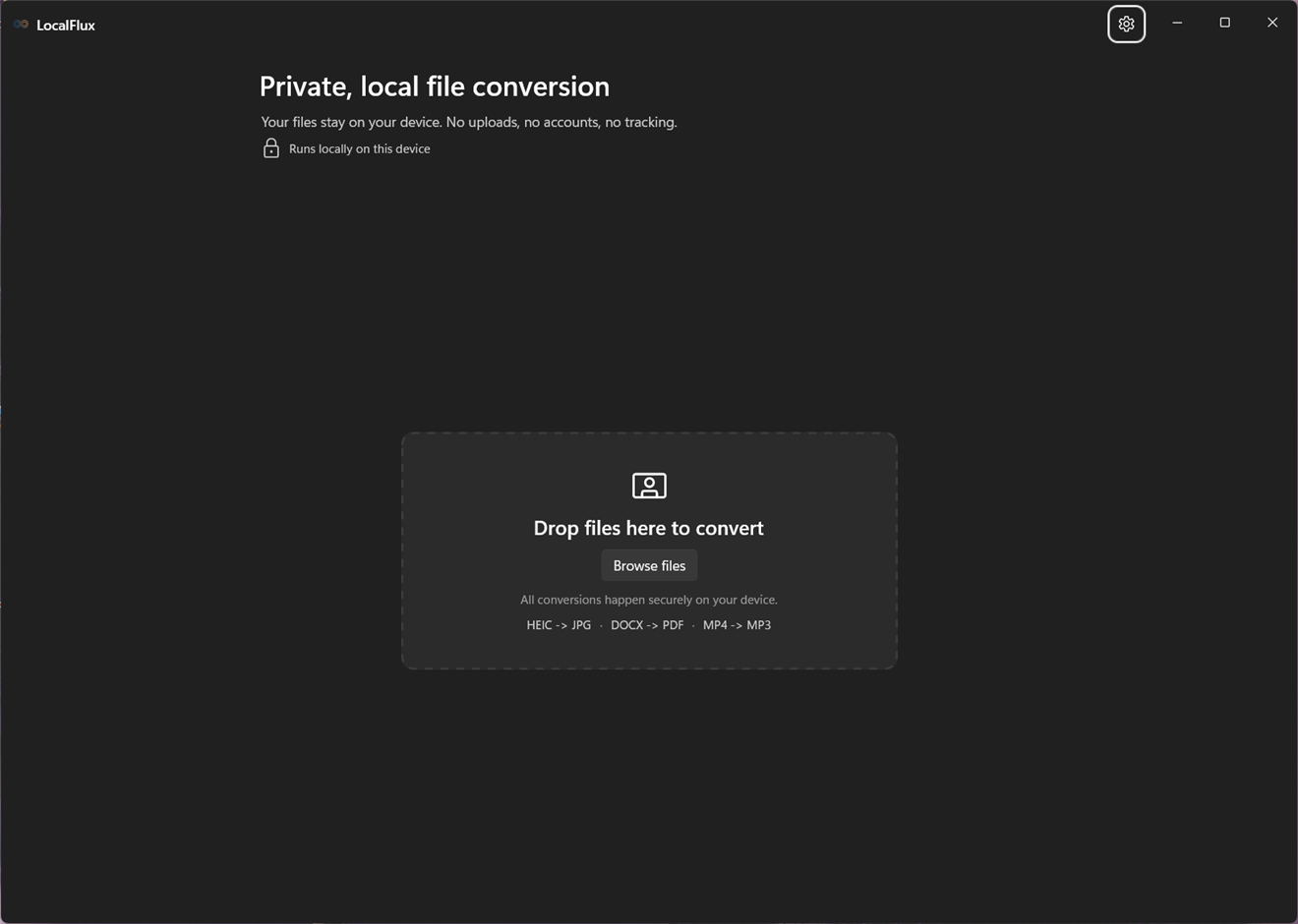
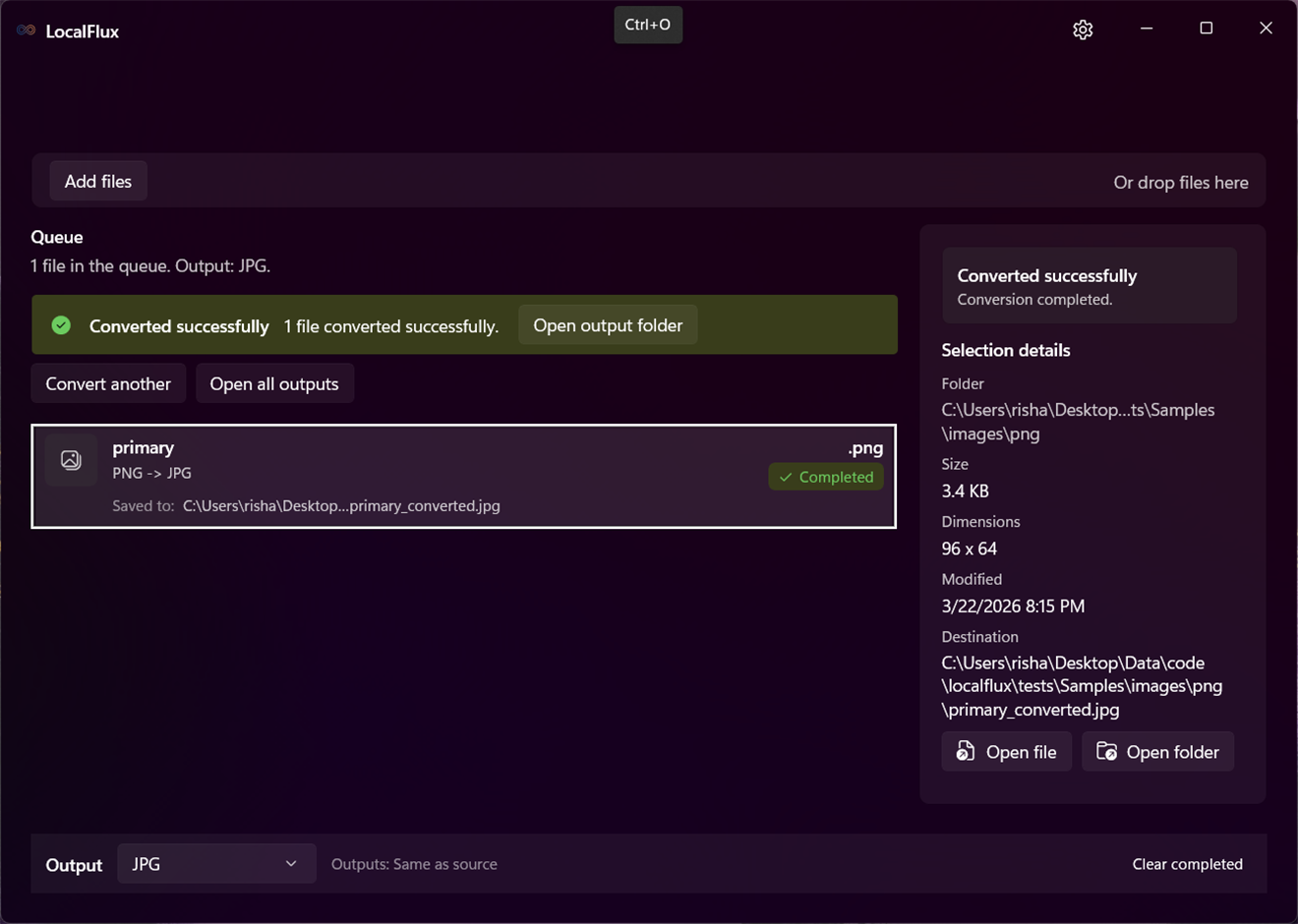
The main window is organized around one job: add local files, choose an output, convert, and open the results. The screenshots for this section will show both the empty window and the active queue state.
Title Bar
The title bar shows the LocalFlux app name. On secondary pages, such as Settings, a back button appears so you can return to the converter. The Settings button opens app settings, privacy information, third-party notices, and diagnostics.
Private Local Conversion Header
At the top of the converter, LocalFlux introduces the main workflow with Private, local file conversion and the local trust message. If LocalFlux is checking or reporting conversion component readiness, status messages can appear below this header.
Drop Zone
When no files are in the queue, the center of the window shows Drop files here to convert. Use Browse files to pick files manually, or drag supported local files onto the drop zone. The empty state also shows common examples so you know the type of workflow the app is built for.
Add Files Strip
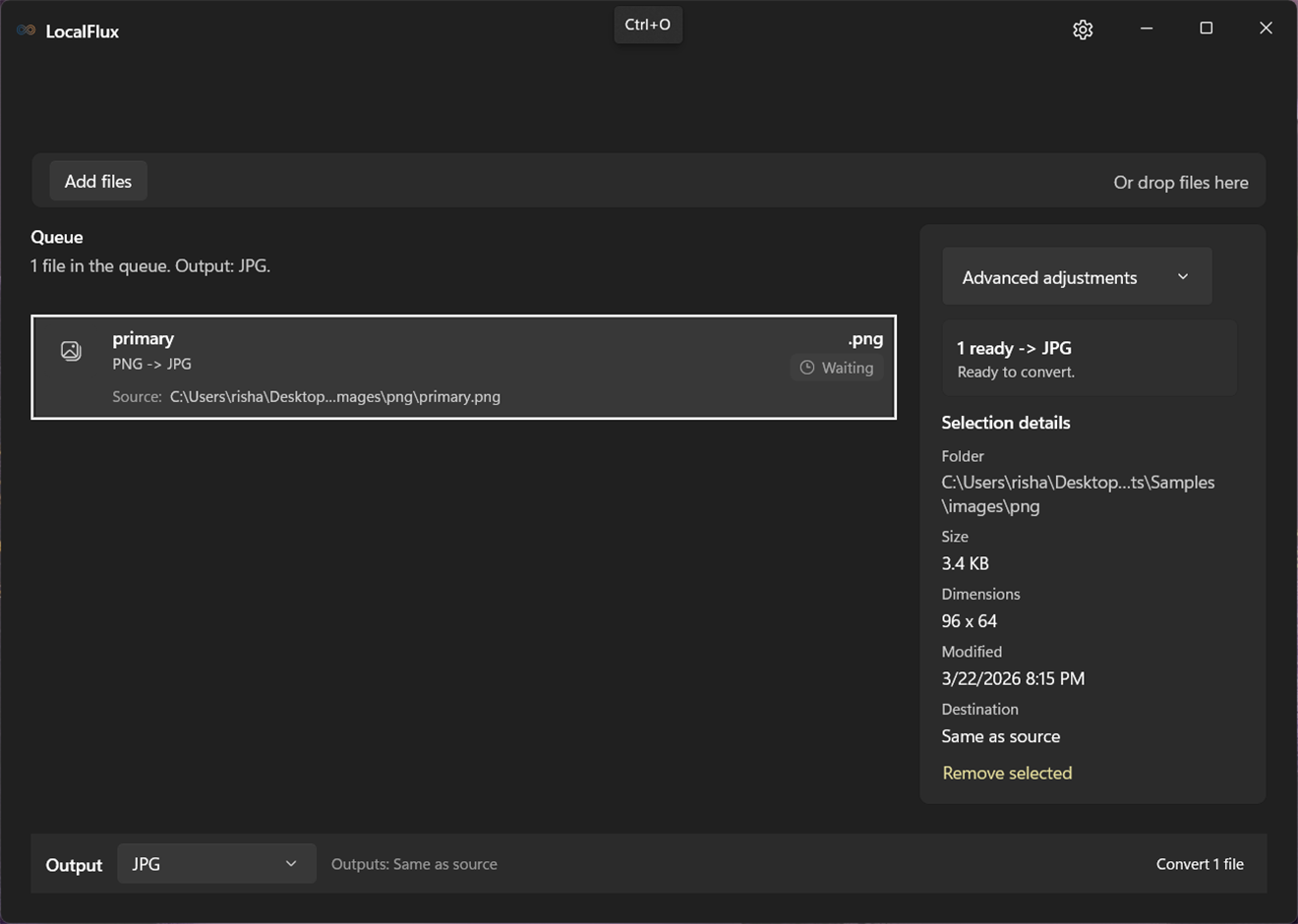
After files are added, the empty drop zone changes into a compact intake strip. Use Add files to browse for more files, or drop more files where the window says Or drop files here.
Queue
The Queue is where added files appear. Each row represents one source file and shows its current status, such as waiting, converting, completed, failed, or blocked. Selecting a row updates the details/action panel on the side.
Details And Action Panel
The right-side panel changes based on the selected row. It can show file information, Details, Destination, Visual settings, progress, failure guidance, or completed-file actions. For image and video outputs, Advanced adjustments appears here when visual controls are available.
Command Bar
The command bar runs along the bottom of the converter. Use Output and the Output format picker to choose the target format for the batch. The command bar also shows the output location summary and the main action button, such as Convert, Stop queue, or Clear completed, depending on the current queue state.
Add Files
LocalFlux adds files to the queue before it converts them. Every intake method follows the same rules: the file must already exist on your PC, it must be on a local drive, and its source format must be supported by LocalFlux.
LocalFlux does not add web links, URLs, cloud-only placeholders, or network-share paths such as \\server\share\file.ext. If you need to convert a file from a network location or a web service, save a local copy first, then add that local file.
Drag And Drop Files
When the queue is empty, drag one or more supported local files onto Drop files here to convert. After the queue already has files, drag more files onto the compact strip that says Or drop files here.
You can drop a mixed selection. LocalFlux adds the files it can use and reports anything it skipped, such as unsupported files, duplicate files, network-location files, or items that are not files.
Browse From The Empty Window
Use Browse files when the queue is empty and you want to choose files from the Windows file picker. The picker is filtered to the file types LocalFlux can accept as source files. Select one file or several files, then confirm the picker to add them to the queue.
Add More Files To The Queue
After at least one file is in the queue, use Add files to open the same file picker again. New files are added to the existing queue. If you choose a file that is already in the queue, LocalFlux skips that duplicate instead of adding a second row for the same source path.
Paste Copied Files
If you copied files in File Explorer, return to LocalFlux and press Ctrl+V. LocalFlux reads local files from the clipboard and adds supported ones to the queue.
Clipboard paste can also read copied text when the text contains existing local file paths, one path per line. If the clipboard does not contain supported local files, LocalFlux shows a message such as No supported files on the clipboard. and does not change the queue.
Open LocalFlux From A File Handoff
Windows integrations can launch LocalFlux with selected local files. When this happens, LocalFlux opens normally, or the already-running LocalFlux window receives the incoming files and adds them to the queue. The same skip rules still apply, so unsupported files, duplicates, network paths, and missing files are not added.
This is a handoff workflow, not a separate conversion mode. After the files appear in LocalFlux, choose Output, run Convert, and open the converted results from the queue.
Use The Explorer Context Menu
On Windows 11, the installed app can add Convert with LocalFlux to File Explorer for supported local files. Select one or more supported files in File Explorer, right-click, choose Convert with LocalFlux, then finish the conversion in LocalFlux.
For the full Explorer workflow and its screenshot note, see Explorer Context Menu.
What Skipped Files Mean
Skipped files are files LocalFlux did not add to the queue. A skipped item does not mean the files that were added are broken. In a mixed selection, you can continue converting the files that appear in the queue.
Common reasons files are skipped:
- The file type is not a supported LocalFlux source format.
- The same local file is already in the queue or appears more than once in the same selection.
- The path points to a network location or a URL instead of a local drive.
- The selected item is not a file, such as a folder or another shell item.
- The file path no longer exists by the time LocalFlux tries to add it.
Understand The Queue
The Queue lists the files LocalFlux is preparing or converting. Each row represents one source file. A row can show a different status from the row next to it because each source file may have a different format, route, visual-setting compatibility, output destination, conversion component, or previous result.
Select a row to update the details/action panel. The panel shows information for the selected file, not the whole queue. Depending on the row, it can show Selection details, Active job, source file details, Destination, Visual settings, progress, failure guidance, diagnostics actions, remove actions, or completed-output actions.
Waiting And Ready Rows
Waiting means the row is in the queue and is not currently converting. A waiting row is ready when LocalFlux has a valid route from that source file to the selected Output and any required conversion component is available.
When a batch has only ready rows, the queue summary stays simple, such as 1 file in the queue. Output: PNG. In larger or mixed batches, the summary can call out ready rows with text such as 2 ready to convert.
Blocked Rows
A blocked row is a waiting row that LocalFlux cannot include in the next conversion until something changes. This is usually expected when a mixed batch contains files that do not all match the same output choice.
Common blocked-row messages include:
Needs different output: the selected output is not supported for that source file.Visual settings unavailable,Quality unavailable, orCompression unavailable: the row cannot use the current visual settings with the selected output.Waiting on ...: the conversion route is supported, but a required conversion component is not currently available.
Blocked rows are not the same as failed conversions. They have not necessarily tried to convert yet. Choose a compatible Output, clear or adjust Advanced adjustments, or wait for component readiness if the row is waiting on a conversion component.
Mixed batches are normal. For example, a queue can show 3 files in the queue. Output: MP3. 1 ready to convert. 2 need a different output. In that case, selecting Convert runs the ready row and leaves the blocked rows in the queue so you can choose another output for them later.
Converting And Stopping
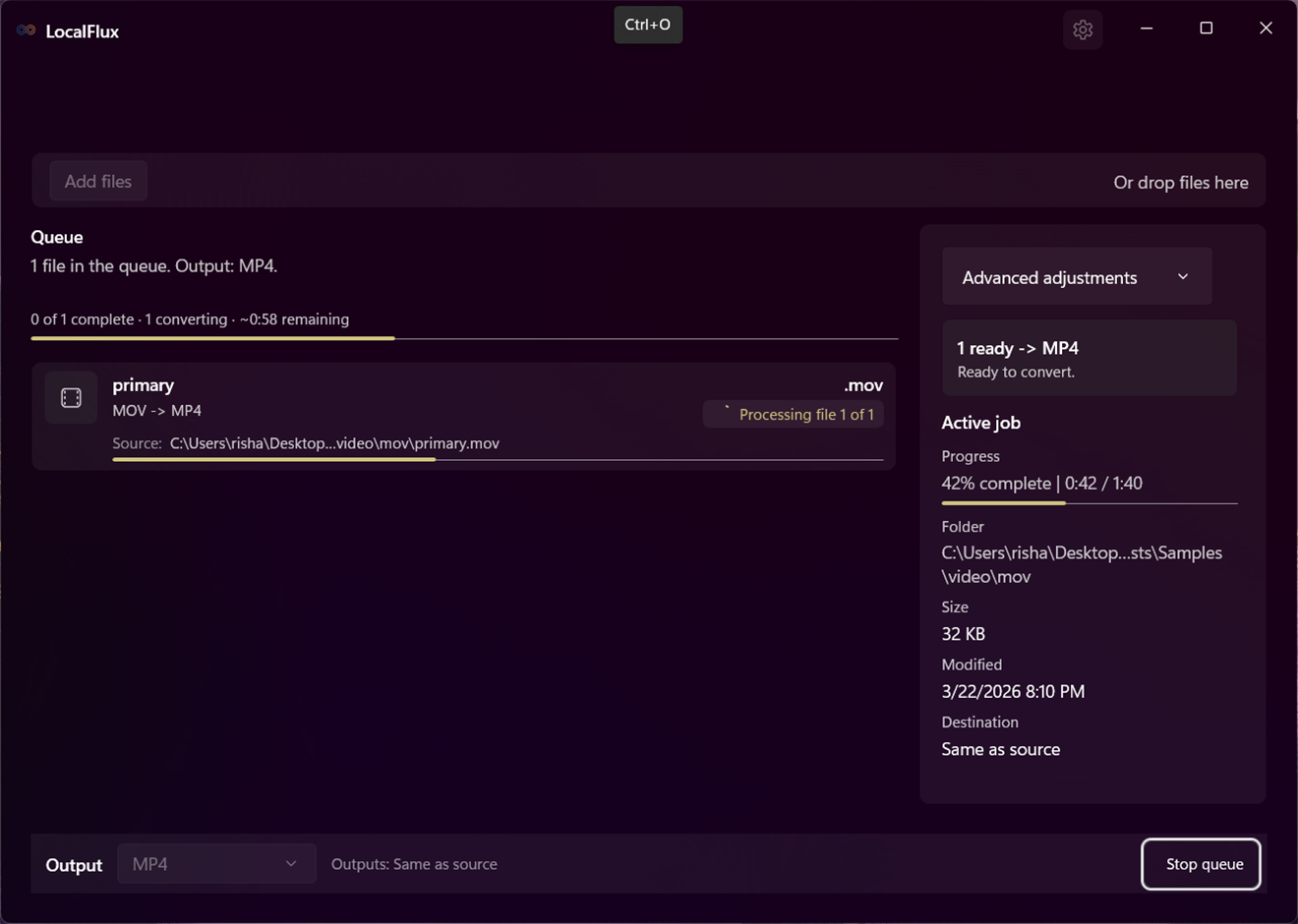
When conversion starts, active rows show Converting or Processing file ..., and the command bar switches from Convert to Stop queue. The progress area summarizes the active batch, including completed, converting, waiting, failed, or cancelled counts when they apply.
If you stop the queue, the command bar can briefly show Stopping queue... while LocalFlux asks active workers to stop. Rows that do not complete can end as Cancelled. You can choose a compatible output and run remaining waiting rows again later.
Completed Rows
Completed means LocalFlux finished converting that row. Completed rows can show the saved output location and completed-output actions in the details/action panel. Clearing completed rows removes them from the queue history; it does not delete the converted files.
Failed Rows
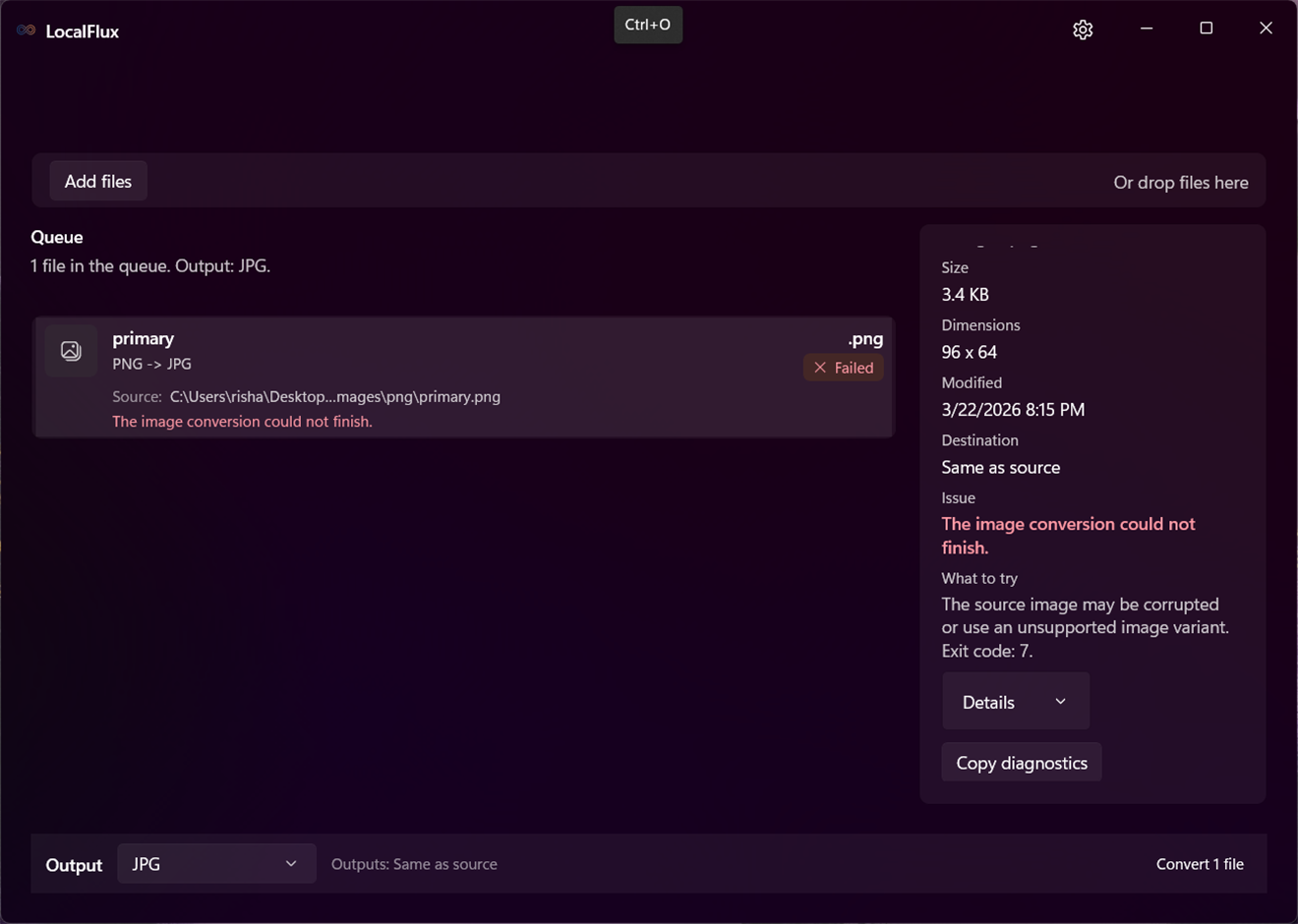
Failed means LocalFlux tried to convert the row but the conversion did not finish. Select the failed row to read the details/action panel. Depending on the failure, the panel can show Issue, What to try, expandable Details, and Copy diagnostics.
A failed row is different from a blocked row: a blocked row needs a different setup before conversion, while a failed row ran into a problem during conversion. You can use the guidance in the panel, change the output or settings, and try again when appropriate.
Choose Output Format
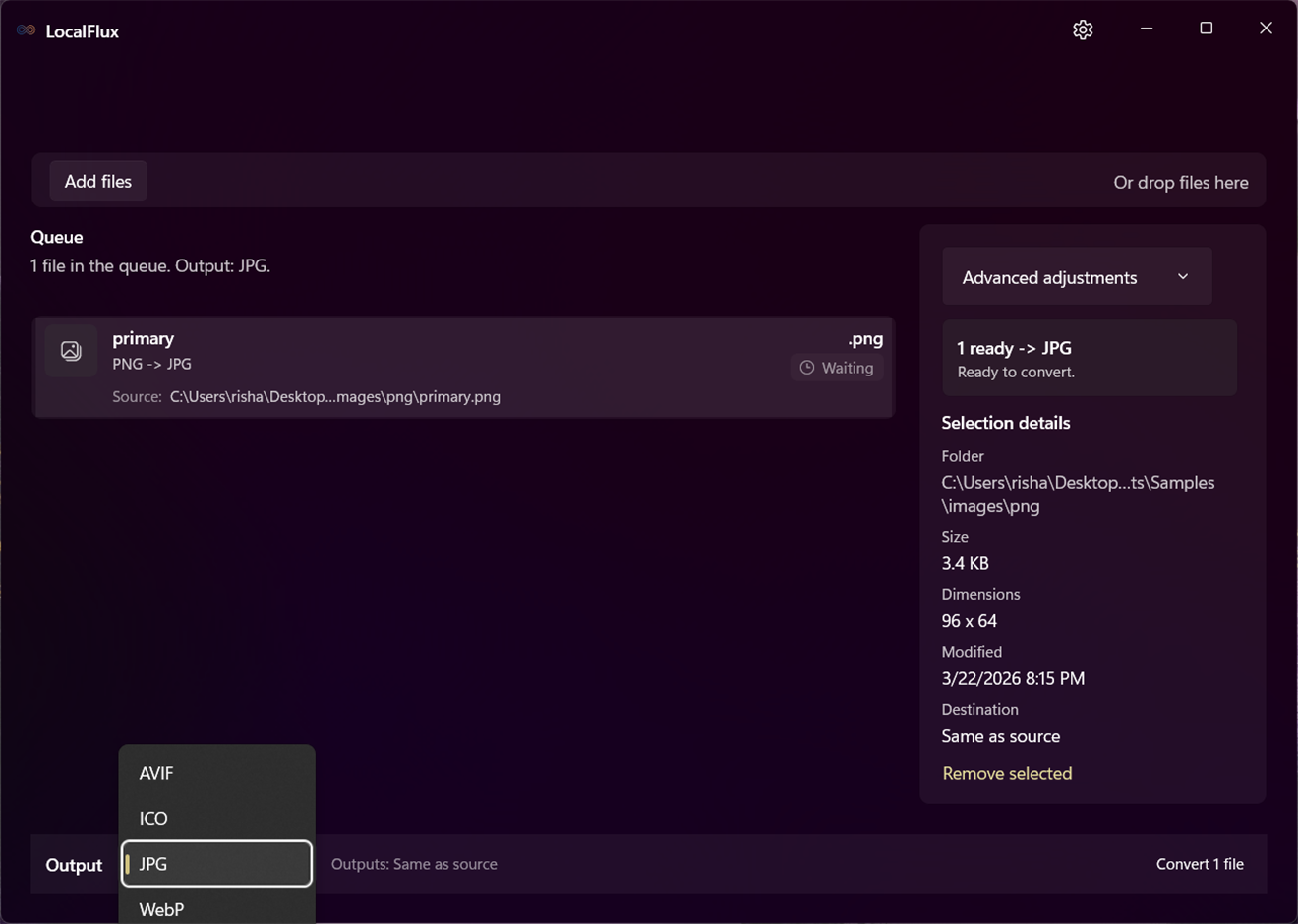
Use the command bar Output area to choose what LocalFlux should make. The Output format picker sets one target format for the whole queue, not a different format per row.
After you choose an output, LocalFlux checks every row against that one output. Rows with a supported route become ready to convert. Rows without a supported route stay in the queue and show that they need a different output. This is expected in mixed batches, such as choosing MP3 for a queue that contains both audio/video files and image files.
LocalFlux supports explicit conversion routes only. The output picker lists formats LocalFlux can produce, but the selected output still has to match each source file. See Understand The Queue for ready and blocked row behavior, and Supported Routes for the guide’s route reference.
Choose Output Location
LocalFlux creates converted copies. Your original files stay in place and are not overwritten by normal conversion.
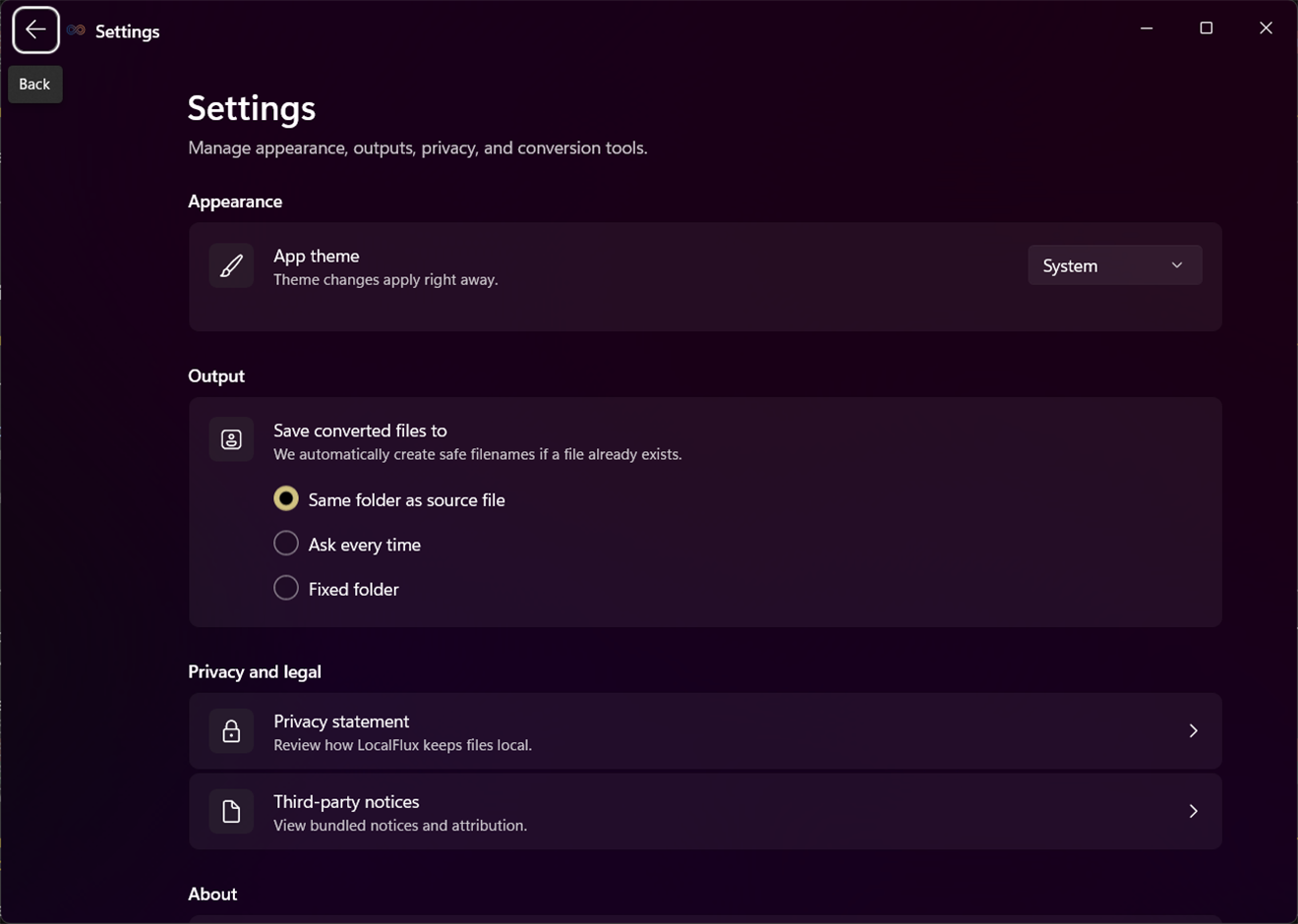
The output location summary in the command bar shows where converted files will go. Change the default behavior from Settings > Output.
Same Folder As Source File
Same folder as source file saves each converted file next to its original source file. If you convert files from different local folders in one batch, each output goes back to its own source folder.
Ask Every Time
Ask every time opens a folder picker when you start converting. Choose the local folder where LocalFlux should save the converted files for that run. If you cancel the picker, the conversion does not start for that output choice.
Fixed Folder
Fixed folder saves converted files to the folder selected in Settings. Use Browse in Settings to choose it, or Clear to remove it. If Fixed folder is selected but no folder is saved, LocalFlux asks you to choose a fixed output folder before converting.
Fixed output folders must be existing local folders on this PC. Network folders such as \\server\share\exports, missing folders, invalid paths, folders LocalFlux cannot write to, and paths that are too long for Windows can stop output preparation. Choose another local folder if LocalFlux reports that the output folder is unavailable or cannot be prepared.
Safe File Names
LocalFlux builds a new file name from the source name, _converted, and the selected output extension. For example, converting primary.heic to JPG creates a name such as primary_converted.jpg.
If a file with that name already exists, LocalFlux chooses the next available numbered name, such as primary_converted (2).jpg. In a batch, LocalFlux also avoids giving two rows the same output path.
Run, Stop, And Clear Conversions
Use Convert after you have added files, chosen Output, and confirmed that at least one row is ready. LocalFlux runs the ready rows in the queue. Rows that are blocked because they need a different output, compatible visual settings, or an available conversion component stay in the queue for later.
While conversion is running, active rows show Converting or Processing file ..., and the main action changes to Stop queue. The progress area summarizes the active batch and can show completed, converting, waiting, failed, or cancelled counts.
Use Stop queue when you want LocalFlux to stop active work. The button can briefly show Stopping queue... while LocalFlux asks active conversion workers to stop. Rows that stop before finishing can show Cancelled. Rows that already completed remain completed, and converted files that were already written remain on your device. Waiting rows can be converted later after you choose a compatible output and select Convert again.
If you close LocalFlux while conversion is running, the app asks whether you want to stay or stop conversion and close. Choose Stay to keep the window open and let conversion continue. Choose Stop conversion and close to request cancellation and close after the active work stops. If LocalFlux is already stopping, the close prompt explains that stopping is in progress.
After rows complete, Clear completed removes completed rows from the queue history. It does not delete converted files. The confirmation dialog says Clear completed items? and explains that converted files remain on your device. Choose Keep history to leave completed rows visible, or Clear completed to remove those completed queue entries.
Open Converted Files
Completed rows and completed batches give you shortcuts for opening converted outputs.
Select a completed row to use row-level actions:
Open fileopens the converted output for the selected completed row.Open folderopens the folder that contains the selected completed row’s output.
When a batch finishes successfully, LocalFlux can also show batch-level actions:
Open output folderopens the batch output folder when all successful outputs are in one folder.Open all outputsopens every converted output for a small completed batch when all output paths are available.
These actions use the output files that LocalFlux created during conversion. If a converted file was moved, renamed, or deleted after conversion, LocalFlux may not be able to open it and will ask you to check that the output still exists.
Image Workflows
Use image workflows when you need a converted copy of a supported local image file. Add the image files, choose one image Output, review which rows are ready, then select Convert.
Image conversion is route-based. LocalFlux does not convert every image format to every other image format. If a row needs a different output, choose another Output for that row or batch after the ready rows finish.
Common image workflows:
- Phone photos: convert
HEICorHEIFtoJPG,PNG, orWebPfor apps and websites that do not accept Apple photo formats. - Website images: convert
WebPtoJPGorPNG, or convertPNG/JPGtoWebPorAVIFwhen a supported route exists. - Camera RAW files: convert
ARW,CR2,DNG,NEF,ORF, orRW2files toJPG,PNG, orWebPfor sharing. - Vector artwork: convert
SVGtoJPG,PNG, orWebPwhen you need a raster image copy. - Compatibility cleanup: convert
BMP,TIFF/TIF,GIF, orAVIFinto a more common supported output. - Icons: create
ICOfiles only from supported source formats listed below.
Supported image route summary:
| Source format | Supported image outputs |
|---|---|
HEIC | JPG, PNG, WebP, ICO |
HEIF | JPG, PNG, WebP, ICO |
WebP | JPG, PNG, AVIF, ICO |
PNG | JPG, WebP, AVIF, ICO |
JPG / JPEG | PNG, WebP, AVIF, ICO |
RAW (ARW, CR2, DNG, NEF, ORF, RW2) | JPG, PNG, WebP, ICO |
SVG | JPG, PNG, WebP, ICO |
AVIF | JPG, PNG, WebP |
GIF | JPG, PNG, ICO |
BMP | JPG, PNG, WebP, ICO |
TIFF / TIF | JPG, PNG, ICO |
ICO is an output format in these image workflows. LocalFlux can create ICO from HEIC, HEIF, GIF, BMP, TIFF/TIF, WebP, PNG, JPG/JPEG, RAW, and SVG. It does not support AVIF to ICO, and it does not use ICO as an input format.
For resize, aspect-ratio, quality, and compression controls, see Advanced Visual Adjustments. LocalFlux does not promise image editing features such as crop, rotate, OCR, merge, split, or PDF image extraction.
Audio Workflows
Use audio workflows when you need a new audio file in a supported format. Add the audio files, choose MP3 or WAV in Output, confirm the rows are ready, then select Convert.
Audio conversion changes the audio file format. It does not create a video file, extract audio from a video, edit the track, split the recording, trim silence, or combine files.
Common audio workflows:
- Convert
WAVtoMP3for smaller sharing and playback files. - Convert
MP3toWAVwhen another app or workflow needs a WAV file. - Convert
FLAC,M4A,AAC,OGG, orWMAtoMP3for broad compatibility. - Convert
FLAC,M4A,AAC,OGG, orWMAtoWAVfor workflows that prefer an uncompressed WAV output.
Supported audio route summary:
| Source format | Supported audio outputs |
|---|---|
WAV | MP3 |
MP3 | WAV |
FLAC | MP3, WAV |
M4A | MP3, WAV |
AAC | MP3, WAV |
OGG | MP3, WAV |
WMA | MP3, WAV |
If an audio row is blocked after you choose an Output, that source and output combination is not supported for the current batch. Pick another supported Output or remove the blocked row before converting the ready rows.
Video Workflows
Use video workflows when you want LocalFlux to create another video file, or a GIF animation, from a supported video source. Add the video files, choose a video or animation Output, review the queue, then select Convert.
Video conversion is different from audio extraction. In this section, the result is still visual media: an MP4, MOV, WebM, or GIF output. If you choose MP3 or WAV from a video source, that is an audio extraction workflow instead; see Extract Audio From Video.
Common video workflows:
- Convert
MOV,MKV,WebM,AVI,WMV,M4V, orFLVtoMP4for broad playback compatibility. - Convert
MP4,MKV,AVI,WebM,WMV,M4V, orFLVtoMOVfor workflows that need a MOV container. - Convert
MP4,MOV,MKV,AVI,WMV,M4V, orFLVtoWebMfor web-oriented video output. - Convert short supported videos to
GIFwhen you need an animation file instead of a video file.
Supported video route summary:
| Source format | Supported video or animation outputs |
|---|---|
MP4 | MOV, WebM, GIF |
MOV | MP4, WebM, GIF |
MKV | MP4, MOV, WebM, GIF |
WebM | MP4, MOV, GIF |
AVI | MP4, MOV, WebM, GIF |
WMV | MP4, MOV, WebM |
M4V | MP4, MOV, WebM |
FLV | MP4, MOV, WebM |
LocalFlux does not promise video editing features such as trimming, cropping, subtitles, chapter editing, watermarking, frame-rate tuning, or codec-level controls in this guide. Use Advanced Visual Adjustments for the visual adjustment controls that are available in the app.
Extract Audio From Video
Use extraction workflows when the source is a video file and the result should be an audio-only file. Add the video files, choose a supported audio Output, then select Convert.
Extraction does not create another video copy. It creates an MP3 or WAV file from the supported source video’s audio track, and the original video is preserved.
Common extraction workflows:
- Extract
MP3fromMP4,MOV,MKV,WebM, orAVIwhen you need a portable audio file. - Extract
WAVfromMP4,MOV,MKV,WebM,AVI,WMV,M4V, orFLVwhen you need a WAV audio file.
Supported video-to-audio route summary:
| Source video format | Supported audio extraction outputs |
|---|---|
MP4 | MP3, WAV |
MOV | MP3, WAV |
MKV | MP3, WAV |
WebM | MP3, WAV |
AVI | MP3, WAV |
WMV | WAV |
M4V | WAV |
FLV | WAV |
WMV, M4V, and FLV extraction supports WAV only. If you choose MP3 for those sources, the rows are not ready because that route is not supported.
Document And Markdown Workflows
Use document workflows when you need a converted copy of a supported local document, spreadsheet, presentation, text, CSV, TSV, or Markdown file. Add the files, choose one Output, review which rows are ready, then select Convert.
Document conversion is route-based. LocalFlux does not use PDF or HTML as input formats, and it does not promise editing features such as merge, split, OCR, redaction, comments, track changes, or password removal.
Common document and text workflows:
- Convert
TXTtoPDForHTMLwhen plain text needs a shareable document or browser-readable copy. - Convert
DOCXtoPDFfor sharing,ODTfor OpenDocument workflows,HTMLfor web-readable output, orTXTfor plain text extraction. - Convert
ODTtoPDF,DOCX,HTML, orTXTwhen you need a Microsoft Office, web, or plain text copy.
Supported document and text route summary:
| Source format | Supported outputs |
|---|---|
TXT | PDF, HTML |
DOCX | PDF, ODT, HTML, TXT |
ODT | PDF, DOCX, HTML, TXT |
Markdown workflows:
- Convert
MarkdowntoHTMLwhen you want a browser-readable version of a.mdfile. This path uses LocalFlux’s built-in Markdown conversion. - Convert
MarkdowntoPDFwhen you need a shareable document copy. - Convert
MarkdowntoTXTwhen you need plain text output.
Supported Markdown route summary:
| Source format | Supported outputs |
|---|---|
Markdown | HTML, PDF, TXT |
For Markdown files, keep the source local and self-contained. Raw HTML and remote web references are not supported in Markdown input; remove them before converting if the row fails with a Markdown-specific message.
Spreadsheet workflows:
- Convert
XLSXtoPDFfor sharing a fixed view,ODSfor OpenDocument spreadsheet workflows, orCSV/TSVfor table-data exports. - Convert
ODStoPDF,XLSX,CSV, orTSV. - Convert
CSVorTSVtoXLSXorODSwhen plain table data needs to become a spreadsheet file.
Supported spreadsheet and table route summary:
| Source format | Supported outputs |
|---|---|
XLSX | PDF, ODS, CSV, TSV |
ODS | PDF, XLSX, CSV, TSV |
CSV | XLSX, ODS |
TSV | XLSX, ODS |
CSV and TSV are table-data formats. They are useful for rows and columns, but they do not carry full workbook structure such as multiple sheets, formulas, charts, or rich formatting.
Presentation workflows:
- Convert
PPTXtoPDFfor sharing orODPfor OpenDocument presentation workflows. - Convert
ODPtoPDForPPTX.
Supported presentation route summary:
| Source format | Supported outputs |
|---|---|
PPTX | PDF, ODP |
ODP | PDF, PPTX |
If a document row is blocked after you choose an Output, that route is not supported for the selected source. Choose another supported Output, remove the blocked row, or run it in a separate batch with a supported output.
Advanced Visual Adjustments
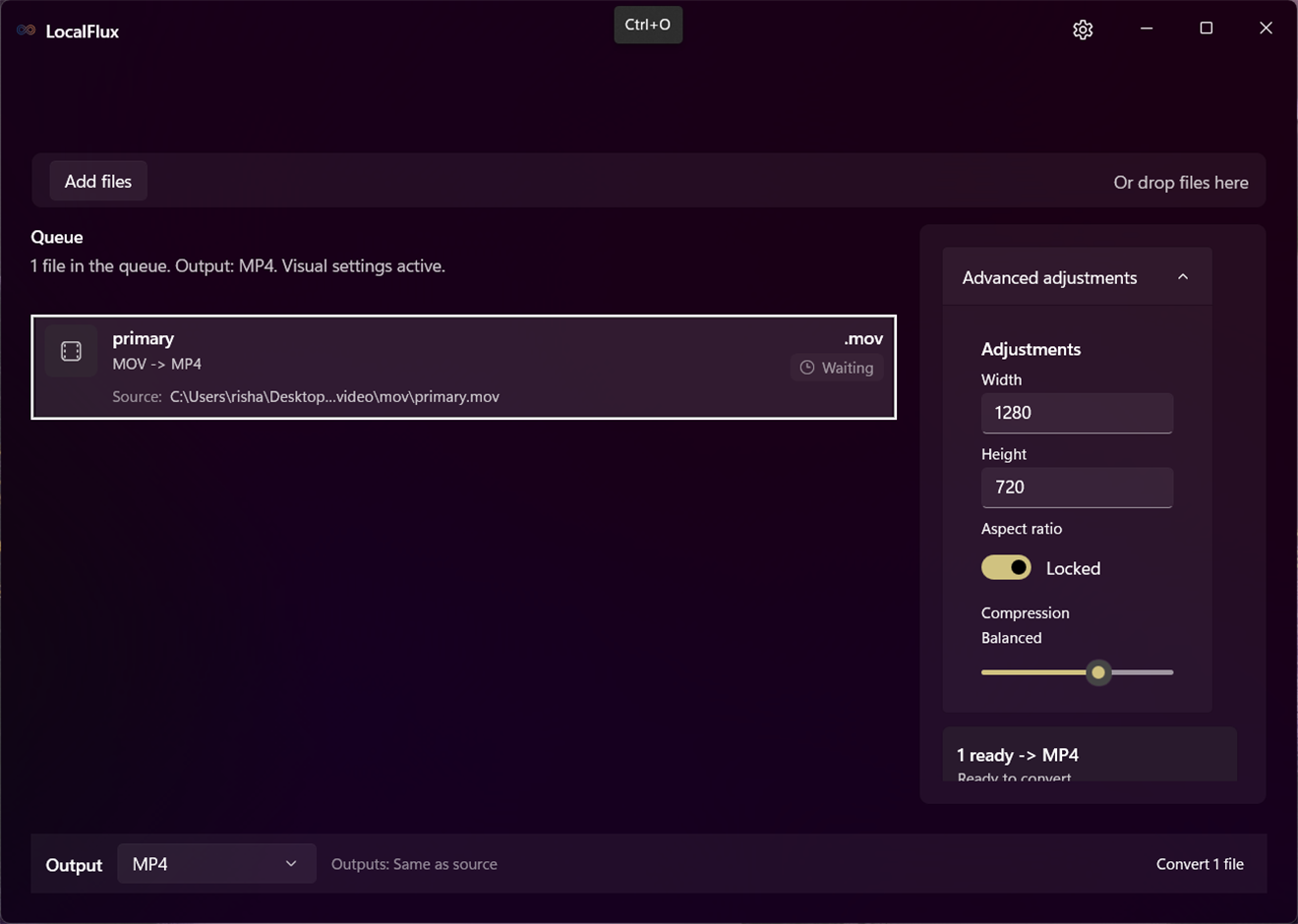
Use Advanced adjustments when you want LocalFlux to apply simple visual settings while it creates an image or video output. These controls appear as Visual settings in the details/action panel when the selected Output supports visual conversion.
Visual settings apply to image and video outputs only. They do not apply to audio outputs, video-to-audio extraction outputs, document outputs, spreadsheet outputs, presentation outputs, PDF, HTML, TXT, CSV, or TSV.
Resize With Width And Height
Use Width and Height to request output dimensions in pixels. Enter whole numbers only.
Leaving Width blank means Auto width. Leaving Height blank means Auto height. Auto lets LocalFlux keep that dimension unset and calculate or preserve it based on the conversion.
Aspect ratio controls whether width and height stay linked:
- When
Aspect ratiois locked, width and height stay proportional. You can enter onlyWidth, onlyHeight, or both. - When
Aspect ratiois unlocked, width and height can change independently. Enter bothWidthandHeightbefore converting.
For video outputs, entered dimensions must be valid for video output. If LocalFlux reports a dimension problem, enter an even width or height of at least 2 pixels, or clear the resize field and try again.
Quality And Compression Slider
The slider changes label based on the selected Output. The same control can be named Quality for some outputs and Compression for others.
Qualityappears forJPGandAVIFimage outputs.Compressionappears forPNG, video outputs, andGIF.Defaultmeans you have not chosen an explicit slider setting.
For image outputs, use Quality or Compression when you want to influence the balance between output fidelity and file size for supported formats. For video and GIF outputs, use Compression when you want to influence the balance between higher quality and smaller files.
The slider is not a codec panel or preset system. LocalFlux does not expose detailed codec, bitrate, frame-rate, subtitle, watermark, or container tuning controls in this guide.
When Visual Settings Block Rows
Visual settings are batch-level settings. After you choose an Output, LocalFlux checks every row against the selected output and the current visual settings. A row can be blocked even when the source and output route is otherwise supported.
Common visual-setting blocked states include:
Visual settings unavailable: the selected output is not an image or video output. Clear visual settings or choose an image/video output.Quality unavailable: the selected output does not support the current image quality setting. Clear the setting or chooseJPG,AVIF, or another compatible output.Compression unavailable: the selected output does not support the current compression setting. Clear the setting or choose a compatible video,GIF, orPNGoutput.Check visual settings: a width, height, aspect-ratio, quality, or compression value needs attention before the row can convert.
To recover, use Clear visual settings to remove resize and slider settings, or choose an Output that supports the active visual settings. Blocked rows have not necessarily failed; they are waiting for a compatible output or compatible visual settings.
LocalFlux visual adjustments are limited to resize plus supported quality or compression controls. This guide does not promise crop, trim, rotation, OCR, PDF editing, merge, split, codec panels, presets, or cloud fallback.
Settings
Open Settings from the title bar when you want to change appearance, output behavior, privacy/legal pages, or diagnostics actions. Use the back button in the title bar to return to the converter.
App Theme
Use App theme to choose how LocalFlux looks:
Systemfollows your Windows theme.Lightuses the light app theme.Darkuses the dark app theme.
Theme changes apply right away. This is only a user appearance preference; it does not change conversion behavior, output files, privacy behavior, or supported routes.
Output
Use the Output settings section to choose the default answer to Save converted files to. The setting affects where converted copies are saved when you run conversions.
Available output preferences:
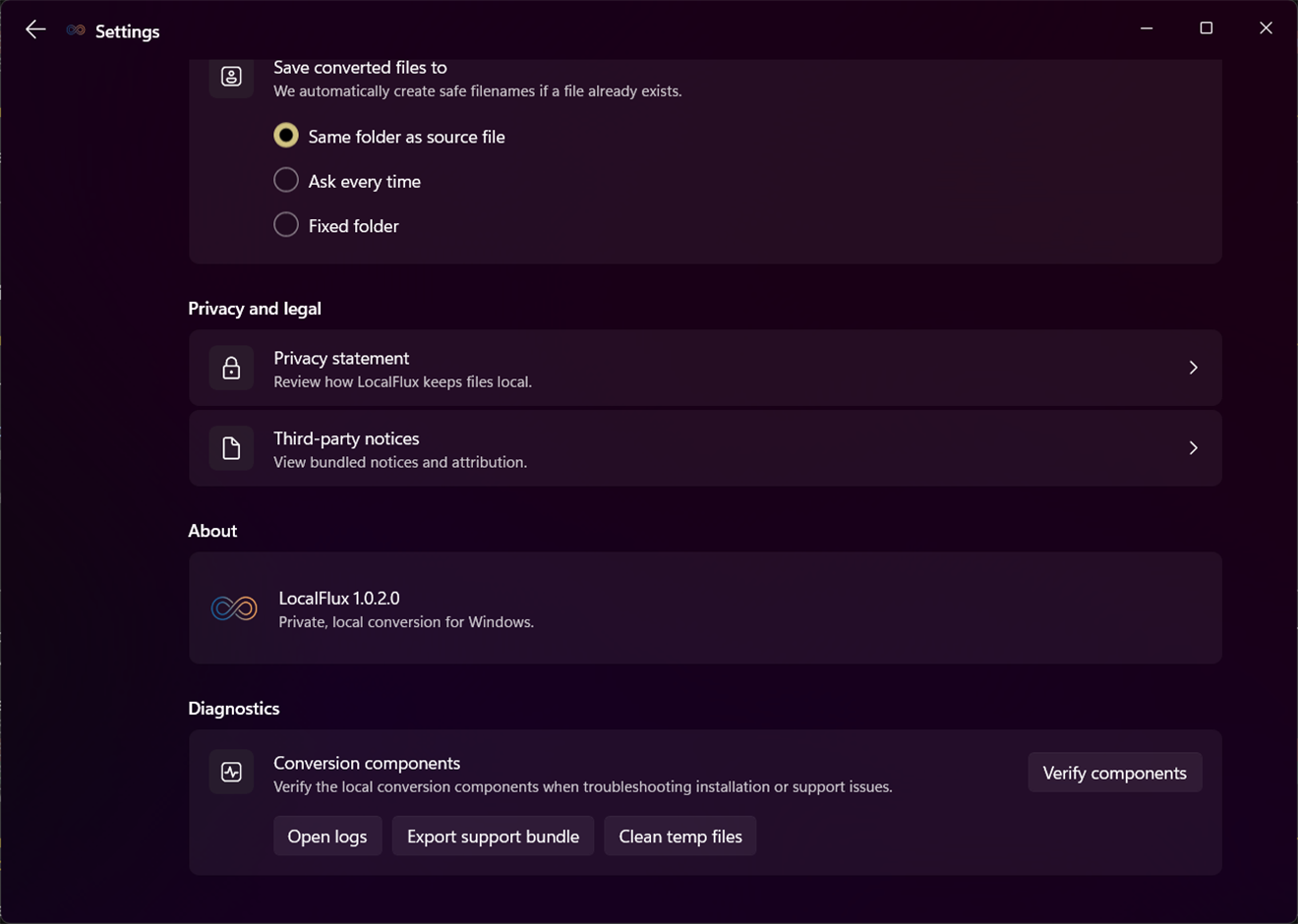
Same folder as source file: save each converted file next to its original source file.Ask every time: ask you to choose a destination folder when conversion starts.Fixed folder: save converted files to one folder you choose in Settings.
When Fixed folder is selected, use Browse to choose the folder or Clear to remove the saved folder. If no folder is saved, Settings shows No fixed folder selected. and LocalFlux asks you to choose a fixed output folder before converting.
The Settings page states We automatically create safe filenames if a file already exists. This means LocalFlux creates converted copies with safe names instead of overwriting your originals during normal conversion. For full destination behavior, see Choose Output Location.
Privacy And Legal
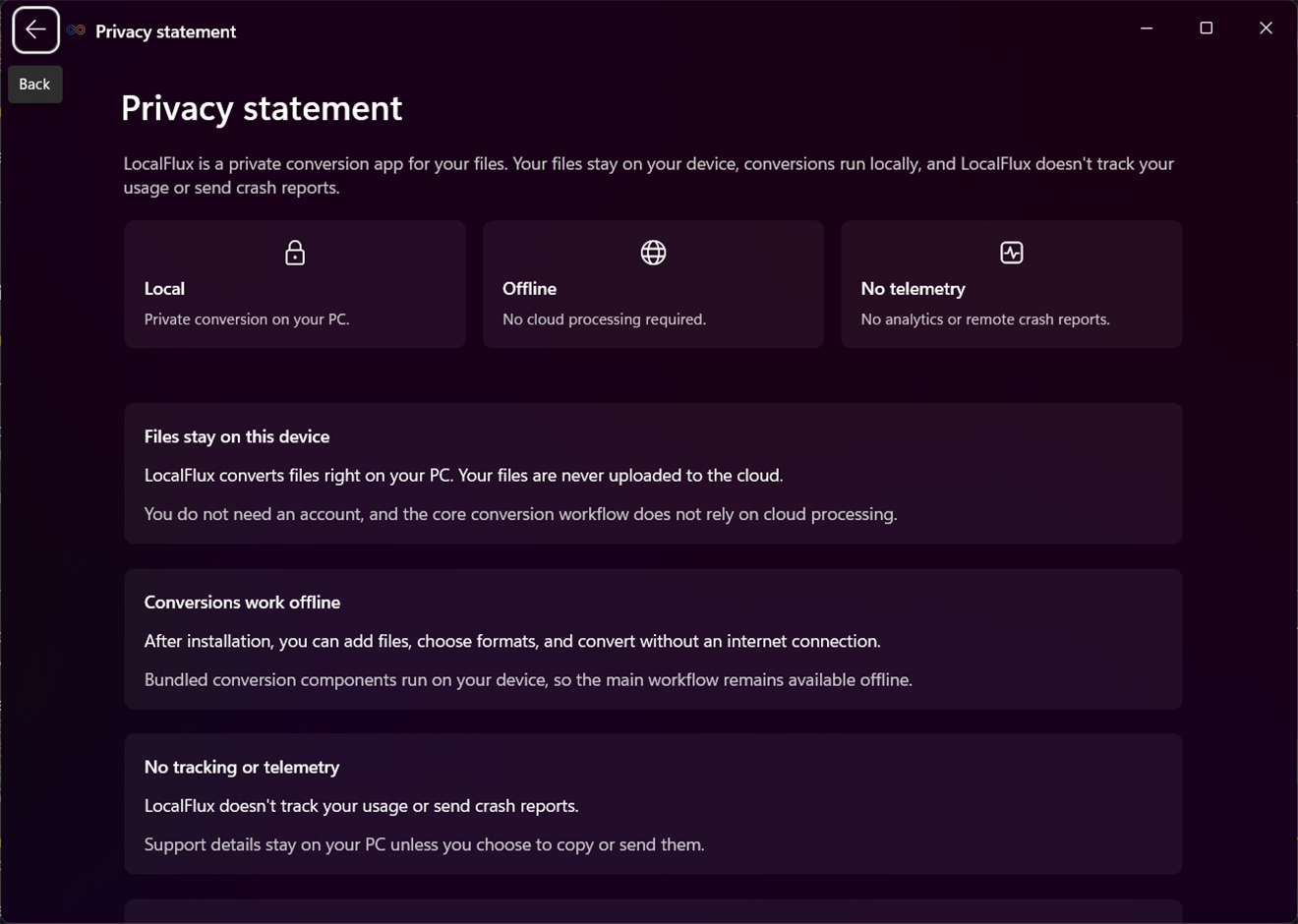
Open Settings > Privacy and legal to review the Privacy statement and Third-party notices pages.
Privacy Statement
The Privacy statement page explains the privacy model in user terms:
- LocalFlux converts files on your PC during normal use.
- Your files are not uploaded to the cloud for the core conversion workflow.
- You do not need an account to convert files.
- After installation, normal supported conversions can run without an internet connection.
- LocalFlux does not track your usage, include telemetry, or send remote crash reports.
- Support details stay on your PC unless you choose to copy, export, or send them.
The privacy page can also link to the full LocalFlux privacy policy on the LocalFlux website. Opening that policy is a user action and requires leaving the local app experience.
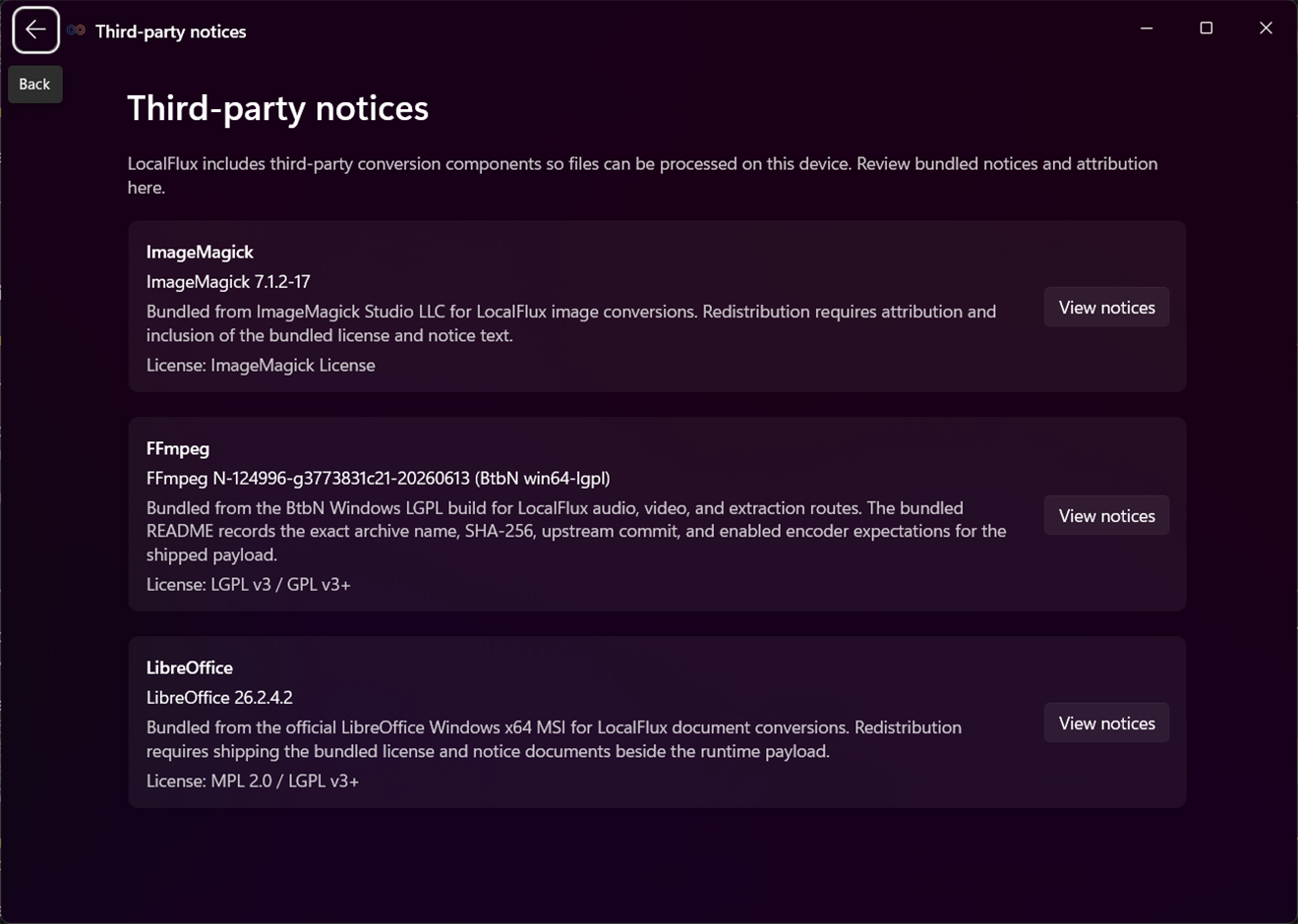
Third-Party Notices
LocalFlux includes bundled third-party conversion components so supported files can be processed on your device. Third-party notices lists the bundled notices and attribution for those components.
The notices page includes conversion components such as ImageMagick, FFmpeg, and LibreOffice. Use View notices on that page when you want to read the bundled license, notice, or attribution text for a component.
These notices explain the local conversion tools included with the app. They are not developer setup instructions, and they do not change which routes LocalFlux supports.
Diagnostics And Support
Open Settings > Diagnostics when you need to check LocalFlux conversion components or collect local support information.
Conversion Components
Use Verify components to check the local conversion tools. While the check is running, LocalFlux can show Verifying conversion components. When the check succeeds, LocalFlux can show Conversion components are ready and explain that image, media, and document conversion components responded successfully.
Use this when conversions fail unexpectedly, after installation, or when support asks you to confirm that the local conversion tools are available.
Local Diagnostics Actions
Diagnostics actions work with files on your PC:
Open logsopens the local diagnostics log location. If LocalFlux cannot find or open that location, it showsLogs unavailable.Export support bundlecreates a local support bundle. LocalFlux saves the bundle on your PC and opens the folder that contains it when export succeeds.Clean temp filesremoves stale LocalFlux temp folders and temp files. After cleanup, LocalFlux reports how many stale folders and temp files were deleted and how many registered files were retained.
Diagnostics stay local unless you choose to copy, export, or send them. LocalFlux does not use these actions as a remote telemetry pipeline, and it does not automatically upload support bundles or logs.
For a failed row, Copy diagnostics copies support details for that selected failed conversion to the clipboard. Use it only when you choose to share those details with support or save them for your own troubleshooting.
Explorer Context Menu
On Windows 11, the installed LocalFlux app can add a File Explorer command named Convert with LocalFlux for supported local files. Use it when you are already working in File Explorer and want to send one or more eligible files directly into LocalFlux.
To use the Explorer command:
- In File Explorer, select one or more supported local files.
- Right-click the selection.
- Choose
Convert with LocalFlux. - LocalFlux opens, or the already-running LocalFlux window receives the selected files.
- Choose the output format and run the conversion from the LocalFlux queue.
The Explorer command is an intake shortcut. It does not change which conversions LocalFlux supports, and it does not convert every file type that Windows Explorer can show.
Supported Explorer Selections
The Explorer command is registered for supported LocalFlux source file extensions. If Convert with LocalFlux does not appear, the selected item may be an unsupported file type, a folder, another shell item, a missing file, a non-local path, or a file type that is not registered for the Explorer command.
After Explorer sends files to LocalFlux, the same intake and route rules still apply. Unsupported, duplicate, non-local, and missing files can be skipped. Supported files still need a compatible Output before they can convert. See What Skipped Files Mean and Supported Routes.
Handoff To LocalFlux
If LocalFlux is closed, choosing Convert with LocalFlux opens LocalFlux and adds the eligible selected files to the queue.
If LocalFlux is already running, the Explorer selection is handed to the existing LocalFlux window. This adds eligible files to the current queue instead of starting a separate conversion workflow. Finish the conversion in LocalFlux by choosing Output, reviewing ready or blocked rows, and selecting Convert.
Supported Routes
LocalFlux supports explicit source-to-output routes only. The output picker shows formats LocalFlux can create, but each row still needs a supported route from that source file to the selected Output. Unsupported combinations stay blocked until you choose a compatible output, clear incompatible visual settings, or remove the row.
For workflow guidance before using the tables, start here:
- Image Workflows
- Audio Workflows
- Video Workflows
- Extract Audio From Video
- Document And Markdown Workflows
The tables below are user-facing summaries of supported routes.
Image Routes
| Source format | Supported outputs |
|---|---|
HEIC | JPG, PNG, WebP, ICO |
HEIF | JPG, PNG, WebP, ICO |
WebP | JPG, PNG, AVIF, ICO |
PNG | JPG, WebP, AVIF, ICO |
JPG / JPEG | PNG, WebP, AVIF, ICO |
RAW (ARW, CR2, DNG, NEF, ORF, RW2) | JPG, PNG, WebP, ICO |
SVG | JPG, PNG, WebP, ICO |
AVIF | JPG, PNG, WebP |
GIF | JPG, PNG, ICO |
BMP | JPG, PNG, WebP, ICO |
TIFF / TIF | JPG, PNG, ICO |
ICO is output-only in these routes. LocalFlux does not support ICO as an input format and does not support AVIF to ICO.
Audio And Extraction Routes
Audio conversion starts with an audio file and creates another audio file.
| Source audio format | Supported audio outputs |
|---|---|
WAV | MP3 |
MP3 | WAV |
FLAC | MP3, WAV |
M4A | MP3, WAV |
AAC | MP3, WAV |
OGG | MP3, WAV |
WMA | MP3, WAV |
Audio extraction starts with a video file and creates an audio-only file.
| Source video format | Supported audio extraction outputs |
|---|---|
MP4 | MP3, WAV |
MOV | MP3, WAV |
MKV | MP3, WAV |
WebM | MP3, WAV |
AVI | MP3, WAV |
WMV | WAV |
M4V | WAV |
FLV | WAV |
Video Routes
Video routes create another video file or a GIF animation. They do not create audio-only outputs; use the extraction routes above for MP3 or WAV from video.
| Source video format | Supported video or animation outputs |
|---|---|
MP4 | MOV, WebM, GIF |
MOV | MP4, WebM, GIF |
MKV | MP4, MOV, WebM, GIF |
WebM | MP4, MOV, GIF |
AVI | MP4, MOV, WebM, GIF |
WMV | MP4, MOV, WebM |
M4V | MP4, MOV, WebM |
FLV | MP4, MOV, WebM |
Document Routes
Document routes cover supported text documents, Office files, OpenDocument files, Markdown, spreadsheets, CSV/TSV, and presentations. LocalFlux does not support PDF or HTML as input formats.
| Source format | Supported outputs |
|---|---|
TXT | PDF, HTML |
DOCX | PDF, ODT, HTML, TXT |
ODT | PDF, DOCX, HTML, TXT |
Markdown | HTML, PDF, TXT |
XLSX | PDF, ODS, CSV, TSV |
ODS | PDF, XLSX, CSV, TSV |
CSV | XLSX, ODS |
TSV | XLSX, ODS |
PPTX | PDF, ODP |
ODP | PDF, PPTX |
Troubleshooting
Use this section when LocalFlux does not add a file, a row is blocked, the selected output does not work for every file in the queue, or a completed output cannot be opened.
My File Was Skipped Or Was Not Added
LocalFlux only adds supported local source files. If a file is skipped, the rest of your queue may still be usable.
Common causes:
- The file type is not a supported LocalFlux source format.
- The file is already in the queue or appears more than once in the same selection.
- The selected item is a folder or another shell item, not a file.
- The file was moved, renamed, or deleted before LocalFlux could add it.
- The path points to a network location, URL, or cloud-only placeholder instead of a local file on this PC.
What to try:
- Check Supported Routes for supported source formats.
- Save network, web, or cloud-only files to a local folder first.
- Add the local copy again with
Browse files,Add files, drag and drop, paste, orConvert with LocalFlux. - If only some files were skipped, continue with the files that were added.
For more detail, see What Skipped Files Mean.
The Row Says Needs Different Output
Needs different output means the selected Output is not supported for that source file. This is not a failed conversion; the row has not run with a supported route yet.
What to try:
- Choose an
Outputthat is supported for that source file. - Run the ready rows first, then choose another
Outputfor the remaining blocked rows. - Split mixed file types into separate batches when they need different outputs.
- Check Supported Routes if you are not sure which output to choose.
Some Rows Are Ready But Others Are Blocked
Mixed batches are normal. LocalFlux uses one selected Output for the whole queue, so some files may be ready while others need a different output or different settings.
What to try:
- Select a blocked row and read the details/action panel.
- Convert the ready rows if they use the output you want.
- After ready rows finish, choose a compatible
Outputfor the remaining rows. - Remove rows you do not want to convert in this batch.
The Row Says Visual Settings Unavailable, Quality Unavailable, Or Compression Unavailable
Visual settings apply only to image and video outputs. They can block a row when the current output cannot use the active Advanced adjustments.
What to try:
- Use
Clear visual settingsto remove resize and slider settings. - Choose an image or video output if you want to keep visual settings.
- For
Quality unavailable, choose a supported quality output such asJPGorAVIF, or clear the slider setting. - For
Compression unavailable, choose a compatiblePNG, video, orGIFoutput, or clear the slider setting. - If the row says
Check visual settings, reviewWidth,Height, andAspect ratio. For unlocked aspect ratio, enter both width and height before converting.
For the full control behavior, see Advanced Visual Adjustments.
The App Will Not Accept A Network Path, URL, Cloud-Only File, Or Folder
LocalFlux works with files that already exist on this PC. It does not add web links, URLs, network-share paths such as \\server\share\file.ext, cloud-only placeholders, folders, or other shell items.
What to try:
- Download or copy the file to a local folder on this PC.
- Make sure the file has finished syncing and is available offline if it came from a cloud folder.
- Add the local file again.
- If the file type is supported but the output is blocked, choose a compatible
Output.
The Row Says Failed
Failed means LocalFlux tried to convert the row but the conversion did not finish. Select the failed row to read the details/action panel.
The failed-row panel can show:
Issue: a plain-English summary of what went wrong.What to try: suggested next steps, such as retrying, changingOutput, clearing visual settings, closing apps that may be locking files, checking that the output folder is available, or repairing/reinstalling only when the app guidance suggests it.Details: expandable information that can help with support or deeper troubleshooting.Copy diagnostics: copies support details for the selected failed conversion to the clipboard.
Diagnostics stay local unless you choose to copy, export, or send them. Use Copy diagnostics only when you want to share the selected failed-row details or save them for your own troubleshooting. For a broader local support bundle, use Local Diagnostics Actions in Settings.
For more about failed rows, see Failed Rows and Diagnostics And Support.
I Cannot Open A Converted File Or Output Folder
Completed-row actions open files and folders that already exist on this PC. If Open file, Open folder, Open all outputs, or Open output folder cannot open the result, check whether the converted output still exists in the location LocalFlux saved it.
What to try:
- Use the completed row’s saved output location or
Open folderaction to confirm the converted file is still there. - If the converted file was moved, renamed, or deleted after conversion, find the new location or run the conversion again.
- Check whether the output went to
Same folder as source file, the folder you chose forAsk every time, or theFixed folderfrom Settings. - If the folder no longer exists or is unavailable, choose another local output folder and convert again.
For more detail, see Open Converted Files and Choose Where Converted Files Are Saved.
LocalFlux Cannot Prepare The Output Location
Output preparation happens before LocalFlux writes converted files. If LocalFlux says the output folder is unavailable, invalid, not local, too long, locked, or cannot be prepared, the conversion has not been able to write the new output in the requested place.
What to try:
- Choose an existing local folder on this PC.
- Avoid network folders, missing folders, cloud-only locations, and folders LocalFlux cannot write to.
- Shorten long folder or file names if Windows reports that the output path is too long.
- Close any app that may be locking the destination file or folder, then try again.
- If you use
Fixed folder, openSettings>Output, choose a new fixed folder withBrowse, or useClearand pick a different output mode.
If the row also shows Failed, select it and review Issue, What to try, Details, and Copy diagnostics. For broader local support information, see Local Diagnostics Actions.
LocalFlux Says Conversion Components Need Attention
Messages such as Waiting on ..., Conversion is unavailable, or component-related failed-row guidance mean the selected route is supported, but a required local conversion component is not currently available to LocalFlux. This can affect one conversion family while other conversion types still work.
What to try:
- Wait for LocalFlux to finish checking local conversion components if the app says it is still checking.
- Open
Settings>Diagnosticsand useVerify components. - If verification fails, retry the check once.
- If LocalFlux still says a component is missing, invalid, or cannot start, repair or reinstall LocalFlux as the app guidance suggests.
- If only one component family is affected, you can still use other conversion types that show as ready.
Diagnostics stay local unless you choose to copy, export, or send them. Use Conversion Components to understand the readiness check, and use Local Diagnostics Actions for Open logs, Export support bundle, and related local support actions.
Keyboard Shortcuts
Use these shortcuts from the main converter window:
- Add files with the picker: press
Ctrl+Oto open the file picker when LocalFlux is idle and the converter is usable. See Add Files. - Paste copied files: press
Ctrl+Vto add supported local files, or copied text that contains existing local file paths, from the clipboard. This shortcut does not run while you are typing in an editable text field. See Add Files. - Remove the selected waiting row: select a removable row in the queue, then press
Delete. This does not remove rows while conversion is running, and it does not delete the source file from disk. See Understand The Queue. - Stop active conversion: press
Escapewhile a conversion is running to triggerStop queue. This shortcut does not act as general navigation and does not run while you are typing in an editable text field. See Run, Stop, And Clear Conversions.