
The Definitive Guide to Digital File Formats & Extensions
The Definitive Guide to Digital File Formats & Extensions
If you’ve used a computer or a smartphone in the last decade, you’ve likely experienced “Format Friction.”
You try to upload a photo from your iPhone to a website, but it gets rejected because it’s a .HEIC file. You download an image from Google to use in a presentation, but PowerPoint refuses to open it because it’s a .WebP. You try to import a video into your editing software, but the .MKV container isn’t supported.
Why hasn’t the tech industry agreed on a single, universal format for images, videos, audio, and documents? Why do we have so many file extensions, and why do new ones keep popping up every few years?
The short answer is a constant, ongoing war between three factors: Quality, File Size, and Corporate Ecosystems.
In this comprehensive guide, we are going to break down the alphabet soup of digital file formats. We’ll explain why certain formats exist, when you should use them, and how to effortlessly translate between them when you get stuck.
1. Images: The Battle for the Web
For over two decades, the .JPG (or JPEG) has been the undisputed king of digital images. Created in 1992, it was designed to compress photographic images so they could be easily transmitted over the slow dial-up internet of the 90s.
But as displays gained higher resolutions (4K monitors, Retina screens), the flaws of the aging JPG began to show. To look good on modern screens, JPGs require large file sizes. To keep file sizes small, JPGs introduce ugly visual artifacts (that blocky, blurry look).
Tech giants realized they needed something better.
Apple’s .HEIC Format (And How to Convert It)
In 2017, Apple made a massive shift. They changed the default photo format on iPhones from JPG to HEIF (High-Efficiency Image Format), using the .HEIC file extension.
Why they did it: HEIC is incredibly efficient. It can store a photo at twice the visual quality of a JPG at the exact same file size. For Apple, this meant users could take twice as many high-resolution photos before their iCloud storage filled up.
The Problem: HEIC was heavily patented and primarily supported within the Apple ecosystem. For years, Windows PCs natively struggled to open them, and most websites still do not accept HEIC uploads. (For a step-by-step tutorial on handling these files locally, read our guide on how to convert HEIC photos on Windows without uploading).
Google’s .WebP Format (Why It’s Everywhere)
While Apple was optimizing for iPhone storage, Google was trying to speed up the internet. They created WebP.
Why they did it: Faster loading images mean faster websites. Faster websites mean better search experiences and lower server costs. WebP provides superior lossless and lossy compression for images on the web compared to JPG and PNG. It also supports transparency (like PNG) and animation (like GIF).
The Problem: If you try to save an image off a website to use on your desktop, it will almost certainly save as a WebP. Unfortunately, many older desktop applications (including older versions of Photoshop and various office suites) still don’t know how to handle WebP files.
Why .JPG and .PNG Refuse to Die
Despite the superiority of HEIC and WebP, JPG and PNG remain the universal standard. Why? Because of legacy compatibility. Every web browser, operating system, digital camera, and piece of software written in the last 25 years can open a JPG. Until HEIC and WebP reach 100% universal support, JPG isn’t going anywhere.
2. Video: Containers vs. Codecs
Video files are notoriously confusing because a video file extension (like .MP4) doesn’t actually tell you how the video was encoded.
To understand video formats, you must understand the difference between a Container and a Codec.
Imagine a video file is a cardboard box.
- The Container is the cardboard box itself. It holds the video track, the audio track, and the subtitles.
- The Codec (Coder-Decoder) is the language the video is spoken in. It’s the mathematical algorithm used to compress the visual data inside the box.
The Containers: .MP4 vs .MKV vs .MOV
- MP4: The universal standard. Almost every device on the planet can open an MP4 container. It is the safest bet for sharing video.
- MOV: Developed by Apple for QuickTime. Very similar to MP4, but optimized for Mac environments and professional editing workflows (like ProRes).
- MKV (Matroska): An open-source container that is incredibly flexible. Unlike MP4, an MKV can hold unlimited numbers of video, audio, and subtitle tracks in a single file. It is highly favored by video enthusiasts and for ripping DVDs/Blu-rays, but it is often rejected by professional video editing software like Adobe Premiere.
Video Codecs Explained: H.264 vs. H.265 (HEVC) vs. AV1
- H.264 (AVC): The codec that powers the modern internet. It is highly compatible and looks great.
- H.265 (HEVC): The successor to H.264. It offers 50% better compression (smaller files, same quality) but requires more processing power to encode and decode.
- AV1: The future. Developed by an alliance of tech giants (Google, Netflix, Amazon) to be a royalty-free alternative to H.265. It is incredibly efficient, but because it is so new, many older devices lack the hardware to play it smoothly.
3. Audio: The Limits of Human Hearing
Audio formats primarily fall into two categories: Lossy and Lossless.
Lossy Audio: .MP3 and .AAC
Lossy compression works by literally throwing away data. The algorithms analyze the audio and discard frequencies that the average human ear cannot perceive.
- MP3: The format that sparked the digital music revolution. It drastically reduced file sizes, making it possible to fit a thousand songs in your pocket.
- AAC: The successor to MP3 (heavily popularized by Apple/iTunes). It achieves better sound quality at the same bitrates as MP3.
When to use them: Podcasts, general music listening, and web delivery. They are small, efficient, and good enough for 99% of listening environments (like driving or wearing standard earbuds). (If you need to pull an MP3 track from a video file, check out our guide on how to extract audio from video on Windows).
Lossless Audio: .FLAC and .WAV
Lossless formats preserve every single bit of the original audio recording. Nothing is thrown away.
- WAV: Completely uncompressed audio. Files are massive. This is the standard for professional audio editing and music production.
- FLAC (Free Lossless Audio Codec): Think of this as a
.ZIPfile for audio. It compresses the file size by about 50%, but when played back, it unpacks itself to perfectly recreate the original uncompressed audio.
When to use them: Archiving music, professional audio mixing, and listening on high-end audiophile equipment where the artifacts of MP3 compression would be noticeable.
4. Documents: Structure vs. Presentation
Why can’t we just write everything in Notepad? Because different documents serve different purposes.
.TXT and .MD (Markdown)
- TXT: Plain text. No bolding, no italics, no images. Just characters. It is the purest form of data.
- Markdown (.MD): A brilliant evolution of plain text. It allows you to add formatting (like headers, bullet points, and links) using simple keyboard symbols. It remains highly portable and is beloved by developers and writers.
The Word Processor: .DOCX
Created by Microsoft, DOCX is a zipped XML format. It is designed for editing. It holds complex layouts, tracked changes, comments, and embedded media. However, a DOCX file can look completely different depending on the software (or font library) installed on the computer opening it.
The Digital Paper: .PDF
Created by Adobe, the Portable Document Format is designed for presentation. A PDF is the digital equivalent of a printed piece of paper. It locks the fonts, images, and layout in place. A PDF will look exactly the same on a Windows PC, a Mac, an iPhone, and an Android.
The Golden Rule: Edit in DOCX or Markdown. Distribute in PDF.
Frequently Asked Questions
Why can’t Windows open HEIC files natively? Microsoft Windows does not include the necessary HEVC codecs out of the box due to licensing costs. While you can purchase extensions from the Microsoft Store, a local converter is often an easier solution for most users.
Is WebP better than JPG? For web use, yes. WebP provides superior compression, meaning images load faster without sacrificing visual quality. However, for local desktop editing, JPG remains more universally compatible across all software.
How do I extract MP3 audio from an MKV video? Since MKV is a container, it often holds an audio track (like AAC or MP3) alongside the video. To extract it, you need software (like FFmpeg or a GUI tool) that can “demux” or separate the audio track from the video without re-encoding it.
The Solution: Translating the Digital World with LocalFlux
Understanding why these formats exist is helpful, but it doesn’t solve the immediate problem: You have a file in one format, and you need it in another.
You could rely on cloud-based web converters, but uploading gigabytes of 4K video is painfully slow. Furthermore, uploading sensitive client PDFs, private family HEIC photos, or confidential audio recordings to a free, ad-supported website is a massive privacy and security risk.
This is why we built LocalFlux.
LocalFlux is the ultimate “rosetta stone” for Windows. We’ve taken the world’s most powerful, industry-standard conversion engines—FFmpeg (for video and audio), ImageMagick (for images), and LibreOffice (for documents)—and bundled them into a single, beautiful, native Windows application.
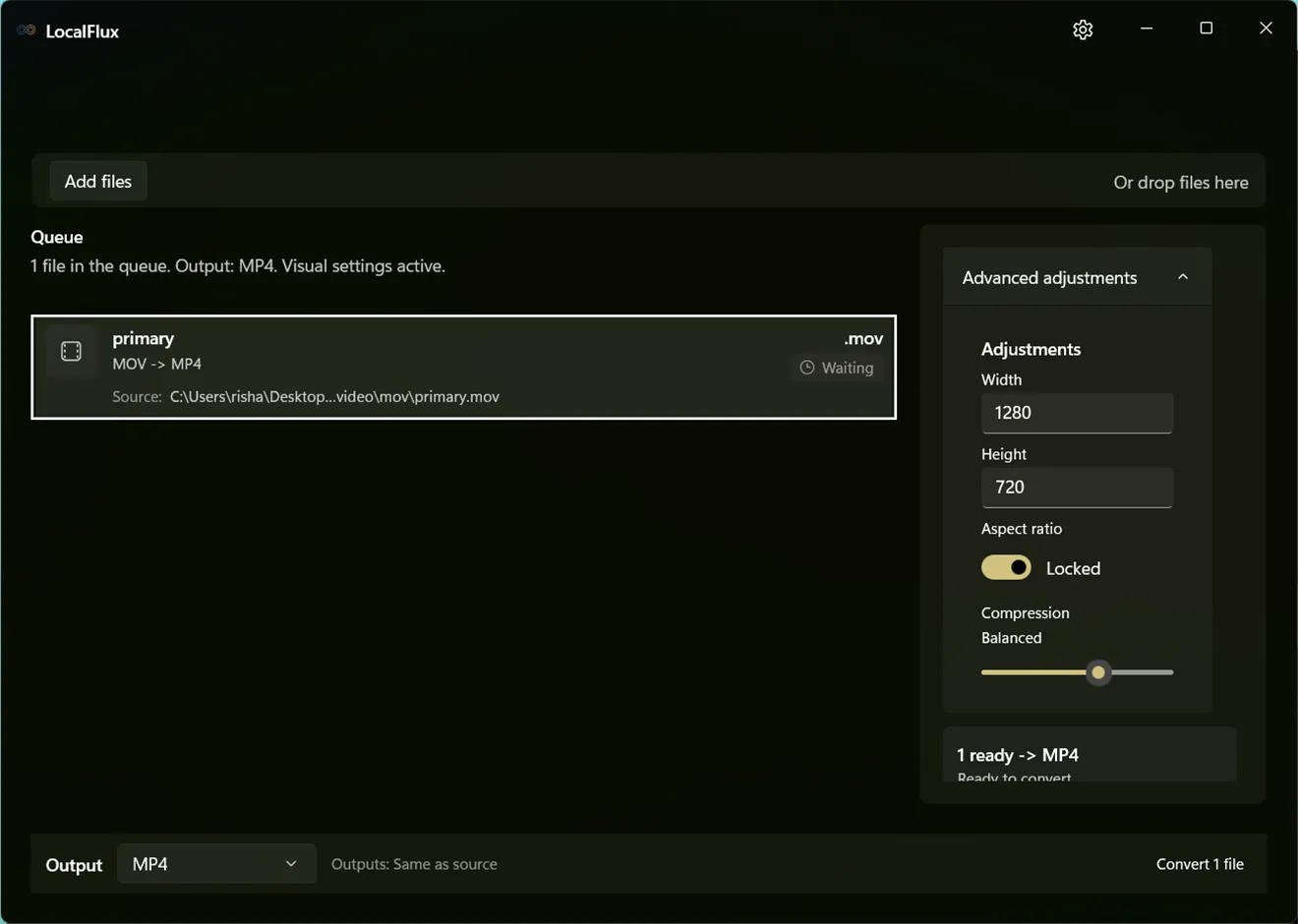
With LocalFlux, you don’t need to understand the intricacies of codecs and containers.
- Need to turn an iPhone
.HEICinto a standard.JPG? Just drag it in. - Need to rip the audio out of an
.MKVvideo and save it as an.MP3? Right-click it in Windows Explorer and select “Convert.” - Need to turn a batch of
.Markdownfiles into polished.PDFdocuments? It happens instantly.
Because LocalFlux processes everything directly on your PC’s hardware, conversions happen blazingly fast. There are no upload queues, no file size limits, and most importantly, zero privacy risks. Your files never leave your computer.
Stop fighting with file formats. Download LocalFlux from the Microsoft Store today and take control of your digital workflow.