
How to Convert PPTX to PDF Without PowerPoint
Convert a PowerPoint presentation to PDF locally on Windows and verify fonts, layout, links, media limits, and every rendered page.
On this page
- Quick answer
- What changes when a presentation becomes a PDF?
- Why use an offline converter?
- Before you convert
- Step-by-step: convert PPTX to PDF
- Tested result
- Font substitution and text reflow
- Animations, transitions, audio, and video
- Hyperlinks and accessibility
- Common mistakes
- Batch conversion
- Privacy checklist for presentations
- Troubleshooting
- Final checklist
- Publication evidence
- Practical checks before and after conversion
You can turn a PowerPoint .pptx file into a PDF on Windows without installing Microsoft PowerPoint and without uploading the deck to an online converter. LocalFlux supports this route through a bundled LibreOffice component, creating a PDF copy on the PC while leaving the presentation unchanged.
The conversion still deserves review. PPTX is an editable presentation format with fonts, themes, animations, transitions, videos, notes, and slide relationships. PDF is a fixed-page format. Static slide content can transfer well, but animation, live media, editing behavior, and some layout details do not have a one-to-one PDF equivalent.
Use the local conversion as the first step, then render or open every PDF page and compare it with an approved reference before sending it to a client, publishing it, or using it as an official record.
Quick answer
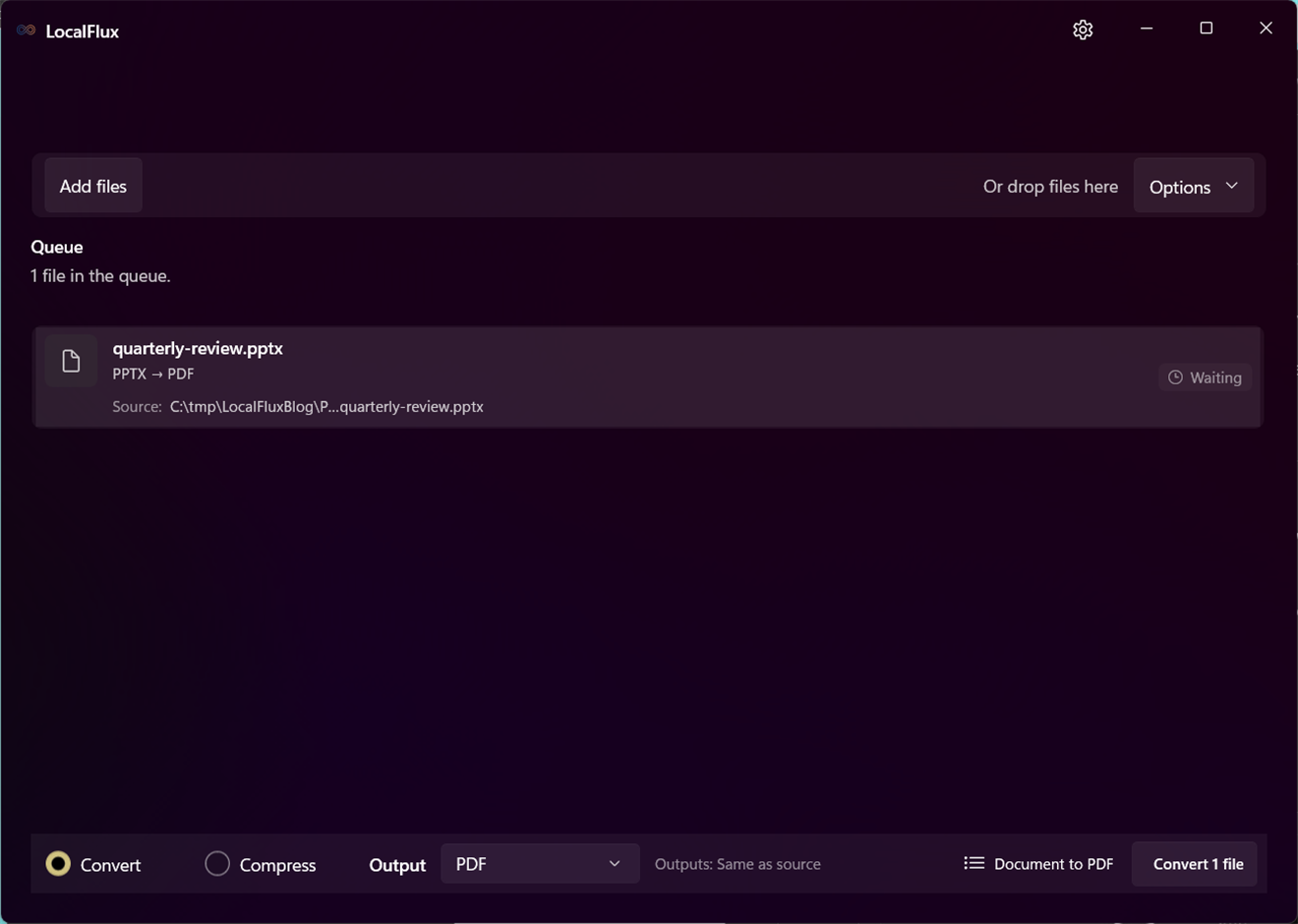
To convert PPTX to PDF without PowerPoint:
- Open LocalFlux and add the
.pptxfile. - Keep Convert selected.
- Choose PDF as the output format.
- Confirm the row shows
PPTX -> PDF. - Select Convert 1 file.
- Open the PDF and review every page for font substitution, text wrapping, clipping, and missing content.
LocalFlux performs the supported conversion locally and writes a new PDF with a safe output name.
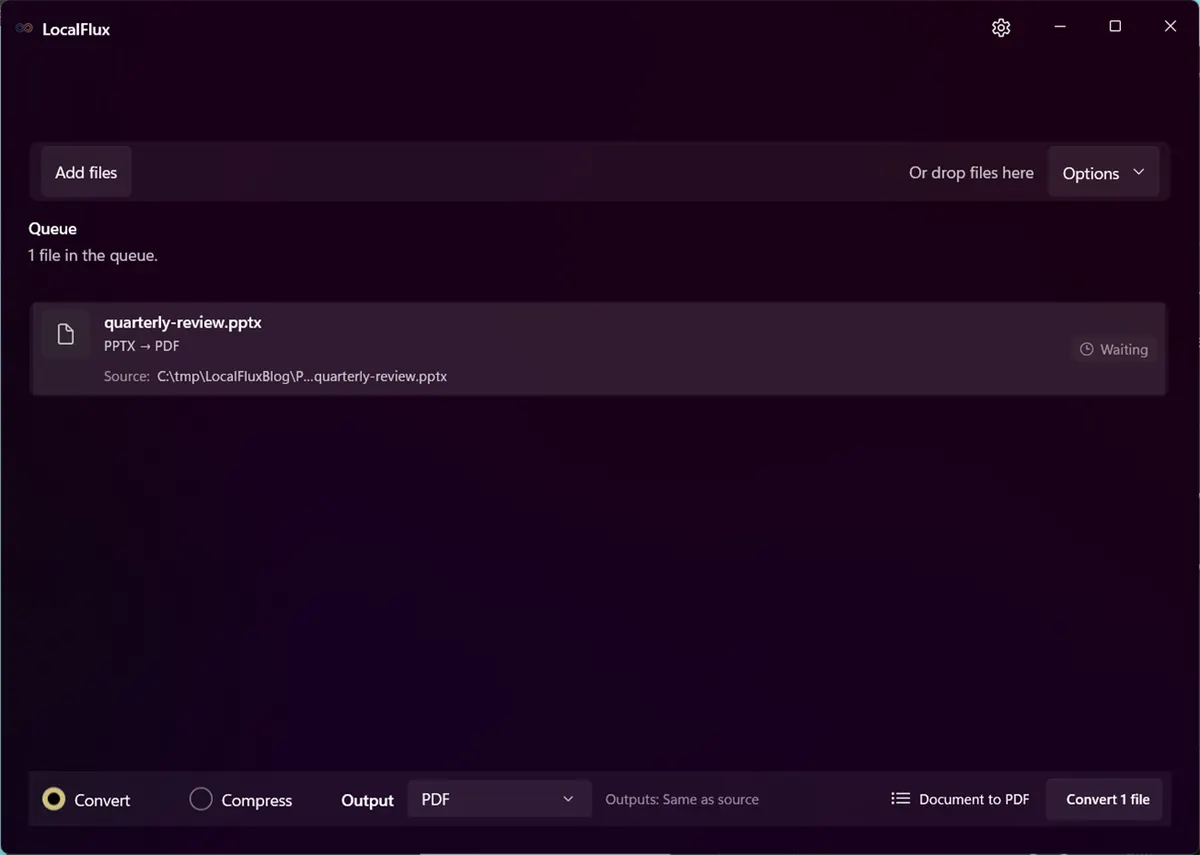
The three-slide privacy-safe presentation is ready for local PDF conversion.
What changes when a presentation becomes a PDF?
A PPTX describes a slide deck intended for presentation software. A PDF describes fixed pages intended for consistent viewing and printing. Conversion freezes a particular rendering of each exported slide.
The PDF can preserve the visible appearance of text, vector shapes, charts, and images, but it does not remain a normal editable slide deck. Features that require time or interaction need special attention:
- animations become a static state;
- slide transitions do not play in a PDF;
- embedded video and audio may be omitted or reduced to poster content;
- speaker notes are not automatically the same thing as slide pages;
- hidden-slide treatment depends on the export path;
- links may transfer, but must be tested;
- fonts may be substituted when unavailable;
- accessibility structure can differ from the source.
LibreOffice documents PDF export as a way to save a document in a portable fixed format, with options for page range, links, security, and other behavior. LocalFlux provides the supported conversion route, not LibreOffice’s full interactive export-options dialog. See the official LibreOffice PDF export help.
Why use an offline converter?
Presentations often contain unreleased strategy, customer information, financial results, product roadmaps, or speaker notes. Sending that deck to an unknown conversion website can create an unnecessary disclosure path.
LocalFlux processes the supported conversion on the PC during normal use. It does not require a LocalFlux sign-in, and the bundled conversion components allow normal supported work to run offline after installation.
Offline conversion is not a guarantee that the source is safe to share. The PDF can still expose visible data, document properties, links, and hidden or unintended content depending on the export. Review the output.
Before you convert
Make a stable source copy
Keep the PPTX and work from a copy when the deck is still being edited. A PDF is a derivative, not a replacement for the source.
Check fonts
PowerPoint decks often rely on fonts installed on the author’s computer. If a font is absent on the conversion machine, LibreOffice may substitute another. Even a visually similar font can change line breaks, bullet indentation, table height, and text-box overflow.
Install only properly licensed fonts. If the deck must render identically across systems, use an approved font set and compare the result on the conversion machine.
Review external and linked content
A presentation can link to files, images, videos, or fonts outside the PPTX package. An offline converter cannot fetch unavailable network resources. Embed necessary media or replace it with a static approved image when the PDF needs to show it.
Decide what the PDF should contain
Clarify whether the deliverable is slides only, notes pages, handouts, selected slides, or a full deck including hidden slides. The current LocalFlux route is a straightforward document-to-PDF conversion, not a handout-layout or notes-export editor.
Step-by-step: convert PPTX to PDF
1. Add the presentation
Open LocalFlux, choose Add files, and select the PPTX. Drag and drop is also available. The queue should identify the source as PPTX.
For published screenshots, use a neutral filename and a synthetic deck. User folders, client names, presentation titles, presenter names, comments, and thumbnails can all reveal information.
2. Choose PDF output
Keep Convert selected and choose PDF. Confirm the row is ready and shows PPTX -> PDF.
If multiple decks need the same output, they can be added as a batch. One selected output format applies to the compatible rows.
3. Convert locally
Select Convert 1 file. LocalFlux invokes its bundled LibreOffice route and creates a new PDF next to the source using a safe name. Microsoft PowerPoint is not required for this tested workflow.
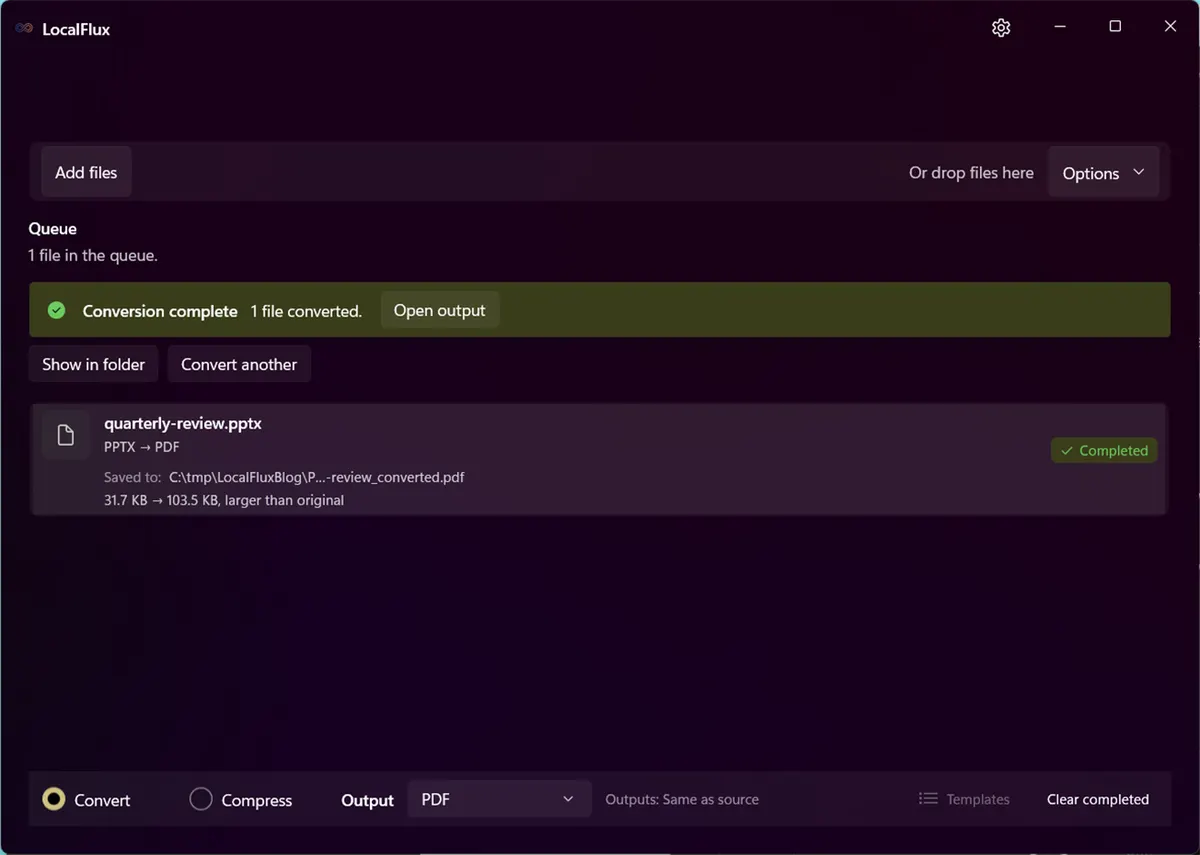
The completed file is quarterly-review_converted.pdf; the PPTX remains unchanged.
4. Open and render the PDF
Open the PDF in a current viewer. For a high-value deck, render pages to images or print a proof so problems are not hidden by the viewer’s zoom behavior.
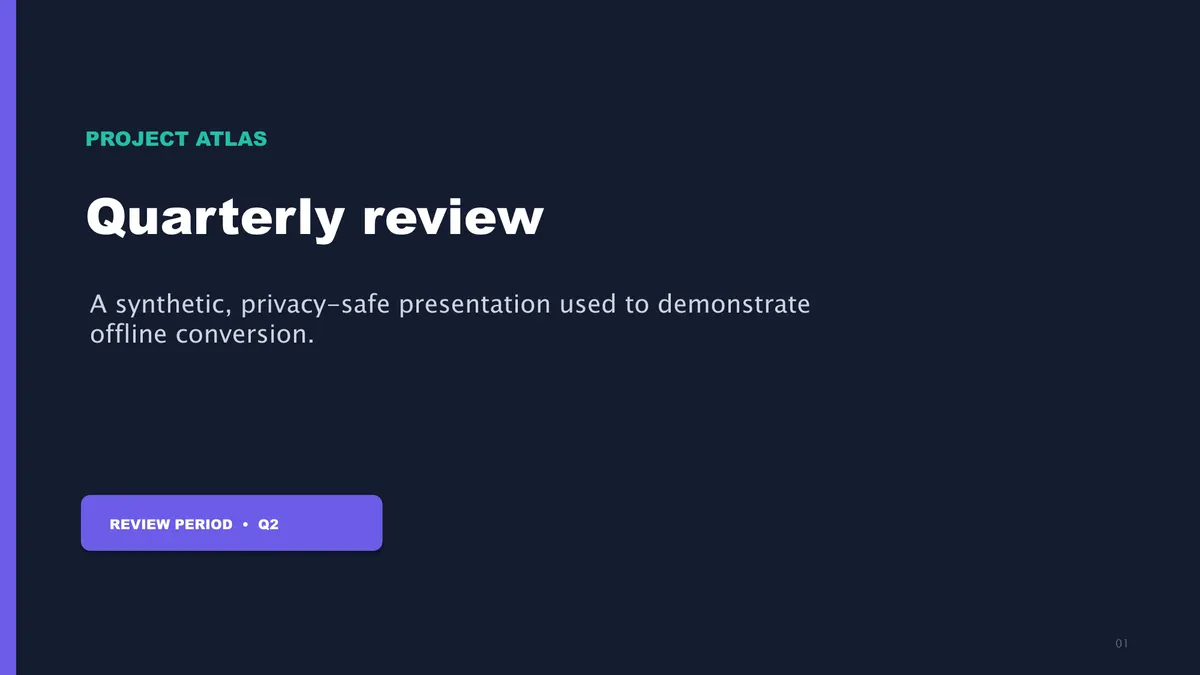
Rendered page 1 of the tested PDF. The title, subtitle, colors, and slide aspect ratio are intact.
Review every page at fit-to-page and at 100%. Check text boxes along the right and bottom edges, table cells, chart labels, footers, and any slide with a dense layout.
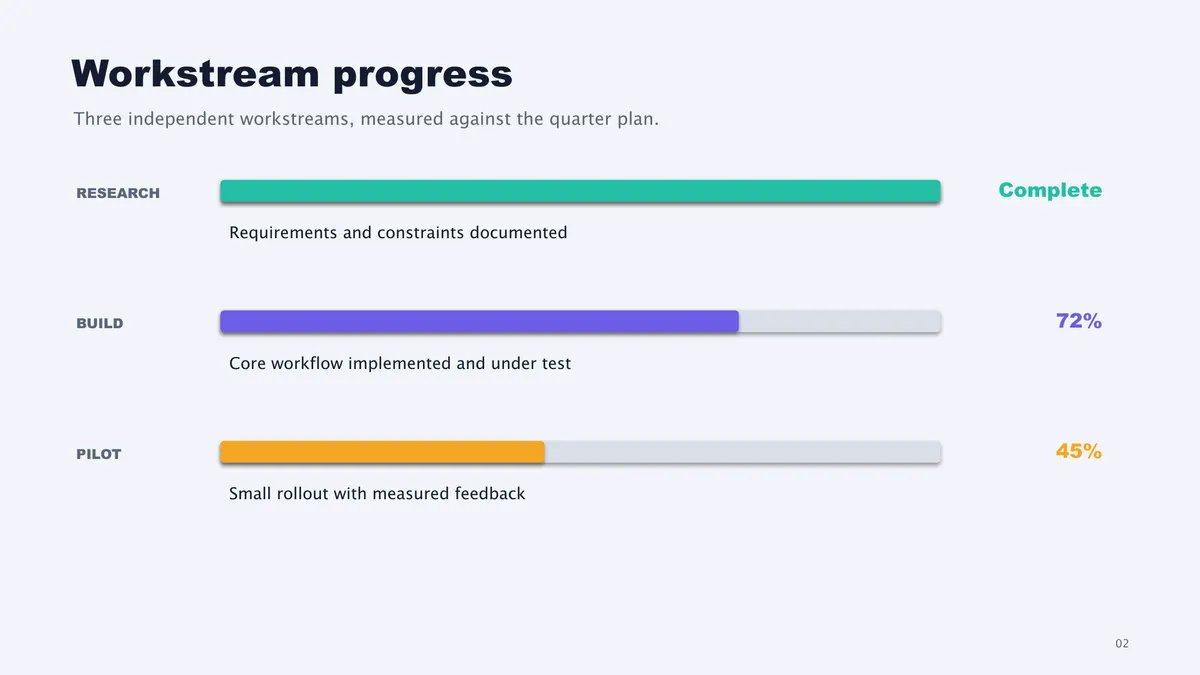
Rendered page 2 exercises text alignment, colored shapes, progress bars, and small labels.
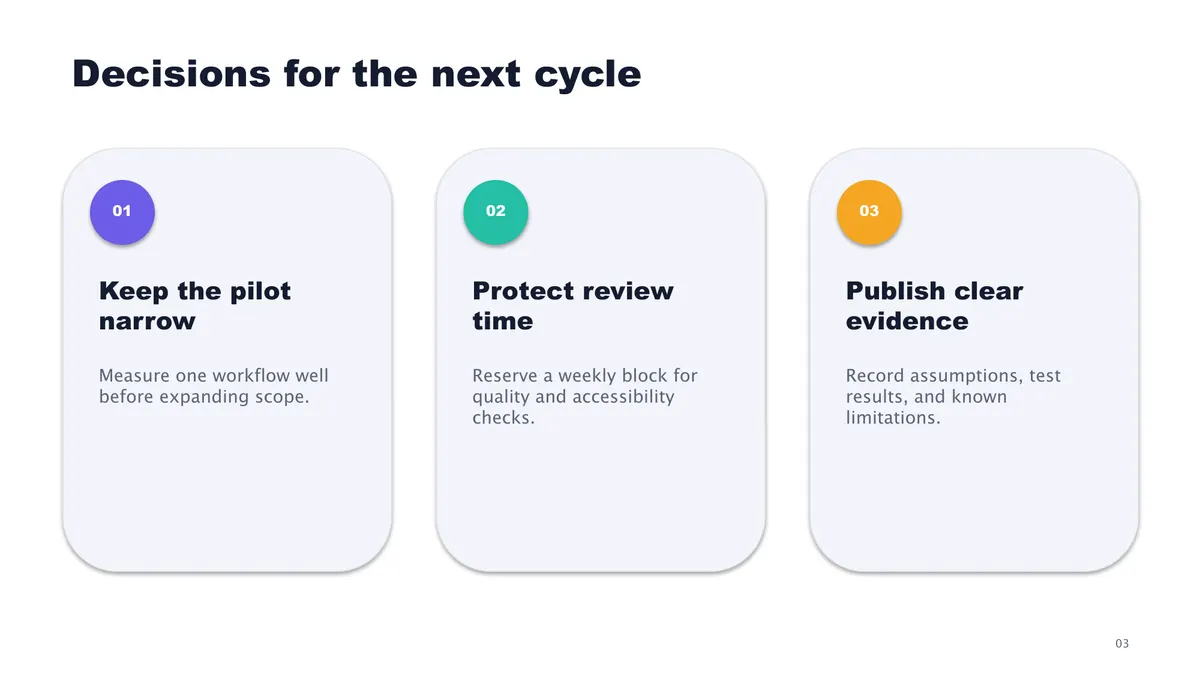
Rendered page 3 exercises rounded cards, multi-line text, and repeated layout.
Tested result
The sample deck was generated specifically for this article and contains no personal information. It has three 16:9 slides with Aptos-family text, vector shapes, progress bars, and multi-line card content.
| Observation | Result |
|---|---|
| Source | quarterly-review.pptx, 32,435 bytes |
| Output | quarterly-review_converted.pdf, 106,011 bytes |
| Slide/page count | 3 slides -> 3 PDF pages |
| PDF page size | about 960 x 540 points, matching 16:9 slides |
| PDF producer | LibreOffice 26.2.4.2 (X86_64) |
| Visual review | all three pages rendered; no clipped text, missing shapes, or blank pages observed |
The sample proves this static synthetic layout on the tested machine. It does not prove perfect fidelity for every PowerPoint theme, SmartArt object, equation, embedded font, animation, macro, 3D model, chart type, media object, or third-party add-in.
Font substitution and text reflow
Font problems are among the most common presentation-conversion failures. A substitution can make text wider or taller and cause:
- a title to wrap unexpectedly;
- bullets to move to another line;
- a table row to expand;
- text to shrink or overflow;
- labels to be clipped;
- carefully aligned columns to drift.
Compare the PDF with an approved screenshot or with the deck on a machine that has the intended fonts. The fact that the PDF opens is not evidence that the layout is correct.
When exact appearance matters and licensing permits, one option is to convert critical text to outlines in the authoring workflow. That sacrifices editability and can weaken accessibility, so retain an accessible source and use outlining selectively.
Animations, transitions, audio, and video
PDF pages are static. A bullet sequence that appears one item at a time may be exported in a final static state, while a transition between slides has no ordinary PDF equivalent. Embedded media can be unsupported, omitted, or represented only by a still image.
Before conversion, decide what a reader needs. If motion carries meaning, create a static alternative: a sequence of slides, a contact sheet, captions, or a link to an approved video. Do not assume the PDF preserves the presentation experience.
LocalFlux does not edit animations, select build states, extract media, or create handouts. Make those decisions in a presentation editor before conversion.
Hyperlinks and accessibility
Test every important hyperlink in the PDF. Links may be represented differently depending on how they were created, and a visible URL is not proof that a clickable annotation exists.
Accessibility also needs a separate review. Check reading order, alt text, contrast, document language, heading semantics, and whether meaningful content has been reduced to an unlabeled graphic. A good-looking PDF is not automatically an accessible PDF.
If an accessible tagged PDF is a contractual requirement, validate it with dedicated PDF accessibility tools. LocalFlux is not a remediation application.
Common mistakes
Assuming “converted” means “identical”
Office compatibility is complex. Review every slide, especially those with custom fonts, SmartArt, charts, media, or tightly fitted text.
Sending only the PDF and deleting the PPTX
The PDF is not a convenient source for future slide editing. Keep the presentation.
Ignoring speaker notes and hidden slides
Confirm what the output should include. Do not assume notes are exported or hidden slides are excluded according to your intended policy.
Publishing document properties accidentally
Presentation and PDF properties can include title, author, subject, and dates. Use privacy-safe properties for public samples and inspect real outputs before sharing.
Expecting a PDF editor
LocalFlux creates a PDF from the supported source. It does not merge, split, sign, OCR, redact, password-protect, rearrange, or edit PDF pages.
Batch conversion
Batch conversion is useful for a folder of approved decks that share the same output policy. First convert a representative set containing the most complex fonts, charts, and layouts. Review those PDFs before processing the remainder.
Keep a conversion record containing source hash, output hash, app version, page count, and review status when the files are regulated or business-critical. A batch completion message proves that files were produced, not that every page passed visual inspection.
Privacy checklist for presentations
Before sharing the PDF, inspect:
- visible names, email addresses, account IDs, and customer data;
- speaker notes and comments in the PPTX;
- hidden slides;
- embedded or linked media;
- document properties;
- charts with source data labels;
- URLs and QR codes;
- filenames and folder paths visible in screenshots.
The synthetic fixture and screenshots in this package use only the neutral “Project Atlas” label and generic workstream data.
Troubleshooting
A page is blank. Confirm that the slide contains visible content, required fonts and linked assets are available, and the PPTX is not damaged. A technically valid PDF can still contain a blank page; render it to verify.
Text wraps or clips. Install the intended font, reduce text density in the source, or adjust the layout in a presentation editor.
A video is missing. Replace it with a poster frame and link, or deliver the presentation/video separately. PDF is a static target.
The slide size changed. Inspect the source slide dimensions and the PDF page size. Wide and standard decks should not be mixed without review.
Links do not work. Test annotations in the final viewer and recreate critical links in the authoring file if necessary.
Final checklist
- Page count matches the intended slide set.
- Every page was rendered or opened and visually reviewed.
- Fonts, wrapping, bullets, charts, and shapes are correct.
- Animations and media have an acceptable static alternative.
- Links and accessibility requirements were tested.
- Document properties and visible content contain no unwanted personal information.
- The original PPTX is retained.
For repeat private document conversion without Microsoft Office, get LocalFlux from the Microsoft Store. Use the local conversion to create the PDF, then treat visual and accessibility review as part of the deliverable rather than an optional final glance.
Publication evidence
The files used in this article are synthetic and privacy-reviewed. You can inspect the published source and converted output in the sample folder, along with the test record and SHA-256 media manifest:
Practical checks before and after conversion
The reliable workflow is to check fonts, slide size, notes, hidden slides, links, transparency, animations, video, and page order; keep PPTX as the editable master. This matters because changing a file extension does not preserve every property of the source. Decide what the destination actually needs, keep the source as the master, and use a small representative file before processing a large batch.
Before you start
- Record the source format and the properties that matter to the destination.
- Choose settings for the intended viewer, editor, device, or upload system.
- Use a new output folder and keep collision-safe names.
- Open the result in the software that will actually receive it.
- Compare content, dimensions or duration, and any metadata you expected to keep or remove.
Review the output
A successful status only confirms that an output was written. It does not prove that every font, frame, channel, page, formula, profile, tag, or accessibility feature survived. For important work, inspect representative outputs and retain the original until the delivered copy has been accepted.
A successful status only confirms that an output was written. It does not prove that every font, frame, channel, page, formula, profile, tag, or accessibility feature survived. For important work, inspect representative outputs and retain the original until the delivered copy has been accepted.
The reliable workflow is to check fonts, slide size, notes, hidden slides, links, transparency, animations, video, and page order; keep PPTX as the editable master. This matters because changing a file extension does not preserve every property of the source. Decide what the destination actually needs, keep the source as the master, and use a small representative file before processing a large batch.