
How to Convert DOCX to PDF on Windows Without Microsoft Word
You have a Word document, but Microsoft Word is not installed. It may be a contract, an internal report, a client brief, or another file you do not want to send through an upload-based converter. On Windows 11, LocalFlux can turn a supported .docx file into a PDF directly on your PC.
The short version is simple: add the DOCX, confirm PDF as the output, choose a destination, and convert. In our controlled test, LocalFlux 1.0.6 converted a three-page DOCX into a three-page PDF without Microsoft Word. The original stayed byte-for-byte unchanged, all eight checked text markers were present, and all three pages matched our controlled LibreOffice reference render pixel for pixel.
There was one deliberate caveat: the document requested a fictional font that was not installed, so a fallback font was used. That is exactly why a successful conversion should still be reviewed before the PDF is sent.
Best for: private or recurring DOCX-to-PDF work on Windows 11, people without Microsoft Word, and anyone who wants a focused desktop workflow with no browser upload.
Not for: editing PDFs, guaranteeing perfect reproduction of every advanced Word feature, or replacing a formal document-review process. If Word or LibreOffice is already installed and this is an occasional task, its built-in PDF export may be enough.
Get LocalFlux from the Microsoft Store
Quick steps: DOCX to PDF on Windows
- Open LocalFlux and add the
.docxfile. - Confirm that the queue shows DOCX → PDF.
- Choose the source folder or another local output folder.
- Select Convert 1 file.
- Open the PDF and check the layout, fonts, page count, links, and metadata.
LocalFlux creates a new _converted.pdf file. In the tested workflow, it did not overwrite or modify the original DOCX.
What you need
- A Windows 11 PC with LocalFlux installed.
- A supported
.docxfile that is not damaged or password-protected. - Enough free space for a separate PDF copy.
- A PDF viewer for the final check. A modern browser is usually sufficient.
This article documents a real, controlled conversion with LocalFlux 1.0.6 x64 on Windows 11 25H2. The test document is synthetic and contains no personal or customer data.
How to convert DOCX to PDF without Word
1. Add the DOCX file
Open LocalFlux and select Add files, or drag the document into the window. The queue should identify the source as DOCX and set the route to DOCX → PDF.
For this test, we used a synthetic file named supplier-review-confidential.docx. It contains three US Letter pages with headings, fixed page breaks, numbered and bulleted lists, shaded callouts, headers, footers, page numbers, and two tables. It also requests a fictional font that is intentionally unavailable.
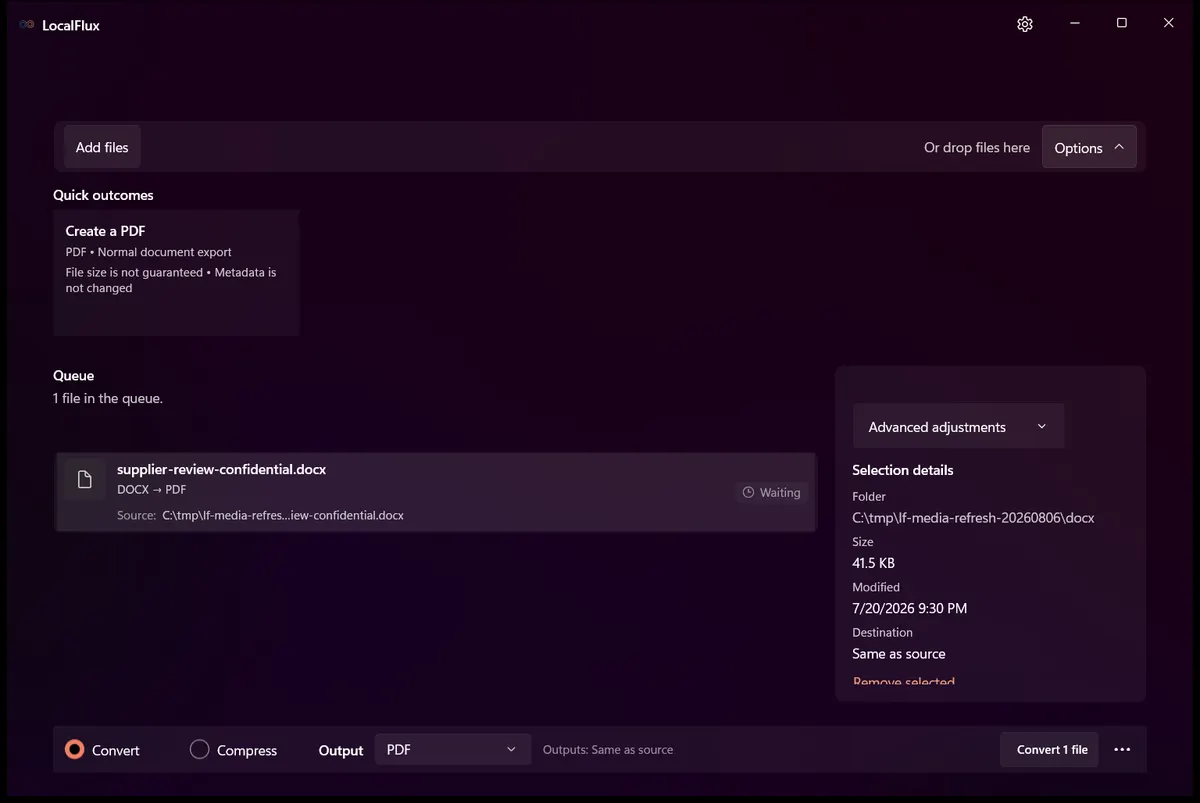
The tested queue before conversion. “Share safely” was left off so that metadata behavior could be checked separately.
2. Confirm PDF as the output
Check the output selector before starting. It should say PDF. The conversion creates a delivery copy; it does not turn the document into a PDF editing project.
If several compatible documents are in the queue, one selected output format applies to the batch. Confirm that every row shows DOCX → PDF. The fidelity measurements in this guide come from a one-file test and are not a batch-performance benchmark.
3. Choose where to save the PDF
Use the same folder as the source or select another local destination. Our test used the deliberately neutral folder:
C:\tmp\LocalFluxBlog\DocxToPdfThe input was supplier-review-confidential.docx. LocalFlux wrote supplier-review-confidential_converted.pdf beside it and left the DOCX in place.
4. Start the conversion
Select Convert 1 file. LocalFlux shows the item as converting, then reports how many files completed.
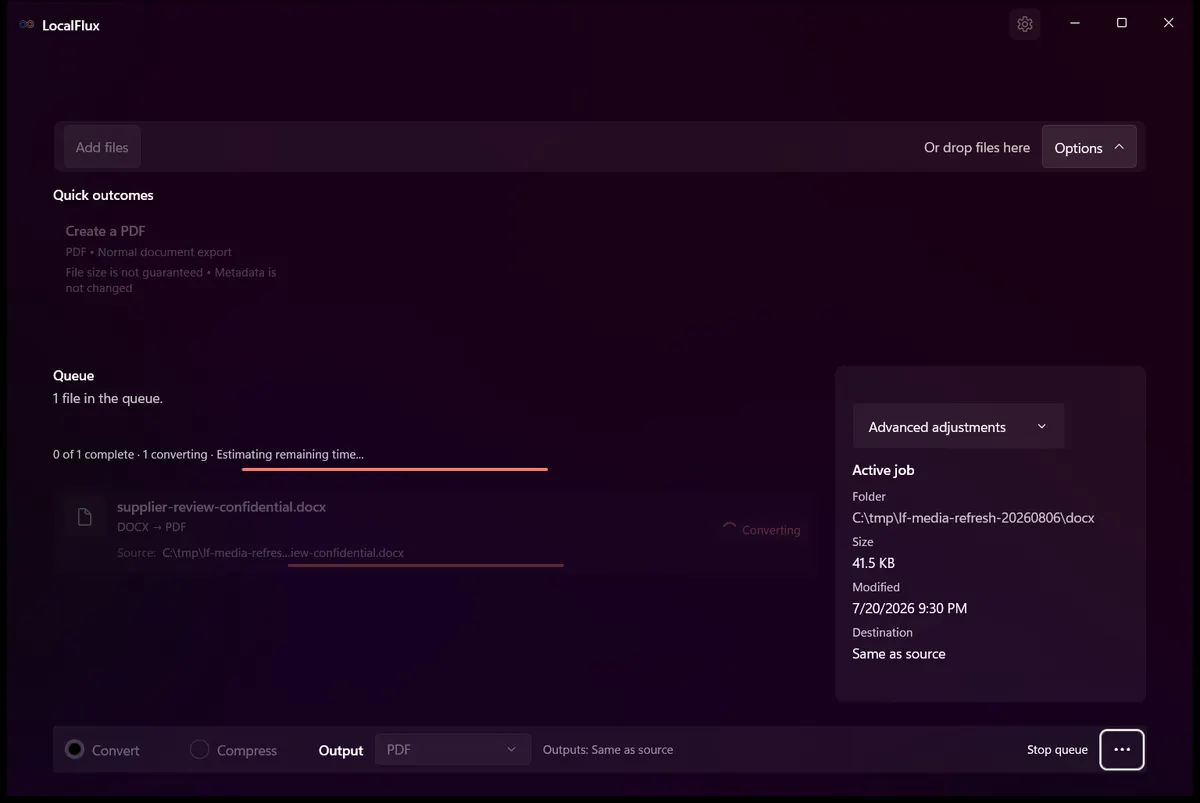
The real conversion in progress. We did not publish a speed figure because capture and test instrumentation would make it an unhelpful performance measurement.
5. Open and inspect the output
Do not stop at a green completion message when the document matters. Open the PDF and compare it with the source at 100% zoom. Check page count, page breaks, headings, tables, links, comments, tracked changes, uncommon fonts, and any signature or approval lines.
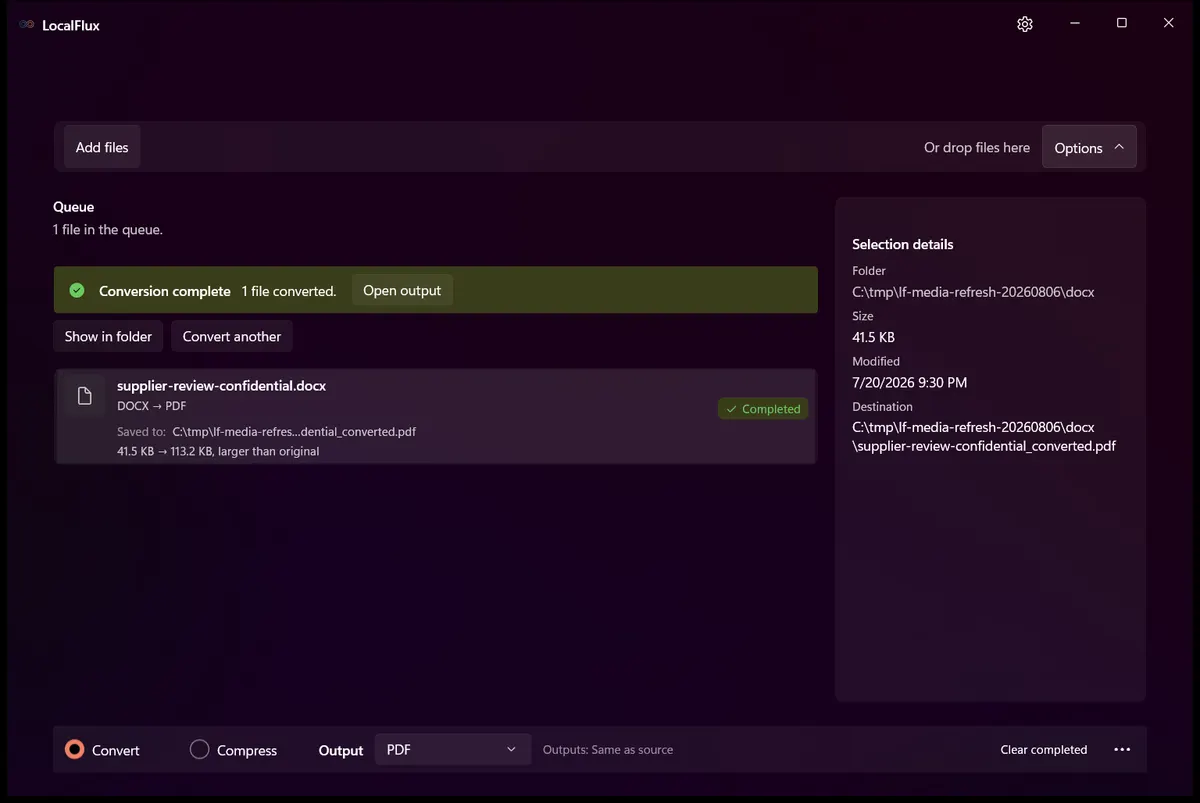
LocalFlux completed the tested file and kept the original DOCX beside the new PDF.
Watch the tested workflow
Video transcript: A synthetic DOCX is queued with PDF selected and Share safely turned off. The job changes to converting. LocalFlux then displays “Conversion complete,” reports one converted file, and shows the neutral C:\tmp\LocalFluxBlog\DocxToPdf output folder.
The video is an edited sequence of isolated ready, converting, and completed states. It is not a continuous desktop recording, and no desktop, account, browser, or personal folder is visible.
What happened in the before-and-after test
The fixture was designed to test more than a plain paragraph. It includes repeatable tables, fixed page breaks, headers and footers, a last-page sentinel, and a missing-font stress sentence.
| Check | Original DOCX | LocalFlux PDF | Observed result |
|---|---|---|---|
| File size | 42,487 bytes | 115,896 bytes | PDF was 73,409 bytes larger |
| Page count | 3 expected pages | 3 pages | Preserved |
| Page size | US Letter | 612 × 792 pt | Preserved |
| Checked text markers | 8 | 8 found | All markers present |
| Reference-render comparison | 3 PNG pages | 3 PNG pages | 0 changed pixels on every page |
| Original file hash | 5ED6B…EE05 | Same after conversion | Original unchanged |
| PDF encryption | Not applicable | No | Output was not password-protected |
| PDF tags | Not applicable | Yes | Inspection reported a tagged PDF |
The PDF happened to be larger than the DOCX in this test. That is not a general rule. DOCX is already a compressed package, while a PDF may embed fonts, images, and structural resources needed for consistent display. Depending on the source, a PDF can be smaller or larger.
You can inspect the rights-cleared synthetic DOCX source and the actual PDF produced by LocalFlux.
Controlled page comparison
We rendered the source DOCX with LibreOffice 26.2.4.2, then rendered the actual LocalFlux PDF in the same verification environment. An absolute pixel comparison found zero changed pixels across all three pages.
| Controlled source render | Actual LocalFlux PDF |
|---|---|
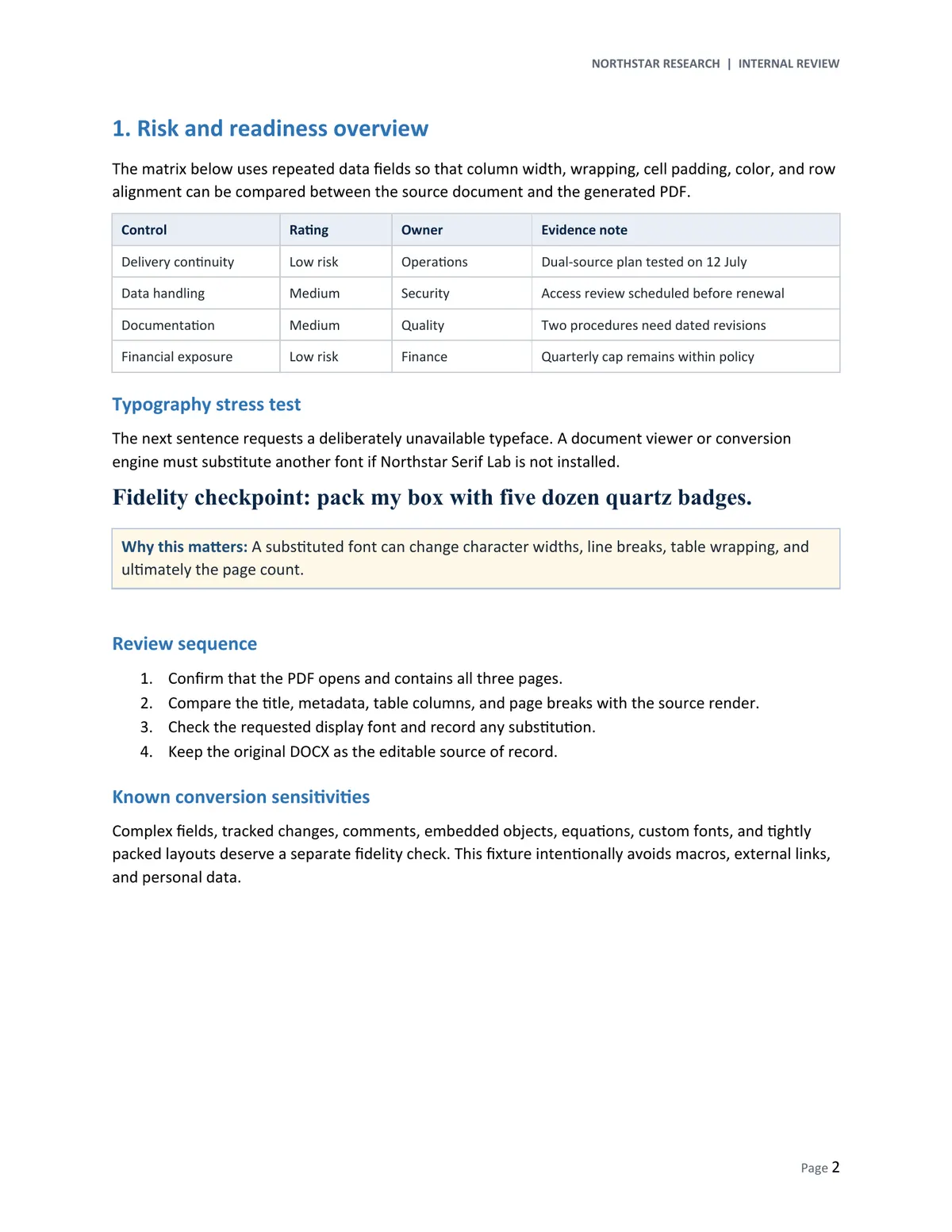 | 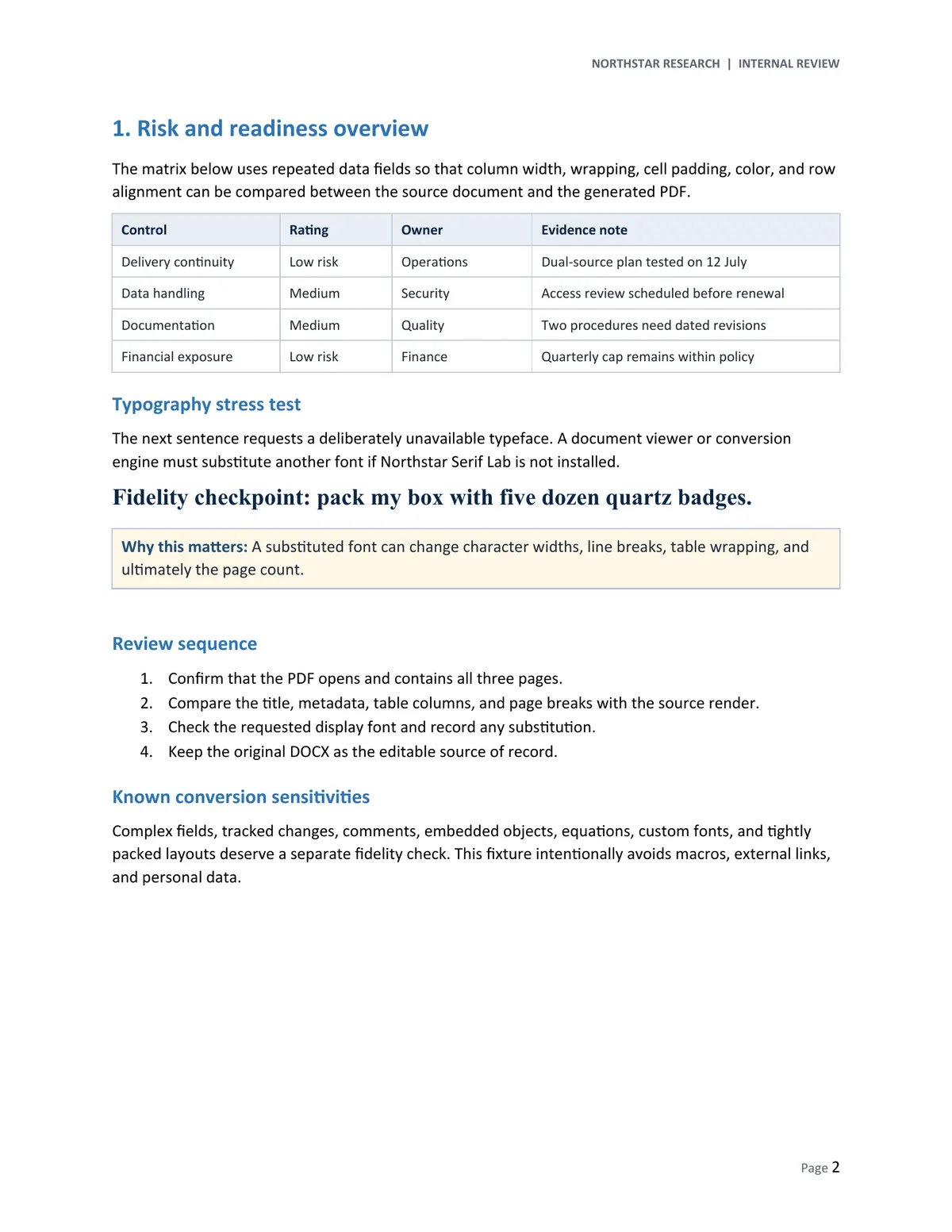 |
This proves repeatability inside the controlled test environment. It does not prove that every Word document will look identical in Microsoft Word on every PC. Word-specific layout behavior, unavailable fonts, macros, dynamic fields, embedded objects, tracked changes, equations, and tightly packed pages can produce different results.
Why fonts can change during conversion
The DOCX explicitly requested a fictional typeface named Northstar Serif Lab. It was not installed. The output PDF contained embedded subsets of Calibri, Symbol, and Times New Roman Bold, but no Northstar Serif Lab. That is direct evidence of font substitution.
The stress sentence stayed readable and did not change the page count in this fixture. A fallback font can nevertheless have different character widths. That can move line breaks, increase table-row heights, or push content onto another page.
When pagination matters:
- Install the licensed fonts used by the document before converting.
- Ask the author to use portable fonts or embed fonts where licensing permits.
- Compare the PDF with the authoritative source viewer side by side.
- Recheck every page break, table, signature line, and form field.
“The conversion succeeded” and “the document is approved to send” are two separate decisions.
Does this work without Microsoft Word?
Yes for the tested route. No Word process was running, WINWORD.EXE was not on the system path, the common Office installation paths did not contain it, and no Word or Microsoft Office suite entry appeared in the checked uninstall or AppX inventories.
LocalFlux handled the route with its bundled LibreOffice document engine. No Word window, Office installation, or Word automation was used. That makes this workflow useful on a Windows PC where installing a full office suite would be unnecessary for a focused conversion job.
Local conversion does not mean metadata-free
Local processing describes where conversion happens. It does not automatically remove private metadata.
In our run, the DOCX was read from and the PDF was written to a local C:\tmp folder. No upload-based converter was involved. However, Share safely was off, and the PDF retained the fixture’s deliberately neutral properties:
| PDF property | Observed value |
|---|---|
| Title | Quarterly Supplier Review - Synthetic Fixture |
| Subject | DOCX-to-PDF conversion fidelity test |
| Keywords | synthetic, DOCX, PDF, conversion, fidelity |
| Creator | Writer |
| Producer | LibreOffice 26.2.4.2 (X86_64) |
| Creation metadata | Present in the synthetic input |
Review document properties as well as visible page content before sharing a sensitive PDF. If you enable metadata removal, verify the result against your organization’s retention and disclosure requirements. That mode was outside this controlled test.
Local processing also does not replace endpoint security. Protect the source folder, output folder, backups, temporary storage, and Windows account. Follow your employer’s policy for regulated or client-controlled documents.
Can Windows convert DOCX to PDF by itself?
Windows includes Microsoft Print to PDF, but the printer cannot interpret a DOCX on its own. You still need an application that can open and render the document. Printing may also produce a flatter result than document-aware export and can handle links, bookmarks, tags, and properties differently.
The practical options are:
- Microsoft Word desktop: a strong choice when it is installed and the document was authored in Word. It gives you detailed controls for markup, bookmarks, accessibility tags, PDF/A, font handling, and encryption.
- LibreOffice Writer: a free local choice when you already use it and are comfortable opening the document and exporting manually.
- Word for the web or an online converter: workable when upload policies, accounts, file limits, and confidentiality are acceptable. It does not meet a strict no-upload requirement.
- LocalFlux: useful when you want a focused Windows queue, a bundled document engine, separate output copies, and no browser upload for supported routes.
Common DOCX-to-PDF problems
The PDF uses a different font or page count
Check for unavailable or non-embeddable fonts first. Then compare paper size, margins, section breaks, floating objects, and fixed line or row heights. A small change in text width can cascade into a new page.
A table is cut off or wraps differently
Inspect fixed row heights, narrow columns, manual line breaks, nested tables, and landscape sections. Pay special attention to the rightmost column and the first row after every page break.
Comments or tracked changes are missing
Decide whether the final PDF should show a clean document or markup. Accept or reject changes and resolve comments before conversion when the PDF is intended to be final.
Links, fields, equations, or embedded objects changed
Treat these as higher-risk features. Test each link, inspect field results and equations, and confirm whether embedded objects were expected to stay interactive. Our fixture did not test macros, external links, equations, comments, tracked changes, or embedded objects.
The PDF is bigger than the DOCX
That can be normal. Embedded font subsets, images, and PDF structure add bytes. File size alone does not tell you whether the conversion is good.
The PDF is not editable like the DOCX
That is expected. Keep the DOCX as the editable source of record and use the PDF as the reading, printing, or delivery copy. A PDF is also not an absolute security boundary; many tools can edit or extract its content.
The DOCX is password-protected or damaged
Remove protection only when you are authorized, then retry with a valid copy. Do not bypass access controls on a document you do not own or administer.
A five-minute PDF review checklist
Before sharing the converted file:
- Confirm page count, orientation, and paper size.
- Check the first and last line of every page.
- Compare headings, lists, tables, images, headers, footers, and page numbers.
- Search the PDF for names, IDs, totals, dates, and a known end-of-document phrase.
- Test important links and bookmarks.
- Inspect title, author, subject, keywords, creator, producer, and dates.
- Open the PDF in a second viewer or device when compatibility matters.
- Keep the original DOCX until the PDF is accepted.
Frequently asked questions
Can I convert DOCX to PDF offline?
LocalFlux supports offline operation for supported conversions after installation. The document route uses its bundled local engine. This particular evidence run did not disconnect the network, so validate offline behavior in your own managed environment if network isolation is a formal requirement.
Does LocalFlux upload the DOCX?
The LocalFlux workflow processes supported files on the Windows PC without a browser upload. Our test used only local input and output paths. Organizations should still validate the current release and policy fit before using any software with regulated material.
Will the PDF look exactly like Word?
Do not assume it will. The test pages matched the controlled LibreOffice reference exactly, but the unavailable test font was substituted. Compare the PDF with the authoritative source application when layout has legal, financial, accessibility, or brand consequences.
Can I convert several DOCX files at once?
Yes. Queue compatible documents, select PDF as the shared output, and review every item before starting. Processing time and results depend on page count, fonts, images, fields, and document complexity.
Does conversion overwrite the DOCX?
No in the tested workflow. LocalFlux created an _converted.pdf file, and the original DOCX hash was unchanged after conversion.
Does a PDF prevent editing?
No. PDF is convenient for consistent viewing and printing, but it is not tamper-proof. Use approved encryption, signatures, access controls, and document-management procedures when integrity matters.
Convert the document locally, then verify it
The practical workflow is short: add the DOCX, confirm PDF, choose a local destination, convert, and review the output. The controlled three-page fixture preserved its page count and content, matched the reference render, and left the source unchanged. The missing-font test also showed why a visual check remains essential.
Convert DOCX files locally with LocalFlux, review the no-upload workflow for client files, or use the supported format finder.
Related local workflows
Continue with How to Convert Markdown to PDF on Windows Offline when that file or delivery requirement appears in the same project.