
How to Convert Markdown to PDF on Windows Offline
Convert Markdown to PDF locally on Windows 11, preserve headings, code, tables, Unicode, and a local logo, then verify every generated page.
On this page
- The short version
- What Markdown-to-PDF conversion actually changes
- Prepare a representative Markdown file
- Step 1: Add the Markdown file
- Step 2: Convert to a new PDF
- Step 3: Inspect every PDF page
- Measured result from LocalFlux 1.0.8
- Which Markdown formatting should you test?
- Page breaks, margins, headers, and footers
- Why remote links and images are rejected
- Fonts and Unicode: verify the actual glyphs
- Batch Markdown-to-PDF conversion safely
- Frequently asked questions
- Download the publication evidence
- Keep the source; verify the delivery copy
Markdown is excellent while a document is still changing: the source is plain text, easy to review in a diff, and readable without a specialist editor. PDF is often better at the delivery stage, when the recipient needs a fixed document that opens, prints, and paginates consistently.
With LocalFlux on Windows 11, you can turn an .md file into a separate PDF without uploading the document to a conversion website. In the test for this guide, a Markdown source with headings, lists, a block quote, a table, a fenced code block, Unicode text, an internal link, and a local LocalFlux logo became a three-page A4 PDF. The source file remained unchanged.
Best for: notes, README-style handouts, technical instructions, meeting summaries, and reports that can accept natural page flow.
Know the limits: this route rejects remote web links or images and raw HTML. Markdown also does not define print margins, headers, footers, or forced page breaks, so it is not a substitute for a page-layout application.
The short version
- Put the Markdown file and any local image assets in a stable working folder.
- Open LocalFlux and add the
.mdfile. - Keep Convert selected and choose PDF as the output.
- Confirm that the queued route reads Markdown → PDF.
- Select Convert 1 file.
- Open the new
_converted.pdffile and inspect every page. - Confirm headings, tables, code, images, links, and non-English text rendered correctly.
- Keep the
.mdsource as the editable original.
Get LocalFlux from the Microsoft Store or review the currently supported conversion routes before starting.
What Markdown-to-PDF conversion actually changes
CommonMark describes Markdown as a plain-text format for structured documents. Its familiar punctuation represents headings, emphasis, lists, quotes, code, links, and images. A PDF is a final-form page description: it records pages, placed text, images, fonts, and link annotations.
Conversion therefore does more than rename an extension. LocalFlux parses the Markdown structure, stages a local document representation, and exports a new PDF through its bundled document runtime. The PDF is a delivery copy; the Markdown remains the source of truth.
That distinction explains two practical results:
- the PDF can be much larger than the
.mdfile even when nothing went wrong; and - a successful status is only the beginning of verification, because pagination and font choices are visible only in the rendered pages.
Prepare a representative Markdown file
Do not validate a document workflow with a one-line note if the real file contains tables, code, images, or multilingual text. Start with a representative source that exposes the features most likely to change during rendering.
The fixture used for this article includes:
- ATX headings and ordinary paragraphs;
- bold, italics, and inline code;
- ordered and unordered lists;
- a block quote and horizontal rule;
- a Markdown table;
- a fenced PowerShell code block;
- an internal fragment link;
- the words
café,résumé,naïve, and日本語; and - a repository-derived LocalFlux logo referenced by a local
file:///URI.
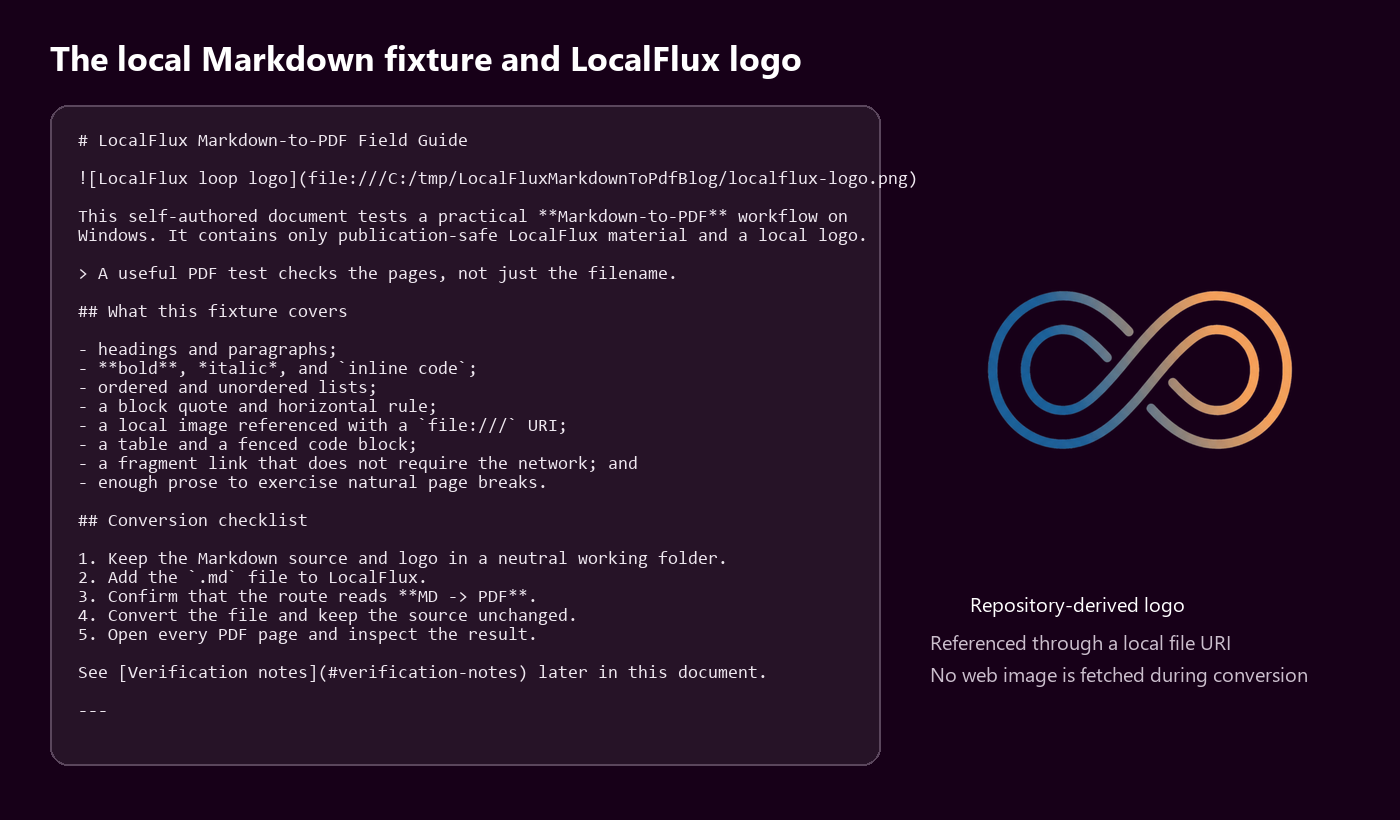
The self-authored fixture and repository-derived logo contain no customer material. The logo is resolved from a local file URI; no web image is fetched during conversion.
The exact image line in the tested source was:
Keep that path rule in perspective. It proves that this explicit local URI worked in the tested 1.0.8 build. If you move the source or asset, update the URI and test again. Relative image paths can be fragile in document pipelines because an intermediate file may be staged in another directory.
You can download the exact Markdown input, local logo, and generated PDF used for this guide.

Step 1: Add the Markdown file
Open LocalFlux, then drag the .md file onto the window or select Add files. Keep Convert selected, choose PDF, and inspect the queued row before starting.
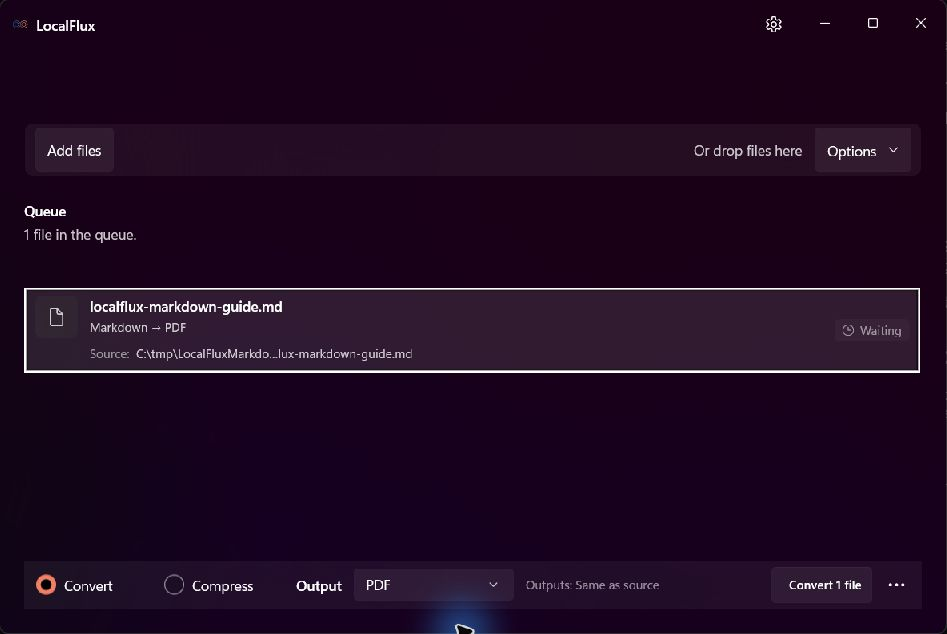
The queued row reads Markdown → PDF. The neutral C:\tmp working path avoids exposing a personal Windows profile in publication screenshots.
If the row shows a different route, fix the output choice before converting. For a batch, group files that need the same output and similar review criteria. A short note and a long technical report may both be Markdown, but their pagination risks are very different.
Step 2: Convert to a new PDF
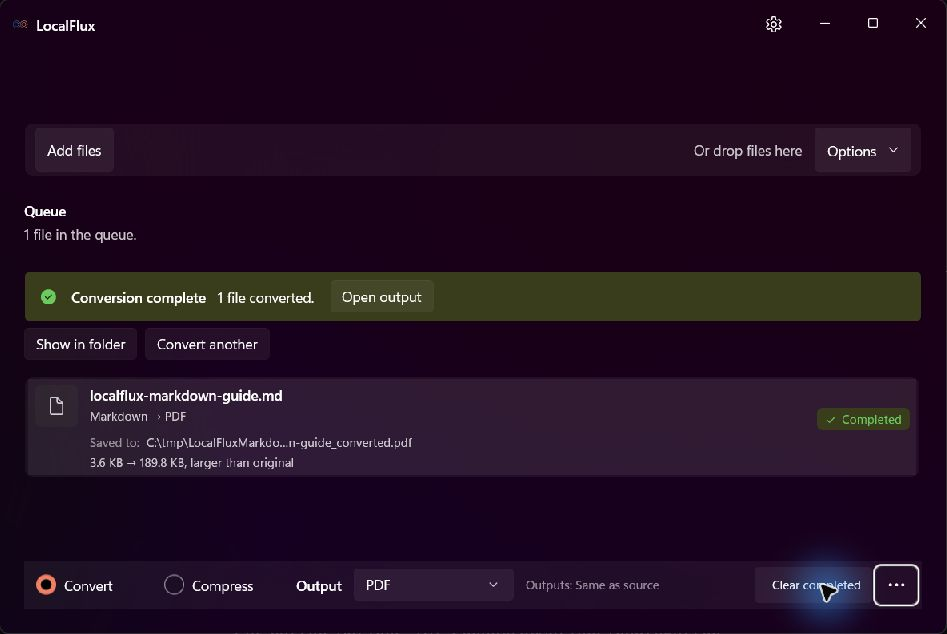
Select Convert 1 file. LocalFlux writes the output beside the source by default and adds _converted to the filename. In this run:
- input:
localflux-markdown-guide.md; - output:
localflux-markdown-guide_converted.pdf; - source size: 3,713 bytes;
- output size: 194,305 bytes; and
- source SHA-256 before and after: identical.
The app rounded those sizes to 3.6 KB → 189.8 KB, larger than original. That message is descriptive, not a warning. A plain-text source contains almost no presentation data; the PDF contained the logo plus embedded subsets of Arial, Times New Roman, Consolas, OpenSymbol, and NSimSun so the document could reproduce its text and symbols.
Do not treat Markdown-to-PDF as a compression workflow. The goal is a dependable delivery document, not fewer bytes than the source.
Step 3: Inspect every PDF page
Open the PDF in your normal reader and review it at a readable zoom. Microsoft Edge, for example, provides PDF viewing and print-preview controls, but the important habit is reader-independent: examine every page, not merely page one.
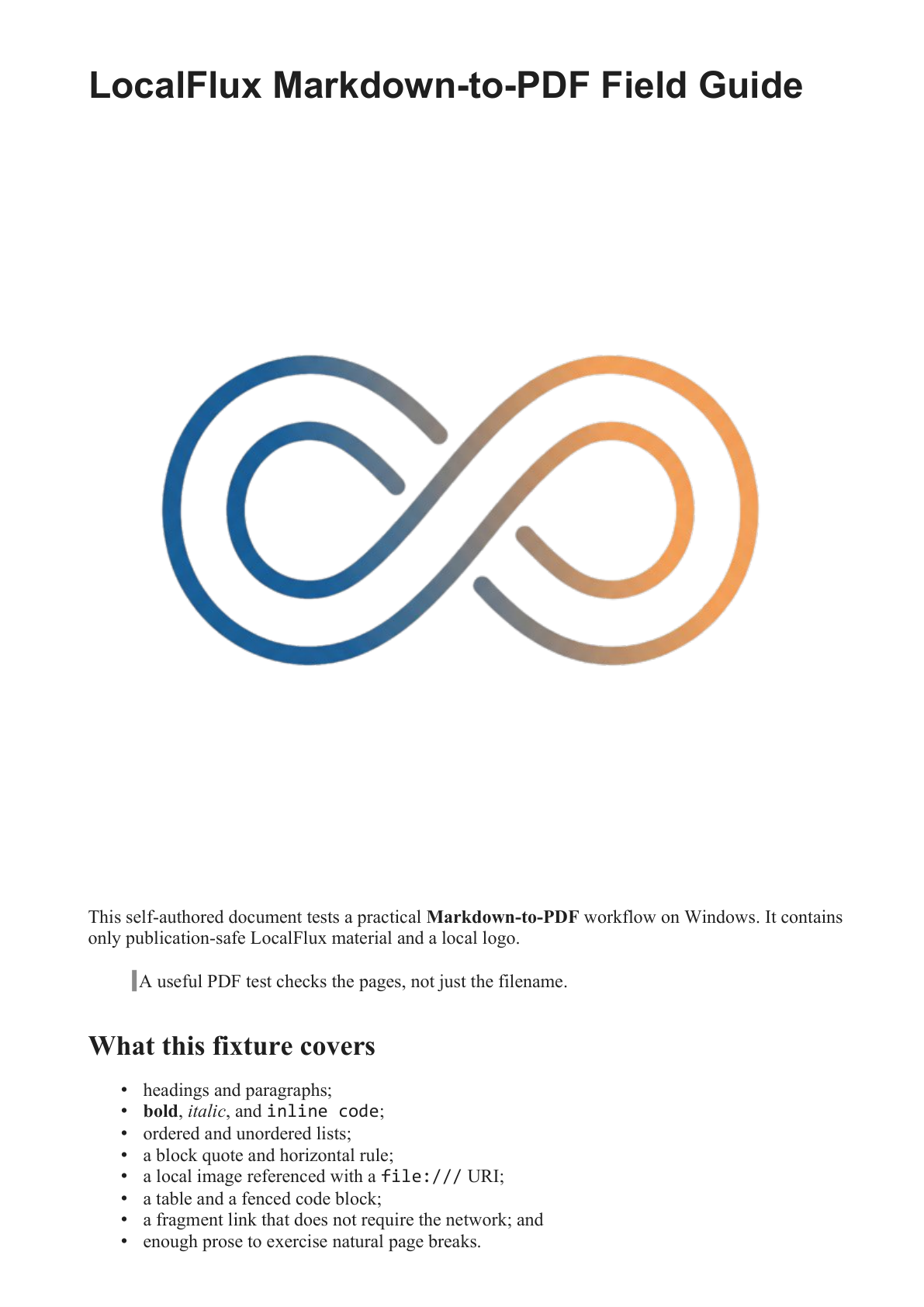
Page 1 retains the title hierarchy, local logo, bold text, block quote, inline code, and list.
Check for:
- clipped table columns or code lines;
- missing images or replacement glyph boxes;
- unexpected blank pages;
- headings stranded at the bottom of a page;
- list numbering that restarted incorrectly;
- links that look active but point to the wrong place; and
- a final page with accidental overflow or missing text.
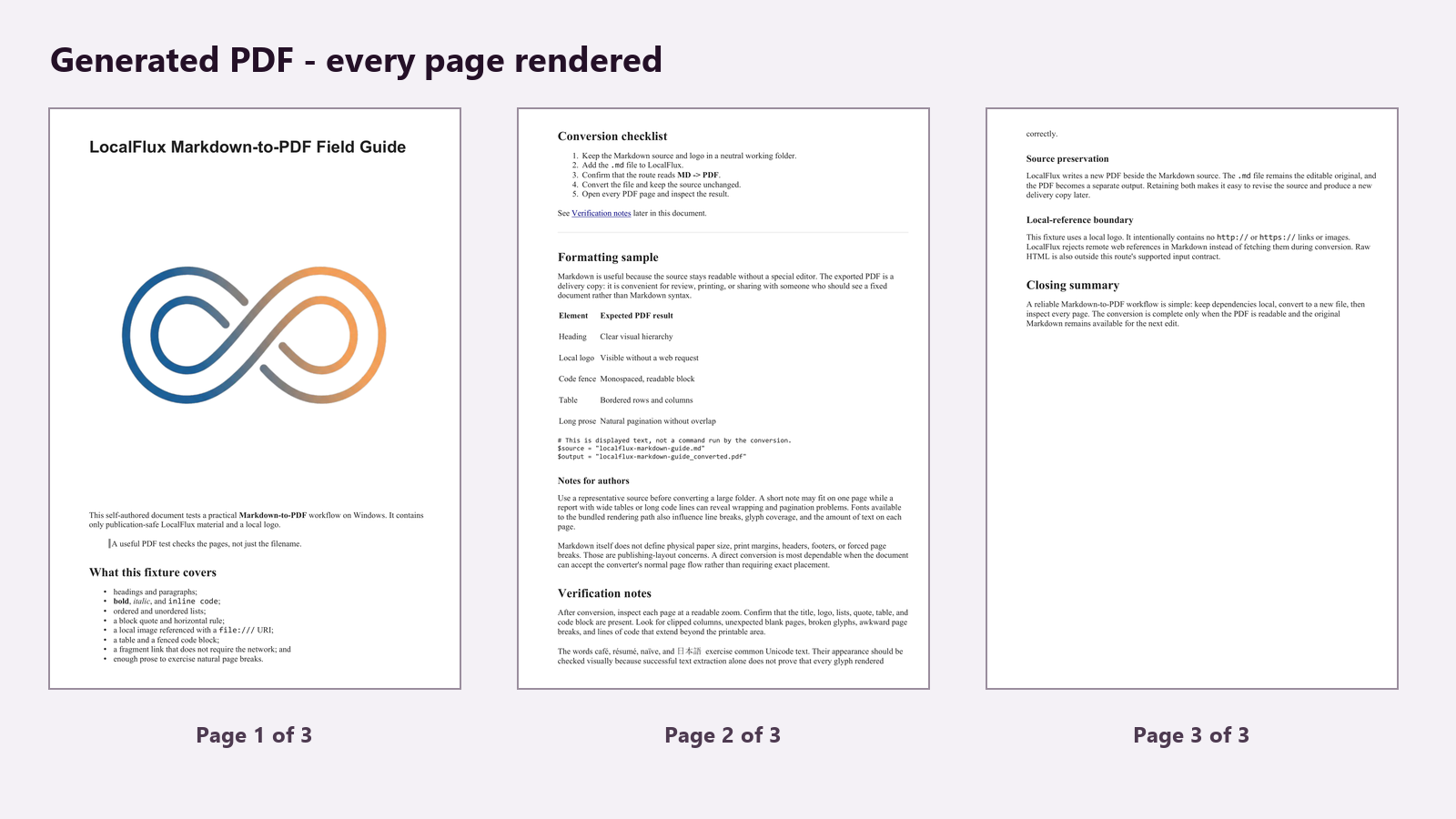
All three A4 pages were rendered to images and inspected. No text, logo, table, or code block was clipped, and no page was blank.
The retained output also passed a structural qpdf --check inspection. Text extraction found every tested accented and Japanese string, and the internal Verification notes link became one PDF link annotation pointing to its destination inside the document. These checks complement visual review; they do not replace it.
Measured result from LocalFlux 1.0.8
| Property | Verified result |
|---|---|
| Source | 3,713-byte UTF-8 Markdown file |
| Output | 194,305-byte PDF 1.7 file |
| Pages | 3 |
| Page size | A4, 595.304 × 841.890 points on every page |
| PDF title | localflux-markdown-guide |
| Producer | LibreOffice 26.2.4.2 (X86_64) |
| Images | One image resource reported on each page |
| Internal links | One link annotation on page 2 |
| Fonts | Seven TrueType subsets, all with embedded font data |
| Structural check | Passed; no syntax or stream errors |
| Source preservation | Markdown and logo hashes unchanged |
These measurements describe one controlled fixture and one retained x64 package. They are not promises about every Markdown file. Page count and file size will vary with the source length, image dimensions, tables, code lines, fonts, and Unicode characters.
Which Markdown formatting should you test?
The conversion uses a CommonMark-oriented parser with extended Markdown features. In this fixture, ordinary headings, emphasis, lists, block quotes, fenced code, a table, an image, an internal link, and Unicode text all rendered successfully.
Different Markdown systems can disagree on extensions and ambiguous syntax. The CommonMark specification exists partly to reduce those differences, while the Markdig project adds an extensible set of features on .NET. If a document depends on task lists, footnotes, custom attributes, diagrams, mathematical notation, or application-specific directives, test those exact constructs before converting a folder.
Prefer straightforward source:
- leave blank lines around tables, lists, quotes, and code fences;
- keep tables narrow enough for a portrait page;
- wrap explanatory prose instead of writing very long lines;
- avoid essential information conveyed only through color;
- add meaningful alt text even though the visual PDF remains the primary output; and
- use a representative Unicode sample when the document contains names or languages outside basic English.
Page breaks, margins, headers, and footers
Markdown represents document structure, not physical publication geometry. It does not define A4 versus Letter, print margins, running headers, page numbers, or a universal forced-page-break instruction.
The tested LocalFlux route exposes a direct conversion rather than a print-layout editor. It naturally paginated this fixture onto A4 pages, but it did not offer controls for custom margins, headers, footers, or precise break placement. Raw HTML is not a workaround here because the route rejects it.
Use this workflow when the document can accept the converter’s normal page flow. If a contract, book, branded proposal, or regulated form requires exact placement, edit it in a page-aware authoring tool and export from there. You can still use Markdown for the early draft, but the final layout step belongs in the publishing tool.
Why remote links and images are rejected
This route deliberately draws a boundary around local conversion. A Markdown link such as [example](https://example.com) or a remote image URL causes the tested build to stop and show corrective guidance instead of fetching the remote resource.
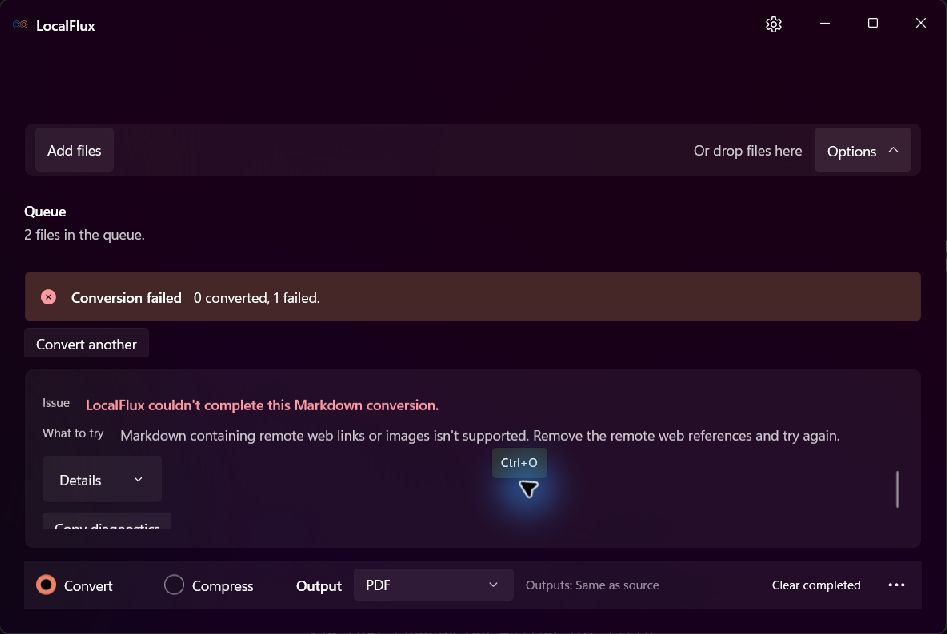
The app reports: “Markdown containing remote web links or images isn’t supported. Remove the remote web references and try again.”
The same negative test for raw HTML produced: “Markdown containing raw HTML isn’t supported. Remove the HTML tags and try again.” Neither rejected fixture produced a PDF.
This means an ordinary public web link must be removed or rewritten before conversion. An internal fragment link such as [Verification notes](#verification-notes) stayed inside the document and worked in the tested PDF. Local images can work when referenced explicitly, as the logo fixture demonstrates.
The restriction is also useful for repeatability: the result does not depend on a remote server being available, returning the same image, or changing its content between runs.
Fonts and Unicode: verify the actual glyphs
Successful conversion does not guarantee that every machine has the font you expected. A renderer can substitute another font, and the substitute may change line wrapping or lack a needed glyph.
This PDF embedded seven TrueType subsets and visibly rendered café, résumé, naïve, and 日本語. Text extraction recovered the same strings. That is strong evidence for this fixture, but a document containing mathematical symbols, emoji, right-to-left scripts, or rare CJK characters needs its own test.
When typography matters, compare a rendered PDF page with the source preview, zoom in on special characters, and check line breaks around tables and code. Embed or license fonts through an appropriate authoring workflow when brand typography must be exact.
Batch Markdown-to-PDF conversion safely
You can add multiple compatible Markdown files to one LocalFlux queue, but batch success should not become batch approval. Use a small representative run first, then review the outputs according to their content.
A practical batch checklist is:
- Put each source and its local assets in a stable location.
- Remove remote references and raw HTML before adding files.
- Separate documents that need exact page layout from those that accept natural flow.
- Convert a representative long file before the whole folder.
- Open every resulting PDF or at least render every page for review.
- Retain the Markdown originals for revisions.
- Hash or version important sources when you need a reproducible publishing record.
Frequently asked questions
Can I convert Markdown to PDF on Windows without uploading it?
Yes. The LocalFlux workflow tested here ran locally on a Windows 11 x64 host and created a PDF beside the source. No upload step was part of the conversion.
Will my Markdown file be overwritten?
No. In this test, LocalFlux wrote localflux-markdown-guide_converted.pdf and the source Markdown hash remained unchanged.
Can the PDF include a logo?
Yes, with an important qualifier: the tested source used an explicit file:///C:/.../localflux-logo.png reference to a local PNG, and that logo rendered correctly. Keep the asset available and test again after moving the files.
Do web links work in the PDF?
Remote http:// and https:// links are rejected by the tested route. An internal fragment link worked and became a PDF link annotation.
Can I use HTML to force a page break?
No. Raw HTML is rejected, and this direct route does not expose forced-page-break controls. Use a page-layout tool when exact breaks are required.
Why is the PDF larger than the Markdown file?
Markdown is compact plain text. A PDF carries page geometry, font data, images, and other resources needed to reproduce the laid-out document. Larger output is expected for this fixture and does not indicate failed compression.
What should I check before sharing the PDF?
Inspect every page, confirm that images and special characters are visible, test internal links, check wide tables and code for clipping, and keep the original .md file available for the next edit.
Download the publication evidence
The article uses a self-authored fixture and repository-controlled logo. The canonical technical records are in English so hashes, measurements, and wording remain tied to one reviewed evidence set:
- Markdown input
- Generated three-page PDF
- Editorial test record
- Measurements CSV
- Source notes
- Privacy and publication review
- SHA-256 media manifest
Keep the source; verify the delivery copy
A reliable Markdown-to-PDF workflow has two artifacts with different jobs. The Markdown file stays editable and reviewable. The PDF becomes the fixed copy for distribution, printing, or archiving.
Keep dependencies local, use a representative source, convert to a new file, and inspect every page. The filename and green completion banner are not enough. That final review is what turns a successful conversion into a dependable document.
Convert Markdown to PDF locally with LocalFlux or check the formats LocalFlux currently supports.