
How to Convert XLSX to PDF Without Excel
Convert an Excel workbook to PDF locally on Windows and verify print areas, formulas, charts, hidden content, and page layout.
On this page
- Quick answer
- Why spreadsheet-to-PDF conversion needs planning
- Why convert locally?
- Prepare the workbook before conversion
- Step-by-step: convert XLSX to PDF
- Tested result
- Print areas and page breaks
- Formulas and cached results
- Charts, images, and objects
- Hidden sheets, rows, and columns
- Common mistakes
- Batch conversion
- Privacy and offline notes
- Troubleshooting
- Final checklist
- Publication evidence
- Practical checks before and after conversion
An Excel workbook is not automatically a well-designed printable document. It can contain multiple sheets, formulas, hidden rows and columns, charts, print areas, manual page breaks, repeating headers, and wide tables that extend far beyond a normal page.
You can convert .xlsx to PDF on Windows without installing Microsoft Excel and without uploading the workbook. LocalFlux supports the route through a bundled LibreOffice component and writes a PDF copy on the PC. The conversion step is simple; the important work is checking what actually landed on each page.
This guide explains both parts: creating the PDF and validating spreadsheet-specific layout, calculations, and privacy.
Quick answer
To convert XLSX to PDF without Excel:
- Open LocalFlux and add the
.xlsxworkbook. - Keep Convert selected.
- Choose PDF as the output.
- Confirm the queue shows
XLSX -> PDF. - Select Convert 1 file.
- Open the PDF and inspect every page for clipped columns, tiny text, unexpected sheets, stale formulas, and broken charts.
LocalFlux performs the supported conversion locally and preserves the XLSX by creating a separate PDF.
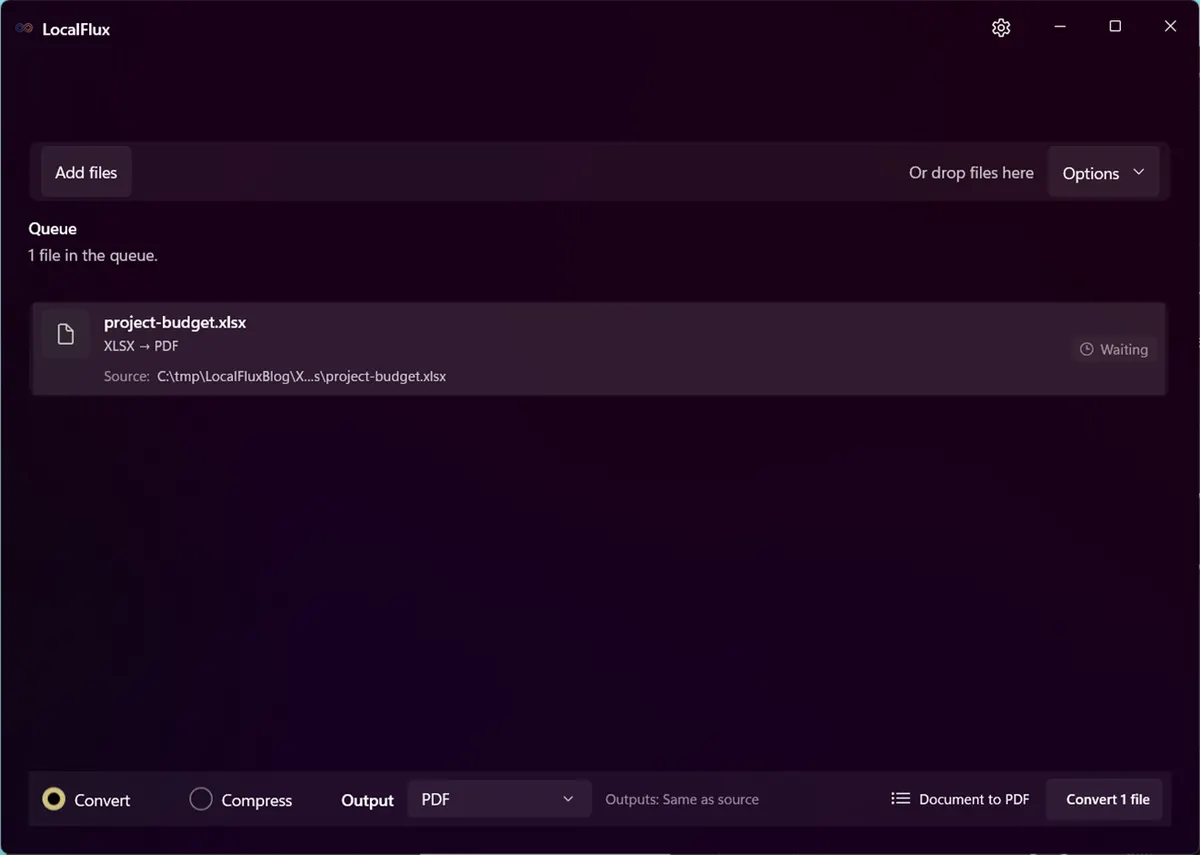
The privacy-safe workbook is ready for local PDF conversion.
Why spreadsheet-to-PDF conversion needs planning
Word-processing pages and presentation slides have explicit page-like layouts. A worksheet can extend across thousands of cells. The PDF exporter must decide which cells are in scope, how they fit onto pages, what repeats, and whether objects such as charts are printed.
LibreOffice Calc supports print ranges, page order, page scaling, repeating rows and columns, manual breaks, and printable objects. Its documentation notes that defined print ranges control which cells are exported and that Excel-format sheets without a defined range may be printed automatically. See Using Print Ranges on a Spreadsheet and Calc page style scaling.
A successful conversion can therefore still be wrong in several ways:
- only part of a wide table appears;
- the exporter shrinks a large sheet until text is unreadable;
- a chart lands on another page;
- blank-looking pages are created by formatting far outside the data;
- hidden or unintended sheets appear;
- formulas display stale cached results or recalculate differently;
- print titles, margins, and page orientation do not match the intended report.
The PDF must be reviewed as a print layout, not merely opened.
Why convert locally?
Spreadsheets often contain budgets, forecasts, customer lists, operational data, or internal calculations. Uploading them to a public conversion site can expose far more than the visible cells on the first sheet.
During normal supported conversion, LocalFlux processes the workbook on the PC through its bundled LibreOffice route. LocalFlux does not require sign-in for conversion, and normal supported work can run offline after installation.
Local processing does not redact the workbook. Hidden rows, sheets, names, comments, links, document properties, and chart labels still need review. The PDF itself can contain sensitive visible data.
Prepare the workbook before conversion
If you can edit the workbook in Excel, LibreOffice Calc, or another compatible spreadsheet application, review these settings first.
Define the print area
Select only the cells and objects that belong in the PDF. A deliberate print area prevents stray formatting or helper calculations from expanding the page range.
Choose orientation and paper size
Wide tables often need landscape orientation. A one-page-wide setting can be useful, but forcing a large worksheet onto one page tall may make text microscopic.
Set scaling deliberately
“Fit to one page” sounds convenient, but it can be destructive to readability. A better policy for long tables is often one page wide and as many pages tall as needed.
Repeat useful headings
For multi-page reports, repeat the header row and, when useful, identifying columns. Readers should not have to guess what a number means on page four.
Recalculate and save
Open the workbook in its authoring environment, refresh required data, recalculate formulas, resolve external links, and save. A converter may use cached values or a different calculation engine.
Remove or isolate sensitive content
Do not assume that hiding a sheet, row, or column is equivalent to removing data. Create a sanitized delivery workbook when the audience should see only a subset.
Step-by-step: convert XLSX to PDF
1. Add the workbook
Open LocalFlux, select Add files, and choose the XLSX. Drag and drop is also available. The queue should identify it as XLSX.
Use a synthetic or sanitized workbook for screenshots. Filenames, sheet names, cell contents, comments, chart labels, and document properties can identify people or organizations.
2. Choose PDF
Keep Convert selected and choose PDF from the output list. Confirm that the row shows XLSX -> PDF and is ready.
For a batch, the selected PDF output applies to every compatible workbook. That does not make their print layouts uniform; each workbook still needs individual review.
3. Convert locally
Select Convert 1 file. LocalFlux invokes the bundled LibreOffice document route and writes a new PDF with a safe output name. Microsoft Excel is not required for this tested conversion.
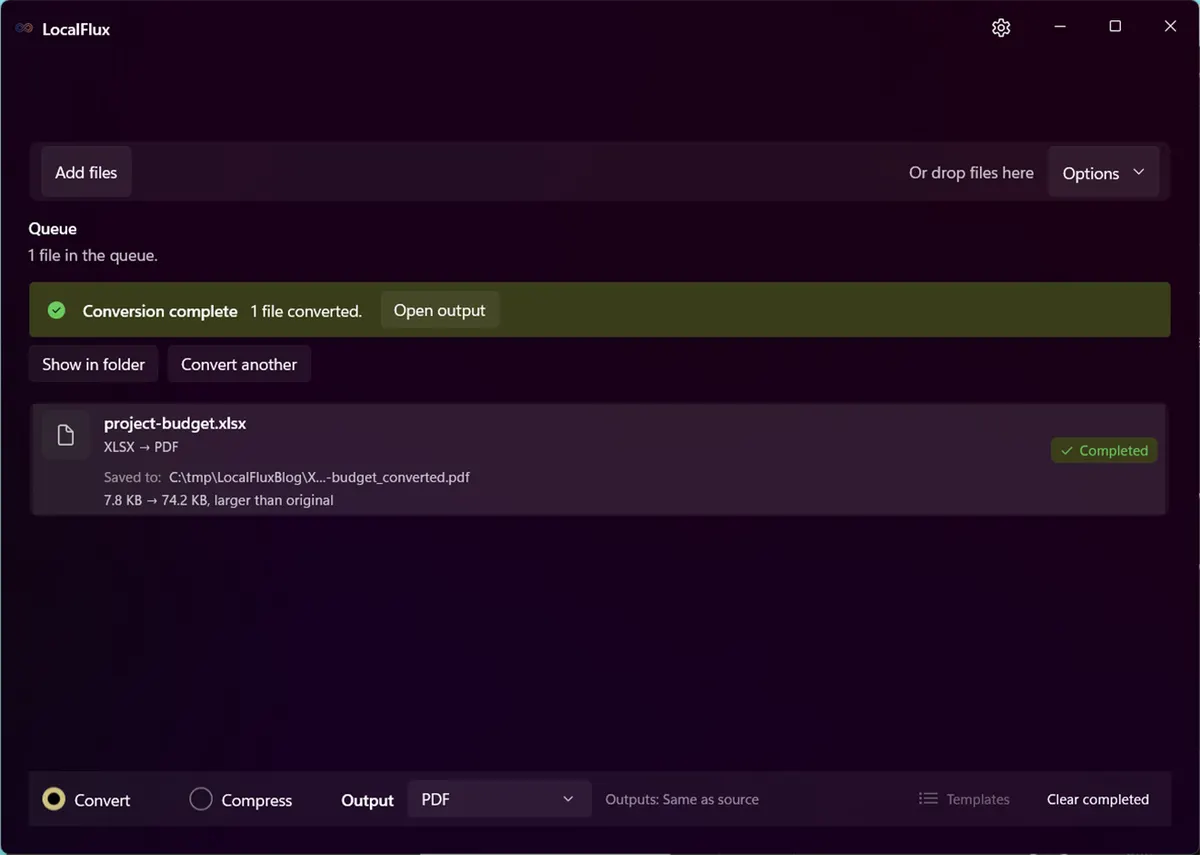
The output is project-budget_converted.pdf; the workbook remains unchanged.
4. Review the rendered PDF
Open the PDF and inspect every page. Rendering to PNG is useful for visual QA because it exposes actual page boundaries and makes contact-sheet review easy.
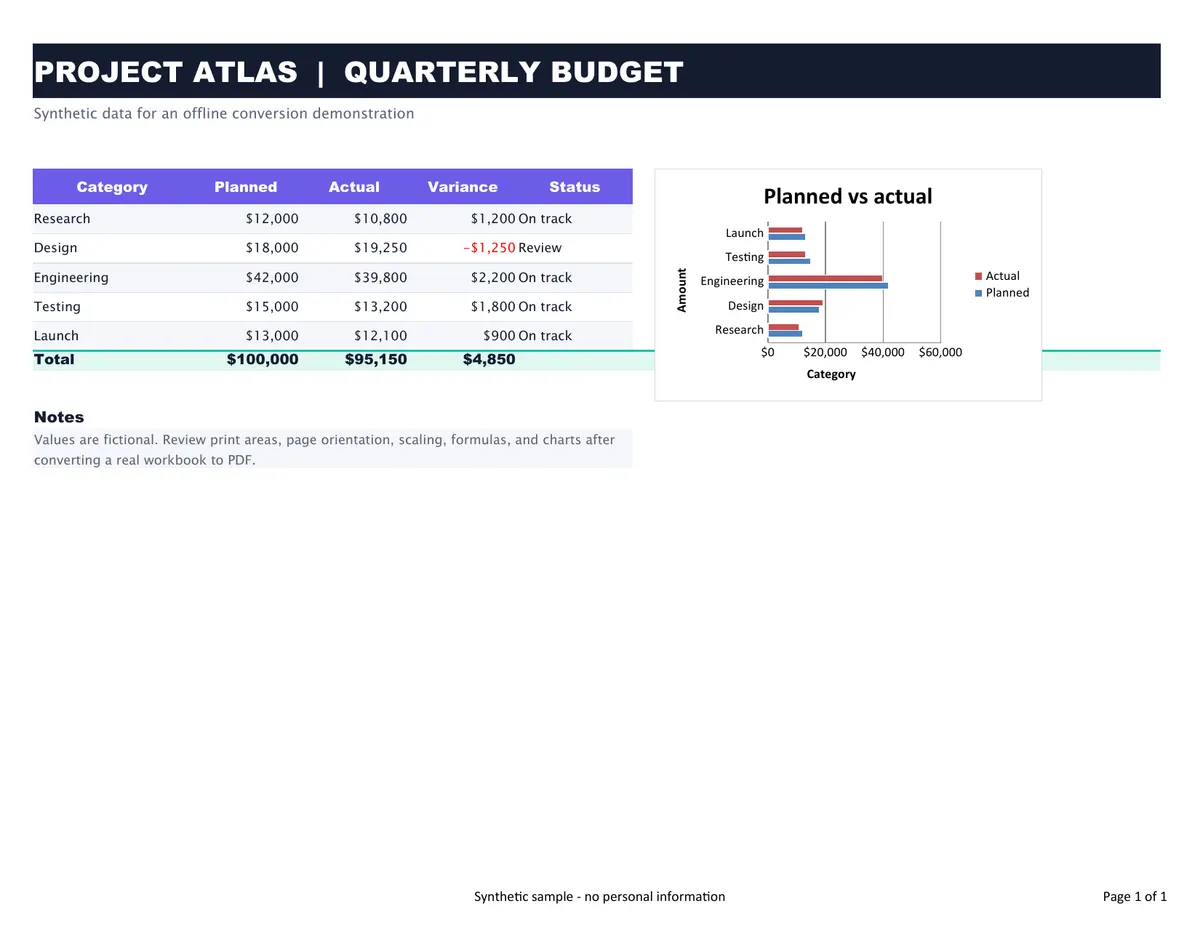
The tested workbook fits on one landscape letter page with its defined print area, table, chart, notes, and footer visible.
Check at 100% zoom:
- all intended columns are present;
- text is large enough to read;
- numbers use the expected format and sign;
- formula results are current;
- charts have complete titles, axes, and legends;
- row and column headers repeat where needed;
- page breaks occur in sensible locations;
- no unexpected blank pages or sheets appear;
- margins and footers are not clipped.
Tested result
The workbook in this package was generated specifically for the article. It contains fictional Project Atlas budget data, formulas for variance and totals, a horizontal bar chart, a defined print area, a landscape page style, and a footer stating that it is synthetic.
| Observation | Result |
|---|---|
| Source | project-budget.xlsx, 7,978 bytes |
| Output | project-budget_converted.pdf, 75,974 bytes |
| Sheet/page count | 1 intended sheet -> 1 PDF page |
| Page size | US Letter, landscape (792 x 612 points) |
| Print area | A1:K16 |
| PDF producer | LibreOffice 26.2.4.2 (X86_64) |
| Visual review | table, formulas, chart, notes, footer, and page number rendered without clipping |
The PDF is larger than the compact XLSX package because it contains a fixed rendered page with fonts, vector content, and chart drawing instructions. XLSX-to-PDF is a layout and compatibility conversion, not a file-size reduction route.
The fixture proves one controlled workbook on the tested machine. It does not establish behavior for macros, Power Query, external data connections, pivot tables, every chart type, conditional formatting edge case, embedded objects, password protection, digital signatures, or very large multi-sheet models.
Print areas and page breaks
A print area tells the exporter which cells belong to the printable report. Without a deliberate range, a workbook can include columns or rows that were never meant for readers. Formatting accidentally applied to a distant cell can also create extra pages.
Use page-break preview in a spreadsheet editor to see how the sheet will divide. For a long table, allow vertical pagination and repeat the header row. For a wide dashboard, consider redesigning the printable view rather than shrinking it until labels are unreadable.
The current LocalFlux conversion screen does not provide a print-range or page-break editor. Those choices must already exist in the XLSX.
Formulas and cached results
An XLSX can store formulas and cached values. Different spreadsheet engines can recalculate certain functions differently, especially when a workbook uses:
- external links;
- volatile functions;
- locale-sensitive dates and separators;
- newer Excel-only functions;
- iterative calculations;
- dynamic arrays;
- data tables;
- macros or user-defined functions.
Before generating an official PDF, recalculate in the authoritative authoring environment and compare critical totals after conversion. For financial or regulatory reports, verify selected cells against an independent source or signed-off calculation record.
The sample workbook uses straightforward arithmetic formulas. Its successful totals are not evidence for every Excel calculation feature.
Charts, images, and objects
Charts must be reviewed for more than presence. Confirm:
- series and category ranges;
- legend text;
- axis scales and number formats;
- data labels;
- font size;
- colors and contrast;
- clipping at object boundaries;
- placement within the print area.
Linked images or external objects may be unavailable offline. Embed required assets and test the workbook on the actual conversion machine.
Hidden sheets, rows, and columns
Hiding is an authoring convenience, not a privacy boundary. The PDF may omit hidden content visually, but the source workbook still contains it. If the XLSX itself will also be shared, create a sanitized copy that removes restricted data rather than relying on visibility settings.
Check named ranges, comments, notes, document properties, formulas that reveal source paths, and links to internal systems. A one-page PDF does not prove the workbook contains only one page worth of information.
Common mistakes
Using “fit on one page” for a large sheet
The result may technically fit while becoming unreadable. Prefer one page wide with multiple pages tall for long tables.
Forgetting the print area
Stray cells or formatting can create blank pages and unexpected columns.
Trusting formula values without recalculation
Refresh and save in the authoritative spreadsheet engine, then verify critical results in the PDF.
Assuming PDF makes the workbook editable
The PDF is a fixed report. Keep the XLSX for formulas, filters, and future changes.
Expecting LocalFlux to edit the report
LocalFlux does not change print areas, select sheets, recalculate a business model on demand, repair formulas, redact cells, or rearrange PDF pages. Make those changes in a spreadsheet application before conversion.
Expecting PDF utility features
The app creates a PDF from the supported route. It is not a PDF merger, splitter, signer, OCR tool, compressor, or editor.
Batch conversion
Batching is useful for periodic reports that already have stable print definitions. Add the approved XLSX files, choose PDF once, and convert the compatible rows.
Automated completion should be followed by automated and visual checks where possible:
- PDF exists and is non-empty;
- page count is within an expected range;
- required report title is extractable;
- critical pages render;
- no unexpected blank pages appear;
- a reviewer approves the final layout.
For high-value work, record source and output hashes, conversion build, page count, and reviewer.
Privacy and offline notes
Offline conversion avoids sending the workbook to a browser-based service during normal use. That is valuable for budgets, forecasts, schedules, inventories, and client data.
It does not sanitize visible or hidden information. The PDF can still show confidential rows, and the XLSX still contains its full model. Review both artifacts according to the sharing decision.
The screenshots and sample in this package contain only fictional categories and numbers. The workbook properties identify the author generically as LocalFlux Editorial Sample rather than a person.
Troubleshooting
Columns are missing. Check the print area, orientation, page scaling, and manual breaks in a spreadsheet editor.
Text is too small. Stop forcing the entire sheet onto one page. Use more pages, a larger paper size, or a redesigned report view.
The PDF has blank pages. Look for print ranges, distant formatted cells, objects outside the visible table, and manual page breaks.
Totals are wrong. Refresh external data, recalculate in the authoritative environment, save, and compare formulas and locale settings.
A chart changed. Check font availability, series ranges, unsupported chart features, and object placement.
Unexpected sheets appear. Review sheet visibility and workbook print settings, then create a sanitized delivery copy.
Final checklist
- Intended sheet and page counts match.
- Print areas and page breaks are correct.
- Text is readable at normal viewing or print size.
- Critical formulas and totals were verified.
- Charts, images, headers, and footers are complete.
- Hidden and sensitive content was reviewed.
- No personal information appears in the sample, screenshots, properties, or published PDF.
- The original XLSX is retained.
For recurring private spreadsheet conversion without Microsoft Excel, get LocalFlux from the Microsoft Store. Prepare the workbook as a printable report first, use LocalFlux for the local conversion, and treat page-by-page verification as part of the job.
Publication evidence
The files used in this article are synthetic and privacy-reviewed. You can inspect the published source and converted output in the sample folder, along with the test record and SHA-256 media manifest:
Practical checks before and after conversion
The reliable workflow is to set print areas, orientation, scaling, page breaks, repeating headers, and intended sheets; recalculate formulas and inspect every PDF page. This matters because changing a file extension does not preserve every property of the source. Decide what the destination actually needs, keep the source as the master, and use a small representative file before processing a large batch.
Before you start
- Record the source format and the properties that matter to the destination.
- Choose settings for the intended viewer, editor, device, or upload system.
- Use a new output folder and keep collision-safe names.
- Open the result in the software that will actually receive it.
- Compare content, dimensions or duration, and any metadata you expected to keep or remove.
Review the output
A successful status only confirms that an output was written. It does not prove that every font, frame, channel, page, formula, profile, tag, or accessibility feature survived. For important work, inspect representative outputs and retain the original until the delivered copy has been accepted.
A successful status only confirms that an output was written. It does not prove that every font, frame, channel, page, formula, profile, tag, or accessibility feature survived. For important work, inspect representative outputs and retain the original until the delivered copy has been accepted.
The reliable workflow is to set print areas, orientation, scaling, page breaks, repeating headers, and intended sheets; recalculate formulas and inspect every PDF page. This matters because changing a file extension does not preserve every property of the source. Decide what the destination actually needs, keep the source as the master, and use a small representative file before processing a large batch.