
How to Extract Audio from a Video File on Windows
Sometimes the useful part of a video is its sound: a lecture you want to review while walking, a meeting recording you are allowed to process, an interview captured as video, or a clip whose audio needs to enter another workflow.
With LocalFlux on Windows 11, add a supported video, choose MP3 or WAV, and start the conversion. The app creates an audio-only copy on your PC and leaves the source video unchanged.
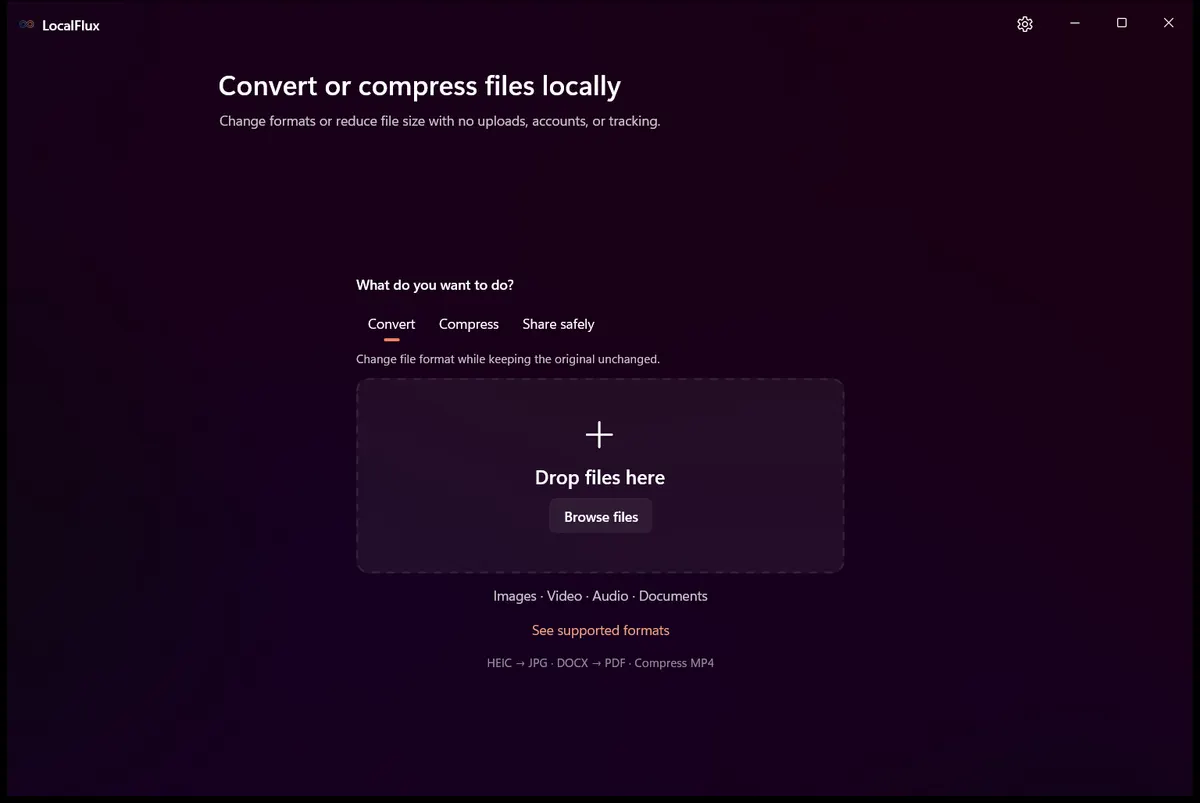
LocalFlux begins with a local file intake area. No account or upload step is required for normal supported conversion.
Best for: private or large recordings, recurring conversions, several compatible videos, and people who want a focused Windows interface.
Probably unnecessary for: a single non-sensitive clip when a video editor you already use can export the audio format you need. LocalFlux converts files; it is not a timeline editor.
The short version
- Open LocalFlux on Windows 11.
- Add one or more supported video files.
- Choose Convert.
- Select MP3 for a compact listening copy or WAV for the app’s uncompressed 16-bit PCM output.
- Select Convert.
- Open the new audio file or its folder from the completed row.
- Listen to the beginning and end before relying on the result.
Get LocalFlux from the Microsoft Store or check the currently supported formats.
What “extract audio” means here
A video file is usually a container. It can hold video, one or more audio tracks, subtitles, and other data. An audio-only conversion chooses an audio stream, excludes the video and other streams, and writes a new audio file.
There are two broad technical approaches:
- Stream copy moves a compatible compressed audio stream into another container without decoding and encoding it again.
- Transcoding decodes the selected stream and encodes a new audio format.
FFmpeg’s documentation makes that distinction explicit. LocalFlux’s current video-to-audio routes transcode: they select the first audio track and encode it as MP3 or 16-bit PCM WAV. That is why this guide does not promise “lossless extraction” or an unchanged original audio codec.
Step 1: Add the video
Drag the file onto LocalFlux, use Add files, paste it, or use a supported Windows 11 Explorer handoff. The queue shows the detected source format, size, dimensions, and output before anything starts.
The test below used a six-second synthetic MP4 named training-demo.mp4. It contains a generated 640 x 360 video stream and a generated 44.1 kHz mono AAC track. It contains no meeting, voice, customer, or personal data.
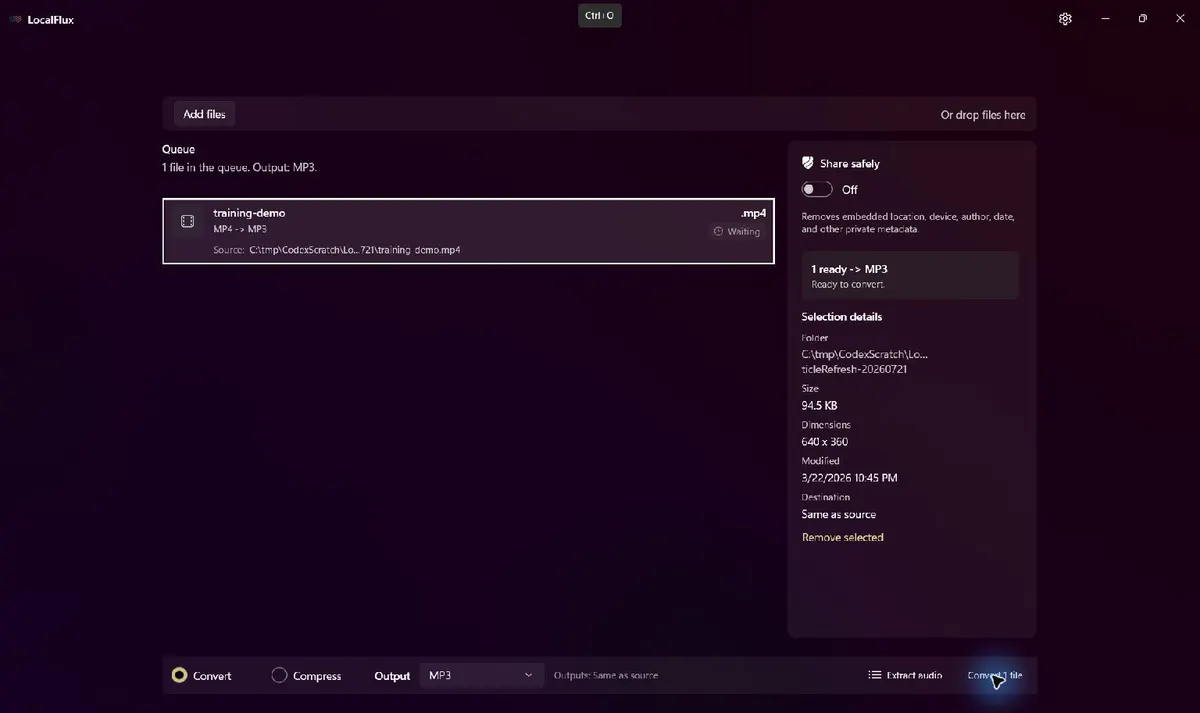
The MP4 is waiting with the explicit MP4-to-MP3 route ready. The source has not been changed.
Step 2: Choose MP3 or WAV
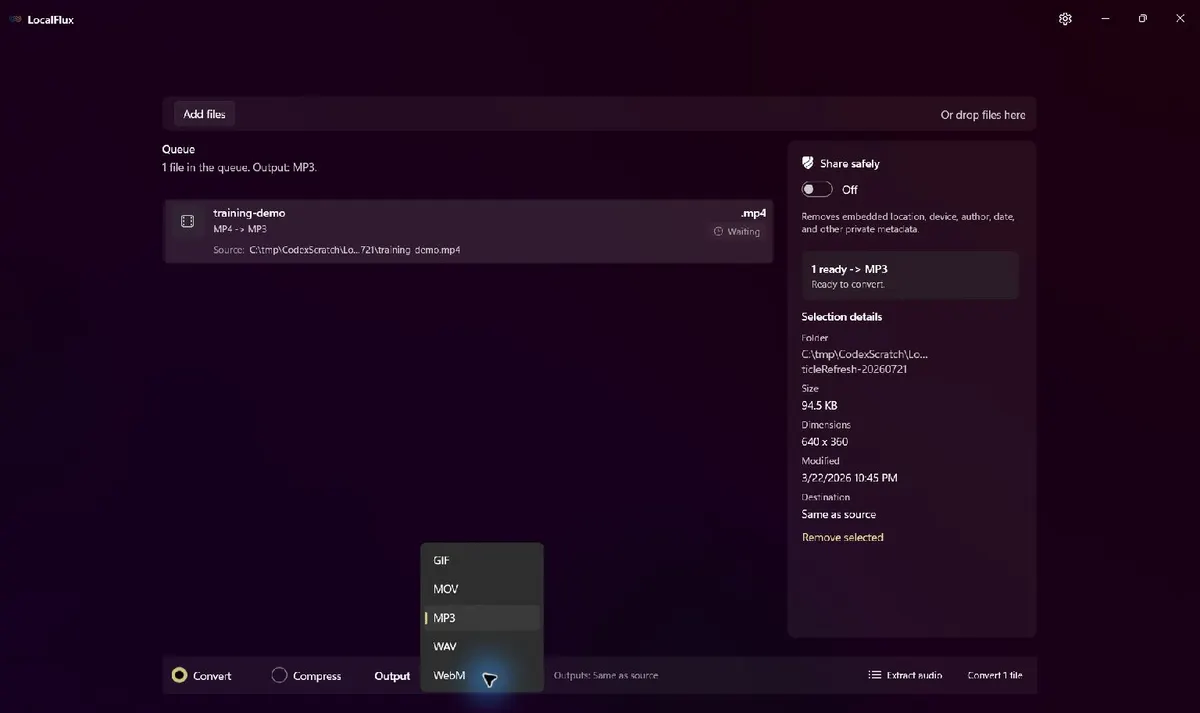
Open the output menu and select the audio format the next app actually needs. Do not choose based on the word “quality” alone; choose based on compatibility, editing needs, and storage.
| Need | Choose | Tradeoff |
|---|---|---|
| Listening, sharing, broad player support, smaller files | MP3 | Lossy re-encoding can add generation loss |
| A workflow that asks for uncompressed PCM audio | WAV | Usually much larger |
| Editing, trimming, mixing, or choosing a time range | A video/audio editor | LocalFlux does not provide timeline tools |
WAV is a container and is not inherently uncompressed in every possible use. The accurate product-specific statement is that LocalFlux’s current WAV route writes pcm_s16le: uncompressed 16-bit PCM. The current MP3 route uses the LAME MP3 encoder.
Step 3: Convert and check the result
Select Convert 1 file. LocalFlux processes the supported route with its bundled FFmpeg engine. The completion state shows the new destination and offers Open file and Open folder actions.
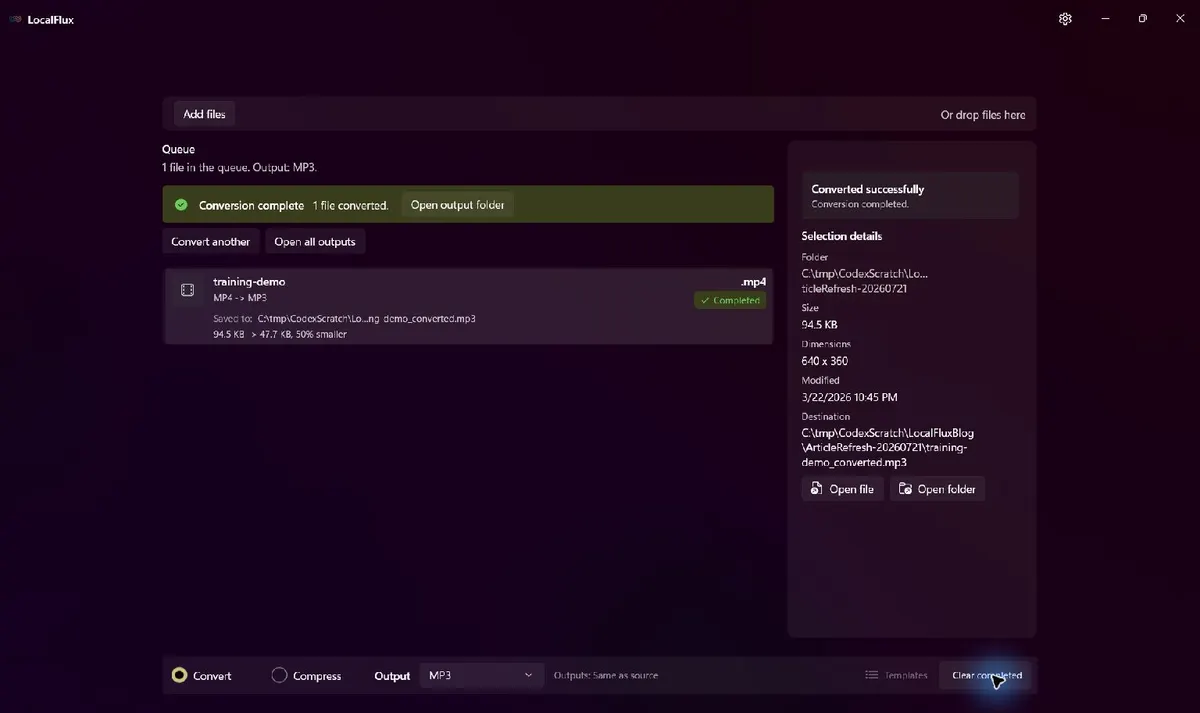
The audio-only result was saved as training-demo_converted.mp3; the six-second source MP4 remained in place.
Video transcript: LocalFlux opens at the local file drop area. A synthetic MP4 appears in the queue with MP3 selected. The output list shows MP3 and WAV. The final state reports one completed conversion and the new _converted.mp3 destination.
Tested result: MP4 with AAC to MP3
The source contained one AAC audio track, so the app’s “first audio track” behavior was unambiguous in this fixture.
| Property | Source MP4 | Output MP3 |
|---|---|---|
| File size | 96,815 bytes | 48,813 bytes |
| Reported duration | 6.000 seconds | 6.014 seconds |
| Video | H.264 High, 640 x 360, 30 fps | None |
| Audio codec | AAC-LC | MP3 |
| Sample rate | 44.1 kHz | 44.1 kHz |
| Channels | Mono | Mono |
| Reported overall bitrate | 129.1 kb/s | 64.9 kb/s |
| Original preserved | Yes | New output copy |
The small reported duration difference is consistent with audio encoding and container timing; it is not evidence that speech or music was added. For a real recording, listen to the start and finish and check sync-sensitive material before discarding any separate working copy.
The waveform below was generated from the actual LocalFlux MP3 output. It is evidence that the result contains audio, not a claim about speech intelligibility or subjective quality.

You can inspect the rights-cleared synthetic MP4 source and the actual LocalFlux MP3 output.
Supported video inputs
The tested build provides explicit MP3 and WAV routes from these source groups:
- MP4
- MOV
- MKV
- WebM
- AVI
- WMV
- M4V
- FLV
- MPEG or MPG
- MTS or M2TS
Available outputs are route-aware and can change with the source. Choose MP3 or WAV only when the queue marks the row ready. A file extension alone does not guarantee that a damaged or unusual file will decode successfully.
The first-audio-track limitation
Some MKV, MP4, and broadcast files contain more than one audio stream: for example, a main language track, director commentary, or accessibility description. LocalFlux’s current extraction route selects the first audio stream (0:a:0) and does not expose a track picker.
That matters. If the wrong language or commentary track appears in the result, use a tool that lets you inspect and select streams explicitly. LocalFlux also does not merge several audio tracks into one output.
This article’s fixture had only one audio track. Multiple-track behavior is supported by the implementation review but was not demonstrated as a success case here.
Converting several videos in one batch
Add the compatible videos to one queue, choose MP3 or WAV once, and start the batch. One LocalFlux batch uses one selected output format. Every ready source receives its own safely named output, and every original remains unchanged.
Batch conversion is useful for a folder of training clips, phone videos, or meeting recordings that all need the same listening format. It is less suitable when the files need different audio tracks, time ranges, loudness processing, or editing decisions.
Privacy and offline behavior
An online extractor must receive the complete video before it can process it. For a large recording that adds upload and download time; for confidential material it also creates another copy in another system.
During normal supported conversion, LocalFlux processes the file on the PC and does not upload it to a conversion service. The app does not require sign-in, and the required conversion components are bundled, so supported work can run offline after installation. The original remains in place and the audio result is written as a new file.
Those claims apply to LocalFlux’s normal conversion path. They do not describe the website, Microsoft Store delivery, or what happens if you later share the output through another service.
A current Windows alternative: Clipchamp
Microsoft Clipchamp can detach audio on a video-editing timeline and export an audio-only project. Microsoft’s current support material says the resulting audio-only download is M4A. That can be a good option when you already need editing, muting, or timeline control.
It is not the same workflow as a no-account file converter. Microsoft explains that personal Clipchamp media is processed locally unless backup or sharing is enabled, while project data such as titles and file names is stored in the Clipchamp account; work and school media is backed up to OneDrive or SharePoint. See Microsoft’s audio detachment instructions, export documentation, and storage explanation.
Choose Clipchamp when editing is the job. Choose LocalFlux when the job is repeatable local file conversion to MP3 or PCM WAV.
Important limitations
LocalFlux does not trim, transcribe, caption, split, normalize loudness, remove noise, mix tracks, or provide a waveform editor. It cannot repair every damaged, encrypted, or unusual container. It always selects the first audio track for the current video-to-audio routes.
Re-encoding an already lossy AAC, Opus, or MP3 source to MP3 can introduce additional loss. If audio quality is critical and the destination supports the source codec, a stream-copy-capable tool may be more appropriate. Only convert recordings you own or have permission to use.
Frequently asked questions
Does LocalFlux copy the original audio without changing it?
No. The current MP3 and WAV routes transcode the first audio stream. MP3 uses lossy encoding; the WAV route writes uncompressed 16-bit PCM.
Why is the WAV likely much larger than MP3?
PCM stores each sample directly, while MP3 uses perceptual compression. A WAV output can be useful for compatible editing workflows, but it is not the storage-efficient choice.
Can I choose a commentary or second-language track?
Not in the current LocalFlux interface. The route selects the first audio stream. Use a stream-aware editor or FFmpeg workflow when track selection matters.
Will extracting audio remove the video from my original file?
No. LocalFlux creates a new audio-only file and preserves the source video during normal conversion.
Can I extract audio from several videos at once?
Yes, when every row is compatible with the selected MP3 or WAV output. Use separate batches when the desired output differs.
Create the audio copy on your PC
For a supported source with the right first audio track, LocalFlux turns video-to-audio conversion into a short local workflow: add, choose MP3 or WAV, convert, and verify the new copy.
Get LocalFlux from the Microsoft Store or review the supported formats and routes.