
How to Convert MP4 to GIF on Windows Offline
Convert a short MP4 clip to GIF locally on Windows and understand frame count, color, audio, quality, and file-size tradeoffs.
On this page
- Quick answer
- Understand the tradeoff before converting
- Choose the right source clip
- Step-by-step: convert MP4 to GIF
- Tested result: why GIF size deserves attention
- How to make the GIF smaller
- GIF color and dithering explained
- Common mistakes
- Privacy and offline conversion
- Troubleshooting
- Final checklist
- Publication evidence
- Practical checks before and after conversion
An animated GIF is convenient when you need a short motion clip that starts automatically, loops, and can be embedded where video is awkward. The tradeoff is efficiency. GIF is an old, palette-based format with no modern video compression and no useful audio track. A GIF made from even a short MP4 can be dramatically larger than the source.
That does not make MP4-to-GIF conversion a bad idea. It means the job needs the right source: short, tightly framed, and small enough in pixel dimensions for its destination. The safest workflow is to keep the original MP4, create a GIF copy locally, and verify the animation in the platform where it will be posted.
This guide uses LocalFlux on Windows. The supported conversion runs on the PC with a bundled media engine, so the video does not need to be uploaded to an online converter during normal use.
Quick answer
To convert MP4 to GIF offline on Windows:
- Prepare a short MP4 clip. Trim it before opening LocalFlux if necessary.
- Add the MP4 to LocalFlux.
- Keep Convert selected and choose GIF as the output.
- Open Options to reduce dimensions or adjust the supported quality control.
- Select Convert 1 file.
- Play the GIF from beginning to end and check its size before sharing it.
LocalFlux does not provide a timeline or in/out trim controls. It converts the clip you add, so source preparation matters.
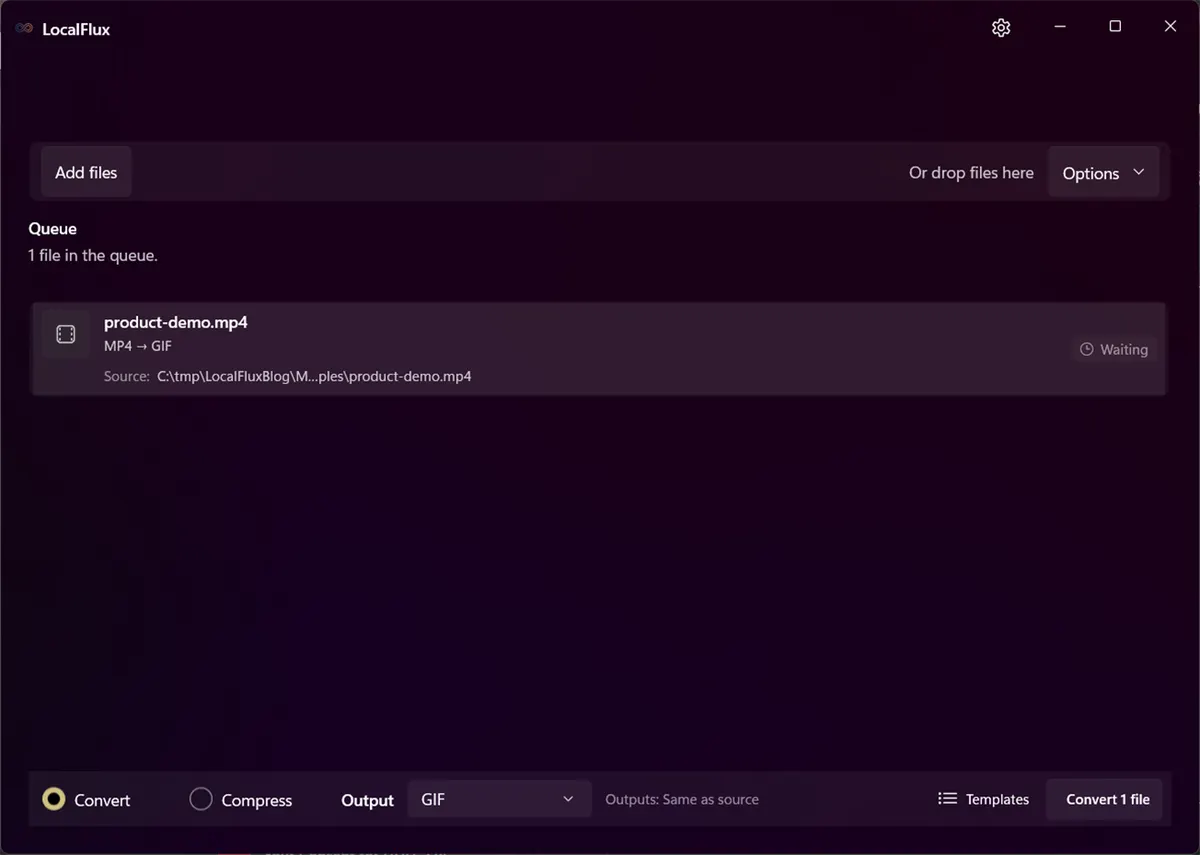
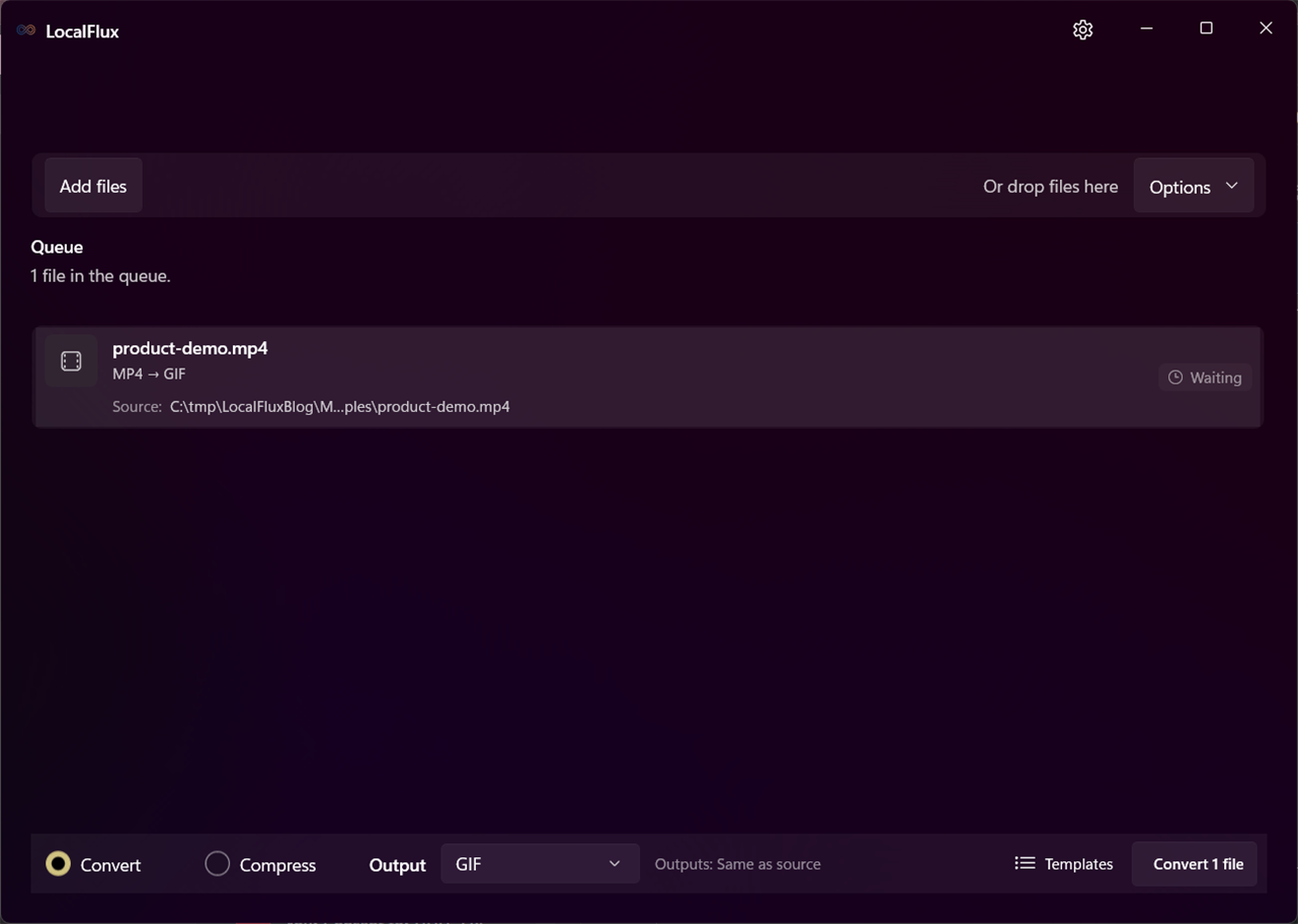
A six-second, privacy-safe MP4 fixture is ready for GIF conversion. No personal filename or user directory is shown.
Understand the tradeoff before converting
MP4 is a container commonly used with modern compressed video and audio streams. GIF is an image animation format whose frames use a limited palette. It can loop almost anywhere, but it is not a replacement for video delivery.
The conversion typically involves three major changes:
- Audio is removed because ordinary GIF animation has no audio track.
- Video colors are quantized into a palette, which can create banding or dithering.
- Inter-frame video compression is replaced by GIF frame storage and optimization, which can make the output much larger.
FFmpeg’s documented high-quality GIF workflow generates a representative palette and then applies that palette while rendering the animation. Its palettegen filter can quantize a video to a limited set of colors, while paletteuse applies the palette and supports several dithering methods. See the official FFmpeg filter documentation.
LocalFlux uses a dedicated two-pass palette workflow for this route. That produces a valid animated GIF, but it cannot overcome the format’s fundamental size limits.
Choose the right source clip
The best GIF source has:
- a duration of a few seconds;
- one clear action;
- modest dimensions;
- limited camera movement;
- relatively simple colors;
- no information that depends on audio;
- no sensitive notifications, usernames, or background content.
If a 40-second screen recording contains one useful gesture, trim it in a video editor first. LocalFlux is a converter, not a timeline editor. It does not let you choose a start time, end time, caption track, crop region, or loop segment.
Also check the destination’s upload limit. Team chat, documentation systems, issue trackers, social sites, and email tools can enforce very different GIF size caps.
Step-by-step: convert MP4 to GIF
1. Add the MP4
Open LocalFlux and add the prepared MP4 by file picker or drag and drop. The queue should identify the source as MP4 and show the selected GIF route after you choose the output.
Use a neutral working folder when screenshots will be published. File paths can reveal project, client, account, or user information even when the video frames are harmless.
2. Choose GIF
Keep the app in Convert mode and choose GIF from the output list. Confirm that the row is ready. A batch uses one selected output format, so every ready video in that batch will be converted to GIF.
3. Reduce dimensions when appropriate
Pixel dimensions have an outsized effect on animated GIF size because every frame contains a raster image. A 1280 x 720 animation has four times as many pixels per frame as a 640 x 360 version.
Open Options and choose a smaller size if the destination does not need the original dimensions. Keep aspect ratio locked. Common documentation widths such as 480, 640, or 800 pixels may be enough, but choose based on the actual layout and display density.
Do not upscale a small source. Upscaling creates more pixels without creating more real detail and usually makes the GIF heavier.
4. Understand the quality control
For this route, LocalFlux maps the supported quality control to the number of colors available to the generated GIF palette. Fewer colors can reduce complexity and sometimes size, but gradients, photographs, and antialiased text may show stronger banding or dithering.
Quality is not the only size lever. Duration, dimensions, and frame rate often matter more. The current LocalFlux UI does not expose a frame-rate selector or timeline trimming for this route, so prepare a suitable source rather than expecting an advanced GIF editor.
5. Convert locally
Select Convert 1 file. LocalFlux generates a palette and renders the GIF through its bundled FFmpeg component. The original MP4 remains unchanged, and the GIF receives a safe output name.
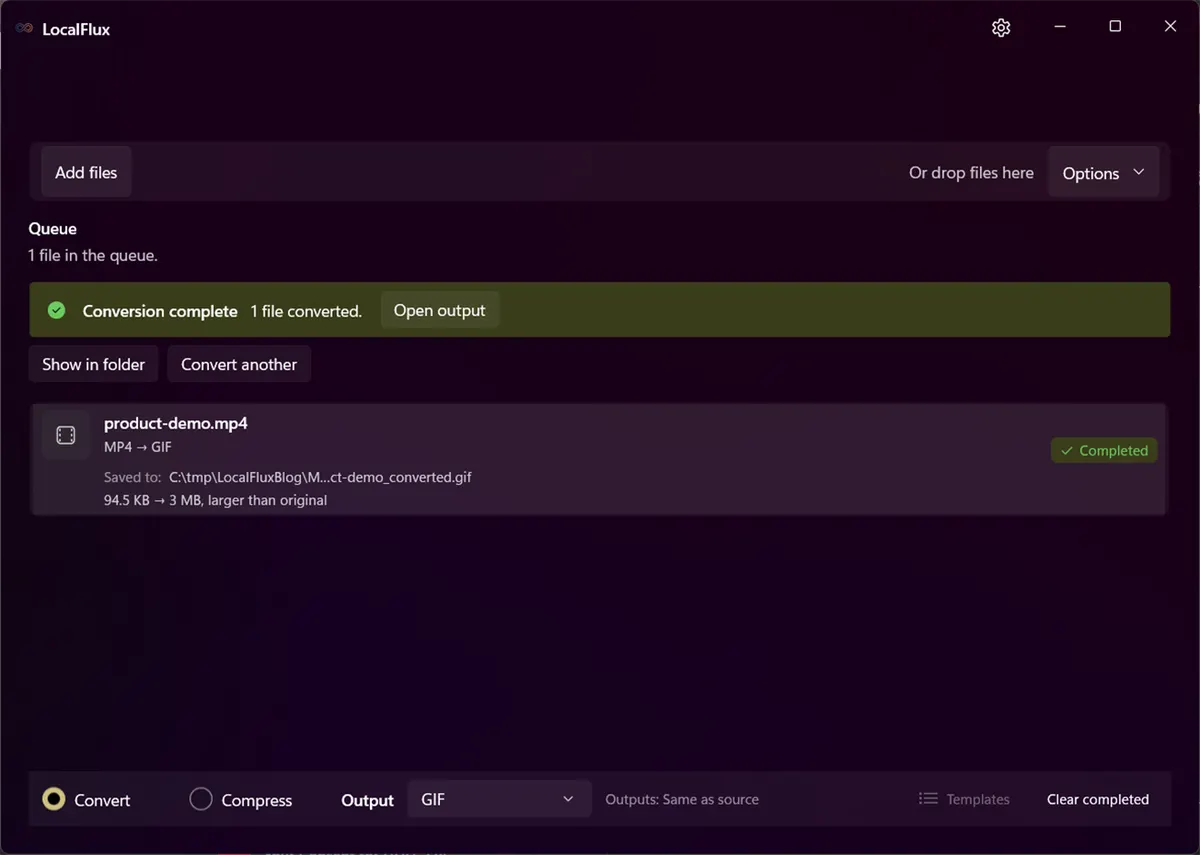
The completed output is product-demo_converted.gif. The app reports that it is larger than the original, which is expected for this fixture.
6. Review the whole animation
Do not judge only the first frame. Watch at least two loops and inspect:
- the first-to-last loop transition;
- frame timing and motion smoothness;
- text legibility;
- banding in gradients;
- color shifts;
- flashing or rapid motion that could create accessibility problems;
- the final file size;
- playback in the real destination.
Some tools show only a static preview until the file is opened. Confirm that the output is genuinely animated.
Tested result: why GIF size deserves attention
The privacy-safe fixture for this article was six seconds long, 640 x 360, and 30 frames per second. The conversion retained 180 frames.
| Observation | MP4 source | GIF output |
|---|---|---|
| Duration | 6.0 seconds | 6.0 seconds |
| Dimensions | 640 x 360 | 640 x 360 |
| Frames | 180 | 180 |
| File size | 96,815 bytes | 3,164,583 bytes |
| Audio | source may contain a media audio stream | no GIF audio |
The GIF was about 32.7 times the size of the MP4. This is not a product failure; it is a clear demonstration of the format tradeoff. The H.264 MP4 can reuse information across frames. GIF’s palette animation is much less efficient for this motion and frame count.
The result also explains why a good converter should report the actual output rather than promising that GIF is “compressed video.” For some simple, very short animations a GIF is manageable. For many clips, MP4, WebM, or an animated WebP is a better delivery format when the destination supports it.
How to make the GIF smaller
Work in this order:
- Shorten the clip. Remove every second that does not help the viewer.
- Reduce dimensions. Match the actual display size instead of the recording size.
- Lower the frame rate before conversion. This requires a video editor or another preparation tool because LocalFlux does not expose frame-rate controls for this route.
- Simplify the content. Static backgrounds and limited colors compress better than full-screen camera motion.
- Adjust palette quality carefully. Check gradients, shadows, and text after every change.
- Use video when possible. A looping muted MP4 or WebM is often dramatically smaller.
Do not make the GIF unreadable merely to meet an arbitrary size target. If the destination supports video, changing the delivery format may be the better answer.
GIF color and dithering explained
A video frame can contain millions of colors. A GIF palette is limited, so the converter must choose representative colors. When a source color is not available, dithering can arrange nearby palette colors to simulate intermediate tones.
That can preserve the impression of a gradient, but it may introduce visible texture and make compression less effective. Screen recordings with solid UI colors often convert more cleanly than footage with skies, skin tones, shadows, or noise.
Palette quality should therefore be evaluated on the most difficult frames, not only on the title card.
Common mistakes
Converting the entire recording
An untrimmed recording creates unnecessary frames and can expose information before or after the useful moment. Prepare the clip first.
Expecting audio
GIF does not carry the MP4’s normal audio experience. If narration or sound effects matter, publish video instead.
Keeping full recording resolution
A 1920 x 1080 GIF is rarely appropriate for a documentation column or chat message. Resize deliberately.
Assuming GIF will be smaller
The tested output in this article was more than thirty times larger than its MP4. Always compare actual sizes.
Treating LocalFlux as a GIF editor
LocalFlux performs the conversion and exposes supported resize and palette-quality controls. It does not trim, crop, add text, rearrange frames, remove a background, or provide a timeline.
Privacy and offline conversion
Video files can contain more sensitive information than their visible subject suggests: notifications, browser tabs, names in window chrome, voices, metadata, and frames outside the intended segment. Local conversion avoids uploading the source to a conversion website during normal use, but you still need to review the clip itself.
Use a dedicated sanitized source for a public GIF. Play the MP4 before conversion and the GIF afterward. Cropping or blurring sensitive areas requires an editor; conversion alone does not remove them.
LocalFlux can run this supported conversion offline after installation, does not require an account for conversion, and preserves the original by writing a new output copy.
Troubleshooting
The GIF is enormous. Shorten the source, reduce dimensions, prepare a lower-frame-rate clip, or use video instead.
Colors look flat or noisy. Increase palette quality if available, simplify the source, or accept that GIF is a poor match for photographic footage.
The loop jumps. Edit the source so its ending transitions naturally to its beginning. The converter cannot invent a seamless loop.
Motion is too fast or slow. Verify source timing. If you need timing edits, use an animation or video editor before conversion.
Only one frame appears in another tool. Open the GIF in a browser and in the final destination. Some preview panes display only a still thumbnail.
Final checklist
- The source clip is intentionally short.
- No audio-dependent information was lost.
- Dimensions match the destination.
- The complete loop was reviewed.
- Colors and text remain usable.
- The output fits the platform’s upload limit.
- No personal information appears in any frame or path.
- The original MP4 is retained.
For recurring private media work, get LocalFlux from the Microsoft Store. If you need trimming, captions, frame-rate control, or a hand-tuned loop, prepare the clip in a video editor first and use LocalFlux for the final offline format conversion.
Publication evidence
The files used in this article are synthetic and privacy-reviewed. You can inspect the published source and converted output in the sample folder, along with the test record and SHA-256 media manifest:
Practical checks before and after conversion
The reliable workflow is to trim before conversion; choose frame rate, dimensions, loop behavior, palette quality, and duration because GIF has no normal audio track. This matters because changing a file extension does not preserve every property of the source. Decide what the destination actually needs, keep the source as the master, and use a small representative file before processing a large batch.
Before you start
- Record the source format and the properties that matter to the destination.
- Choose settings for the intended viewer, editor, device, or upload system.
- Use a new output folder and keep collision-safe names.
- Open the result in the software that will actually receive it.
- Compare content, dimensions or duration, and any metadata you expected to keep or remove.
Review the output
A successful status only confirms that an output was written. It does not prove that every font, frame, channel, page, formula, profile, tag, or accessibility feature survived. For important work, inspect representative outputs and retain the original until the delivered copy has been accepted.
A successful status only confirms that an output was written. It does not prove that every font, frame, channel, page, formula, profile, tag, or accessibility feature survived. For important work, inspect representative outputs and retain the original until the delivered copy has been accepted.
The reliable workflow is to trim before conversion; choose frame rate, dimensions, loop behavior, palette quality, and duration because GIF has no normal audio track. This matters because changing a file extension does not preserve every property of the source. Decide what the destination actually needs, keep the source as the master, and use a small representative file before processing a large batch.