
Does Converting a Photo Remove EXIF Metadata?
Learn why image conversion is not a metadata-removal guarantee, see a tested HEIC-to-JPG comparison, and create verified sanitized copies on Windows.
On this page
- Quick answer
- What EXIF metadata can reveal
- Our ordinary conversion test
- Create a sanitized copy with Share safely
- What Share safely does
- Why conversion behavior varies
- How to verify a photo before sharing
- Does uploading to social media remove metadata?
- Final checklist
- Publication evidence
- Practical checks before and after conversion
Quick answer
No, not reliably. Converting HEIC, JPG, PNG, AVIF, or another image format may preserve, transform, or drop metadata depending on the tool and settings. If privacy matters, use an explicit metadata-removal mode and verify the output instead of assuming that format conversion made the photo safe.
In our LocalFlux test, an ordinary HEIC→JPG conversion preserved the source DateTimeOriginal EXIF value. The Share safely path removed the EXIF profile and reported that the sanitized copy was verified.
What EXIF metadata can reveal
Exif is a camera-image metadata standard maintained by CIPA and JEITA. The current CIPA standards list identifies Exif 3.1 as the exchangeable image file format standard for digital still cameras.
Depending on the photo and device, metadata can include:
- Capture date and time.
- Camera or phone make and model.
- Lens and exposure settings.
- Orientation.
- Software history.
- GPS coordinates.
- Descriptions, authorship, or copyright fields in Exif, IPTC, or XMP data.
Not every photo contains all of these fields. The safe assumption is that you do not know until you inspect it.
Our ordinary conversion test
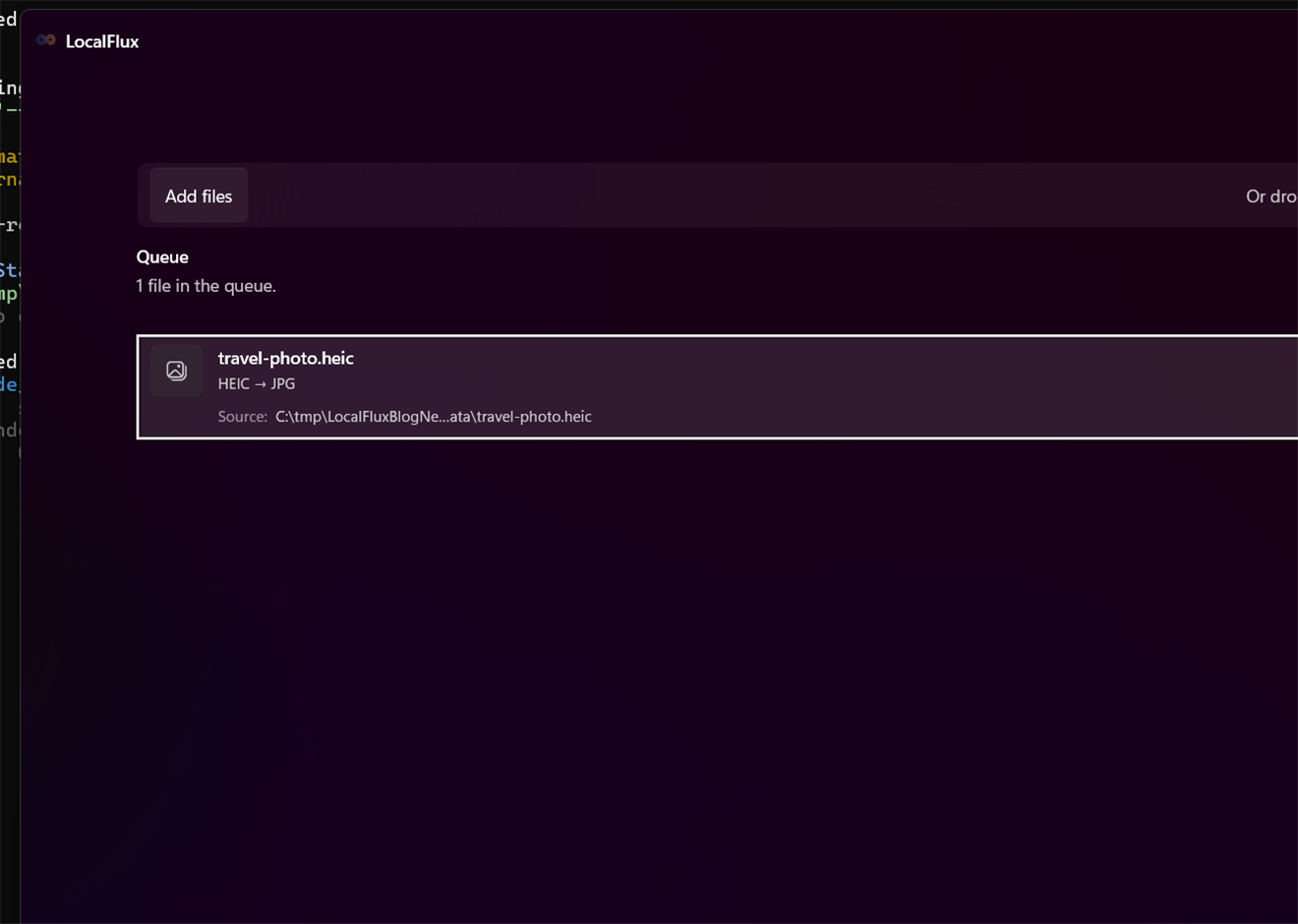
We added an EXIF-bearing HEIC fixture and ran a normal HEIC→JPG conversion.
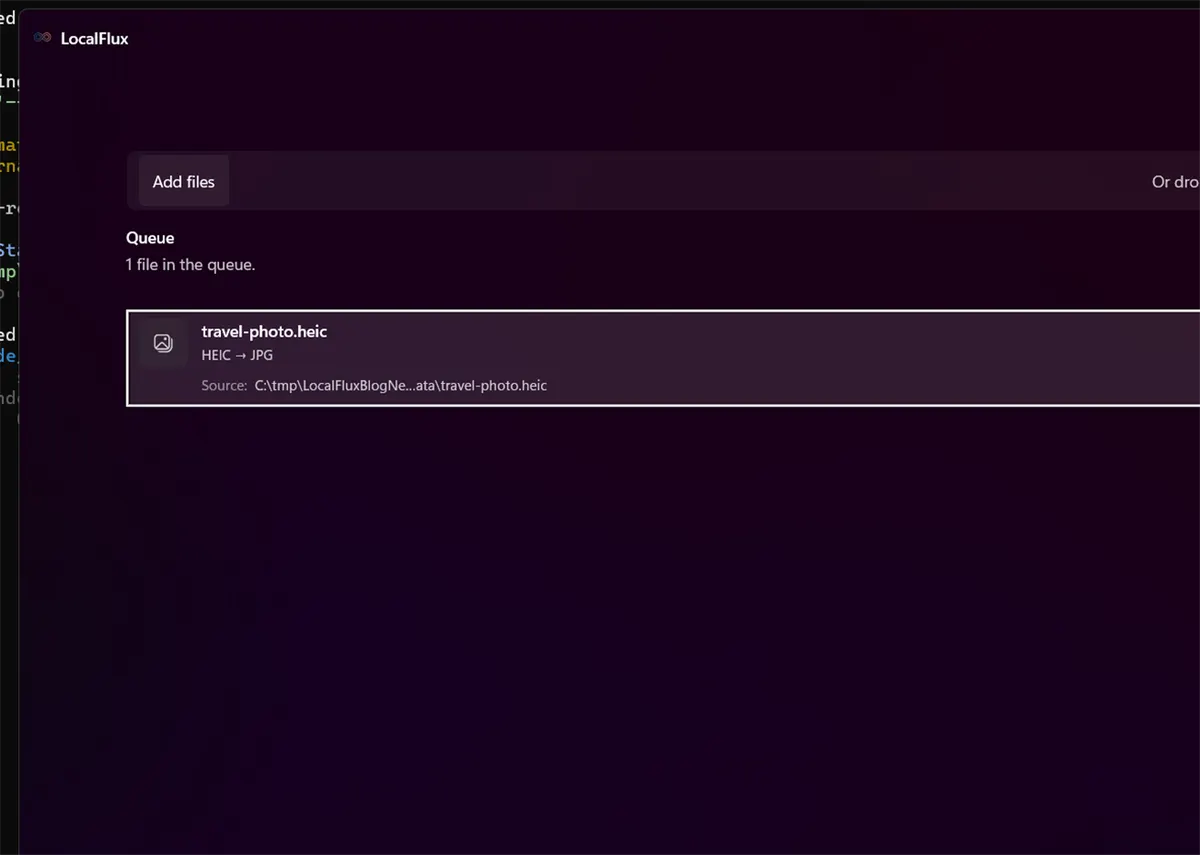
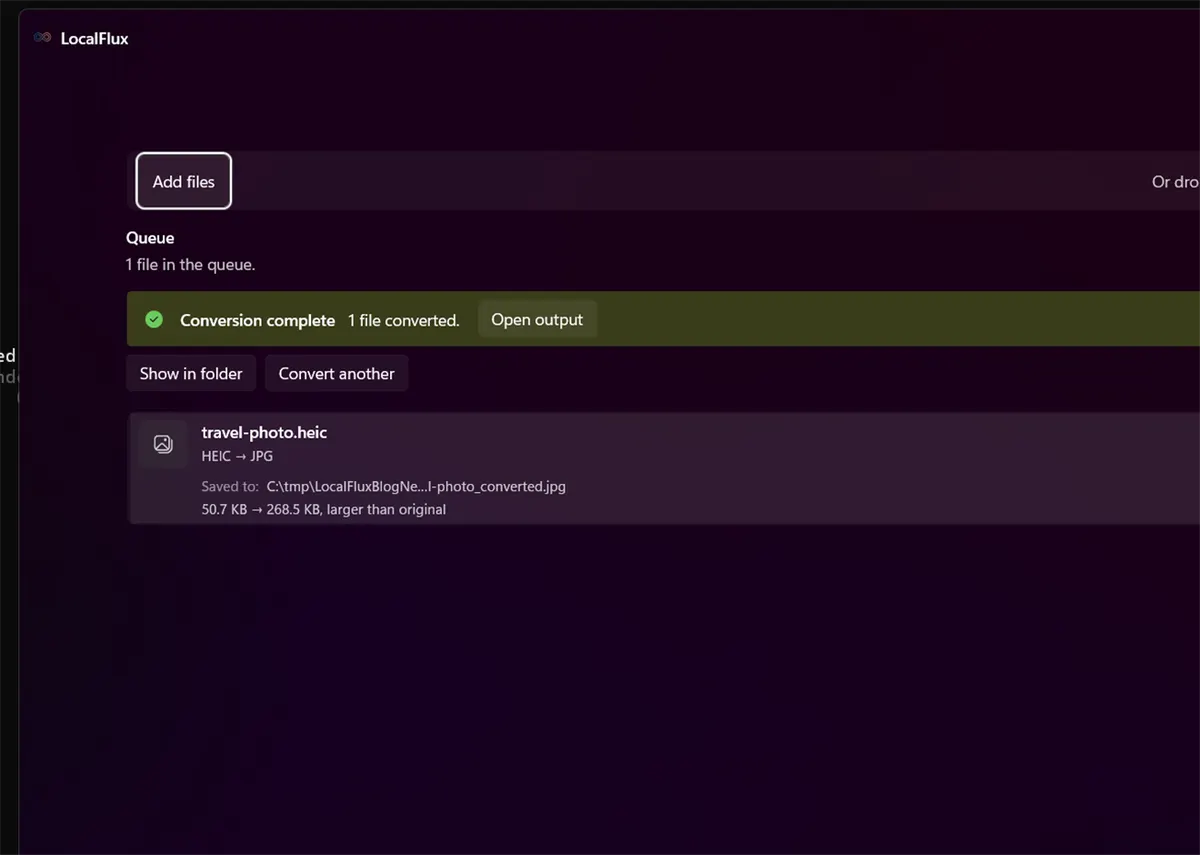
ImageMagick metadata probes returned:
| File | DateTimeOriginal | Profile result |
|---|---|---|
| Source HEIC | 2020:12:03 15:04:31 | exif |
| Ordinary JPG | 2020:12:03 15:04:31 | exif |
The conversion succeeded, but it did not remove the capture timestamp. That is the central lesson: a new extension is not proof of sanitization.
Create a sanitized copy with Share safely
- Add the image to LocalFlux.
- Expand Options.
- Turn on Share safely.
- Review the size preset and optional privacy-safe filename setting.
- Select Create safe copies.
- Wait for the queue to report that the safe copy was created and verified.
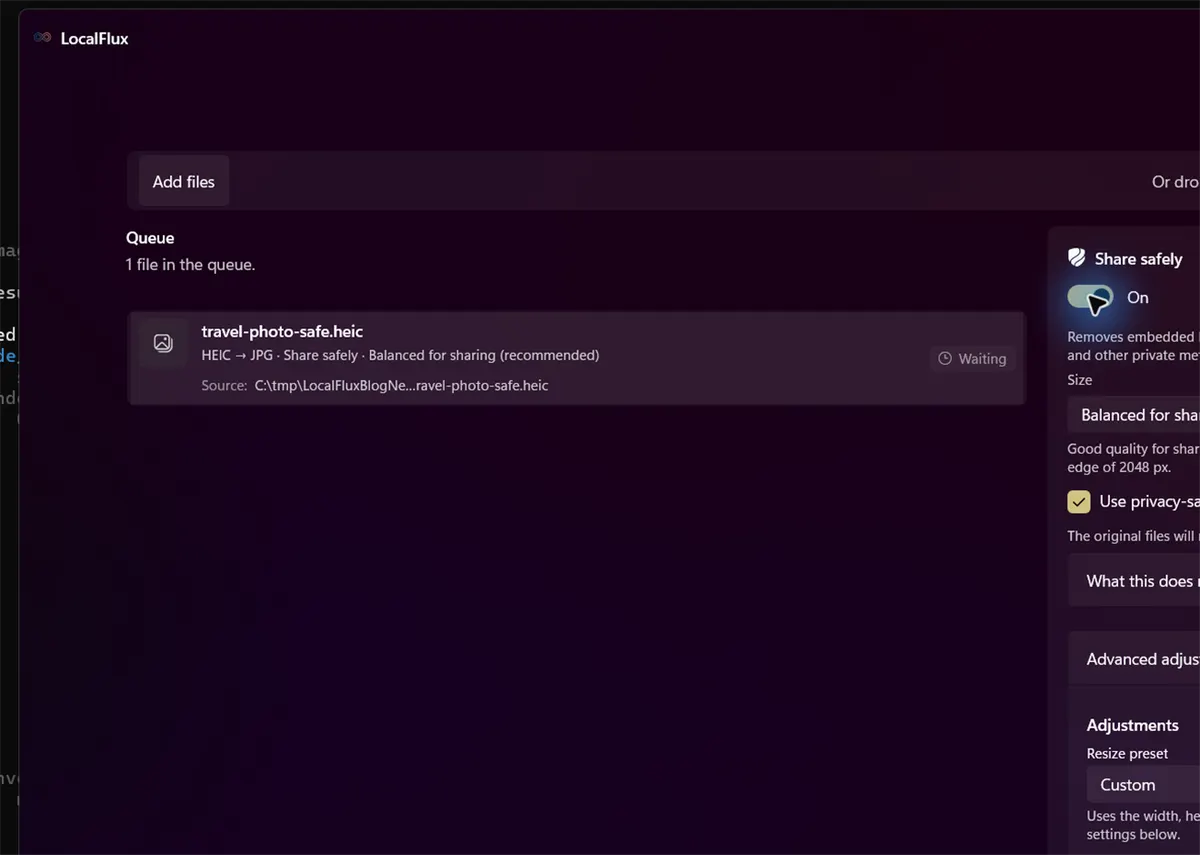
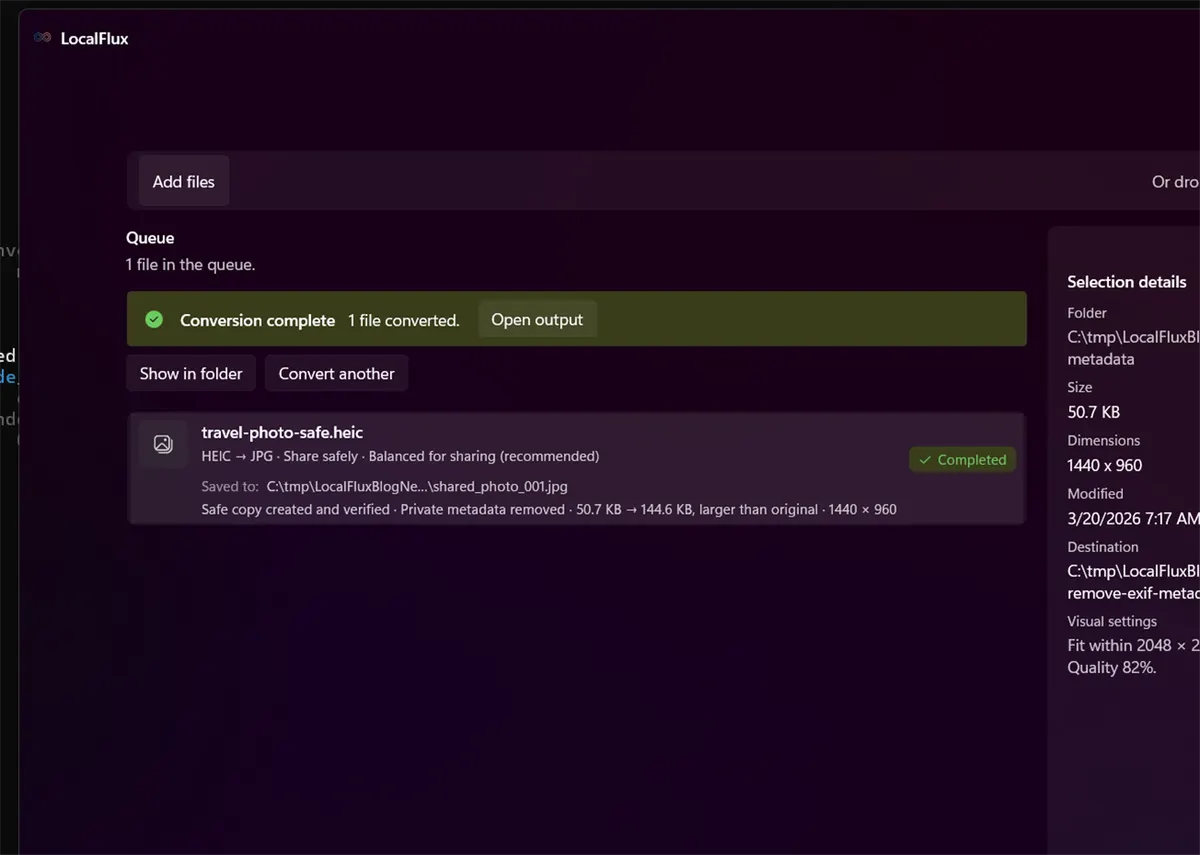
For the same fixture, the sanitized JPG returned no DateTimeOriginal value and no embedded profile in the metadata probe:
| File | DateTimeOriginal | Profile result |
|---|---|---|
| Share safely JPG | Absent | None reported |
LocalFlux also reported: Safe copy created and verified · Private metadata removed. The original HEIC was left unchanged.
What Share safely does
For supported image routes, Share safely creates a new copy, applies orientation, normalizes the sharing output, strips embedded metadata, and verifies that disallowed Exif, IPTC, XMP, comment, label, and caption data are absent before reporting success.
It does not make the picture anonymous in every sense. The pixels can still reveal a face, address, screen, license plate, landmark, document, reflection, or other identifying detail. A filename can reveal information too unless you enable privacy-safe filenames or rename the copy carefully.
Why conversion behavior varies
Metadata can be stored in several structures, not just one EXIF block. Tools make different choices: some copy profiles by default to preserve photographic context, some remove a subset, and others rebuild metadata. Output formats also differ in what they can store.
That is why advice such as “PNG has no EXIF” or “screenshotting always removes metadata” is too broad. Use an explicit privacy workflow and inspect the exact output that will be shared.
How to verify a photo before sharing
Use at least two checks for sensitive material:
- Inspect file properties or a trusted metadata viewer.
- Confirm that GPS, capture time, device, author, comments, and XMP/IPTC fields are absent.
- Inspect the visible pixels for identifying information.
- Share the sanitized copy instead of the original.
For a Windows-specific walkthrough, see how to remove photo metadata on Windows 11.
Does uploading to social media remove metadata?
Do not rely on it. Services can change processing behavior, preserve selected fields internally, or generate downloadable variants with different properties. Sanitize before upload when privacy matters.
Final checklist
- Conversion alone is not metadata removal.
- Use Share safely for an explicit, verified sanitized copy.
- Keep the original separate.
- Check both embedded metadata and visible identifying details.
- Use a neutral filename when the original name is sensitive.
Get LocalFlux from the Microsoft Store
Publication evidence
The screenshots and measured results come from privacy-reviewed fixtures tested with LocalFlux 1.0.7.0. The source files, outputs, and reproducibility notes are available here:
Practical checks before and after conversion
The reliable workflow is to test a matrix of JPG, PNG, WebP, HEIC, and other intended formats; inspect EXIF, XMP, IPTC, GPS, orientation, comments, and container-specific fields in the actual output. This matters because changing a file extension does not preserve every property of the source. Decide what the destination actually needs, keep the source as the master, and use a small representative file before processing a large batch.
Before you start
- Record the source format and the properties that matter to the destination.
- Choose settings for the intended viewer, editor, device, or upload system.
- Use a new output folder and keep collision-safe names.
- Open the result in the software that will actually receive it.
- Compare content, dimensions or duration, and any metadata you expected to keep or remove.
Review the output
A successful status only confirms that an output was written. It does not prove that every font, frame, channel, page, formula, profile, tag, or accessibility feature survived. For important work, inspect representative outputs and retain the original until the delivered copy has been accepted.