
How to Remove Metadata From Photos on Windows 11 Before Sharing
A photo can reveal more than the picture itself. Depending on the camera, phone, editing software, and file format, the file may also contain the date it was taken, the device model, location coordinates, an author or copyright name, a caption, editing history, and other embedded information.
That information is often useful. It can help you organize a photo library, prove authorship, credit a photographer, or understand how an image was captured. But you may not want all of it attached to a copy you are sending to a client, posting in a public forum, adding to a marketplace listing, or sharing with someone you do not know.
Windows 11 includes a built-in way to remove many visible properties from supported image files. For a repeatable workflow, LocalFlux can instead create a new JPG, PNG, or WebP sharing copy, remove supported private metadata, optionally replace the original filename with a generic numbered name, and verify the output before reporting success.
Best for: family photos, client previews, marketplace images, social posts, property photos, school or community images, and other pictures you want to share without carrying unnecessary embedded details.
Not a complete anonymity tool: removing metadata does not hide anything visible in the pixels. Faces, license plates, house numbers, documents, reflections, names, tattoos, landmarks, QR codes, and watermarks can still identify people or places.
The short answer
To remove photo metadata with Windows 11:
- In File Explorer, right-click the photo and select Properties.
- Open the Details tab.
- Select Remove Properties and Personal Information.
- Choose whether Windows should create a copy with all possible properties removed or remove selected properties from the existing file.
- Inspect the result before sharing it.
To create a verified sharing copy with LocalFlux:
- Add a supported image.
- Choose a JPG, PNG, or WebP output supported for that source.
- Open Options and turn on Share safely.
- Choose Metadata only, Balanced for sharing, Smallest for sharing, or Custom.
- Leave Use privacy-safe filenames selected if the original name reveals context.
- Select Create safe copies.
- Confirm that LocalFlux reports Safe copy created and verified and Private metadata removed.
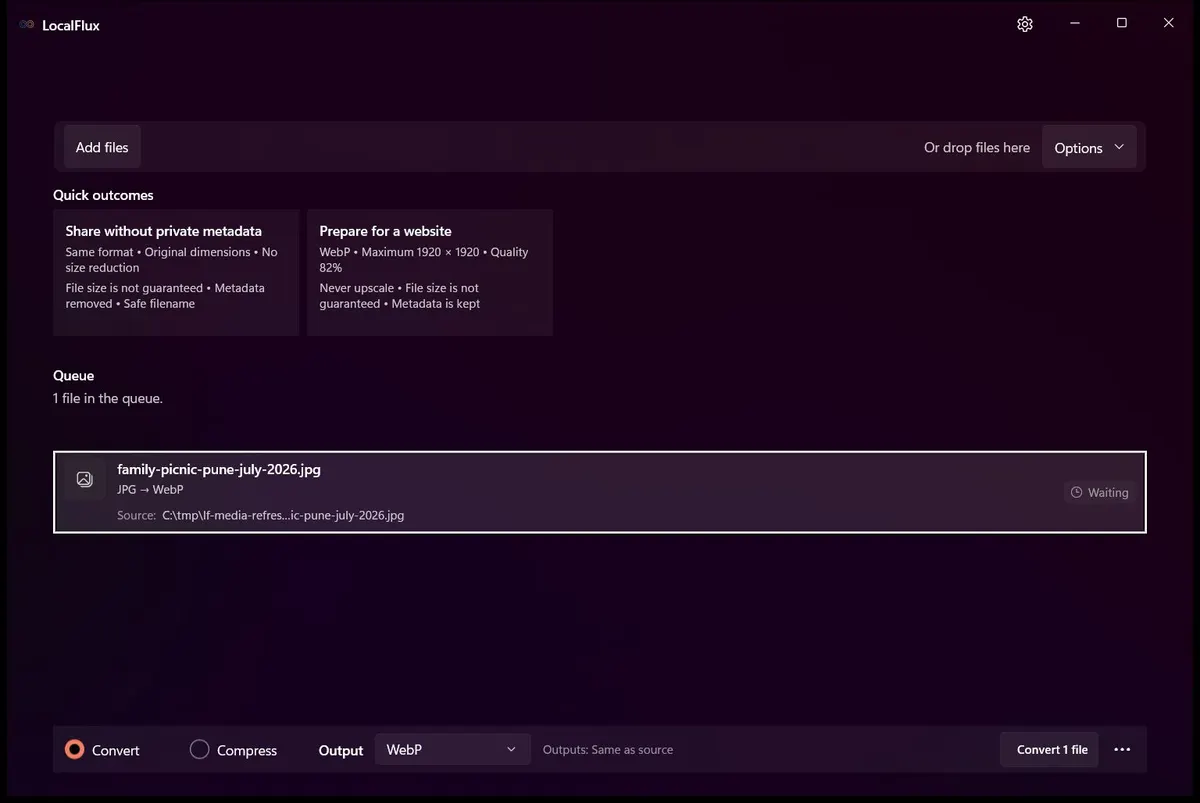
The test source is ready. It has not been changed, and Share safely is still off.
What information can a photo contain?
Image metadata is information stored with an image but not required to draw its pixels. Microsoft’s Windows Imaging Component documentation describes support for common metadata systems including EXIF, GPS, XMP, IPTC, and PNG textual data. The exact fields available depend on the image format and the software that created or edited the file. See Microsoft’s WIC Metadata Overview.
Common examples include:
| Information | What it may contain | Why it can matter when sharing |
|---|---|---|
| Capture date and time | When the shutter was triggered | Can reveal a schedule, event, or travel timeline |
| GPS location | Latitude, longitude, altitude, or location names | Can identify a home, workplace, school, or private venue |
| Device details | Camera or phone maker, model, lens, exposure, and software | Can reveal equipment or help correlate images |
| Author and rights data | Creator, credit, copyright, usage terms, or contact details | Useful for licensing, but sometimes inappropriate for an informal copy |
| Description data | Title, caption, comment, label, keywords, or rating | May contain internal project language or names |
| Editing data | Software name, orientation, profiles, or workflow fields | Can disclose tools or preserve information you did not intend to send |
| Filename | Names such as client-smith-home-inspection.jpg | Not embedded metadata, but still visible to the recipient |
The IPTC definition of photo metadata groups common fields into descriptive, rights, and administrative information. IPTC correctly emphasizes that this data can be valuable: creator and copyright fields help protect and identify professional work, while captions and keywords make large collections searchable.
The sensible goal is therefore not “strip everything from every master file.” It is to decide what should travel with a particular copy.
EXIF, GPS, IPTC, and XMP in plain language
You do not need to memorize metadata standards to share a photo carefully, but the names appear often in image tools:
- EXIF commonly stores capture information such as date, camera model, exposure, orientation, and related technical details.
- GPS metadata can store coordinates and related location values. It is commonly represented within an EXIF metadata structure.
- IPTC metadata is widely used by photographers, publishers, and news organizations for captions, creator details, credits, rights, and workflow information.
- XMP is an extensible metadata format used by many creative and asset-management workflows. It can carry descriptive, rights, editing, and application-specific data.
- PNG text fields can hold comments, labels, descriptions, or other text even though PNG is not a camera-photo format in the same sense as JPEG or HEIC.
Metadata is not limited to one neat block. A file can contain several metadata systems at once, and different applications may show different subsets. That is why inspecting one Details screen is useful but should not be treated as a forensic proof that no other data exists.
How to inspect photo metadata in Windows 11
For a quick check:
- Open File Explorer.
- Right-click the image and select Properties.
- Open the Details tab.
- Review the sections Windows displays, which may include description, origin, image, camera, advanced photo, GPS, and file information.
Look especially for:
- Date taken
- Authors
- Camera maker and camera model
- Copyright
- Latitude, longitude, or other GPS fields
- Title, subject, tags, and comments
Then inspect the filename separately. A cleaned image called IMG_4821.jpg may reveal little, while jane-doe-passport-renewal-29-july.jpg can reveal more than any camera setting.
Windows shows only properties its metadata handlers understand for that format. If a high-risk disclosure policy applies, use an appropriate specialist inspection process and review the final file outside the tool that created it.
Method 1: Remove properties with File Explorer
Windows 11’s built-in method is appropriate when you have one supported file and want a quick, no-install workflow.
- Make a backup if the original matters.
- Right-click the photo and choose Properties.
- Open Details.
- Select Remove Properties and Personal Information near the bottom of the dialog.
- Choose one of the available approaches:
- Create a copy with all possible properties removed keeps the source and asks Windows to make another copy.
- Remove the following properties from this file lets you choose displayed fields to remove from the current file.
- Select the properties or create the copy.
- Open the resulting file’s Properties > Details page and inspect it again.
The independent PCWorld walkthrough of the Windows method shows the same Properties and Details path.
When the Windows method is enough
Use File Explorer when:
- you have only one or two familiar files;
- Windows displays the properties you want to remove;
- you do not need to resize or convert the image;
- you are comfortable checking the result manually; and
- the filename is already suitable for sharing.
If File Explorer covers the properties you need, there is no reason to add another tool.
Limitations of the built-in method
The wording all possible properties matters. Metadata support varies by format, codec, property type, and Windows handler. The Details page may not expose every block or application-specific field, and some formats offer fewer editable properties than others.
The built-in workflow also separates several decisions that often belong together:
- removing metadata;
- creating a new copy instead of changing the source;
- converting to a more suitable sharing format;
- reducing dimensions or file size; and
- replacing a revealing filename.
For a one-off image that separation may be fine. For recurring client, creator, or marketplace work, it can become easy to forget one step.
Method 2: Create a privacy-safe copy with LocalFlux
LocalFlux combines those decisions into one supported image workflow. Normal conversion does not automatically mean metadata removal; turn on Share safely when that is the result you need.
1. Add the image and choose an output
Add a supported local image by using Add files, drag and drop, paste, launch handoff, or a supported File Explorer command. Choose a JPG, PNG, or WebP output available for the selected source.
Share safely is limited to image outputs in JPG, PNG, or WebP. It is not a metadata sanitizer for documents, audio, video, archives, or every image format.
2. Turn on Share safely
Open Options and turn on Share safely. The panel explains that the new copy removes embedded location, device, author, date, and other supported private metadata.
3. Choose how much to resize or compress
LocalFlux offers four size choices:
| Choice | Intended result |
|---|---|
| Metadata only | Preserve dimensions and avoid a sharing-size reduction while removing supported private metadata |
| Balanced for sharing (recommended) | Good sharing quality with a maximum long edge of 2048 pixels |
| Smallest for sharing | Stronger compression and smaller dimensions |
| Custom | Use the settings under Advanced adjustments |
Choose Metadata only when the dimensions and detail of the sharing copy matter. Choose Balanced for an everyday preview or post. Choose Smallest only when transfer size matters more than retaining detail. Use Custom when a portal or recipient has a specific requirement.
4. Use a privacy-safe filename when appropriate
With Use privacy-safe filenames selected, LocalFlux replaces the source name with a generic numbered output such as shared_photo_001.png. The original remains unchanged.
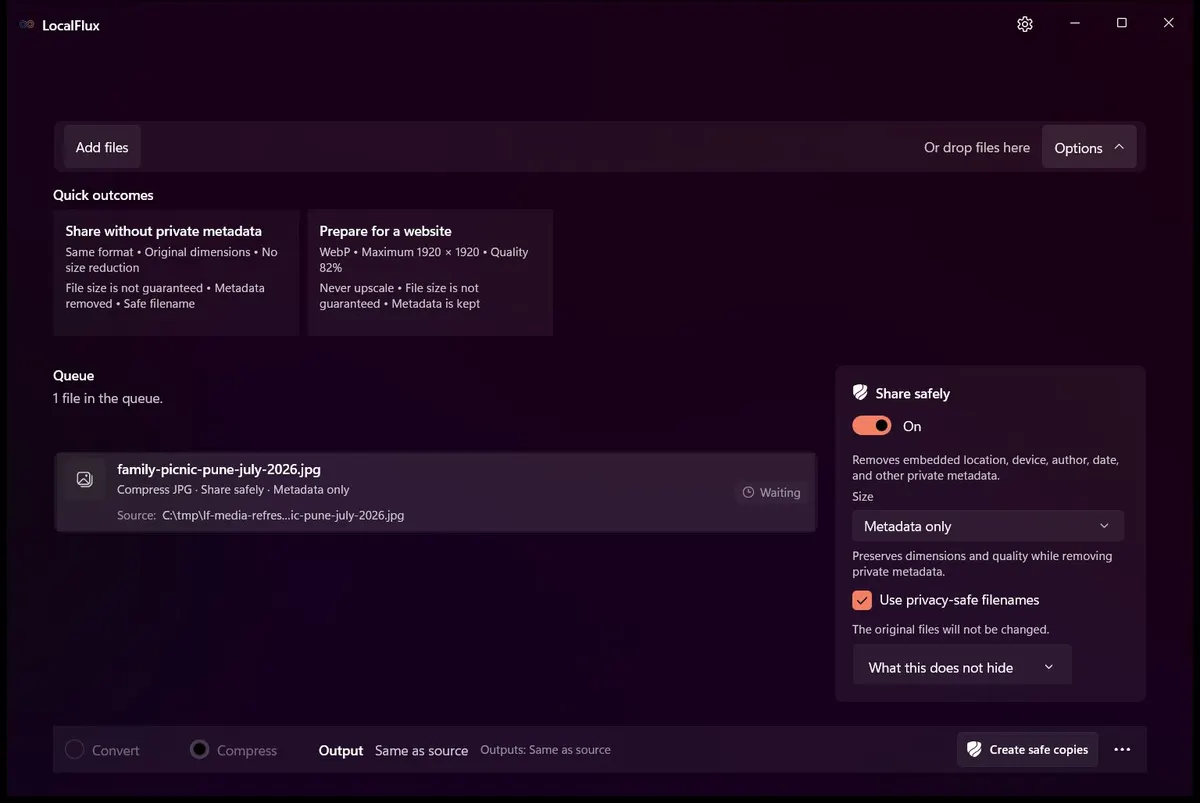
The original name stays on the source. The new sharing copy receives a generic numbered filename.
5. Create and verify the copy
Select Create safe copies. LocalFlux processes the image locally with its bundled image engine. Before reporting success, it checks the supported output format, orientation, dimensions, and the absence of the private metadata categories covered by the Share safely workflow.
If that verification fails, LocalFlux reports that it could not verify removal and does not present the result as a safe copy. This fail-closed behavior is more useful than silently implying that a partially checked output is clean.
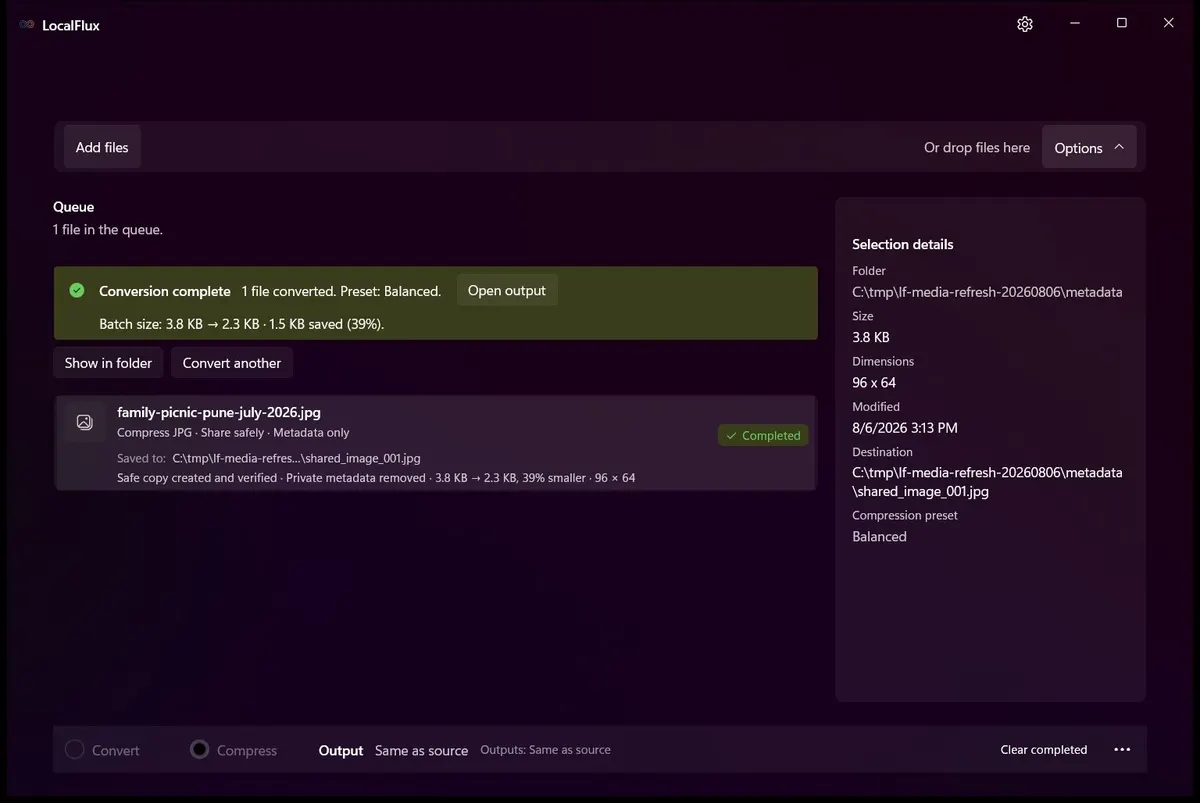
The test output is shared_photo_001.png. The app reports both verification and metadata removal.
Video transcript: A JPG named family-picnic-pune-july-2026.jpg is queued in LocalFlux. Share safely is turned on with Balanced for sharing and privacy-safe filenames selected. The app processes the image, then reports Safe copy created and verified and Private metadata removed for shared_photo_001.png.
Tested result: metadata before and after
The walkthrough uses a rights-cleared synthetic 96 x 64 JPEG. We embedded a test comment containing sample coordinates and deliberately used a revealing filename. LocalFlux created a PNG sharing copy with the Balanced preset and generic filename.
| Check | Source | Sharing copy |
|---|---|---|
| Filename | family-picnic-pune-july-2026.jpg | shared_photo_001.png |
| Format | JPEG | PNG |
| Dimensions | 96 x 64 | 96 x 64 |
| Embedded test comment | Present | Absent |
| EXIF, IPTC, and XMP fields found by the verification probe | None in this fixture | None |
| Orientation | Undefined | Undefined |
| File size | 2,383 bytes | 4,907 bytes |
| Original preserved | Yes | New output copy |
The output is larger because this tiny JPEG was converted to PNG. Metadata removal is not the same thing as compression, and a safer sharing copy is not guaranteed to be smaller. Real photographs and other output choices will produce different results.
You can inspect the exact synthetic source JPEG and verified PNG output used in this walkthrough.


Why a separate copy is safer than modifying the original
A master photo may need its metadata. A photographer may rely on capture time, lens information, copyright, creator credits, or asset-management fields. A family library may use dates and coordinates to organize years of pictures. Removing that information from the only copy creates a different problem.
A derivative workflow keeps the roles clear:
- Original: archival, editable, and information-rich.
- Sharing copy: limited to the information and quality needed for the recipient.
This also makes mistakes easier to recover from. If you choose the wrong output format, compress too aggressively, or later decide the copyright field should have remained, the original is still available.
Keep independent backups of irreplaceable photos. A new output copy protects the source during this workflow; it is not a replacement for backup or version history.
Filenames can disclose context too
A filename is not normally part of EXIF, IPTC, or XMP, but recipients, websites, messaging systems, and downloaded copies may display it prominently.
Before sharing, look for names containing:
- a person’s full name;
- a client, patient, student, or case identifier;
- an address or property name;
- a school, employer, or private event;
- a date that reveals a schedule;
- words such as
passport,invoice,medical,confidential, orfinal-client.
A generic name such as shared_photo_001.png reduces that accidental context. It does not make the pixels anonymous, and the recipient can always rename the file again.
How resizing and compression affect sharing
Metadata removal changes embedded information. Resizing and compression change the image representation itself. They solve different problems, though a sharing workflow may use both.
- Resizing reduces pixel dimensions. It can make a photo faster to send and may remove detail that the recipient does not need.
- Lossy compression reduces file size by discarding some image information. Strong settings can introduce softness, ringing, or block artifacts.
- PNG compression is generally about encoding efficiency rather than the same visual-quality trade-off as JPEG, but converting a photograph to PNG can make it larger.
- Changing format can affect transparency, animation, compatibility, color handling, and file size.
Start with the recipient’s need. A marketplace preview does not usually require the full camera resolution. A designer reviewing fine texture may need more detail. A formal evidence or disclosure workflow may require a controlled process that should not use an ordinary sharing preset at all.
How to verify the finished file
Do not stop at a successful progress indicator. Review the actual output:
- Confirm that you are inspecting the new copy, not the original.
- Check the filename and destination folder.
- Open the image and confirm its orientation, crop, color, transparency, and visible quality.
- In File Explorer, review Properties > Details again.
- Confirm the dimensions and file size suit the destination.
- Look at the pixels for visible private information.
- For a regulated, investigative, legal, medical, or high-risk disclosure, follow the applicable policy and use specialist verification where required.
LocalFlux verifies the supported metadata-removal contract for its safe copy. It does not claim forensic sanitization, steganography detection, face redaction, document redaction, or guaranteed anonymity.
A practical pre-sharing checklist
Before sending or posting an image, ask:
- Is this the intended photo?
- Does it show a face, badge, address, document, screen, reflection, or location clue?
- Does the filename reveal a person, client, place, or event?
- Do I need to keep creator or copyright metadata for this use?
- Have I removed location, device, date, author, comments, and other unnecessary embedded fields from the sharing copy?
- Are the dimensions and quality appropriate?
- Did I preserve the original?
- Did I inspect the final output rather than assuming the platform will clean it for me?
No single checkbox can answer all eight questions, but a consistent copy-first workflow makes them much harder to forget.
Frequently asked questions
Does Windows 11 remove all metadata from a photo?
Windows can remove many properties that its handler exposes for a supported format. The interface deliberately says it creates a copy with all possible properties removed, not that it performs universal forensic sanitization. Inspect the result and use a specialist process when the risk requires one.
Can a photo contain my exact location?
It can. Some images contain GPS latitude, longitude, altitude, or related location fields. Whether those fields exist depends on the capture device, its settings, subsequent editing, and the output format.
Does taking a screenshot remove photo metadata?
A screenshot creates a new image and often leaves camera EXIF behind, but it is an unreliable privacy workflow. The screenshot can contain its own metadata, may reduce quality, and still preserves every visible clue in the captured pixels. Use an explicit copy-and-verify process instead.
Does converting a photo automatically remove metadata?
Do not assume so. Conversion tools may preserve, rewrite, discard, or add metadata depending on the route and settings. In LocalFlux, ordinary conversion is separate from Share safely so the requested outcome is explicit.
Which LocalFlux formats support Share safely?
Share safely supports image outputs in JPG, PNG, or WebP. The available output depends on the source image and LocalFlux’s supported route catalog. Check the current format finder before relying on a particular route.
Will the privacy-safe copy always be smaller?
No. The tested 2.3 KB JPEG became a 4.8 KB PNG. File size depends on the source, output format, dimensions, content, and selected preset. Choose Balanced or Smallest when reducing sharing size is also a goal, then inspect the visual result.
Does removing metadata make a person anonymous?
No. It does not blur faces, remove names visible in a document, hide a house number, obscure a license plate, or eliminate other identifying visual information. Metadata removal is one part of a broader sharing decision.
Should photographers remove copyright metadata?
Not automatically. Creator, credit, copyright, and licensing information can be important. Keep it when it serves the intended publication or licensing workflow. Create a separate stripped copy only when that copy should not carry those fields.
Prepare a safer sharing copy on Windows
For one familiar photo, Windows 11’s built-in Properties workflow may be all you need. When you want a repeatable process that combines supported metadata removal, a new output copy, optional resizing, a generic filename, and verification, use Share safely in LocalFlux.
Prepare a privacy-safe image copy locally with LocalFlux for Windows 11 or check the supported image routes.