
How to Convert HEIC Photos to JPG on Windows Without Uploading Them
An iPhone photo arrives as .heic, but the website, printer, document system, or older editor you need accepts only JPG. The practical fix is to create a compatible JPG copy and keep the HEIC original.
With LocalFlux on Windows 11, add the HEIC file, choose Convert, select JPG, and start the conversion. The work runs on your PC, the original remains unchanged, and the result is saved as a new file such as sample-photo_converted.jpg.
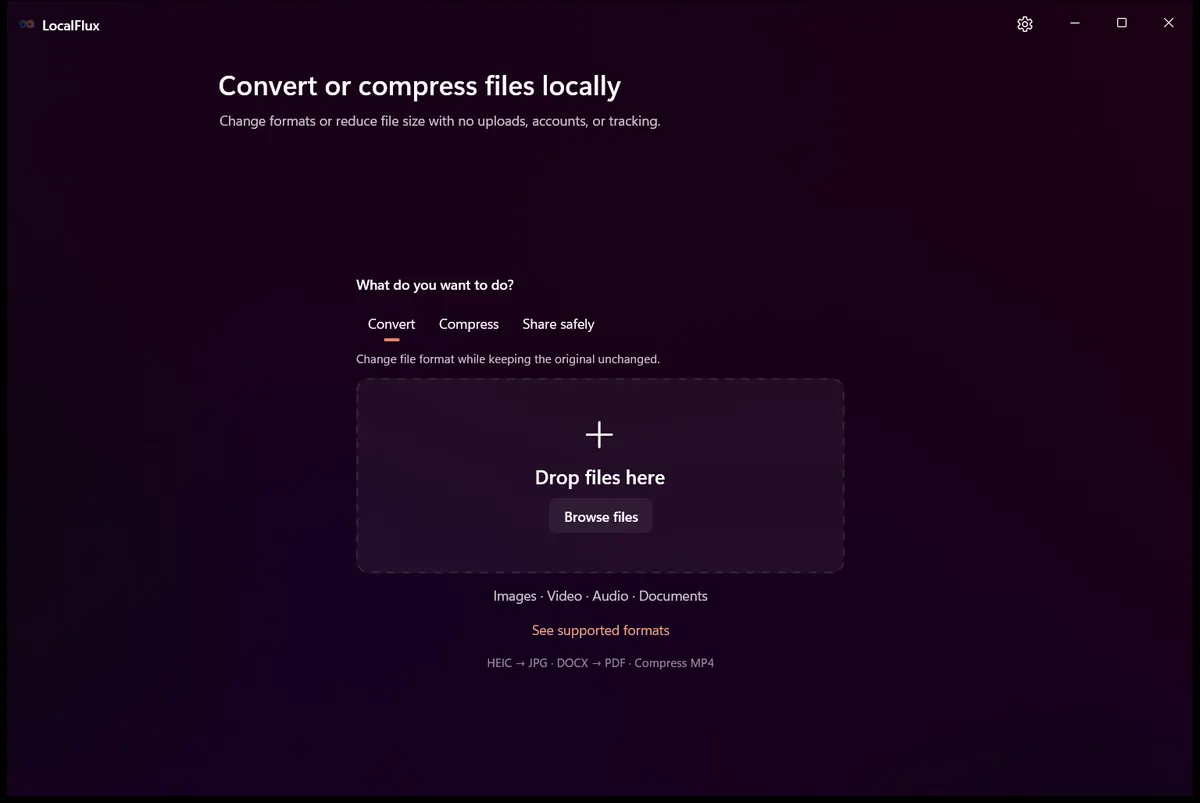
LocalFlux starts with a local file drop area. Normal supported conversion does not require an account or upload step.
Best for: several photos, private or work images, large originals, and repeat HEIC compatibility work.
Probably unnecessary for: a single non-sensitive photo when software you already trust can export the JPG you need. If you want future iPhone photos to use JPEG, Apple also provides a camera setting described below.
The short version
- Open LocalFlux on Windows 11.
- Add one or more
.heicor.heifphotos. - Choose Convert rather than Compress.
- Select JPG as the output.
- Leave the quality and resize controls at their defaults for the first test.
- Select Convert.
- Check the new JPG in the destination app before archiving or deleting anything elsewhere.
Get LocalFlux from the Microsoft Store or check the currently supported formats before starting.
HEIC, HEIF, and JPG in plain language
HEIF is a container format. HEIC commonly refers to a HEIF image compressed with HEVC. Microsoft notes that HEIF can use more than one compression method, so HEIC and HEIF are related terms rather than perfect synonyms. Microsoft’s HEIF codec documentation explains that distinction and also notes that the required codecs might not be installed on every Windows PC.
That leads to two separate Windows problems:
- Viewing: can Windows Photos or another installed app decode this HEIC file?
- Compatibility: does the next website, editor, printer, or business system accept HEIC as an input?
Installing a Store codec extension may solve viewing. It does not make every destination accept HEIC. Converting creates a second file in a format the destination already understands.
JPG is usually the practical compatibility copy for an ordinary opaque photograph. It is widely accepted and uses lossy compression, so its quality setting matters. PNG is lossless and can represent transparency, but a PNG copy of a photograph is often much larger. Keep the HEIC original either way.
Step 1: Add the HEIC photo
Drag a supported HEIC or HEIF file onto LocalFlux, use Add files, paste it, or use a supported Windows 11 Explorer handoff. The queue shows the source format, size, dimensions, and destination before conversion.
This walkthrough used a rights-cleared 1440 x 960 HEIC fixture named sample-photo.heic. The neutral working copy lived under C:\tmp\CodexScratch\LocalFluxBlog, so the screenshots expose no personal folder or account information.
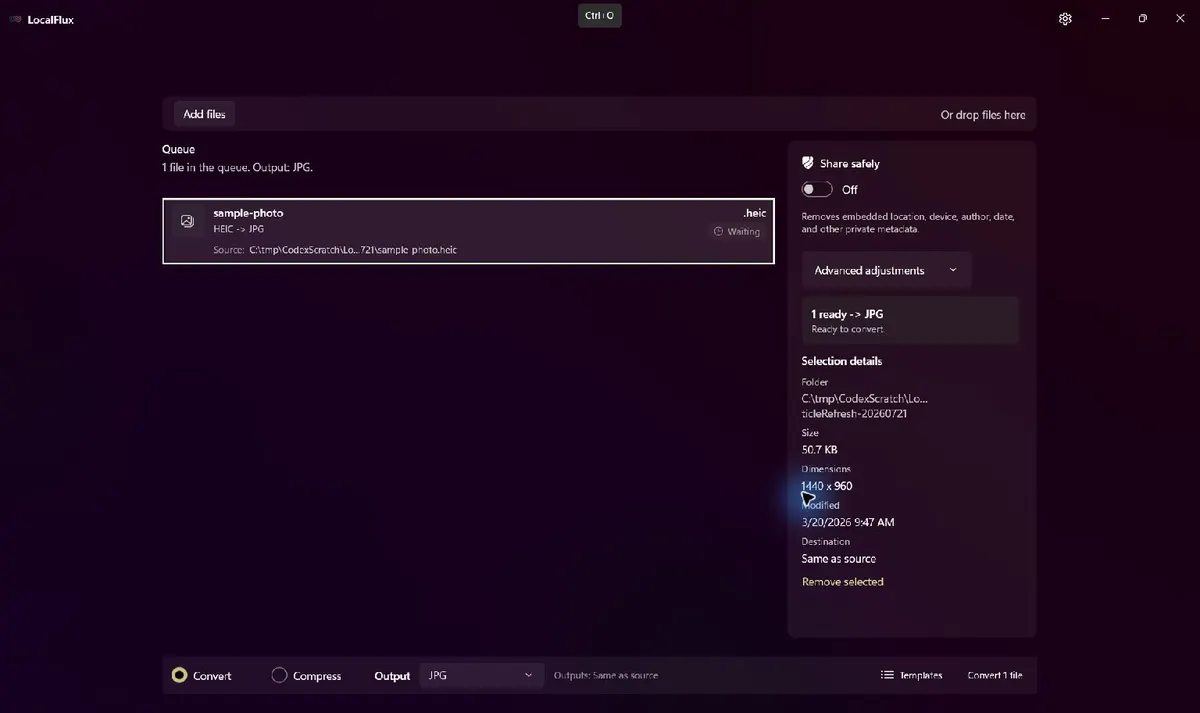
The HEIC source is waiting. LocalFlux has selected the supported HEIC-to-JPG route but has not changed the original.
Step 2: Choose JPG or another output for a reason
Open the output menu and choose JPG for the broadest photo compatibility. LocalFlux also exposes route-aware HEIC outputs such as PNG, WebP, TIFF, and ICO in the tested build. The list applies to this source format; it is not a promise that every format converts to every other format.
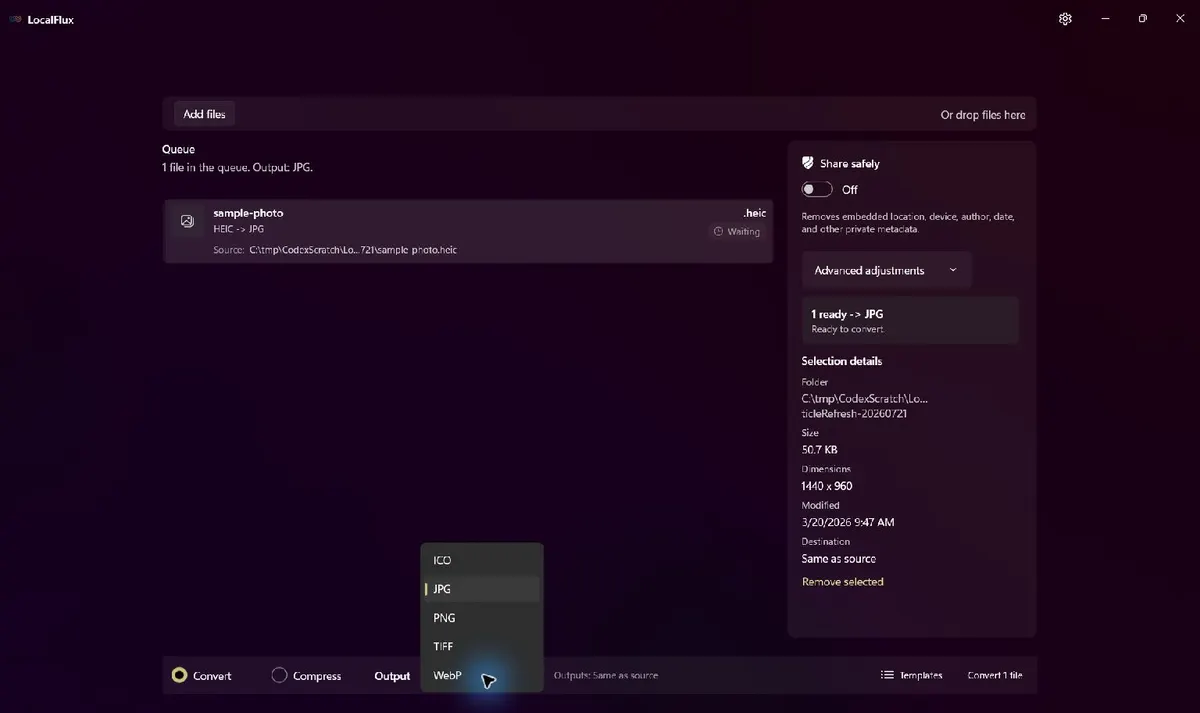
Use this rule of thumb:
| Need | Better starting choice | Important tradeoff |
|---|---|---|
| A photo accepted by older apps, websites, and printers | JPG | Lossy encoding; verify quality and color |
| Lossless pixel storage or a workflow that explicitly asks for PNG | PNG | Often much larger for photographs |
| A modern web-delivery copy | WebP | The destination must support WebP |
| The original capture and its richest source information | Keep HEIC | Compatibility may remain limited |
Step 3: Start with the default settings
For the first conversion, keep the original dimensions and use the default JPG quality. If the result is too large, lower quality gradually and compare a detailed area at 100%. If the destination requires a maximum width or height, resize once during conversion instead of repeatedly re-encoding the same JPG.
Do not assume that a JPG copy is visually or technically identical to the HEIC source. JPEG uses lossy compression. A HEIF file can also contain auxiliary information such as gain or depth representations. It is reasonable to expect that a simple JPG compatibility copy may not preserve every HDR or portrait-related representation, so keep the original and inspect important photos on the displays and in the apps that matter to you.
Step 4: Convert and open the new copy
Select Convert 1 file. LocalFlux uses its bundled image engine for the supported route. When the row finishes, the completion state shows the safe output name and provides Open file and Open folder actions.
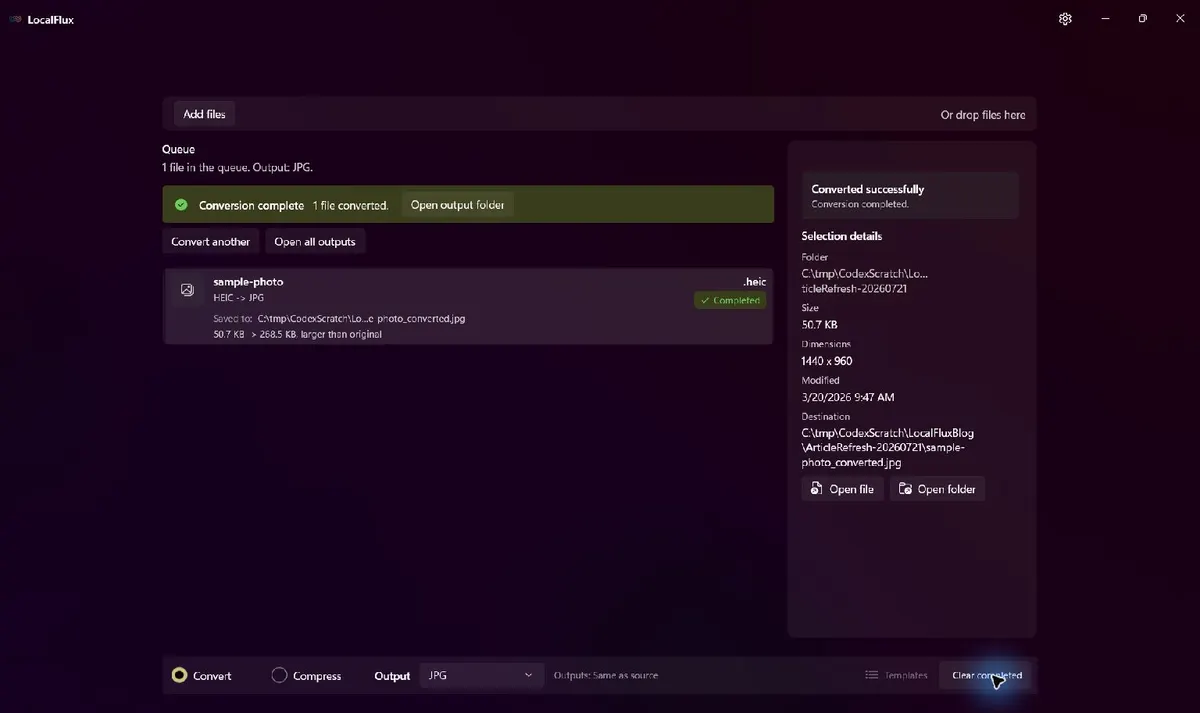
The tested result was saved as sample-photo_converted.jpg. The original sample-photo.heic remained unchanged.
Video transcript: LocalFlux opens at its file drop area. A 1440 x 960 HEIC photo appears in the queue with JPG selected. The output menu shows the supported image choices. The final state reports one completed conversion and the new _converted.jpg destination.
Tested result: compatibility can cost more bytes
The fixture produced a valid JPG with the same pixel dimensions, but the JPG was larger than the highly compressed HEIC source.
| Property | Source HEIC | Output JPG |
|---|---|---|
| File size | 51,899 bytes | 274,913 bytes |
| Dimensions | 1440 x 960 | 1440 x 960 |
| Color space reported | sRGB | sRGB |
| Image type | TrueColor | TrueColor |
| Reported quality | 92 | 92 |
| EXIF profile detected | Yes | Yes |
| Original preserved | Yes | New output copy |
This is a compatibility test, not a compression benchmark. Apple describes HEIF as offering better compression than JPEG at similar visual quality, so a larger JPG is not surprising. Your result can grow or shrink depending on the source, quality, dimensions, detail, metadata, and encoder.
The EXIF observation is also important: ordinary conversion did not prove that metadata was removed. The tested HEIC and JPG both exposed an EXIF profile. LocalFlux has a separate Share safely workflow for supported metadata removal; do not assume that changing the extension anonymizes a photo.
You can inspect the exact rights-cleared HEIC source and LocalFlux JPG output. The source-reference render below is provided so browsers that cannot display HEIC still show the tested image.



Converting several iPhone photos at once
Add the compatible HEIC or HEIF files to one queue, choose JPG once, and start the batch. One LocalFlux batch uses one selected output format. If some photos need PNG and others need JPG, process them as separate batches.
Each ready row is handled individually. LocalFlux creates a separately named output copy and leaves the source in place. Before converting an entire library, test two or three representative images: an ordinary daylight photo, a low-light photo, and any HDR or portrait image whose appearance matters.
Other legitimate Windows and iPhone options
LocalFlux is useful when files are already on the PC and you want a repeatable local batch workflow. It is not the only reasonable option.
- Capture future photos as JPEG: Apple currently documents Settings > Camera > Formats > Most Compatible for JPEG/H.264 capture. High Efficiency switches back to HEIF/HEVC. See Apple’s current HEIF and HEVC guidance.
- Let transfer convert automatically: Apple says HEIF media may be converted to JPEG when imported from a connected iPhone or iPad. Settings > Apps > Photos > Keep Originals prevents that automatic transfer conversion.
- Export from an app you already use: a trusted image editor that opens the source may be perfectly adequate for one photo.
- Use an online converter: reasonable for a non-sensitive file when you accept the service’s upload, retention, and account terms. The entire source has to reach that service before it can process the file.
Changing the iPhone camera setting does not convert HEIC files already stored on the PC. For those, you still need an export or conversion route.
Important limitations
LocalFlux cannot guarantee that every damaged, encrypted, unusually encoded, or incorrectly named HEIC file will convert. The tested fixture was a conventional, rights-cleared HEIC image. The test did not establish identical HDR rendering, gain-map behavior, depth data, portrait effects, or wide-gamut color across every Apple device and Windows display.
JPG also cannot represent transparency. If a source actually relies on an alpha channel and the destination can accept PNG, test PNG instead. Always check orientation, color, fine detail, and metadata before distributing an important result.
Frequently asked questions
Does Windows 11 open HEIC without an extension?
Not on every PC. Microsoft documents HEIF support through extension codecs and notes that required HEVC or AV1 codecs might not be present. Viewing support and conversion support are separate questions.
Does converting HEIC to JPG improve quality?
No. It creates a more compatible copy. JPEG encoding is lossy, so the goal is usually sufficient visible quality for the destination, not an improvement over the source.
Will the JPG always be smaller?
No. In this test, the 274,913-byte JPG was more than five times the size of the 51,899-byte HEIC source. File size depends on both files and settings.
Does conversion remove location and camera metadata?
Do not assume so. The tested ordinary conversion retained an EXIF profile. Use a supported, verified metadata-removal workflow when that is your actual goal, and inspect the output.
Can LocalFlux work offline?
Normal supported conversion uses bundled components and can run offline after installation. The repository’s release evidence includes an installed-package HEIC-to-JPG conversion completed with the network disabled.
Create the compatible copy and keep the original
The safest everyday pattern is simple: keep the HEIC source, create the JPG the destination requires, and verify the copy before relying on it. LocalFlux makes that a local, repeatable Windows workflow without an upload or account step.
Get LocalFlux from the Microsoft Store or review the supported formats and routes.