
Lossless Image Compression on Windows: What ‘Verified Lossless’ Means
See verified lossless image compression on Windows, with a 92%-smaller GIF, an exact-copy PNG fallback, screenshots, and LocalFlux 1.0.7 evidence.
On this page
- The short answer
- What “verified lossless” means
- What LocalFlux verifies by format
- The privacy-safe test setup
- Step 1: add supported images
- Step 2: choose Lossless
- Step 3: run the optimization locally
- Result 1: a genuinely smaller verified file
- Result 2: the exact-copy fallback
- Why some apparently inefficient files still become exact copies
- Lossless versus presets and target size
- Can you batch verified lossless optimization?
- Inspect the evidence
- Common questions
- A practical checklist
- The result
- Practical checks before and after conversion
If you want a smaller image without changing what it contains, the difficult part is not choosing a setting called Lossless. The difficult part is proving that the new file still represents the same content and knowing what the software should do when it cannot prove that.
LocalFlux 1.0.7 handles that uncertainty with a fail-closed workflow. It creates an optimization candidate locally, checks format-specific content and metadata invariants, and publishes the changed candidate only when those checks pass. If the candidate cannot be verified or is not smaller, LocalFlux writes an exact copy of the source under a new _optimized name instead.
I tested both branches with synthetic files stored under C:\tmp:
- A deliberately inefficient 12-frame GIF went from 658,785 bytes to 54,329 bytes, saving 604,456 bytes (91.8%). LocalFlux reported Lossless verified, and all 12 rendered frames and per-frame delays matched.
- An already-optimized PNG remained 8,290 bytes. LocalFlux reported Already optimized, and the source and output had the same SHA-256 hash, so the output was an exact byte-for-byte copy.
Those examples show what the label is intended to mean: LocalFlux does not equate “the conversion completed” with “the result is lossless,” and it does not promise that every input will become smaller.
Measured examples, not universal savings: lossless optimization depends on the source format, container structure, metadata, previous encoding, and image or animation content. A valid result may be dramatically smaller, slightly smaller, or an exact copy with no size reduction.
Try verified lossless image optimization in LocalFlux
The short answer
To optimize a supported image without intentionally changing its content:
- Open LocalFlux and select Compress.
- Add one or more supported JPEG, TIFF, static PNG or WebP, GIF, APNG, or SVG files.
- Open Options and choose Lossless.
- Select Optimize.
- Review each result for Lossless verified and either a size reduction or Already optimized.
LocalFlux creates a new file with _optimized in the name. The source stays in place. Processing runs on the Windows PC; the file is not uploaded to an online conversion service.
What “verified lossless” means
“Lossless” is often used as a description of an encoder setting. “Verified lossless” describes a stricter result contract.
For this LocalFlux workflow, a changed candidate must satisfy three conditions:
- The supported content checks pass. Depending on the format, that can mean decoded pixels, every rendered animation frame, every TIFF page, timing, dimensions, or geometry.
- The supported embedded metadata checks pass. The exact fields vary by container. LocalFlux compares the metadata it has committed to preserve for that route rather than assuming a successful encode kept everything.
- The candidate is actually smaller. If the verified candidate does not save bytes, replacing the source representation has no practical optimization benefit.
If any of those conditions is not met, the changed candidate is not published as the optimized result. LocalFlux restores the source bytes into the new output path and reports Already optimized.
That last behavior matters. A tool can easily produce a different file that looks the same in a quick preview. It is harder to prove that the difference is harmless across pixels, pages, frames, timing, and metadata. The LocalFlux policy chooses the conservative outcome when proof is incomplete.
What LocalFlux verifies by format
Different image containers need different invariants. A single “compare width and height” rule would miss too much.
| Format | Verification focus in LocalFlux 1.0.7 | Important fallback behavior |
|---|---|---|
| JPEG | Decoded pixel signatures plus raw APP and COM metadata segments | Coding-table optimization may change decoded values with some inputs, so an exact-copy fallback is expected when equivalence cannot be proven. |
| Static PNG | Decoded pixel signatures plus supported color, EXIF, XMP, text, and physical metadata chunks | Required ancillary metadata is preserved before the final comparison; an unverifiable candidate is discarded. |
| Static WebP | Decoded pixel signatures plus supported embedded metadata chunks | The candidate is published only when content and metadata comparisons pass and it is smaller. |
| TIFF | Every decoded page, pixel signature, page geometry, and supported metadata | A TIFF containing tags outside the verified pixel-storage set is copied unchanged instead of risking silent tag loss. |
| GIF | Every coalesced rendered frame, frame delay, loop count, and preserved comment/application/plain-text extensions | Frame optimization is accepted only when the rendered animation and supported extensions remain equivalent. |
| APNG | Normalized per-frame hashes, timing, frame count, loop count, and preserved PNG ancillary metadata | Any mismatch or unverifiable result triggers the exact-source fallback. |
| SVG | The source bytes themselves | SVG is copied byte for byte in Lossless mode. Use the separate Safe vector optimization preset only when conservative removal of comments and editor-only data is acceptable. |
This is also why the word verified should not be stretched into a claim that every conceivable property in every file format has been mathematically proven equivalent. It refers to the explicit content and metadata invariants LocalFlux 1.0.7 checks for its supported routes.
The privacy-safe test setup
The test used the live LocalFlux 1.0.7.0 Microsoft Store app on Windows. No personal photographs, client documents, usernames, or project folders were used. Every visible path begins with:
C:\tmp\LocalFlux-lossless-proof-v107\input
The two evidence cases were created from synthetic dashboard artwork:
| Case | Input | Purpose |
|---|---|---|
| Reducible animation | dashboard-animation-repeated-frames.gif | Twelve identical full-size frames deliberately create frame-storage redundancy that a verified animation optimizer can remove. |
| Already optimized control | already-optimized-icon.png | A compact PNG tests the no-savings and exact-copy branch. |
The GIF is intentionally artificial. It is useful because the expected content is unambiguous: 12 frames, the same 1920 × 1080 rendered image in each frame, and a delay value of 10 for every frame. It tests the verification contract rather than pretending to represent a typical animation-compression percentage.
Step 1: add supported images
Open LocalFlux, select Compress, then choose Add files or drag files into the queue.
Lossless mode in 1.0.7 is available for JPEG, TIFF, static PNG and WebP images, GIF and APNG animations, and SVG files. Static matters for PNG and WebP because animated content needs animation-aware verification. APNG and GIF have their own supported paths.
You can queue several compatible files together. LocalFlux keeps each file’s format in Compress mode: PNG stays PNG, GIF stays GIF, and so on. This is not the same as Convert mode, where one output format is selected for the active batch.
Before starting, check that the queue contains the intended files and that the bottom-left mode says Compress.
Step 2: choose Lossless
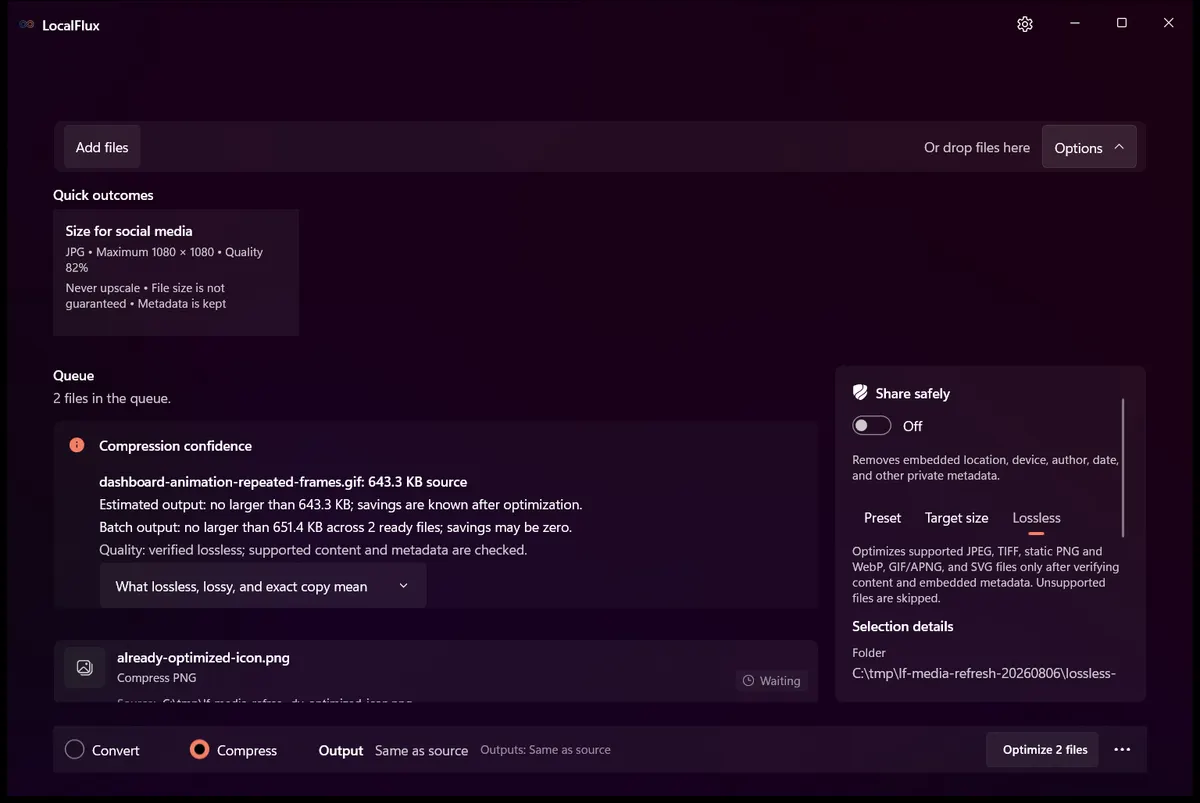
Open Options and select the Lossless tab.
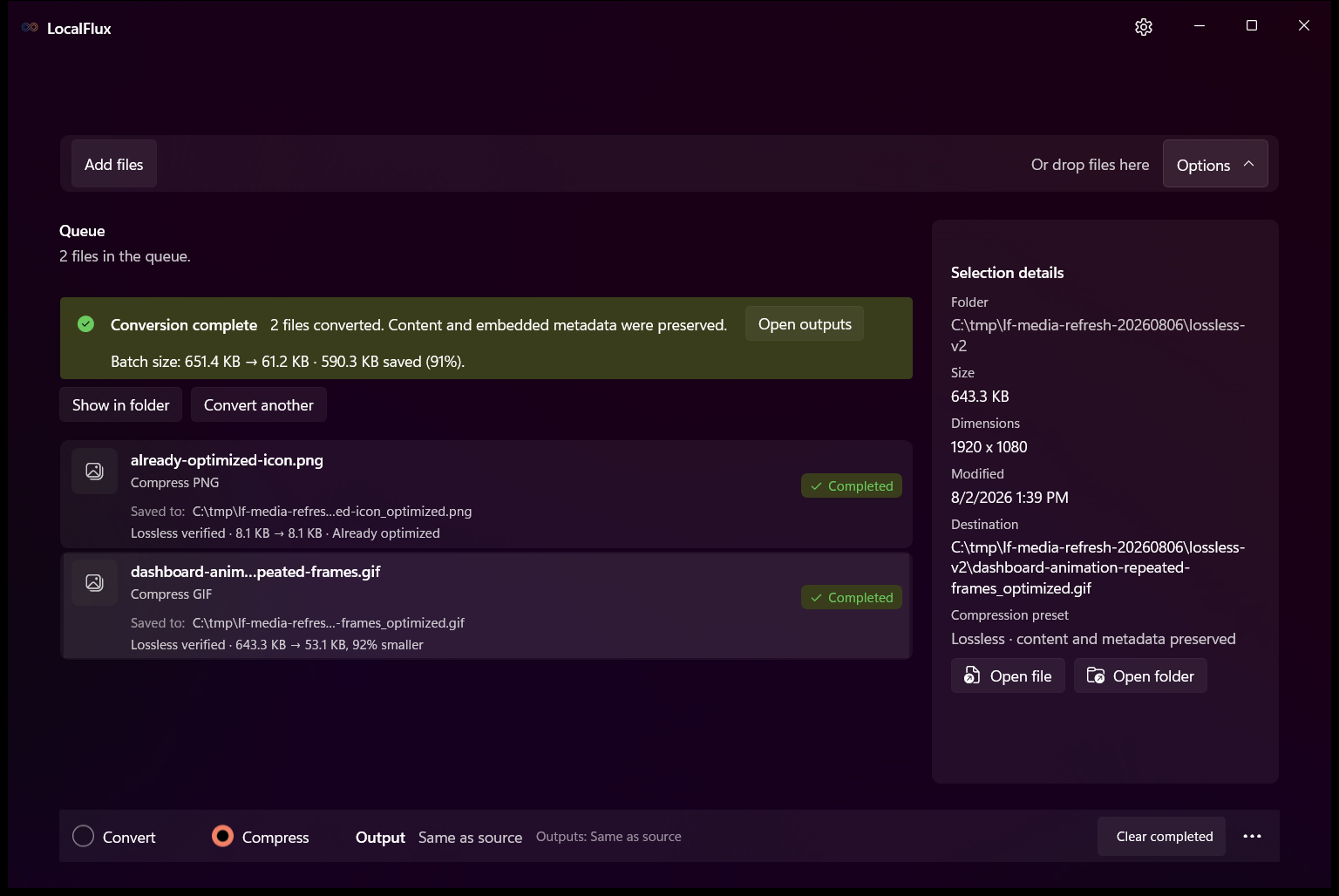
The interface describes the contract directly: supported files are optimized only after content and embedded metadata verification, while unsupported files are skipped. The action button changes from Compress to Optimize.
Do not enable Share safely for this test. Share safely is a different workflow whose purpose is to remove private metadata from a delivery copy. Lossless optimization attempts to preserve supported embedded metadata. Those goals are deliberately different:
- Choose Lossless when you want a smaller representation without intentionally changing supported content or metadata.
- Choose Share safely when you want a sanitized copy and accept intentional metadata removal.
Step 3: run the optimization locally
Select Optimize and let the queue finish. LocalFlux writes outputs beside their sources when the output summary says Same as source.
For example:
dashboard-animation-repeated-frames.gifbecomesdashboard-animation-repeated-frames_optimized.gif.already-optimized-icon.pngbecomesalready-optimized-icon_optimized.png.
The original names remain present. That makes comparison possible, but it is not a substitute for keeping proper backups of important work.
The processing path is local. Installation, Microsoft Store licensing, or updates can still involve networking, but the source file is not sent to a remote conversion server for this operation.
Result 1: a genuinely smaller verified file
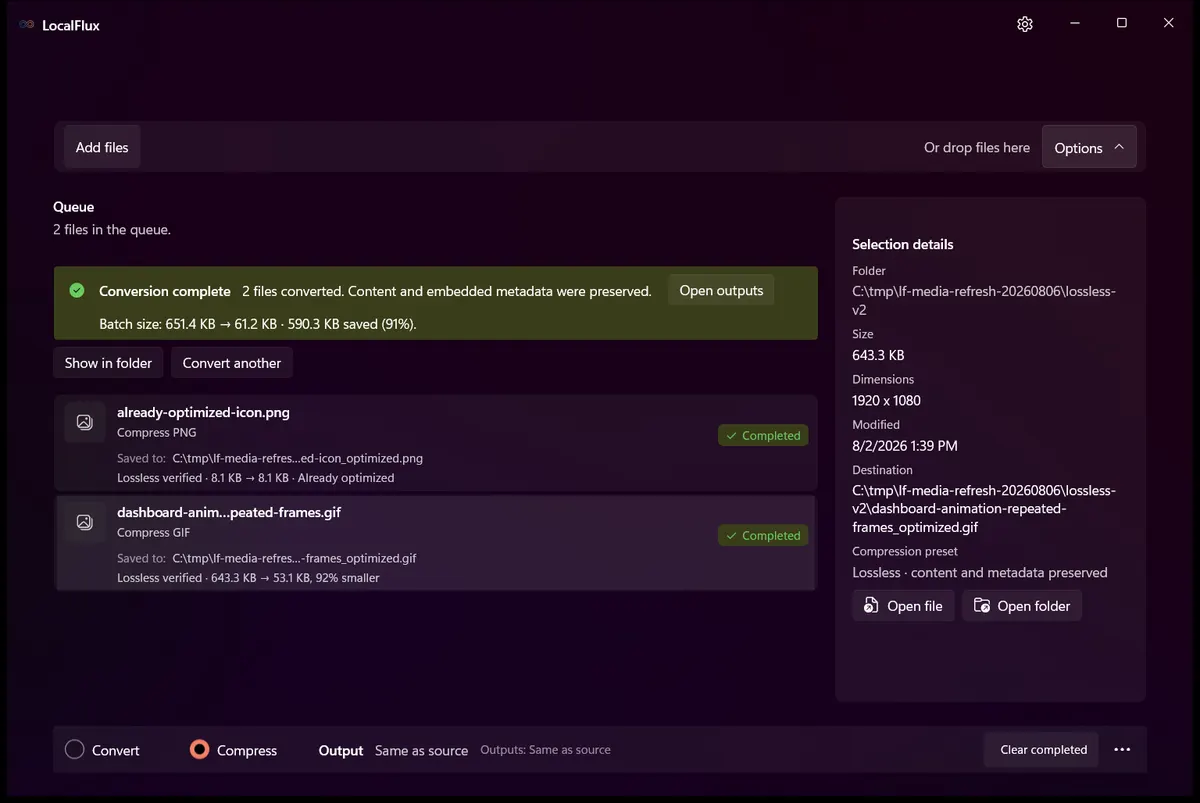
The 12-frame GIF produced the clear reduction case:
| Measurement | Source | LocalFlux output |
|---|---|---|
| Exact size | 658,785 bytes | 54,329 bytes |
| Displayed size | 643.3 KB | 53.1 KB |
| Frames | 12 | 12 |
| Dimensions | 1920 × 1080 | 1920 × 1080 |
| Per-frame delay sequence | 10 × 12 | 10 × 12 |
| Bytes saved | Not applicable | 604,456 bytes |
| Reduction | Not applicable | 91.8% |
The source and output SHA-256 hashes are different, as expected for a changed container representation:
- Source:
202D74DFBBEA150AE514BBE064602F73F150BAB438B39269371013D71F68B0D2 - Output:
BE4170949D86B8E0819A181A25DDD3718BF2AD79E7C1E80F8B9D4D60017B2C02
Different hashes do not contradict lossless verification. They prove that the file bytes changed. The relevant question is whether the decoded animation and supported metadata remained equivalent. LocalFlux reported that content and embedded metadata were preserved, and a separate rendered-frame comparison found the before-and-after frame signatures equal.
Why was the reduction so large? The source deliberately stored 12 full repeated frames. The optimized GIF can represent that repetition more efficiently. A real animation with motion across most of every frame may save much less.
Result 2: the exact-copy fallback
The 8,290-byte PNG produced no smaller candidate that passed the contract. LocalFlux reported:
Lossless verified · 8.1 KB → 8.1 KB · Already optimized
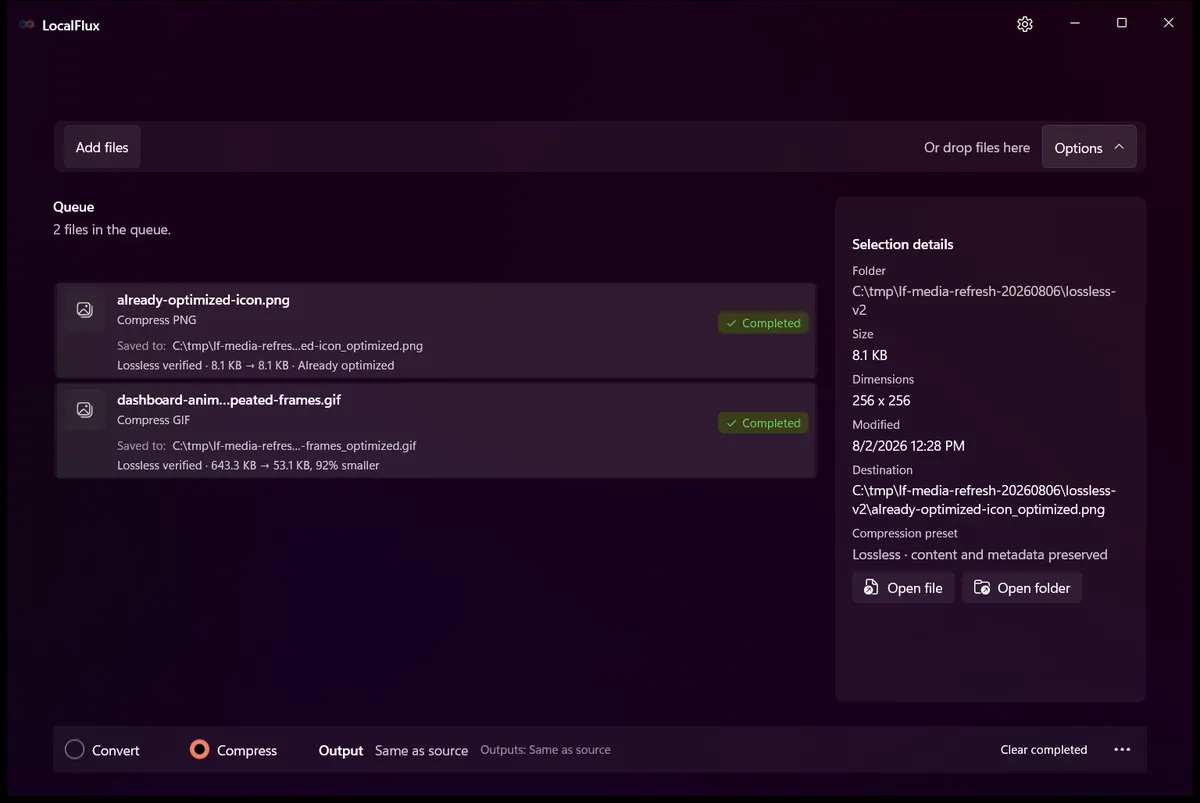
The result was not merely rounded to the same display size. Both files were exactly 8,290 bytes, and both had this SHA-256 hash:
F287BBCE8EB98A9F19416DCE1A74A759F3AC8DDA69ADB338022CB1B8F90BD937
That matching hash proves the output is a byte-for-byte copy of the input. LocalFlux still creates the _optimized output so a batch can complete with a predictable destination, but it does not claim nonexistent savings.
“Already optimized” can mean either that the encoder found no smaller candidate or that a changed candidate could not satisfy the verification contract. From a user’s perspective, the safe outcome is the same: the source bytes become the output bytes.
Why some apparently inefficient files still become exact copies
A file can look inefficient and still fail to produce a publishable verified candidate. Size alone is not enough.
For example, a re-encoder might:
- alter a decoded pixel value by a tiny amount;
- rewrite color information in a non-equivalent way;
- drop or reorder metadata the verifier is required to preserve;
- change GIF timing or disposal behavior;
- omit an unfamiliar TIFF tag; or
- create a valid but larger container.
A conventional optimizer may accept some of those tradeoffs. Verified Lossless mode does not. It prefers an exact copy over an unproven change.
This also explains why JPEG often reaches the fallback branch. JPEG is normally associated with lossy encoding. LocalFlux’s lossless attempt focuses on coding-table optimization while requiring the decoded pixel signatures and raw APP/COM metadata to remain equivalent. If the bundled encoder changes the decoded values, the candidate is rejected even if it looks identical at normal zoom.
Lossless versus presets and target size
LocalFlux offers three different compression intentions. They should not be treated as interchangeable labels for “make it smaller.”
| Strategy | Primary goal | Can image content intentionally change? | Is a smaller result guaranteed? |
|---|---|---|---|
| Preset | Balance visual quality and size | Yes, depending on format and preset | No |
| Target size | Try to get under a selected byte limit | Yes; quality and sometimes dimensions may be reduced within the policy | No. The target can be impossible |
| Lossless | Preserve verified content and supported metadata | No changed candidate is published unless verification passes | No. Exact-copy fallback is valid |
Use a preset for website delivery copies where a small, controlled visual tradeoff is acceptable. Use target size for an upload form or attachment ceiling. Use Lossless when preserving the verified content contract matters more than maximizing the reduction.
Can you batch verified lossless optimization?
Yes. The first screenshot shows two mixed supported files in one queue. The same strategy applies to compatible pending items, while each file keeps its current format.
The useful part of batching is not that every item receives the same percentage reduction. It is that every item receives the same decision policy:
- attempt the format-appropriate optimization;
- verify the supported invariants;
- keep the changed candidate only if it is smaller; and
- otherwise publish an exact copy.
Review the per-file rows afterward. A batch can legitimately contain a large reduction, a small reduction, and several already-optimized copies.
Inspect the evidence
The publication package includes the synthetic inputs, LocalFlux outputs, exact measurements, and hashes used for this article:
- Test record
- Per-file results and SHA-256 values
- Privacy review
- Media manifest with file sizes and SHA-256 values
- Reducible synthetic GIF input
- Verified smaller GIF output
- Already-optimized PNG input
- Exact-copy PNG output




All visible paths and filenames are synthetic. The screenshots were reviewed to exclude usernames, account details, personal folders, client names, and other identifying information.
Common questions
Does verified lossless mean every file becomes smaller?
No. It means LocalFlux publishes a changed candidate only after the supported content and metadata checks pass. If the candidate is not smaller or cannot be verified, the output is an exact copy.
Why can the hashes differ for a lossless result?
Lossless describes decoded content and the supported invariants, not identical container bytes. A successful optimizer can reorganize compressed data without changing the decoded pixels or frames. An exact-copy fallback, by contrast, has the same hash because every byte is identical.
Is an “Already optimized” result a failure?
No. The job completed safely. It simply found no smaller verified representation worth publishing.
Are the originals overwritten?
Not in this tested workflow. LocalFlux creates _optimized sibling files. Keep backups for irreplaceable sources regardless.
Does Lossless mode remove EXIF or location metadata?
Its goal is preservation, not sanitization. Use Share safely when you want LocalFlux to create and verify a copy with private metadata removed. Always inspect the exact file you plan to share.
Is the workflow completely offline?
The supported optimization runs on the PC without uploading the source to a conversion server. Installation, licensing, and updates through Windows or Microsoft Store can still use the network.
Which formats are supported?
LocalFlux 1.0.7 supports verified lossless optimization for JPEG, TIFF, static PNG and WebP, GIF, APNG, and SVG. Unsupported items are not silently treated as verified.
A practical checklist
Before optimizing:
- work from backed-up sources;
- confirm the files are supported;
- select Compress, then Lossless;
- leave Share safely off unless metadata removal is your actual goal; and
- test a representative sample before processing an archive.
After optimizing:
- look for Lossless verified on each completed row;
- distinguish a real reduction from Already optimized;
- compare frame counts and timing for important animations;
- open the result in its real destination application;
- retain the original until the output has been reviewed; and
- record exact bytes rather than relying only on rounded KB labels.
The result
Verified lossless optimization is valuable because it makes uncertainty visible. In this LocalFlux 1.0.7 test, one synthetic GIF became 91.8% smaller while retaining the verified animation invariants. An already-efficient PNG produced 0% savings and an exact byte-for-byte copy instead.
Both are successful outcomes. The first removes redundant storage. The second refuses an unproven or pointless rewrite. Together they demonstrate a more useful promise than “every image gets smaller”: changed files are published only when the supported content and metadata checks pass, and the exact source is the fallback when they do not.
Optimize images locally with LocalFlux
Practical checks before and after conversion
The reliable workflow is to define lossless as identical decoded pixels, not merely a similar appearance; compare format, dimensions, alpha, metadata policy, and file hash where exact copying is expected. This matters because changing a file extension does not preserve every property of the source. Decide what the destination actually needs, keep the source as the master, and use a small representative file before processing a large batch.
Before you start
- Record the source format and the properties that matter to the destination.
- Choose settings for the intended viewer, editor, device, or upload system.
- Use a new output folder and keep collision-safe names.
- Open the result in the software that will actually receive it.
- Compare content, dimensions or duration, and any metadata you expected to keep or remove.
Review the output
A successful status only confirms that an output was written. It does not prove that every font, frame, channel, page, formula, profile, tag, or accessibility feature survived. For important work, inspect representative outputs and retain the original until the delivered copy has been accepted.