
How to Convert WAV to MP3 on Windows Without Uploading
Convert WAV audio to MP3 locally on Windows, understand the quality trade-off, and verify the result before deleting any master recording.
On this page
Quick answer
Add the WAV file to LocalFlux, choose MP3, and select Convert. The app encodes the audio locally and creates a new MP3 without uploading the recording.
When WAV to MP3 makes sense
WAV is commonly used for uncompressed PCM audio, although the container can hold other encodings. MP3 uses lossy compression and is much easier to email, upload, stream, or store on space-constrained devices.
Use MP3 for delivery. Keep WAV for editing, mastering, restoration, and archiving.
Convert WAV to MP3
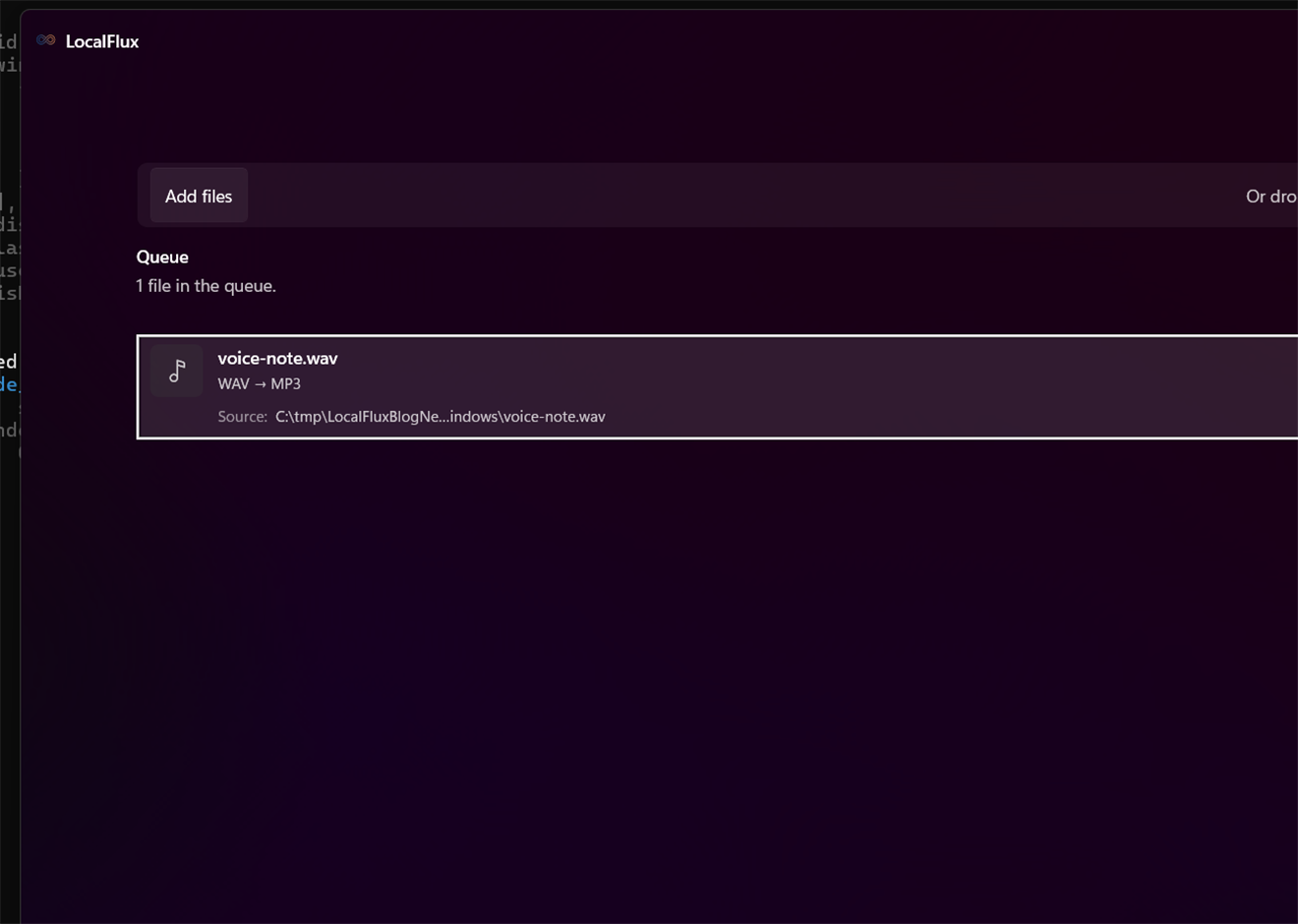
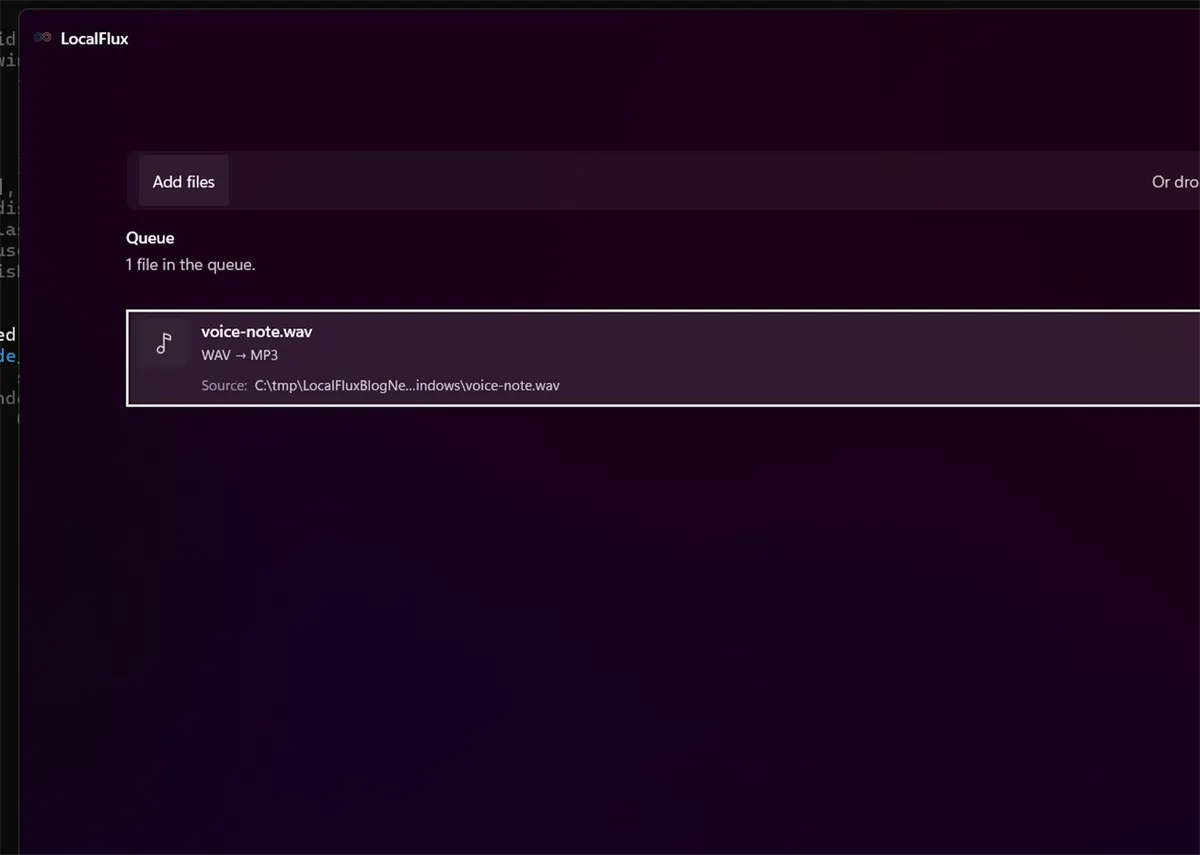
- Open LocalFlux and add the
.wavfile. - Leave Convert selected.
- Choose MP3 under Output.
- Confirm the destination.
- Select Convert 1 file.
- Listen to the beginning, a busy section, and the ending of the MP3.
LocalFlux uses an MP3 encoding route backed by FFmpeg’s libmp3lame support. The FFmpeg codec documentation lists the encoder and its bitrate and quality controls.
What we tested
| Check | Result |
|---|---|
| LocalFlux version | 1.0.7.0 |
| Route | WAV → MP3 |
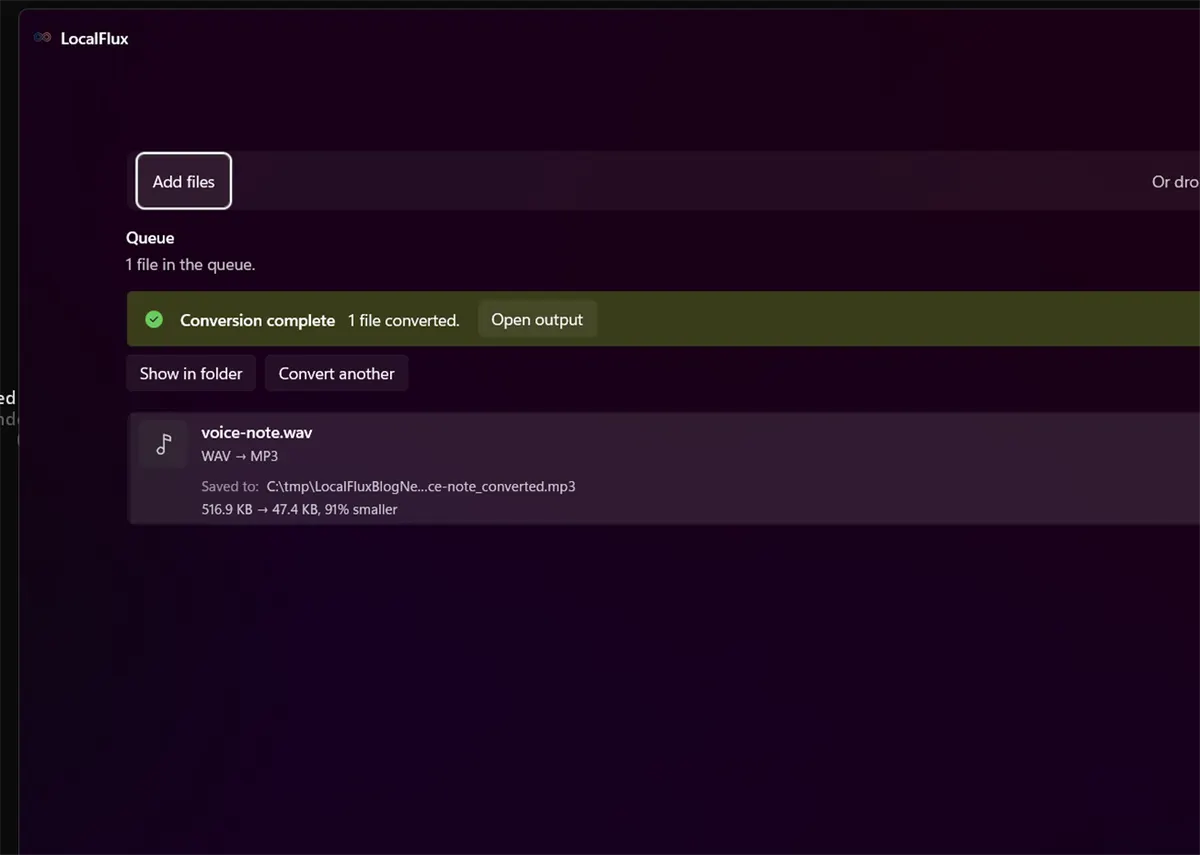
| Source | voice-note.wav, 516.9 KB |
| Output | voice-note_converted.mp3, 47.4 KB |
| Size change | 91% smaller |
| Fixture | Synthetic tone; no private speech |
This is route evidence, not a listening-quality benchmark. Music, speech, ambience, and already compressed sources behave differently.
Does MP3 reduce audio quality?
Yes. MP3 discards information to reduce size. At sensible settings it can be transparent enough for casual listening, but it is not mathematically identical to the WAV.
Avoid converting MP3 back to WAV and then to MP3 again. Expanding an MP3 into WAV does not restore discarded information, and another MP3 encode can add more artifacts.
What to listen for
- Metallic or watery sounds around cymbals and sibilants.
- Smearing in applause, crowd noise, or dense music.
- Missing beginnings or endings.
- Clipping or a changed perceived loudness.
- Incorrect channel layout.
For an interview or voice memo, confirm intelligibility and sync. For music, keep the lossless master and make new delivery copies from it.
WAV to MP3 versus compression
Converting WAV to MP3 is already a lossy size-reduction step. If you need an even smaller file, choose settings with the destination in mind rather than repeatedly converting the output. For related routes, see M4A to MP3 and FLAC to MP3.
Troubleshooting
The MP3 is silent
Play the WAV first and confirm it contains an audible stream. Then verify the MP3 in more than one player.
The source contains multiple audio streams
A simple MP3 represents one audio program. Verify which stream was selected when working with unusual WAV containers.
The file is private
Local conversion keeps the media on the device during the conversion workflow. Still store and share the output according to the sensitivity of the recording.
Final checklist
- Keep the WAV master.
- Listen to the MP3 instead of checking only that it exists.
- Avoid repeated lossy conversions.
- Use a fresh export from WAV whenever you need a different delivery setting.
Get LocalFlux from the Microsoft Store
Publication evidence
The screenshots and measured results come from privacy-reviewed fixtures tested with LocalFlux 1.0.7.0. The source files, outputs, and reproducibility notes are available here:
Practical checks before and after conversion
The reliable workflow is to preserve the WAV master; choose MP3 settings from bit depth, sample rate, channels, program material, loudness, and the actual playback destination. This matters because changing a file extension does not preserve every property of the source. Decide what the destination actually needs, keep the source as the master, and use a small representative file before processing a large batch.
Before you start
- Record the source format and the properties that matter to the destination.
- Choose settings for the intended viewer, editor, device, or upload system.
- Use a new output folder and keep collision-safe names.
- Open the result in the software that will actually receive it.
- Compare content, dimensions or duration, and any metadata you expected to keep or remove.
Review the output
A successful status only confirms that an output was written. It does not prove that every font, frame, channel, page, formula, profile, tag, or accessibility feature survived. For important work, inspect representative outputs and retain the original until the delivered copy has been accepted.