
How to Convert M4A to MP3 on Windows Offline
Convert M4A audio to MP3 locally on Windows and understand codecs, bitrate, metadata, timing, and lossy re-encoding.
On this page
- Quick answer
- M4A is a container label, not one codec
- When should you convert?
- Before converting a private recording
- Step-by-step: convert M4A to MP3
- Tested result
- What quality is lost?
- Bitrate, sample rate, and channels
- Metadata and cover art
- Common mistakes
- Batch conversion
- Privacy and offline notes
- Troubleshooting
- Final checklist
- Publication evidence
- Practical checks before and after conversion
- Related local workflows
M4A files play well in many current apps, but an older recorder, car stereo, presentation system, transcription tool, or website may ask for MP3. Converting a copy can solve that compatibility problem without sending a private recording to an online service.
The conversion is not automatically lossless. .m4a usually identifies an audio-only file in the MPEG-4 family, but the audio inside may be AAC, Apple Lossless (ALAC), or another supported stream. If the source contains AAC, converting it to MP3 decodes one lossy format and encodes another. That can add generation loss even when both files sound acceptable.
This guide uses LocalFlux on Windows. Supported conversion is performed on the PC with a bundled FFmpeg component during normal use, and the original M4A is kept unchanged.
Quick answer
To convert M4A to MP3 offline on Windows:
- Open LocalFlux and add the
.m4afile. - Keep Convert selected.
- Choose MP3 as the output.
- Confirm the row shows
M4A -> MP3and is ready. - Select Convert 1 file.
- Play the MP3, check its duration and tags, and keep the M4A as the master.
Use MP3 when the destination requires its broader compatibility. If every target already accepts the M4A, keeping the source avoids an unnecessary re-encode.
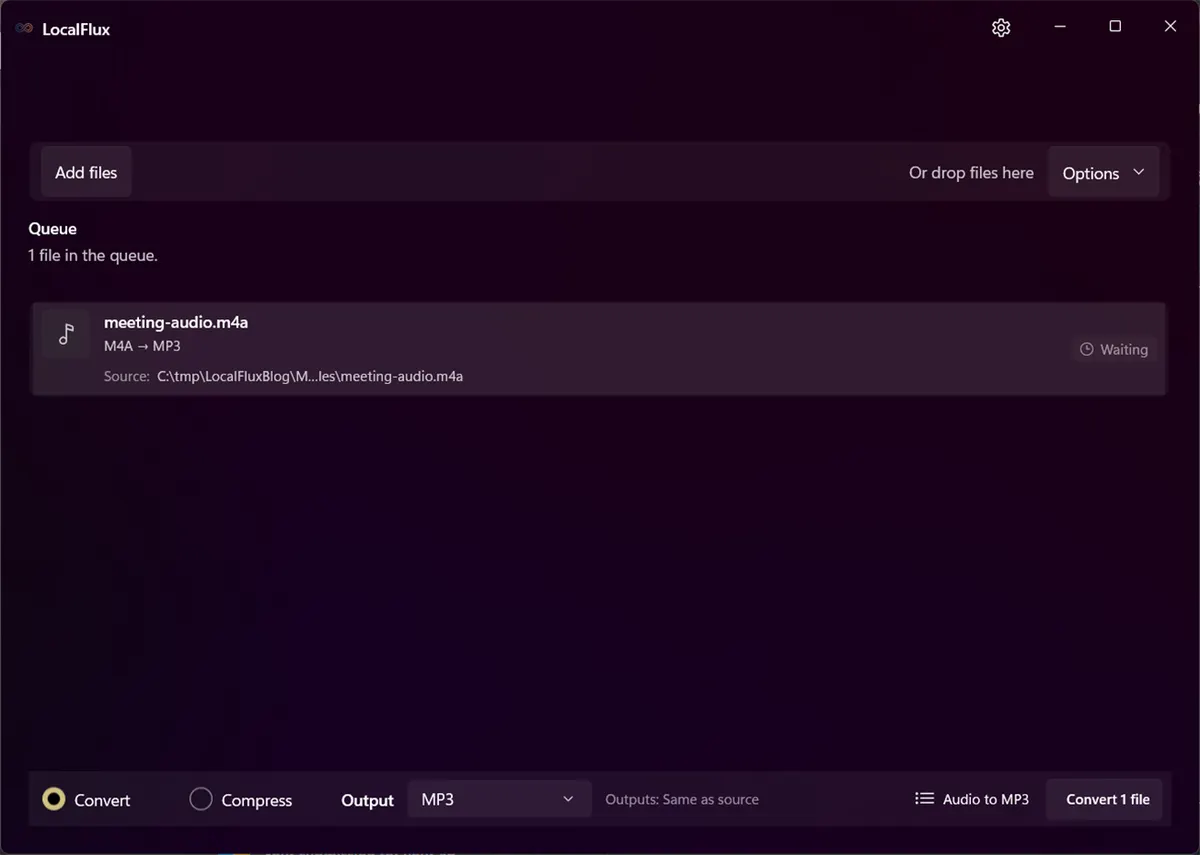
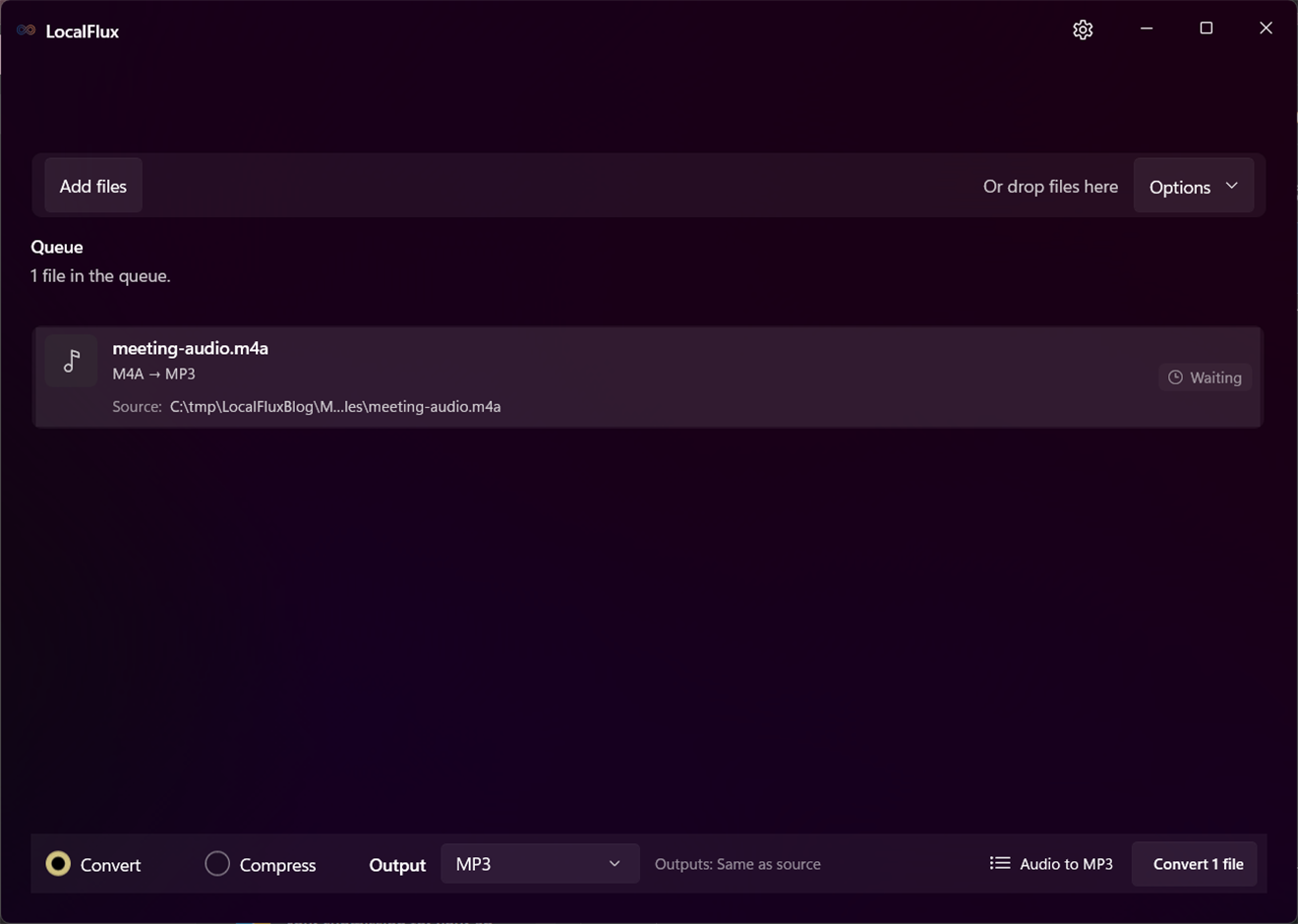
The privacy-safe six-second audio fixture is ready for local MP3 conversion.
M4A is a container label, not one codec
The extension tells you that the file is an audio-oriented member of the MOV/MP4 family. It does not, by itself, prove which audio codec is inside. FFmpeg lists .m4a among the registered extensions for its QuickTime and ISO Base Media demuxer. The Library of Congress format description likewise notes that M4A may wrap AAC or Apple Lossless audio. See the FFmpeg formats documentation and the Library of Congress MPEG-4 file format description.
That distinction changes the quality story:
- AAC in M4A to MP3 is usually lossy-to-lossy transcoding. Some information discarded by AAC cannot be restored, and the MP3 encoder makes another set of decisions.
- ALAC in M4A to MP3 starts from lossless audio, but the MP3 output is lossy.
- M4A to MP3 is not a container rename. MP3 uses a different bitstream and must be encoded.
If the recording is important, retain the M4A even after the MP3 has passed compatibility testing.
When should you convert?
Convert when the destination explicitly rejects M4A, when a legacy device reliably supports MP3, or when a workflow is standardized around MP3 files.
Do not convert merely because MP3 is familiar. Modern Windows software and many phones can play AAC/M4A directly. A compatibility copy is useful; a needless lossy generation is not.
Also remember that a smaller MP3 does not necessarily mean a better conversion. File size is influenced by duration, channel count, sample rate, bitrate, codec behavior, and metadata. Judge the result against the destination and listening purpose.
Before converting a private recording
Audio can contain personal or confidential information even when its filename is neutral. Listen to the beginning and end, check whether the file includes unintended conversation, and consider whether embedded title, artist, album, artwork, or comment fields should be retained.
For public screenshots, copy the recording into a neutral working directory and use a generic filename. This article uses meeting-audio.m4a, but the content is synthetic and contains no personal speech.
Only convert audio you own or have permission to process.
Step-by-step: convert M4A to MP3
1. Add the M4A
Open LocalFlux, select Add files, and choose the M4A. You can also drag it into the app. The queue should show the detected format and source path.
If the app cannot read the file, verify that it is not a protected purchase, a partially downloaded recording, or a different format with a misleading extension. DRM-protected media is not an ordinary conversion case.
2. Choose MP3 output
Keep Convert selected and choose MP3. Confirm that the queued row changes to M4A -> MP3 and remains ready.
A LocalFlux batch uses one selected output format. Group compatible M4A files when they all need MP3, but separate files that require a different destination.
3. Convert locally
Select Convert 1 file. LocalFlux selects the audio stream, decodes it, and encodes an MP3 through its bundled libmp3lame encoder. The app does not just change the extension and does not overwrite the source.
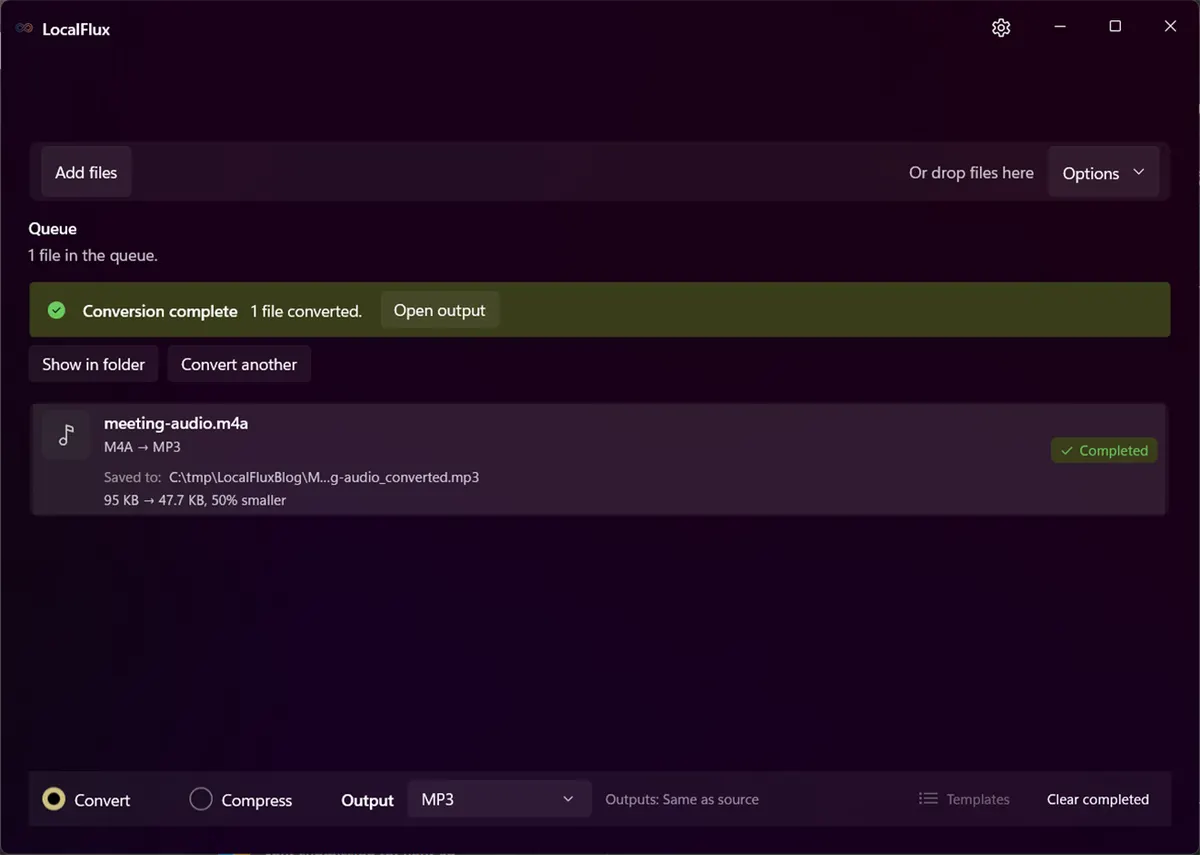
The completed copy is meeting-audio_converted.mp3, stored beside the synthetic source.
4. Verify the result
Play the MP3 from start to finish or, for a long recording, check the start, several middle positions, and the ending. Compare it with the M4A using the same player and volume.
Verify:
- duration;
- speech intelligibility or music quality;
- channel layout;
- sample rate;
- title, artist, album, date, comments, and artwork if they matter;
- behavior in the target device or app;
- file size;
- absence of unexpected silence, clicks, or truncation.
Do not rely only on Windows reporting that the file opens. The target car stereo, transcription portal, or presentation system is the real compatibility test.
Tested result
The article fixture contained AAC audio inside M4A. It was a six-second, mono, 44.1 kHz synthetic tone-and-speech-style test asset with no personal content.
| Observation | M4A source | MP3 output |
|---|---|---|
| Audio codec | AAC | MP3 |
| Duration | 6.000 s | 6.014 s reported by the container probe |
| Sample rate | 44,100 Hz | 44,100 Hz |
| Channels | 1 (mono) | 1 (mono) |
| Average file bitrate | about 130 kb/s | about 65 kb/s |
| File size | 97,262 bytes | 48,809 bytes |
The roughly 14-millisecond duration difference is normal container/encoder timing metadata for this small fixture and was not audible in the review. It is still worth recording because exact sample alignment can matter in editing, scientific, or synchronization work.
The output was about half the source size, but that does not establish a universal ratio. A stereo song, ALAC source, cover art, long spoken recording, or different encoder decision will produce different results.
What quality is lost?
AAC and MP3 are perceptual codecs. They aim to remove information that is less likely to be noticed under a particular listening model and bitrate. When AAC is decoded and encoded as MP3, the second encoder works from audio that has already been altered by the first.
Possible problems include softened transients, pre-echo around sharp sounds, watery textures, altered high-frequency detail, or more obvious artifacts in difficult material. Speech at a reasonable setting can remain very usable while complex music exposes differences sooner.
Avoid repeated conversions such as M4A -> MP3 -> M4A. Always return to the best available source when creating another derivative.
Bitrate, sample rate, and channels
These values are related but not interchangeable:
- Bitrate describes how much encoded data is used over time. A higher number can provide more room for the encoder, but it is not a guarantee of audible quality.
- Sample rate describes how often the decoded signal is sampled per second. Converting 44.1 kHz AAC to 44.1 kHz MP3 keeps that nominal rate, not the discarded AAC information.
- Channels describe mono, stereo, or a larger layout. A mono source should not be made genuinely stereo by conversion.
The current LocalFlux route uses its encoder policy rather than exposing an advanced MP3 bitrate panel. If you need a specific constant bitrate, variable-quality mode, sample-rate conversion, loudness processing, or channel mapping, use a dedicated audio editor or FFmpeg command tailored to that requirement.
Metadata and cover art
M4A and MP3 use different metadata conventions. A converter may map common fields, omit unsupported fields, or handle artwork differently. The synthetic fixture in this article does not prove preservation of title, artist, album, chapters, lyrics, custom atoms, or cover art.
When metadata matters, create a representative test file containing the required fields and compare the source and output in a tag inspector. Do not delete the M4A until that review passes.
Common mistakes
Renaming .m4a to .mp3
The internal AAC or ALAC stream does not become MP3. Some players inspect the bytes and will reject the renamed file.
Assuming M4A always means AAC
M4A can contain other audio codecs, including ALAC. Probe or inspect the file when the source quality matters.
Converting when no compatibility problem exists
If the destination accepts M4A, keeping it avoids another lossy generation.
Deleting the source after a quick listen
Keep the original until playback, duration, metadata, and the final destination have all been checked.
Expecting editing features
LocalFlux does not trim, normalize loudness, remove noise, split tracks, transcribe speech, or edit tags. It performs supported format conversion.
Batch conversion
For several recordings, add them together and select MP3 once. Review the queue before converting. A batch is most useful when the files share the same destination and no per-file editing is required.
Sample-check the shortest and longest files plus any file with artwork or unusual metadata. A successful simple recording does not prove the same metadata behavior for an entire music library.
Privacy and offline notes
Local conversion is useful for interviews, meeting notes, voice memos, drafts, and client recordings that should not be sent to an unknown conversion site. During normal supported conversion, LocalFlux processes the file on the PC, does not require sign-in, and can work offline after installation.
That does not make the recording anonymous. Spoken names and background voices remain in the MP3, and mapped metadata may still identify a source or project. Review the content and tags before sharing.
Troubleshooting
The MP3 sounds worse. Compare with the M4A, avoid repeated transcoding, and use the original if the destination supports it. For a stricter quality requirement, use a configurable audio tool.
The file is protected. DRM-protected media cannot be treated like an ordinary unprotected M4A. Use the provider’s authorized playback or export path.
Tags are missing. Restore them in a tag editor or use a workflow specifically tested for the metadata fields you need.
The MP3 is not much smaller. Duration, bitrate, channels, artwork, and source codec all affect size. Compatibility, not maximum compression, is the purpose of this route.
A device still rejects it. Check that the file is a valid MP3 and whether the device requires a specific bitrate, sample rate, filename convention, or storage format.
Final checklist
- The M4A’s internal codec is understood when quality matters.
- The MP3 plays from start to finish.
- Duration, sample rate, and channels are reasonable.
- Required tags and artwork were checked.
- The target device or service accepts the output.
- No personal information appears in the filename, tags, screenshots, or shared audio.
- The original M4A is retained.
For repeat local audio conversion on Windows, get LocalFlux from the Microsoft Store. Use the MP3 as a compatibility copy and keep the best available M4A as the source for future conversions.
Publication evidence
The files used in this article are synthetic and privacy-reviewed. You can inspect the published source and converted output in the sample folder, along with the test record and SHA-256 media manifest:
Practical checks before and after conversion
The reliable workflow is to identify whether M4A contains AAC or ALAC; avoid unnecessary lossy-to-lossy conversion and verify tags, artwork, duration, and gapless playback. This matters because changing a file extension does not preserve every property of the source. Decide what the destination actually needs, keep the source as the master, and use a small representative file before processing a large batch.
Before you start
- Record the source format and the properties that matter to the destination.
- Choose settings for the intended viewer, editor, device, or upload system.
- Use a new output folder and keep collision-safe names.
- Open the result in the software that will actually receive it.
- Compare content, dimensions or duration, and any metadata you expected to keep or remove.
Review the output
A successful status only confirms that an output was written. It does not prove that every font, frame, channel, page, formula, profile, tag, or accessibility feature survived. For important work, inspect representative outputs and retain the original until the delivered copy has been accepted.
A successful status only confirms that an output was written. It does not prove that every font, frame, channel, page, formula, profile, tag, or accessibility feature survived. For important work, inspect representative outputs and retain the original until the delivered copy has been accepted.
The reliable workflow is to identify whether M4A contains AAC or ALAC; avoid unnecessary lossy-to-lossy conversion and verify tags, artwork, duration, and gapless playback. This matters because changing a file extension does not preserve every property of the source. Decide what the destination actually needs, keep the source as the master, and use a small representative file before processing a large batch.
Related local workflows
Continue with How to Convert WMA to MP3 Offline on Windows when that file or delivery requirement appears in the same project.