
M4A to MP3 converter for Windows
Convert locally without uploading your file
M4AMP3
- Your files stay on your PC
- Original files remain unchanged
- Works offline after installation
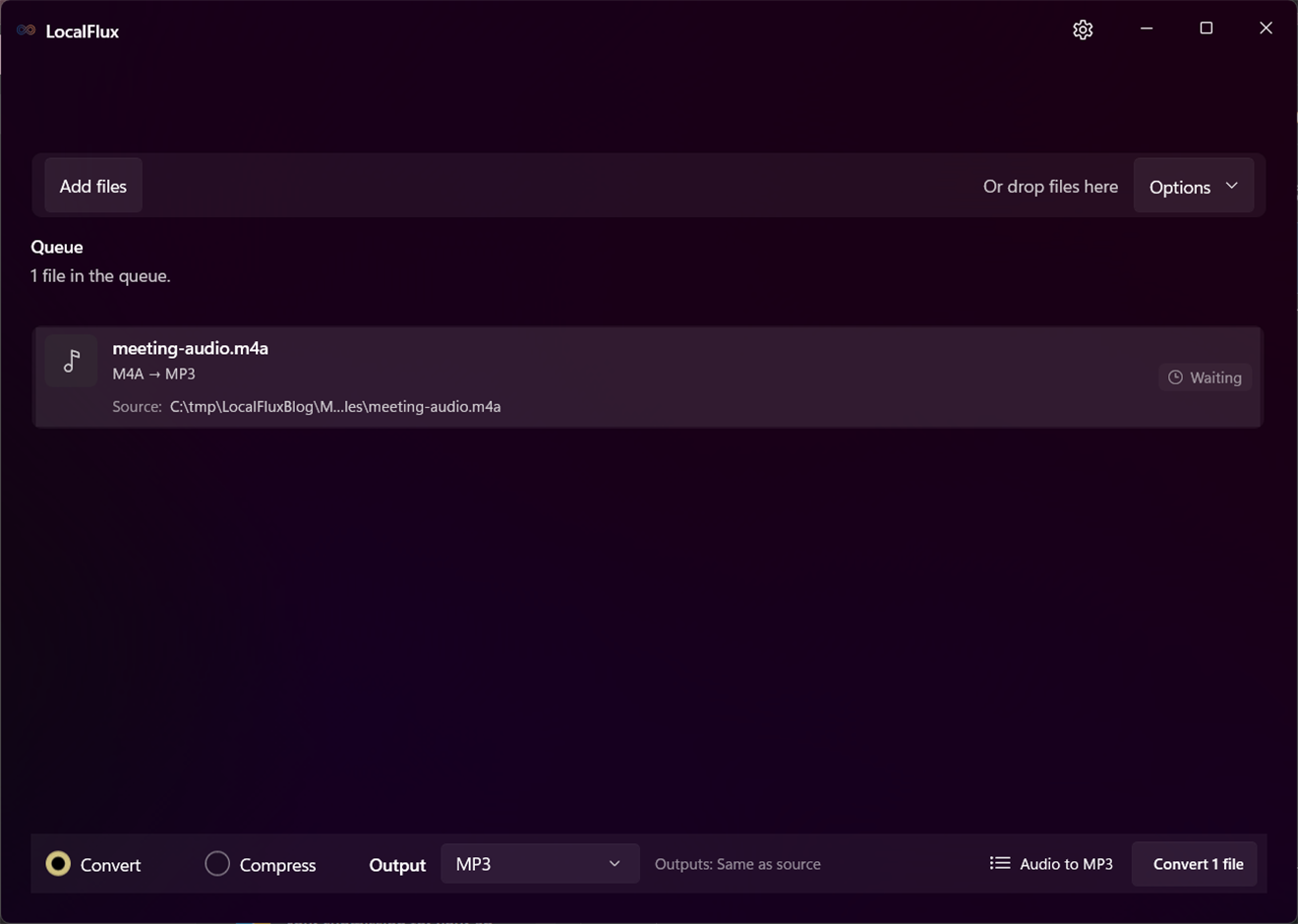
M4A to MP3 in three clear steps
-
Add M4A files
Drag supported M4A files into LocalFlux or choose Add files.
-
Choose MP3
Select Convert and confirm MP3 as the output for the batch.
-
Convert on your PC
Choose the destination, start the job, and review the new copy.
When this route helps
Useful for older car stereos, transcription portals, presentation systems, and handoffs that explicitly require MP3. Keep M4A when it already works or contains a lossless ALAC source.
Lossy-to-lossy conversion cannot add quality
Many M4A files contain AAC. Encoding them again as MP3 can introduce another generation of loss, and M4A can also contain ALAC. Identify the source, choose a suitable bitrate, and keep the original.
Questions about this conversion
Does M4A always contain AAC audio?
No. M4A is a container and can hold AAC or ALAC among other possibilities. Keep the original and judge the MP3 as a compatibility copy.
Does LocalFlux upload the source file?
No. Normal supported conversion runs on your Windows PC without a file-upload step or account.
Will LocalFlux overwrite the original?
No. LocalFlux writes a new output copy and leaves the source file unchanged.
Create your MP3 copy from M4A locally
Install LocalFlux from the Microsoft Store and keep supported everyday conversion on your Windows PC.