
WAV to MP3 converter for Windows
Convert locally without uploading your file
WAVMP3
- Your files stay on your PC
- Original files remain unchanged
- Works offline after installation
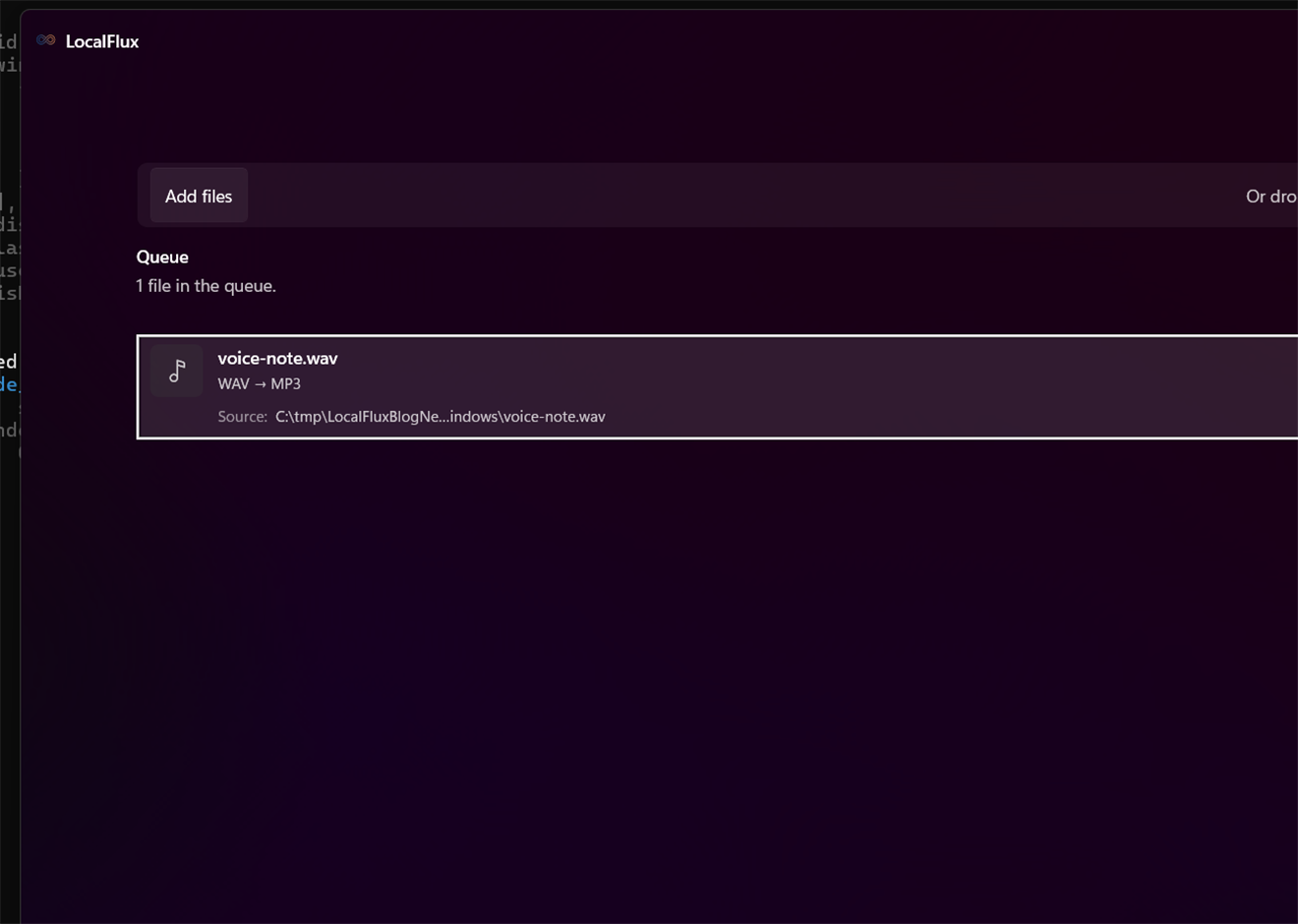
WAV to MP3 in three clear steps
-
Add WAV files
Drag supported WAV files into LocalFlux or choose Add files.
-
Choose MP3
Select Convert and confirm MP3 as the output for the batch.
-
Convert on your PC
Choose the destination, start the job, and review the new copy.
When this route helps
Useful for email, playback devices, previews, and services that impose practical size limits. Keep WAV for editing, archiving, mastering, or scientific work.
MP3 is smaller because it discards audio information
Choose bitrate for the actual listening purpose and check speech, transients, ambience, stereo image, and gaps. Never replace an irreplaceable WAV master based only on a successful conversion.
Questions about this conversion
Should I delete the WAV after conversion?
No. Keep the WAV when it is a master, recording, or editing source. MP3 is a convenient delivery copy, not a lossless replacement.
Does LocalFlux upload the source file?
No. Normal supported conversion runs on your Windows PC without a file-upload step or account.
Will LocalFlux overwrite the original?
No. LocalFlux writes a new output copy and leaves the source file unchanged.
Create your MP3 copy from WAV locally
Install LocalFlux from the Microsoft Store and keep supported everyday conversion on your Windows PC.