
How to Convert FLAC to MP3 on Windows Offline
Create an MP3 compatibility copy from FLAC locally on Windows while preserving the lossless master and checking audio tradeoffs.
On this page
- Quick answer
- What lossless-to-lossy conversion means
- When MP3 is the right derivative
- Prepare the FLAC
- Step-by-step: convert FLAC to MP3
- Tested result
- Choosing MP3 quality
- High-resolution and multichannel FLAC
- Metadata, artwork, and library organization
- Common mistakes
- Batch conversion
- Privacy and offline notes
- Troubleshooting
- Final checklist
- Publication evidence
- Practical checks before and after conversion
FLAC is a strong format for keeping a lossless music or audio master. MP3 is often more convenient for older players, vehicle systems, small portable copies, and services whose ingest rules are built around a familiar lossy format.
Converting FLAC to MP3 is best treated as creating a delivery copy. The MP3 cannot contain all of the decoded audio information preserved by FLAC, and converting it back to FLAC later will not restore what the MP3 encoder discarded. Keep the FLAC, verify the MP3 in the destination, and make future derivatives from the lossless source.
This guide uses LocalFlux for a private Windows workflow. The supported route runs on the PC through a bundled FFmpeg component, so normal conversion does not require uploading the audio to a website.
Quick answer
To convert FLAC to MP3 offline on Windows:
- Open LocalFlux and add the FLAC file.
- Keep Convert selected.
- Choose MP3 as the output.
- Confirm the queue shows
FLAC -> MP3. - Select Convert 1 file.
- Listen to the MP3, check its duration and metadata, and keep the FLAC as the master.
Use this route for compatibility or a smaller listening copy, not as a replacement for the archival source.
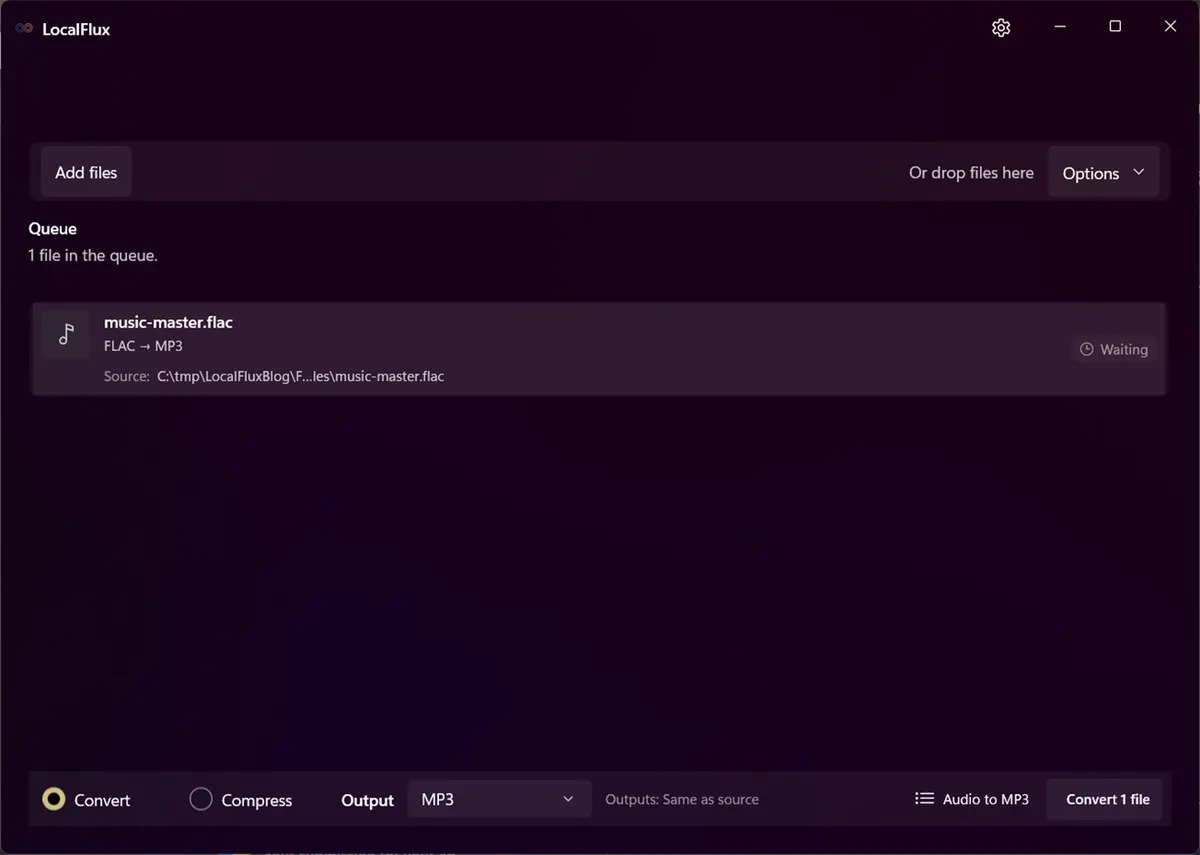
The privacy-safe lossless fixture is ready for local MP3 conversion.
What lossless-to-lossy conversion means
FLAC stands for Free Lossless Audio Codec. A conforming FLAC stream can be decoded back to the same audio samples that were encoded. The Xiph.Org project describes FLAC as lossless and positions MP3 among the available lossy formats. See the official FLAC features and FLAC documentation.
MP3 uses perceptual compression. It reduces size by representing the signal more economically and discarding information according to a psychoacoustic model. That tradeoff can be appropriate for casual playback, but it is not archival.
The correct mental model is:
FLAC master -> MP3 derivative
not:
FLAC replaced by MP3
When MP3 is the right derivative
Create an MP3 when:
- a device or service does not accept FLAC;
- you need a smaller portable library;
- a review copy must play in broadly compatible software;
- a client or collaborator has requested MP3 specifically;
- the listening context does not justify a lossless transfer.
Keep FLAC when storage is available and the playback system supports it, especially for masters, purchased lossless music, recordings that may be edited, and material that may need future transcoding.
Do not convert simply because a smaller number looks efficient. Storage savings must be weighed against the fact that MP3 is a one-way quality decision.
Prepare the FLAC
Before conversion, verify that the FLAC opens and plays correctly. Check the duration and whether it contains album art, track numbers, disc numbers, ReplayGain values, comments, or other tags your library depends on.
Use a neutral filename and folder for public screenshots. Track names, performers, client names, user folders, and cover art can all identify people or copyrighted works. This article uses a synthetic six-second fixture named music-master.flac.
Only convert audio you own or have permission to process.
Step-by-step: convert FLAC to MP3
1. Add the FLAC
Open LocalFlux and select Add files, or drag the FLAC into the window. The queue should identify it as FLAC.
If the file is damaged, conversion is not a repair strategy. Validate or re-rip the source rather than using a successfully written MP3 as proof that every FLAC frame was correct.
2. Choose MP3
Keep Convert selected, then choose MP3 as the output. Confirm that the row reports FLAC -> MP3 and is ready.
LocalFlux supports explicit tested routes. It does not present every possible combination or an advanced codec matrix.
3. Convert on the PC
Select Convert 1 file. LocalFlux decodes the FLAC stream and encodes MP3 with its bundled libmp3lame component. It creates a new file with a safe name rather than overwriting the lossless source.
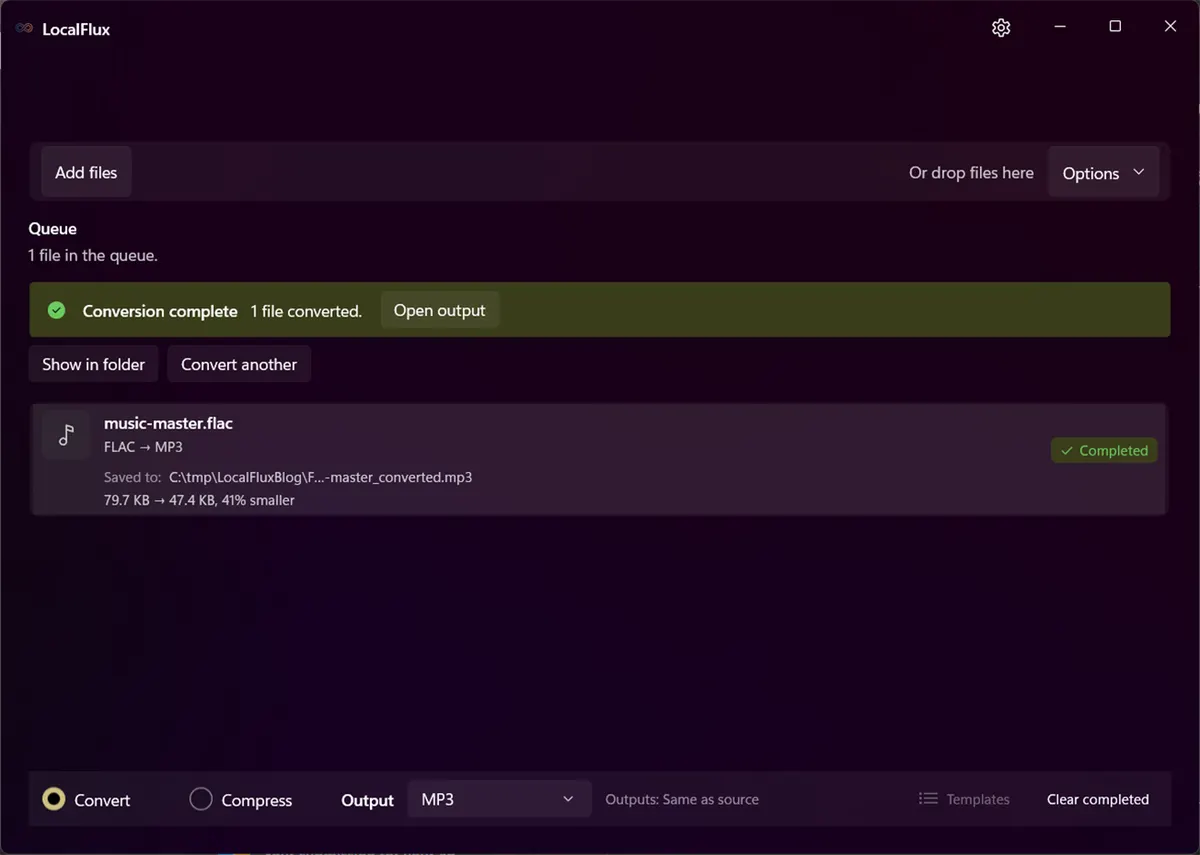
The completed derivative is music-master_converted.mp3; the FLAC remains unchanged.
4. Verify audio and metadata
Play the output in the real destination. For a long track, listen to the beginning, a loud or complex section, a quiet section, and the ending.
Check:
- duration;
- sample rate and channel layout;
- audible clicks, gaps, or truncation;
- transient detail, cymbals, ambience, and stereo image for music;
- speech clarity for spoken content;
- title, artist, album, track number, date, genre, comments, ReplayGain, and artwork if required;
- gapless transitions for albums where tracks flow together;
- playback in the target device.
Metadata mapping deserves its own test. FLAC commonly uses Vorbis comments, while MP3 commonly uses ID3 tags. Equivalent-looking fields do not guarantee identical storage or support.
Tested result
The article fixture was a simple synthetic FLAC: six seconds, mono, 44.1 kHz, with no identifying metadata or artwork.
| Observation | FLAC source | MP3 output |
|---|---|---|
| Codec | FLAC | MP3 |
| Duration | 6.000 s | 6.000 s |
| Sample rate | 44,100 Hz | 44,100 Hz |
| Channels | 1 (mono) | 1 (mono) |
| Average file bitrate | about 109 kb/s | about 65 kb/s |
| File size | 81,590 bytes | 48,501 bytes |
The MP3 was about 41% smaller. The FLAC bitrate is unusually low because the synthetic signal is simple and compresses efficiently; real stereo music is usually much less compressible. Do not use this ratio to forecast a music collection.
The test establishes route execution, duration, sample rate, channel count, safe naming, and the observed sizes for this fixture. It does not establish tag, artwork, cue sheet, ReplayGain, high-resolution audio, multichannel audio, or gapless-album behavior.
Choosing MP3 quality
MP3 quality is affected by the source, encoder, bitrate or quality mode, channel layout, and listening conditions. A spoken memo, dense rock mix, solo piano recording, and noise-heavy field recording do not stress an encoder in the same way.
The current LocalFlux route uses its encoder policy and does not expose an advanced MP3 settings panel for constant bitrate, variable bitrate, low-pass behavior, joint stereo, or custom sample rates. That keeps the common workflow simple, but it is not the right interface for a delivery specification that says, for example, “320 kb/s CBR, 48 kHz stereo.”
Use a configurable audio tool when a contract, broadcaster, archive, or hardware device requires exact encoding parameters. Use LocalFlux when you need the supported practical MP3 conversion and will verify the output in context.
High-resolution and multichannel FLAC
A FLAC can contain sample rates, bit depths, or channel layouts beyond ordinary stereo listening files. MP3 has different constraints and is generally not the right preservation target for high-resolution or multichannel masters.
Before converting such material:
- Inspect the source properties.
- Decide which channels and sample rate the destination supports.
- Use a workflow that exposes the required mapping.
- Keep the original FLAC and conversion notes.
The mono 44.1 kHz fixture in this article is not evidence for surround or high-resolution behavior.
Metadata, artwork, and library organization
A playable MP3 can still be a poor library derivative if it loses track ordering or cover art. Test the fields your player uses:
- album artist versus track artist;
- disc and track totals;
- compilation flags;
- embedded artwork type and resolution;
- date formatting;
- custom comments;
- ReplayGain values;
- lyrics or chapters.
LocalFlux is a converter, not a tag-management application. If the route does not preserve a required field, use a tag editor or a library tool with a tested mapping policy.
Common mistakes
Deleting the FLAC
The MP3 is a derivative. Keeping only the MP3 removes the lossless source for future edits and encodes.
Converting MP3 back to FLAC later
That creates a larger lossless container around already lossy audio. It does not restore discarded information.
Comparing at different loudness
People often prefer the louder version in a quick comparison. Match playback level before judging quality.
Assuming all tags transfer
FLAC comments and MP3 ID3 frames differ. Verify the fields and artwork that matter.
Applying one setting to every purpose
A small speech review copy and a high-quality music derivative may need different policies. The current simple route may be appropriate for one and not the other.
Batch conversion
Add several FLAC files, select MP3 once, and convert the compatible rows. Preserve folder structure or a manifest if library organization matters.
Before converting an album or archive, test representative files:
- shortest and longest tracks;
- a track with cover art;
- a track with non-ASCII tags;
- a gapless transition;
- the highest sample rate and largest channel layout in the set.
Review outputs before removing any temporary working copies, and never treat the MP3 batch as a substitute for the FLAC archive.
Privacy and offline notes
Unreleased music, interviews, field recordings, client audio, and internal review files may not belong on an upload-based converter. During normal supported conversion, LocalFlux processes the file locally, does not require sign-in, and can run offline after installation.
Local processing does not remove identifying content. Voices, spoken names, tags, artwork, and filenames may still be personal. Inspect them before sharing the MP3.
Troubleshooting
The MP3 sounds noticeably worse. Keep the FLAC, confirm playback levels, and use a configurable encoder with a higher-quality policy if the destination warrants it.
The player shows the wrong album information. Inspect and correct ID3 tags with a tag editor. Do not assume field-for-field FLAC metadata mapping.
The file is not much smaller. Simple or short FLAC sources can already be compact, while artwork and tags add overhead. Compare real collection samples.
A hardware player rejects the MP3. Check its supported bitrate, sample rate, channels, filename restrictions, storage filesystem, and ID3 version.
Album tracks have gaps. Gapless playback depends on encoding metadata and player support. Test the actual album sequence and destination.
Final checklist
- The MP3 is treated as a derivative, not the master.
- Playback and duration were checked.
- Required tags and artwork were verified.
- The destination accepts the file and encoding characteristics.
- Difficult musical or spoken passages remain usable.
- No personal information appears in filenames, screenshots, audio, or tags being published.
- The original FLAC remains backed up.
For repeat privacy-sensitive audio conversion on Windows, get LocalFlux from the Microsoft Store. Preserve FLAC for quality and future work; use MP3 when its compatibility and smaller delivery size solve a real problem.
Publication evidence
The files used in this article are synthetic and privacy-reviewed. You can inspect the published source and converted output in the sample folder, along with the test record and SHA-256 media manifest:
Practical checks before and after conversion
The reliable workflow is to keep FLAC as the archival master; choose MP3 bitrate, sample rate, channels, loudness expectations, and tags for the listening copy. This matters because changing a file extension does not preserve every property of the source. Decide what the destination actually needs, keep the source as the master, and use a small representative file before processing a large batch.
Before you start
- Record the source format and the properties that matter to the destination.
- Choose settings for the intended viewer, editor, device, or upload system.
- Use a new output folder and keep collision-safe names.
- Open the result in the software that will actually receive it.
- Compare content, dimensions or duration, and any metadata you expected to keep or remove.
Review the output
A successful status only confirms that an output was written. It does not prove that every font, frame, channel, page, formula, profile, tag, or accessibility feature survived. For important work, inspect representative outputs and retain the original until the delivered copy has been accepted.
A successful status only confirms that an output was written. It does not prove that every font, frame, channel, page, formula, profile, tag, or accessibility feature survived. For important work, inspect representative outputs and retain the original until the delivered copy has been accepted.
The reliable workflow is to keep FLAC as the archival master; choose MP3 bitrate, sample rate, channels, loudness expectations, and tags for the listening copy. This matters because changing a file extension does not preserve every property of the source. Decide what the destination actually needs, keep the source as the master, and use a small representative file before processing a large batch.