
How to Convert WebM to MP4 on Windows Without Uploading
Convert WebM video to MP4 locally on Windows, understand when re-encoding is needed, and avoid privacy and compatibility surprises.
On this page
- Quick answer
- WebM and MP4 are containers, not quality levels
- Convert WebM to MP4 in LocalFlux
- What we tested
- Will converting WebM to MP4 reduce quality?
- What to check after conversion
- Troubleshooting
- WebM to MP4 or another format?
- Final checklist
- Publication evidence
- Practical checks before and after conversion
Quick answer
To convert WebM to MP4 on Windows without uploading the video, add the .webm file to LocalFlux, choose MP4 as the output, and select Convert. The conversion runs on your PC and saves a new MP4 beside the source by default.
This is useful when a WebM file works in a browser but is rejected by an editor, presentation tool, messaging app, or older playback workflow.
WebM and MP4 are containers, not quality levels
WebM is an open media format designed for the web. The WebM Project describes WebM files as containers commonly carrying VP8 or VP9 video with Vorbis or Opus audio. MP4 is also a container, and compatibility depends on the codecs stored inside it.
That distinction matters because changing .webm to .mp4 is not enough. Renaming only changes the filename. A real conversion creates an MP4 container with streams that the destination software can decode.
Convert WebM to MP4 in LocalFlux
- Open LocalFlux.
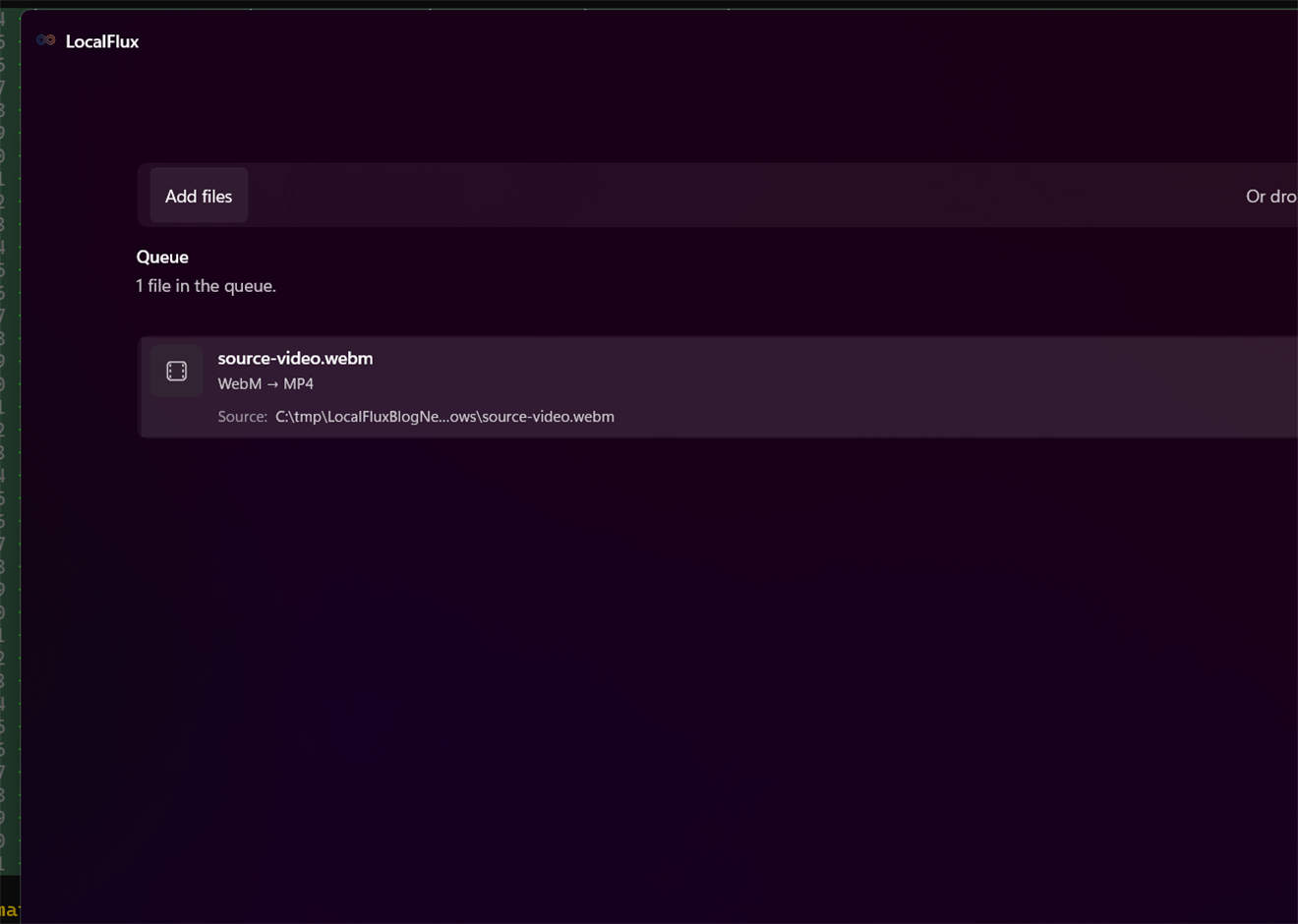
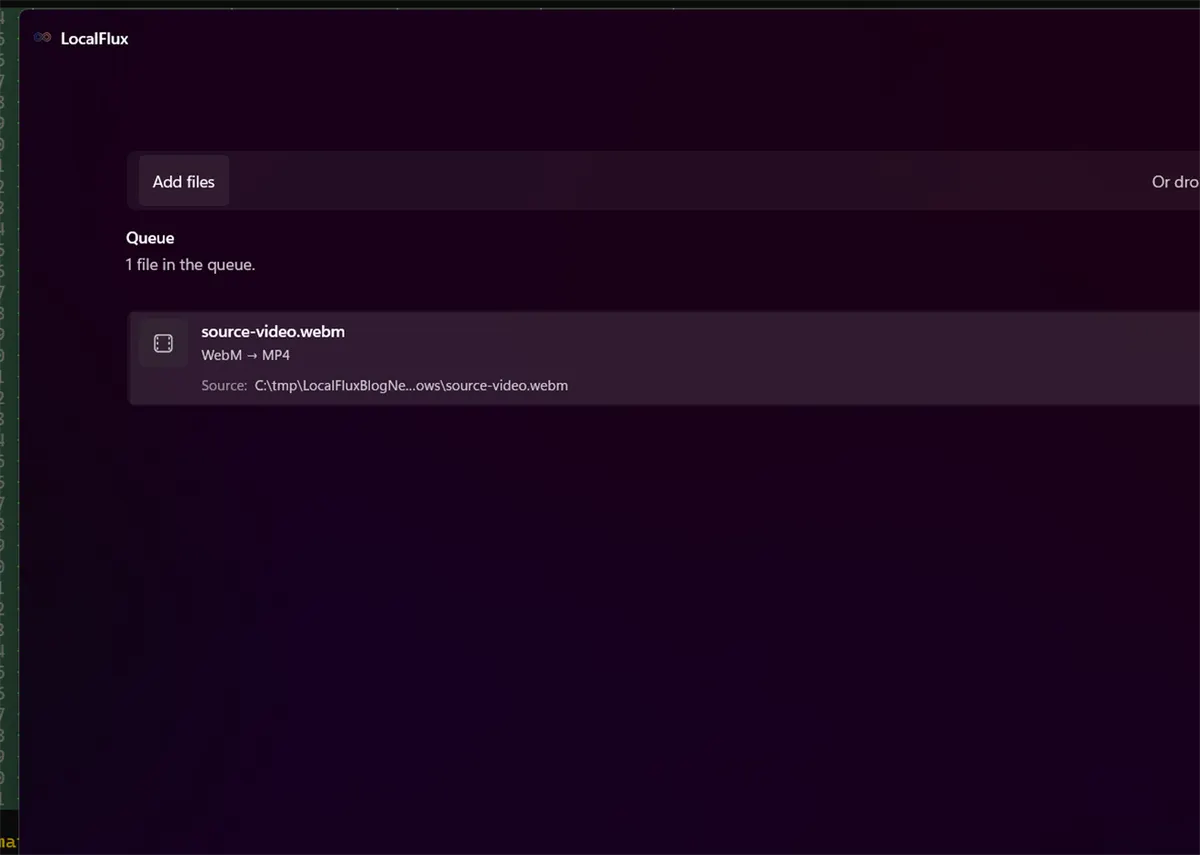
- Select Add files, or drop a WebM file into the window.
- Leave Convert selected.
- Choose MP4 under Output.
- Check the output location. The default is the source folder.
- Select Convert 1 file.
- Open the result or use Show in folder when the queue reports completion.
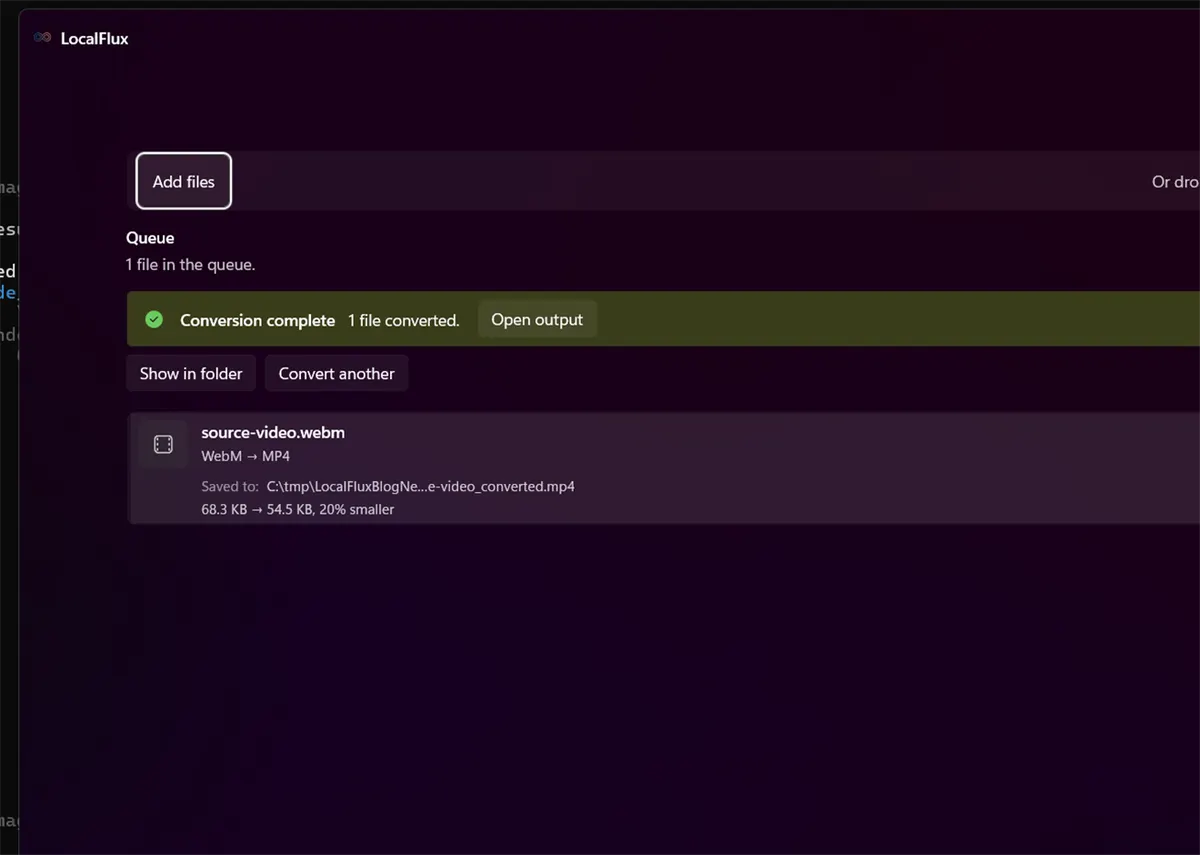
The source is not overwritten. LocalFlux creates a new file with _converted in its name unless the destination requires another collision-safe name.
What we tested
We ran LocalFlux 1.0.7.0 on Windows with a privacy-safe repository fixture:
| Check | Result |
|---|---|
| Route | WebM → MP4 |
| Source | source-video.webm, 68.3 KB |
| Output | source-video_converted.mp4, 54.5 KB |
| Size change | 20% smaller |
| Upload required | No |
| Source changed | No |
The size result belongs to this one short fixture. A longer or higher-quality video can produce a larger MP4, so do not treat conversion as a guaranteed compression method.
Will converting WebM to MP4 reduce quality?
It can. LocalFlux creates a broadly usable MP4 by encoding the media into an MP4-compatible combination. Encoding is different from simply moving already-compatible streams between containers, and lossy video can lose detail each time it is re-encoded.
Keep the WebM as the original. Check the MP4 at the beginning, middle, and end, especially if the video contains small text, screen recordings, animation, or fast motion.
What to check after conversion
- The video opens in the app that previously rejected the WebM.
- Audio is present and synchronized.
- The full duration is present.
- Rotation and aspect ratio look correct.
- Any subtitles or extra audio tracks you need are still available.
Container conversion is not a promise that every optional stream or attachment in the source will be reproduced. If a WebM contains unusual tracks, verify those explicitly.
Troubleshooting
The MP4 is larger than the WebM
That is possible. WebM codecs can be efficient, and the target settings prioritize compatibility rather than a guaranteed size reduction. If size is the real problem, use LocalFlux’s Compress mode instead of assuming format conversion will shrink the file.
The conversion fails immediately
Confirm that the file plays through and is not a partial download. A .webm extension does not prove that the container is intact.
The MP4 plays but looks softer
Avoid converting an already converted copy again. Return to the original WebM and create one MP4 from it.
WebM to MP4 or another format?
Choose MP4 when broad playback and sharing compatibility is the goal. Keep WebM for web-first publishing where the recipient supports it. If you are deciding between several video routes, see how to convert MKV to MP4 and how to convert MOV to MP4 without uploading.
Final checklist
- Keep the WebM original.
- Choose MP4 in the app; do not rename the extension.
- Verify audio, duration, and visual quality.
- Use compression separately if file size is the actual constraint.
Get LocalFlux from the Microsoft Store
Publication evidence
The screenshots and measured results come from privacy-reviewed fixtures tested with LocalFlux 1.0.7.0. The source files, outputs, and reproducibility notes are available here:
Practical checks before and after conversion
The reliable workflow is to inspect VP8, VP9, AV1, Opus, alpha, subtitles, and metadata; compatible streams may remux, while incompatible ones require re-encoding and quality review. This matters because changing a file extension does not preserve every property of the source. Decide what the destination actually needs, keep the source as the master, and use a small representative file before processing a large batch.
Before you start
- Record the source format and the properties that matter to the destination.
- Choose settings for the intended viewer, editor, device, or upload system.
- Use a new output folder and keep collision-safe names.
- Open the result in the software that will actually receive it.
- Compare content, dimensions or duration, and any metadata you expected to keep or remove.
Review the output
A successful status only confirms that an output was written. It does not prove that every font, frame, channel, page, formula, profile, tag, or accessibility feature survived. For important work, inspect representative outputs and retain the original until the delivered copy has been accepted.