
How to Convert MKV to MP4 on Windows Offline
An MKV can contain perfectly good video and still refuse to play in the app, device, presentation system, or upload form you need to use. Creating an MP4 copy is often the practical compatibility fix, but only if you understand what may happen to the video, audio tracks, and subtitles along the way.
This guide uses LocalFlux to convert a synthetic 30-second MKV entirely on a Windows PC. The source deliberately contains two audio tracks and two subtitle tracks, so the result reveals more than a simple single-track demo.
The conversion produced a 1280 × 720 H.264/AAC MP4 and reduced the file from 22.56 MiB to 5.20 MiB. There was one important limitation: the output retained one audio track and did not retain either subtitle track. If your MKV contains alternate languages, commentary, captions, or forced subtitles, read the track section before converting.
Test result, not a universal promise: File size, visual quality, speed, and retained streams depend on the source. Treat this workflow as a compatibility conversion for straightforward playback copies, not as a complete Matroska track-management tool.
Get LocalFlux from the Microsoft Store
The short version
- Check the MKV for extra audio and subtitle tracks.
- Open LocalFlux and add the MKV.
- Keep Convert selected and choose MP4 as the output.
- Leave the dimensions unchanged unless you deliberately want to resize.
- Start the conversion.
- Play the new MP4 and verify its video, audio language, subtitles, and duration before sharing it.
LocalFlux writes a new _converted.mp4 file and leaves the original MKV in place. Supported conversions work offline after installation.
Why can an MKV fail when an MP4 works?
MKV and MP4 are containers. A container can hold video, audio, subtitles, metadata, and other streams. The official Matroska overview describes Matroska as a container capable of holding many video, audio, and subtitle streams in one file.
A container is not the same thing as a codec. The codec determines how a video or audio stream is encoded inside that container. This distinction explains two common surprises:
- Renaming
movie.mkvtomovie.mp4does not convert anything. It changes only the filename. - A file ending in
.mp4can still fail in a particular player if its codec, profile, level, DRM, or structure is unsupported.
For broad Windows compatibility, H.264 video with AAC audio inside an MP4 is a useful target. Microsoft’s Windows codec documentation lists H.264 and AAC-LC support, and its media transcoding guide describes an MP4 profile using H.264 video and AAC audio.
That still does not mean every MP4 plays everywhere. A receiving app can impose its own limits on duration, bitrate, profile, resolution, frame rate, or upload size. Test the final file in the actual destination.
What this walkthrough tested
The source is synthetic and rights-cleared. It was designed specifically to reveal track-selection behavior.
| Property | Synthetic MKV source |
|---|---|
| Duration | 30.02 seconds |
| Dimensions | 1280 × 720 |
| Overall bitrate | 6,303 kb/s |
| Video | MPEG-4 Part 2, yuv420p, 30 fps |
| Audio track 1 | English, Opus, 48 kHz, stereo, default, “Main stereo” |
| Audio track 2 | Spanish, AAC-LC, 48 kHz, mono, “Commentary mono” |
| Subtitle track 1 | English SubRip/SRT, default, “English captions” |
| Subtitle track 2 | Spanish SubRip/SRT, “Spanish captions” |
| File size | 23,655,098 bytes (22.56 MiB; shown as 22.6 MB in LocalFlux) |
The test used LocalFlux 1.0.6 with Convert → MP4, the original 1280 × 720 dimensions, the source folder as the destination, and Share safely turned off.
How to convert MKV to MP4 on Windows
1. Check the MKV’s tracks first
Before converting an important MKV, open it in a player or media-inspection tool that can list streams. Look for:
- more than one audio language;
- commentary or descriptive-audio tracks;
- normal, forced, or hearing-impaired subtitles;
- image-based subtitles such as PGS or VobSub;
- chapters, attachments, or embedded fonts; and
- unusual video or audio codecs.
A successful conversion message means the output file was created. It does not prove that every source track migrated. Keep the original MKV until the converted copy has been checked.
2. Add the MKV to LocalFlux
Open LocalFlux and add the file by browsing or dragging it into the window. The app identifies the source as MKV and proposes MP4 as the output for this video route.
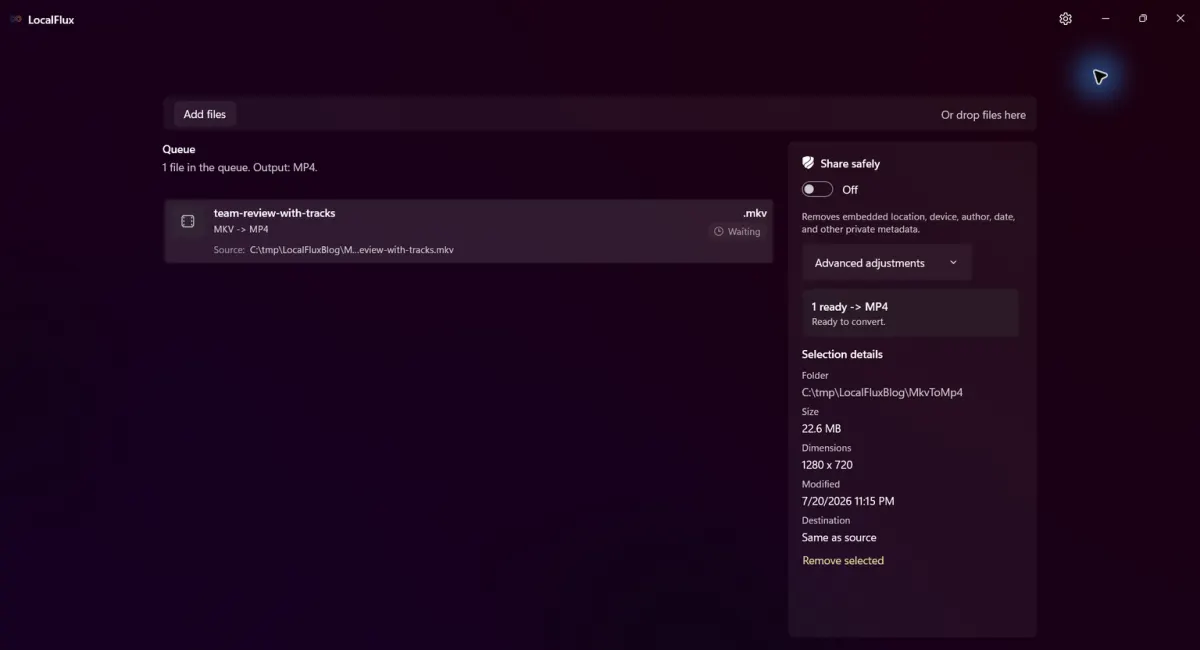
The synthetic multi-track MKV is ready. The only visible working folder is under C:\tmp\LocalFluxBlog\MkvToMp4.
The selection panel shows the source folder, file size, dimensions, and destination. In this example the destination is Same as source.
3. Confirm MP4 as the output
Keep Convert selected, then open the output menu and choose MP4. Do not choose Compress: MKV-to-MP4 is a format conversion route, while same-format compression is a different job.
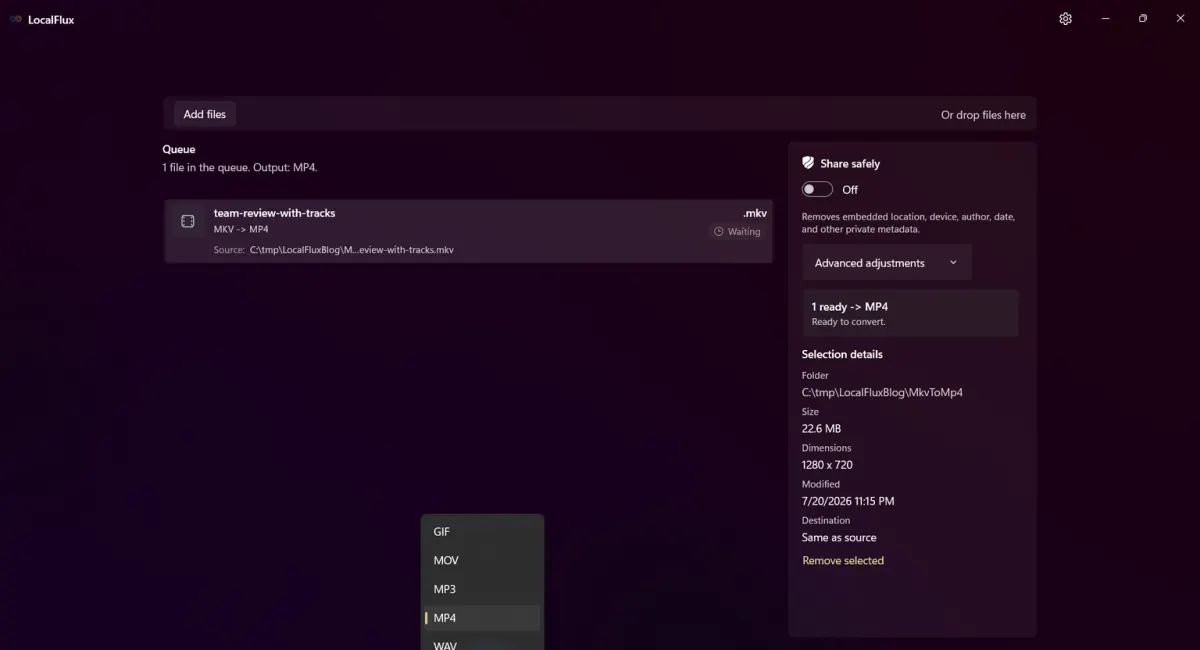
MP4 is selected as the shared output for the ready file.
Leave the dimensions at the original size unless you intentionally want a smaller frame. Resizing and converting at the same time makes it harder to determine which change caused any visible difference.
4. Start the conversion
Choose Convert 1 file. LocalFlux displays overall queue progress and per-file progress while it decodes and re-encodes the media.
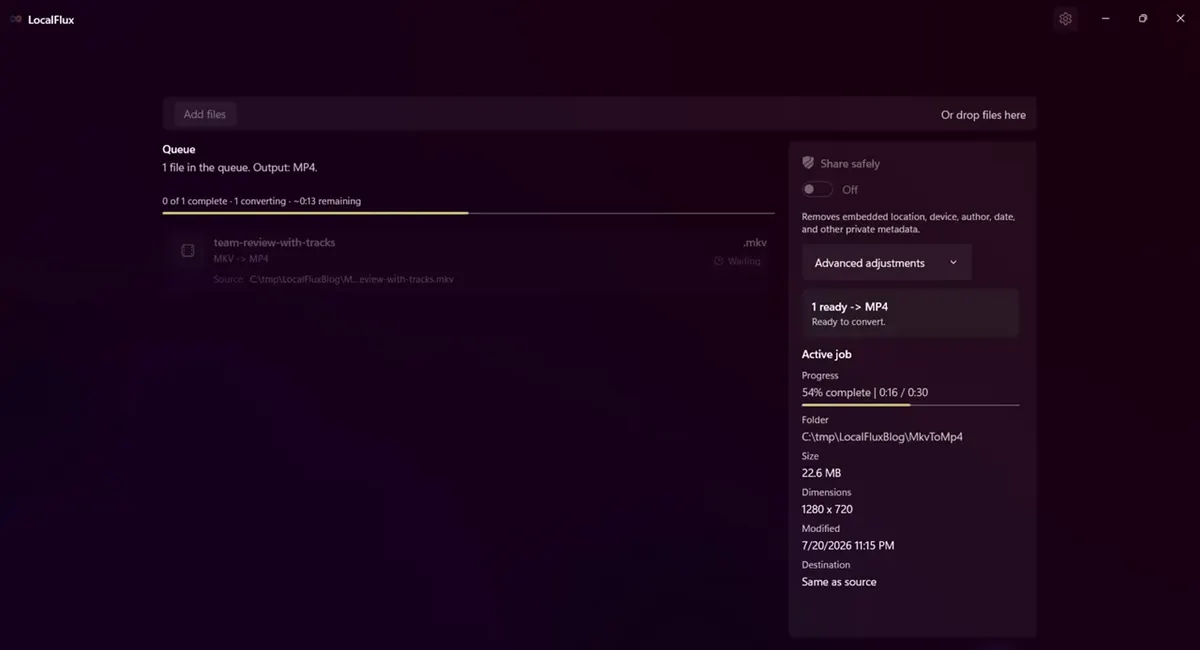
The tested route is a transcode. The video is not merely being renamed from .mkv to .mp4.
Conversion time varies with duration, resolution, codec complexity, hardware, storage speed, and other active workloads.
5. Open and verify the output
When the job completes, LocalFlux creates team-review-with-tracks_converted.mp4 and leaves team-review-with-tracks.mkv in place.
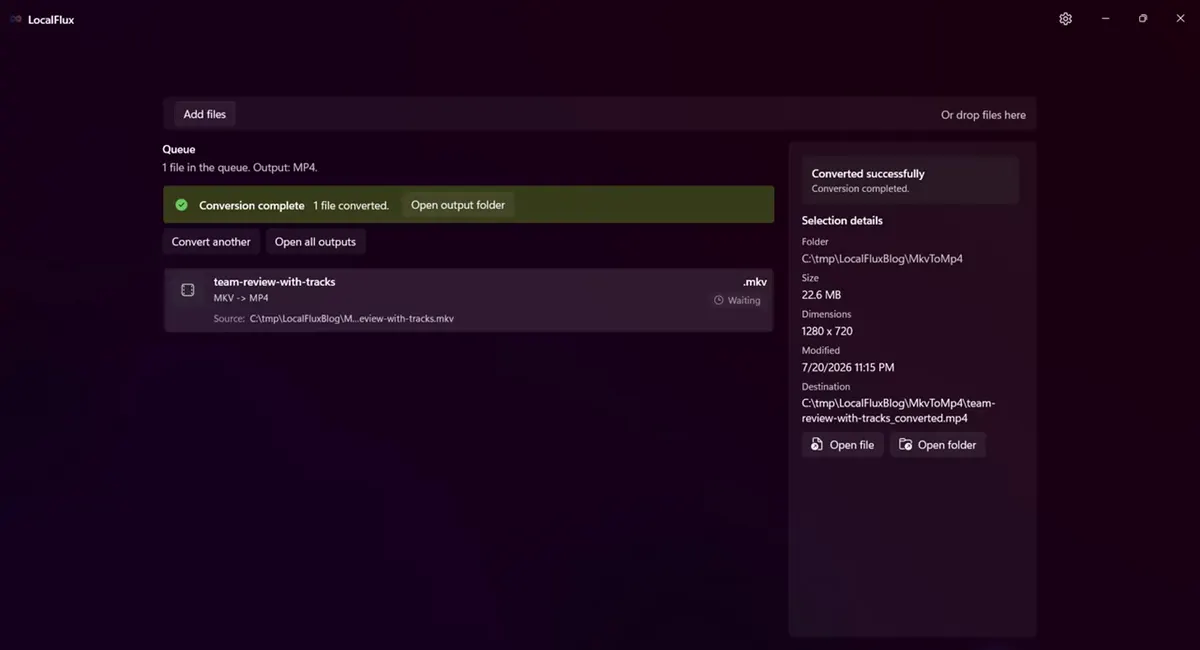
LocalFlux reports success and shows the neutral destination path for the new MP4.
Do not stop at the success screen. Open the MP4 and verify:
- the beginning, middle, and end play correctly;
- the duration closely matches the source;
- the expected audio language is present;
- speech is synchronized with the video;
- required subtitles are present, or you have another subtitle plan;
- small text and fast motion remain acceptable; and
- the destination service accepts the file.
Watch the real workflow
Video transcript: A 22.6 MB synthetic MKV is ready in LocalFlux with MP4 selected. The user starts conversion. LocalFlux shows queue and per-file progress, then reports that one file was converted. The destination is C:\tmp\LocalFluxBlog\MkvToMp4\team-review-with-tracks_converted.mp4. No desktop, account, browser, or personal folder is shown.
The measured before-and-after result
| Measurement | MKV source | MP4 output |
|---|---|---|
| File size | 23,655,098 bytes | 5,448,036 bytes |
| Display size | 22.56 MiB | 5.20 MiB |
| Difference | Not applicable | 18,207,062 bytes smaller (76.97%) |
| Duration | 30.02 s | 30.00 s |
| Overall bitrate | 6,303 kb/s | 1,452 kb/s |
| Dimensions | 1280 × 720 | 1280 × 720 |
| Video | MPEG-4 Part 2 | H.264 Constrained Baseline |
| Video bitrate | approximately 6 Mb/s source target | 1,317 kb/s measured |
| Audio | Opus stereo + AAC mono | AAC-LC stereo, 128 kb/s |
| Subtitle streams | 2 | 0 |
The 76.97% reduction is not a promised MKV-to-MP4 saving. This source was intentionally high bitrate and inefficient for its content. A modern, efficiently encoded MKV might stay similar in size, become larger, or require a different quality trade-off.
Frame comparison at 15 seconds
| MKV source | MP4 output |
|---|---|
 |  |
The output retained the same dimensions but shows visible softening in this demanding synthetic pattern. A full-video SSIM comparison measured 0.864119 overall. SSIM is a technical similarity metric, not a guarantee of perceptual quality; 1.0 would be identical under that metric.
For real footage, inspect faces, small text, gradients, dark areas, confetti, water, foliage, and fast camera movement. Keep the MKV as the master unless you have a separate archival copy.
You can also inspect the rights-cleared synthetic MKV source and the actual MP4 output used for this test.
What happened to the audio tracks and subtitles?
This is the most important finding in the test.
| Stream | MKV source | MP4 output | Result |
|---|---|---|---|
| Video | MPEG-4 Part 2, 1280 × 720 | H.264, 1280 × 720 | Re-encoded |
| English main audio | Opus, stereo, default | AAC-LC, stereo, default | Retained and re-encoded |
| Spanish commentary | AAC-LC, mono | Not present | Not retained |
| English subtitles | SubRip/SRT, default | Not present | Not retained |
| Spanish subtitles | SubRip/SRT | Not present | Not retained |
The current LocalFlux interface does not expose an audio-track or subtitle-track selector for this route. In this fixture it retained the English stereo track, dropped the Spanish mono commentary, and dropped both text subtitle tracks.
This is consistent with FFmpeg’s documented automatic stream-selection model: without explicit mapping, it normally chooses one acceptable stream per type, with selection depending on properties such as audio channel count and destination support.
Assume that an MKV-to-MP4 compatibility copy will not preserve every audio or subtitle track. Verify the result.
If you must retain multiple languages, commentary, forced subtitles, chapters, attachments, or embedded fonts, keep the MKV and use a workflow that provides explicit stream mapping. If captions must always be visible, you may need to burn them into the picture with a subtitle-capable video tool, but that makes them permanent and normally requires another re-encode.
Also distinguish embedded subtitles from a separate .srt file. Converting the video does not automatically package an external subtitle file into the new MP4.
Convert several MKV files in one batch
LocalFlux can queue several compatible MKVs and apply one MP4 output choice to all of them.
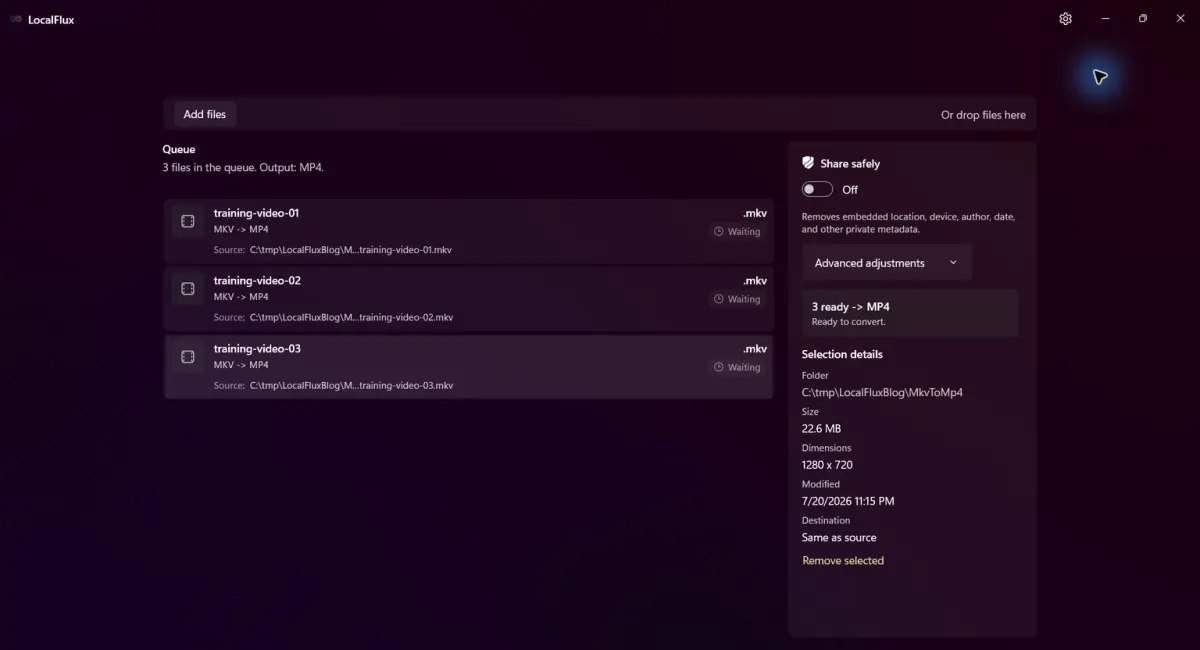
Three synthetic MKVs are ready for the same MP4 workflow.
Batch conversion is useful for training videos, camera exports, downloaded archives, or review copies. However, it amplifies mistakes as efficiently as it saves clicks. Before starting a large batch:
- Convert one representative MKV.
- Check its audio language and subtitle requirements.
- Inspect visual quality and file size.
- Confirm the destination accepts it.
- Then queue the remaining compatible files.
One selected output applies to the batch. Files that cannot use that output should be handled in another batch. Do not assume every MKV in a folder has the same internal streams simply because the extensions match.
MKV-to-MP4 troubleshooting
The MP4 still will not play
Try a different player and the actual destination device. If both fail, inspect the video and audio codecs, confirm the file copied completely, and check whether the destination limits the profile, bitrate, resolution, frame rate, or duration. “MP4” describes the container, not every compatibility requirement.
The wrong audio language remained
The source probably contains multiple audio tracks. This tested workflow has no manual track selector. Keep the MKV and use a tool that lets you map the exact audio stream before creating the MP4.
The subtitles disappeared
That occurred in the controlled test: both embedded SRT tracks were absent from the output. Preserve the MKV, retain separate subtitle files, or use an explicit subtitle conversion or burn-in workflow depending on the destination.
The MP4 is much smaller or larger
Both are possible. File size depends on duration, bitrate, codec, encoder settings, audio, and the source’s existing efficiency, not only on the container extension. Smaller does not automatically mean better or worse. Inspect demanding scenes and keep the original.
Can I just rename .mkv to .mp4?
No. Renaming changes only the filename. A real conversion must create an MP4 container and, when necessary, re-encode or remux compatible streams.
Is the conversion offline?
Yes for this tested LocalFlux route. The file was processed locally with the bundled conversion engine, and no upload step was used.
A practical compatibility copy, provided you verify the tracks
For a straightforward, single-audio MKV, the workflow is short: add the file, select MP4, convert, and test the result. The tested output used the widely supported H.264/AAC combination, kept the 1280 × 720 dimensions, and left the original MKV untouched.
For a complex MKV, the track check is not optional. This controlled test proved that “conversion complete” did not mean “all streams preserved”: one audio track survived, one did not, and both subtitles were absent. Treat the MP4 as a playback copy and keep the MKV as the complete source.
Convert MKV files locally with LocalFlux or read the related guides to convert MOV to MP4 and compress a large video.