
How to Convert MOV to MP4 on Windows Without Uploading It
MOV video is common on iPhones and cameras, but an MP4 copy can be easier to use with websites, messaging apps, presentation software, and Windows workflows. You do not have to upload a private or very large recording to a converter website to change its container.
With LocalFlux on Windows 11, add the MOV file, choose Convert, select MP4, and start the conversion. The work runs on your PC, the original MOV remains unchanged, and the result is saved as a new file with a safe name such as holiday-video_converted.mp4.
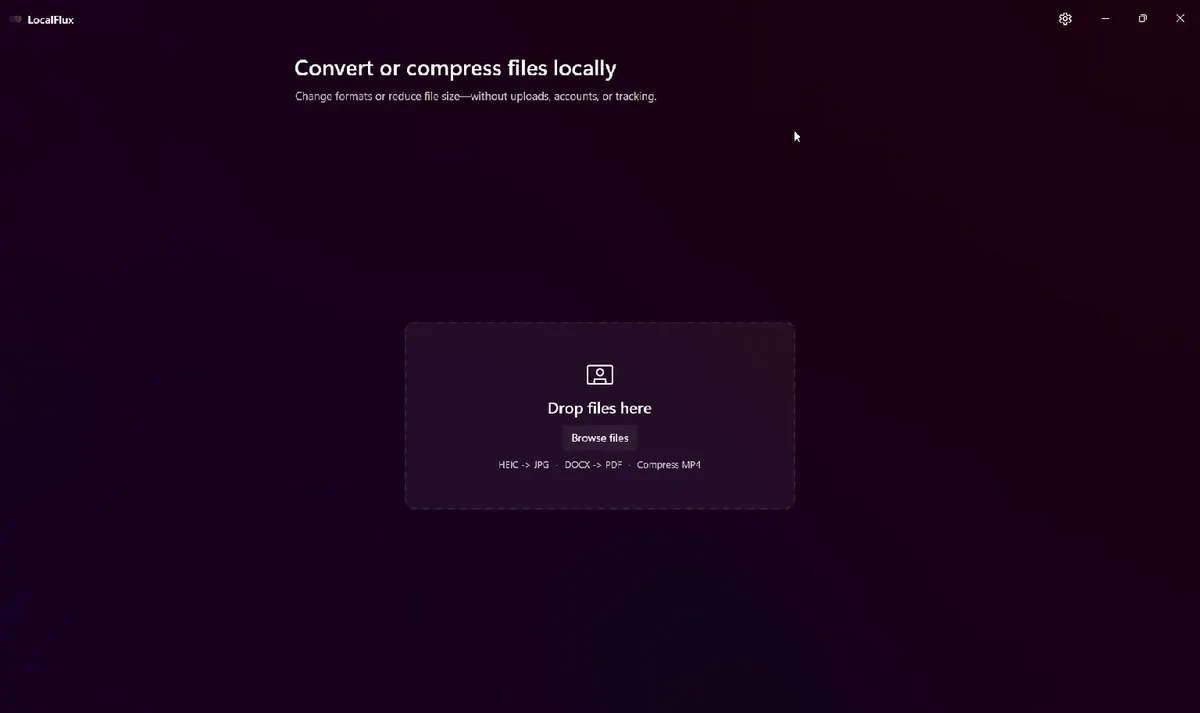
LocalFlux starts with a local file drop area. No account or upload step is required for normal conversion.
Best for: private or large videos, several MOV files, repeat conversions, and people who want a graphical Windows workflow.
Probably unnecessary for: a single non-sensitive clip when an editor you already use can export the MP4 you need. Microsoft Clipchamp, for example, can export an edited project as MP4. LocalFlux is a converter rather than a timeline video editor.
The short version
- Open LocalFlux on Windows 11.
- Add one or more
.movfiles. - Choose Convert rather than Compress.
- Select MP4 as the output.
- Leave the advanced controls at their defaults unless you need to resize or recompress the video.
- Select Convert.
- Open the new
_converted.mp4copy from the completed row or output folder.
Get LocalFlux from the Microsoft Store or check the currently supported formats before starting.
Step 1: Add the MOV video
Drag a MOV file onto LocalFlux or use Add files. The queue displays the file name, source format, source folder, size, and dimensions before anything is converted.
This walkthrough uses a two-second synthetic video named iphone-sample.mov. It contains a generated test pattern and tone, not a personal recording. The capture copy was placed under C:\tmp\LocalFluxBlog, so none of the screenshots reveal a user profile or private folder structure.
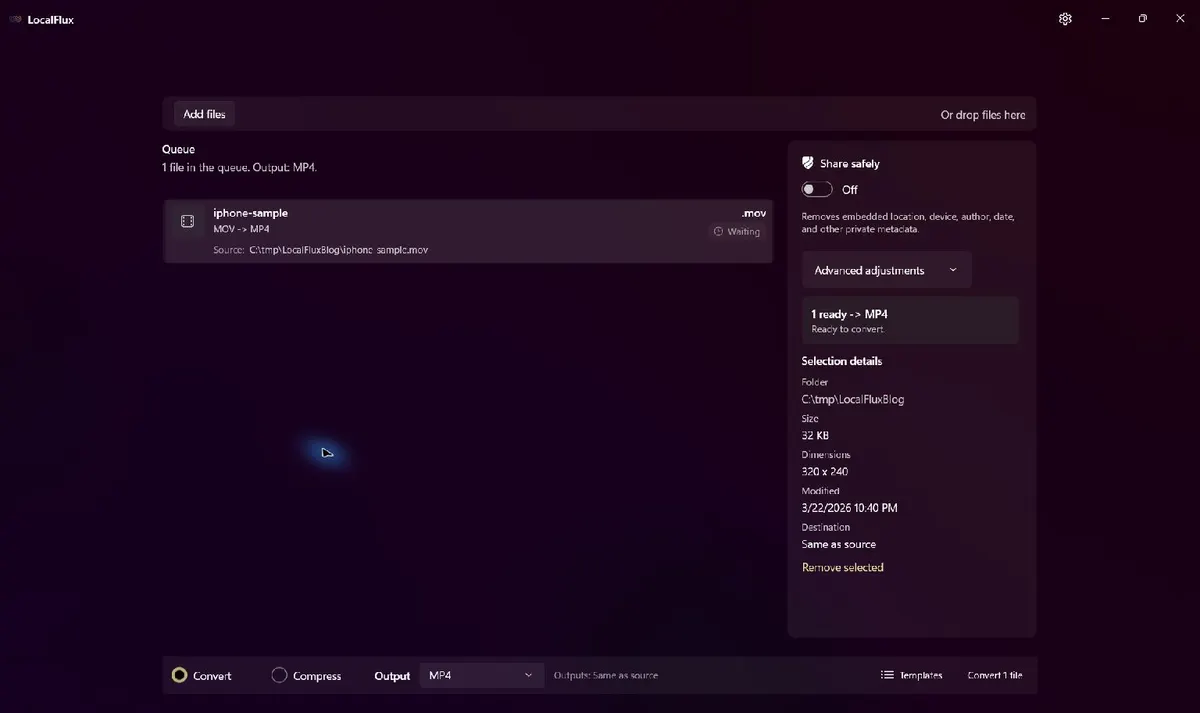
The source is queued as MOV → MP4. LocalFlux has not altered the file at this point.
Step 2: Choose Convert and MP4
LocalFlux has separate Convert and Compress modes. Use Convert when you want a different file format. Compress keeps a supported video in its existing format and aims to create a smaller copy.
After choosing Convert, open the output menu and select MP4. The output list is route-aware: it shows formats LocalFlux can create from the selected source, not a promise that every format converts to every other format.
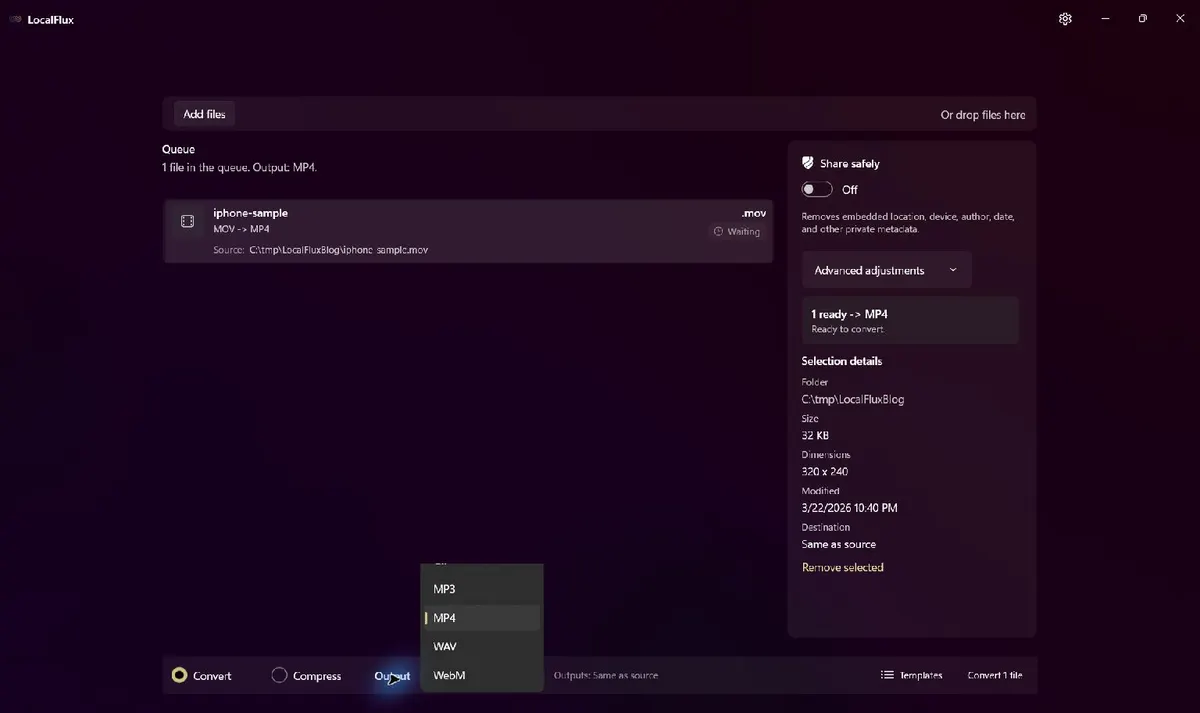
MP4 is selected once for the current queue.
Step 3: Review optional settings
You can normally leave Advanced adjustments unchanged for a straightforward MOV-to-MP4 conversion. If you need a different resolution, choose a resize preset or enter dimensions while keeping the aspect ratio locked. A compression adjustment can trade some fidelity for a smaller file.
Changing the dimensions or compression level can require video re-encoding. That takes longer and can change image quality. LocalFlux does not claim lossless output for every MOV file or setting.
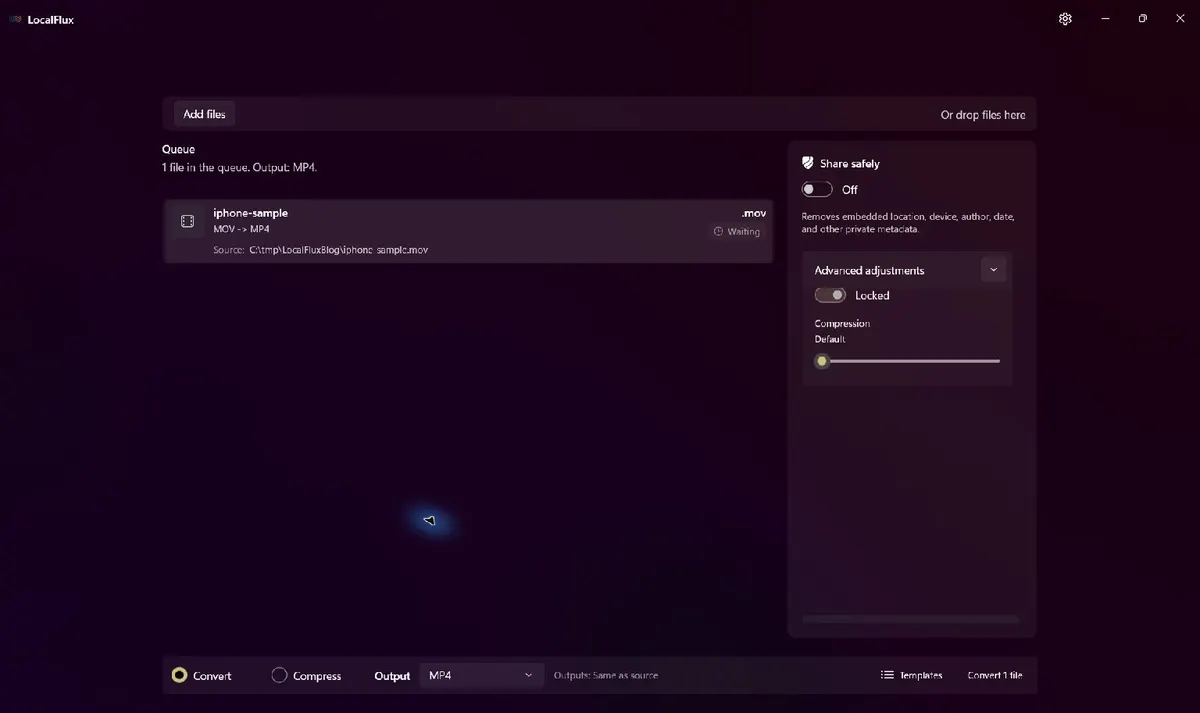
The tested conversion kept the original dimensions and used the default compression setting.
Step 4: Convert and open the new copy
Select Convert 1 file. LocalFlux processes the supported route locally with its bundled FFmpeg engine. When the row finishes, the completion panel shows the new destination and offers Open file and Open folder actions.
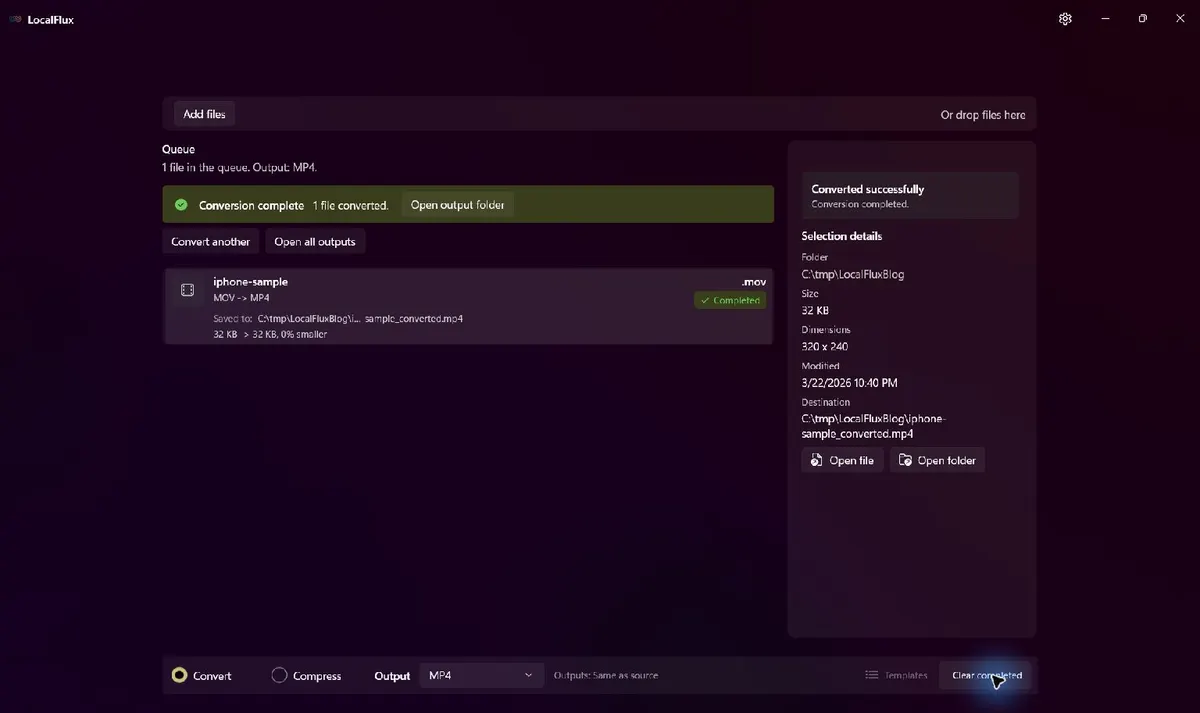
The result was saved as iphone-sample_converted.mp4; the original iphone-sample.mov remained in place.
Video transcript: LocalFlux shows one queued MOV file with MP4 selected. The Convert button is activated. The queue reports “Conversion complete,” marks the row Completed, and displays the new _converted.mp4 destination under C:\tmp\LocalFluxBlog.
Tested result: what changed?
The test source already used H.264 video and AAC audio, which were compatible with the MP4 output. With no visual adjustments requested, LocalFlux repackaged those streams into the MP4 container without re-encoding them.
| Property | Source MOV | Output MP4 |
|---|---|---|
| File size | 32,817 bytes | 32,766 bytes |
| Duration | 2.00 seconds | 2.00 seconds |
| Dimensions | 320 × 240 | 320 × 240 |
| Frame rate | 30 fps | 30 fps |
| Video | H.264 High, yuv420p | H.264 High, yuv420p |
| Audio | AAC-LC, 48 kHz mono | AAC-LC, 48 kHz mono |
| Original preserved | Yes | New output copy |
The source and output frames captured at one second are byte-for-byte identical as PNG images:
| Source frame | Output frame |
|---|---|
 |  |
This is a useful compatibility example, not a speed or compression benchmark. A long 4K iPhone recording is much larger, and a MOV containing streams that are not suitable for the MP4 route may need re-encoding. Processing time and output size vary with the source codecs, duration, resolution, settings, hardware, and available storage.
You can inspect the exact rights-cleared source MOV and converted MP4 used for this result.
Converting several MOV files at once
Add all compatible MOV files to the same queue, choose MP4 once, and start the batch. One LocalFlux conversion batch uses one selected output format. If some files need a different output, convert them in a separate batch.
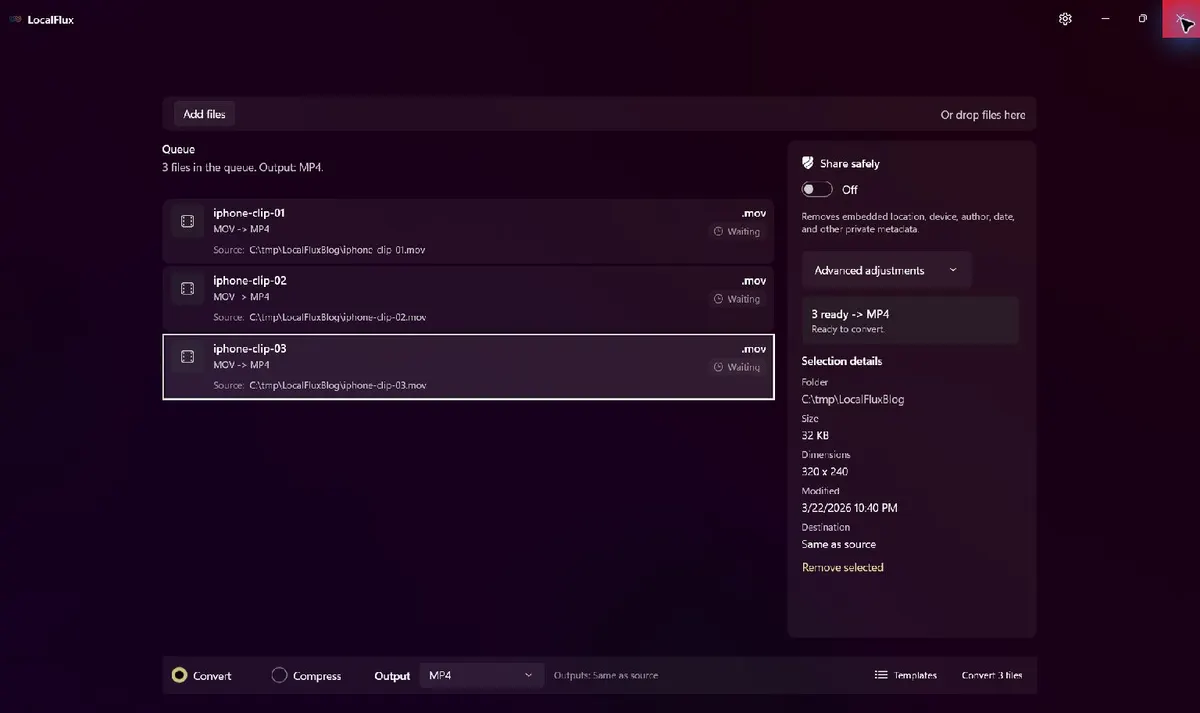
Three MOV files are ready for one MP4 batch. Every displayed path is under the neutral C:\tmp\LocalFluxBlog capture folder.
LocalFlux handles the rows individually, creates a separate safely named output for each source, and leaves every original in place. Batch conversion is especially useful when transferring several iPhone clips or processing recurring camera footage.
MOV, MP4, and video quality
MOV and MP4 are containers. They hold video, audio, and related stream information; the file extension alone does not tell you which video codec is inside. Renaming .mov to .mp4 changes only the name; it does not examine the streams, create a valid MP4 container, or fix an incompatible codec.
When the existing streams are compatible and you have not requested visual changes, LocalFlux can use a stream-copy path like the tested example. When re-encoding is required, results can differ. Always check an important output for playback, audio sync, orientation, color, and expected dimensions before deleting or archiving anything elsewhere.
Important limitations
LocalFlux converts supported routes; it is not a full video editor. It does not promise trimming, cropping, timeline editing, subtitle authoring, chapter editing, watermarking, frame-rate controls, or detailed codec selection. Use a video editor when you need those tools.
The app also cannot guarantee that every damaged, encrypted, unusual, or incorrectly named MOV file will convert successfully. Keep enough free space for the output, make sure the destination is writable, and try the default adjustments first when a custom setting fails.
Normal conversion stays local, but that does not automatically mean all metadata is removed. The separate Share safely control is intended for supported metadata-removal workflows. Do not assume that a standard MOV-to-MP4 conversion anonymizes a file.
Convert MOV to MP4 locally on Windows
LocalFlux is a one-time-purchase Windows 11 utility for supported image, video, audio, and document conversions. Its conversion engines are bundled, supported work can run offline after installation, and normal conversion does not require an account or upload step.
Get LocalFlux from the Microsoft Store or review the supported formats and routes.
Related local workflows
Continue with How to Extract Audio from a Video File on Windows when that file or delivery requirement appears in the same project.