
How to Convert WebP to JPG or PNG on Windows
You save an image from the web and receive a .webp file, but the editor, document system, printer, or upload form you need accepts only JPG or PNG. WebP is not broken; the next tool simply does not support it.
With LocalFlux on Windows 11, add the WebP image, choose JPG or PNG, and start the conversion. The app creates a new compatible copy on your PC and leaves the original WebP unchanged.
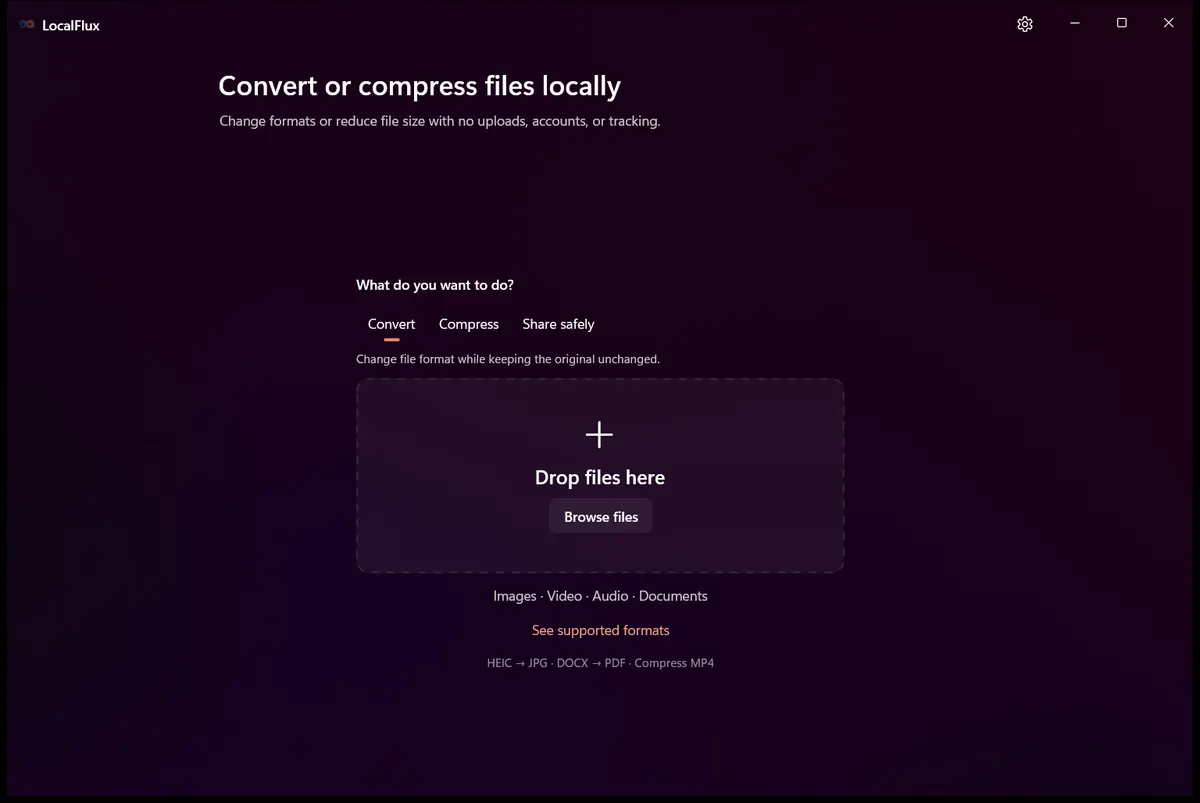
LocalFlux starts with a local file intake area. Normal supported conversion does not require an upload or account step.
Best for: repeat compatibility work, several images, private or work assets, and users who want a focused Windows workflow.
Probably unnecessary for: a file that already works everywhere you need it. Keep WebP when the complete workflow supports WebP.
The short version
- Open LocalFlux on Windows 11.
- Add one or more static
.webpimages. - Choose Convert.
- Select JPG for an opaque photographic compatibility copy, or PNG when lossless pixel storage or transparency matters.
- Leave the default dimensions and quality for the first test.
- Select Convert.
- Inspect the new file in the destination app before replacing any workflow copy.
Get LocalFlux from the Microsoft Store or check the currently supported formats.
What WebP can contain
WebP is a RIFF-based image format developed for web delivery. Google’s current WebP container specification describes lossy and lossless images, transparency, color profiles and metadata, and animation.
That flexibility is useful in browsers and content-delivery systems. It also means that “WebP to JPG” is not one universal operation:
- An ordinary opaque still can become a straightforward JPG or PNG copy.
- Transparency cannot remain transparency in JPG; it must be flattened against some background.
- Animation cannot remain animation in a single-frame JPG or ordinary PNG.
- ICC, EXIF, and XMP metadata may be preserved, changed, or removed depending on the tool and settings.
This guide’s first-hand test uses an opaque, static, metadata-free WebP. It does not use that result to promise behavior for transparent, animated, or metadata-rich files.
JPG or PNG: choose for the destination
The output format should solve a specific compatibility problem.
| Source and destination need | Better starting choice | Why |
|---|---|---|
| Opaque photograph for broad legacy support | JPG | Widely accepted and usually efficient for photographic detail |
| Logo, diagram, interface asset, or text-heavy graphic | PNG | Lossless storage avoids new JPEG artifacts |
| Transparency must remain | PNG | PNG supports an alpha channel; verify the actual result |
| Animated WebP | Neither without testing | A still JPG or PNG cannot preserve the animation as-is |
| Every destination already accepts WebP | Keep WebP | Conversion adds work and may add size or quality loss |
PNG is lossless, but “lossless” does not mean “always smaller.” JPG is broadly compatible, but it is lossy and cannot store alpha transparency. Keep the WebP source so you can produce another output later.
Step 1: Add the WebP image
Drag a supported WebP file onto LocalFlux, use Add files, paste it, or use a supported Windows 11 Explorer handoff. The queue displays the detected source format, size, dimensions, and selected route before conversion.
The walkthrough used a deterministic static raster named website-graphic.webp. It was generated from the repository’s rights-cleared WebP fixture and scaled to 1280 x 853 for a legible workflow demonstration. It contains no personal or customer data.
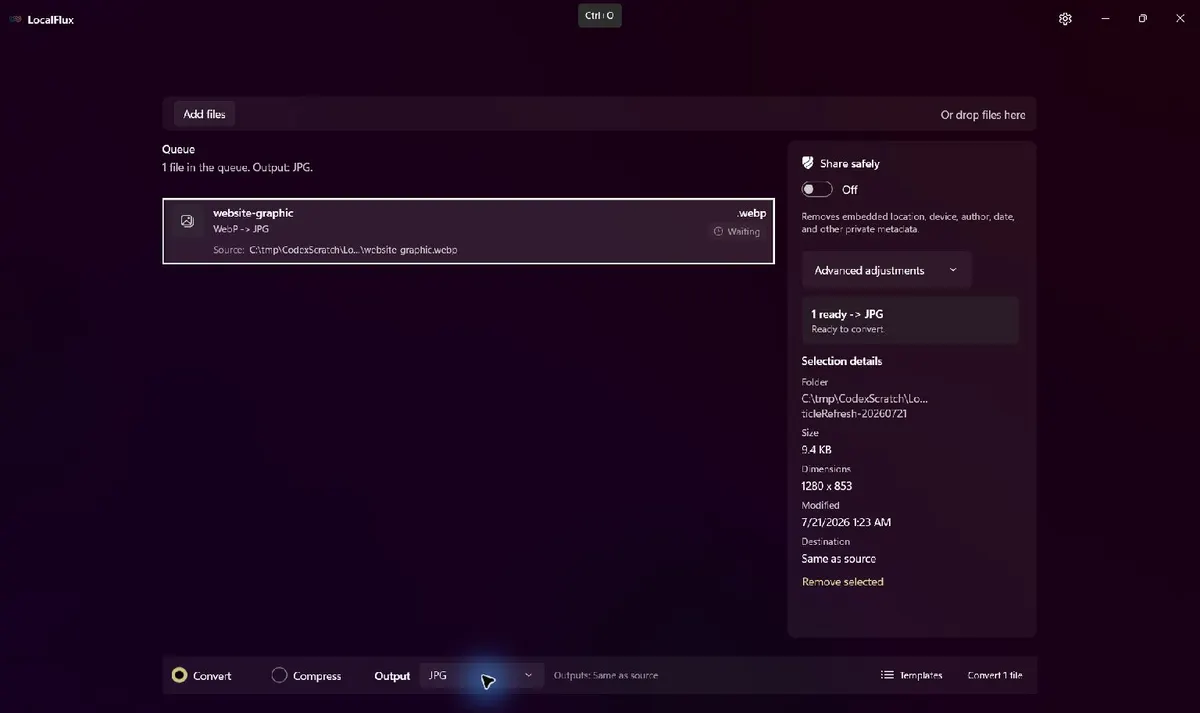
The static WebP is waiting with JPG selected. The original has not been changed.
Step 2: Open the output menu
For this source, the tested LocalFlux build offered JPG, PNG, AVIF, ICO, and TIFF. This article focuses on JPG and PNG because they answer the common Windows compatibility job. The route-aware list is not a promise that every source format supports the same outputs.
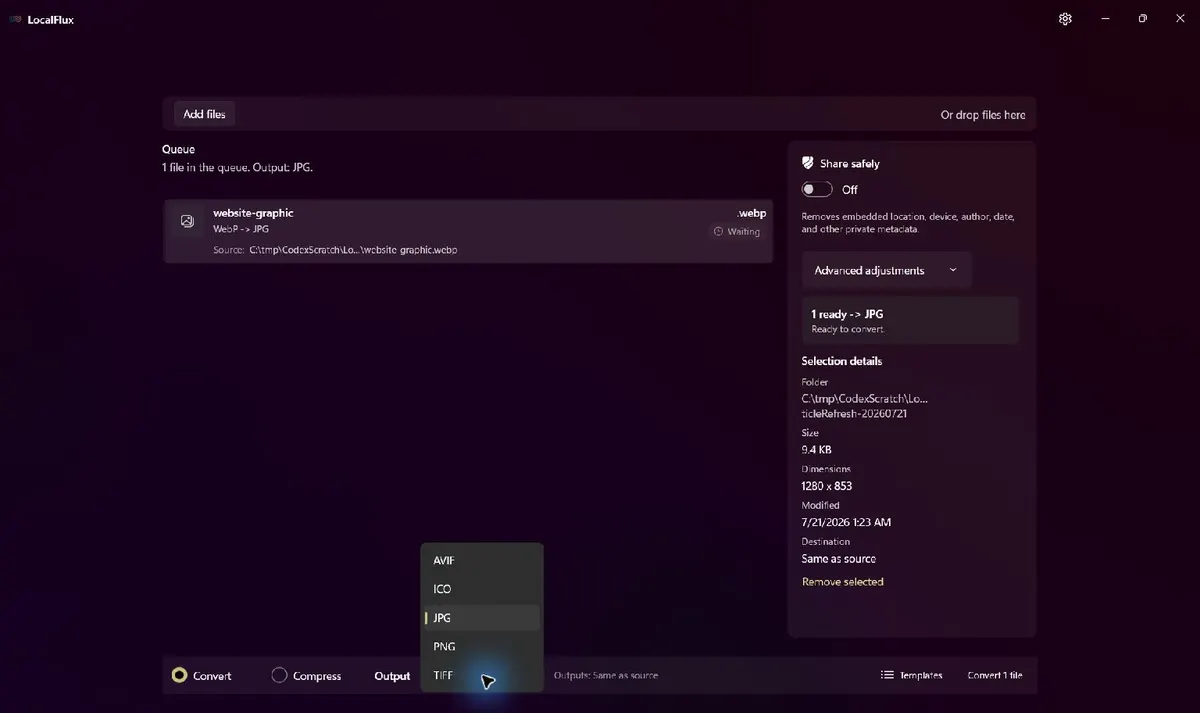
Choose JPG when the image is opaque and the next tool expects a conventional photo format. Choose PNG when a lossless copy or transparency is important. For a transparent WebP, test one file first and view the PNG over both light and dark backgrounds. Do not publish or delete the source until the edges look correct.
Step 3: Convert to JPG
Start with the default quality and dimensions. Select Convert 1 file. When the row completes, LocalFlux shows the safe output name and provides Open file and Open folder actions.
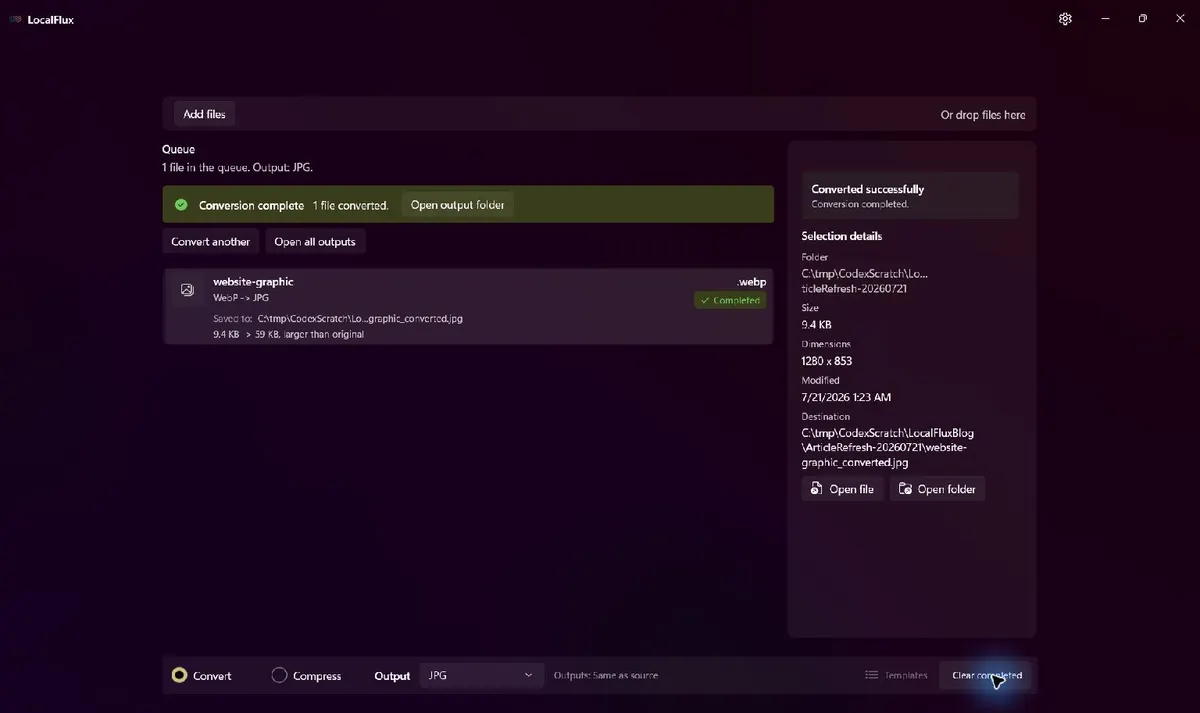
The tested JPG was saved as website-graphic_converted.jpg. The source WebP remained in place.
Step 4: Choose PNG when the job requires it
To create a PNG instead, begin a new batch or clear the completed row, add the WebP, and select PNG. One LocalFlux batch uses one output format, so keep JPG and PNG work in separate batches when you need both.
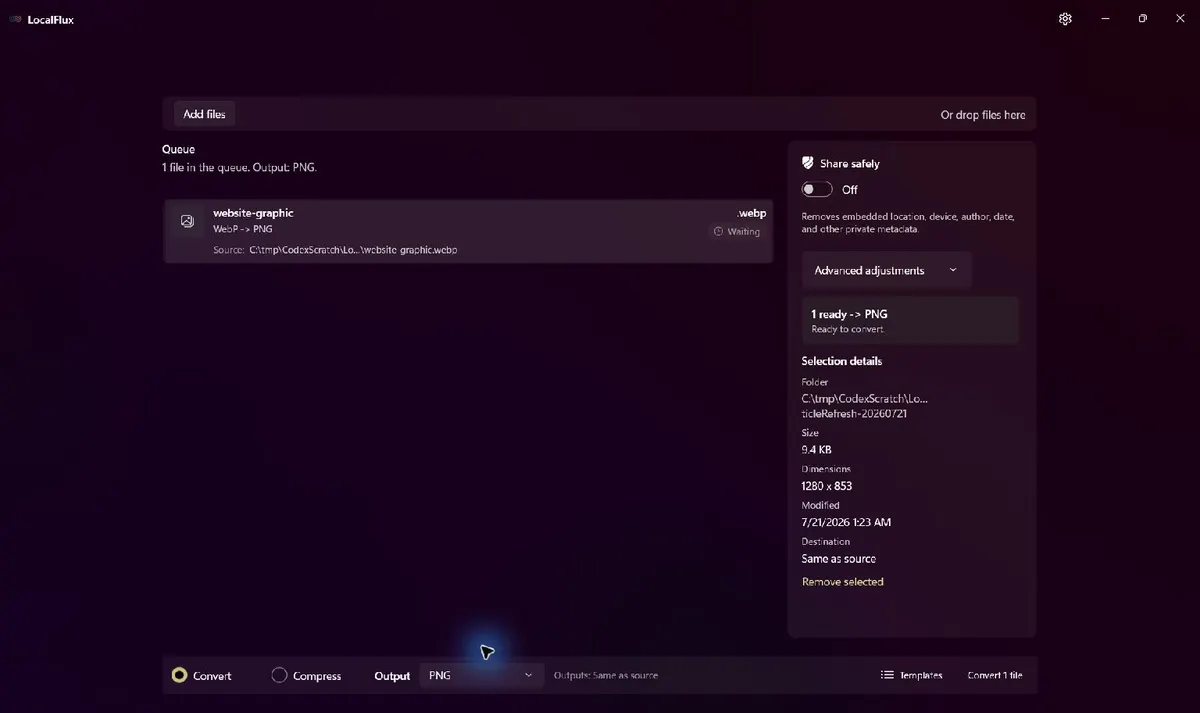
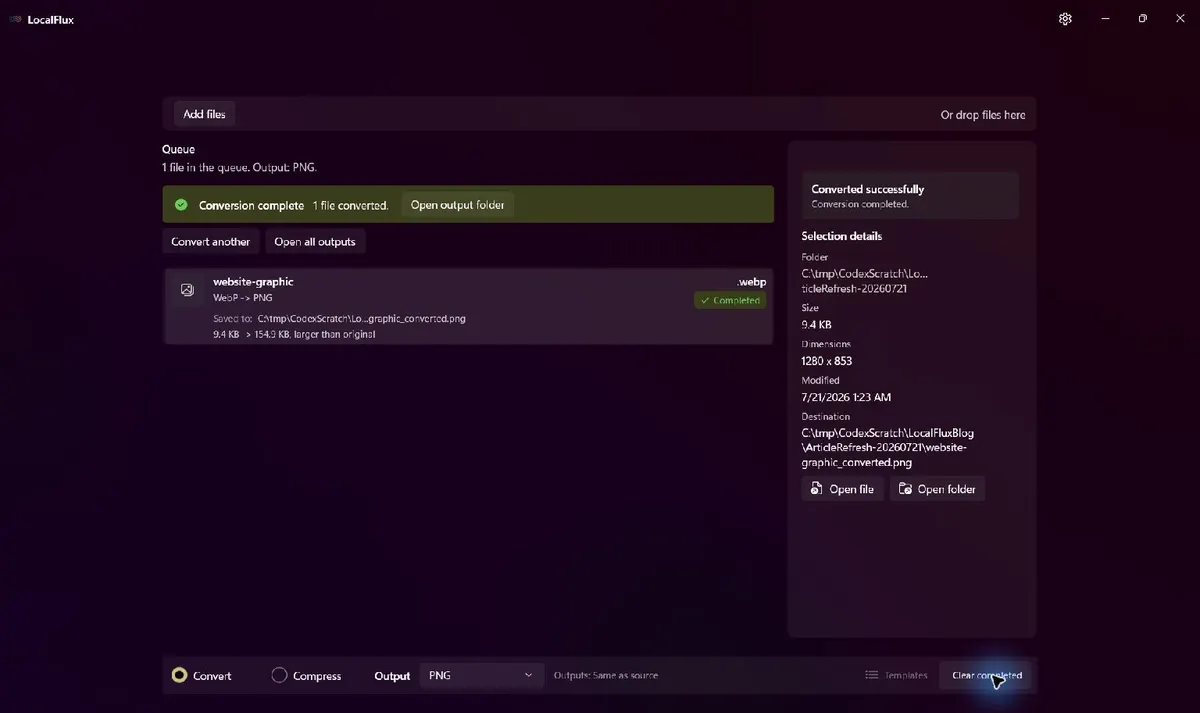
The PNG result was saved as website-graphic_converted.png; the source WebP was still unchanged.
Video transcript: LocalFlux opens at its local file drop area. A static 1280 x 853 WebP appears with JPG selected. The output menu shows JPG and PNG. A completed JPG state appears, followed by the same source ready for PNG and a completed PNG state.
Tested result: both compatible copies were larger
The source was already an efficient WebP. Changing the format increased its size, especially for the lossless PNG output.
| Property | Source WebP | Output JPG | Output PNG |
|---|---|---|---|
| File size | 9,650 bytes | 60,437 bytes | 158,642 bytes |
| Dimensions | 1280 x 853 | 1280 x 853 | 1280 x 853 |
| Color space reported | sRGB | sRGB | sRGB |
| Image type | TrueColor | TrueColor | TrueColor |
| Alpha channel in this fixture | No | No | No |
| Embedded profile detected | No | No | No |
| Original preserved | Yes | New copy | New copy |
This deliberately simple synthetic fixture is useful for route verification, not as a universal compression benchmark. A natural photograph, transparent logo, screen capture, or already optimized WebP will produce different results. The table proves a more important point: conversion is about compatibility, not a guaranteed size reduction.
You can inspect the static WebP source, actual LocalFlux JPG, and actual LocalFlux PNG.



Transparency: why JPG needs extra care
WebP and PNG can represent alpha transparency. JPG cannot. A converter must flatten transparent pixels against a background when it creates JPG. The background might be white, black, or another implementation-defined result.
This article’s tested fixture is opaque, so it does not establish LocalFlux’s current transparent-WebP-to-JPG background behavior. Until a transparent fixture is tested and published, use this safe process:
- Prefer PNG when transparency is required.
- Convert one representative file.
- Inspect it over light and dark backgrounds.
- Check soft shadows, anti-aliased edges, and semi-transparent pixels.
- Keep the WebP original.
Do not assume that changing WebP to JPG can preserve transparency; the format cannot do so.
Animated WebP is a different job
An animated WebP contains multiple frames and timing. A conventional JPG stores one still image. Ordinary PNG also stores one still image; animated PNG is a separate case.
The repository’s current WebP route evidence uses a static raster. Animated WebP was not tested for this article, so no claim is made about whether a conversion rejects the file, uses one frame, or produces another behavior. If motion matters, use a workflow that explicitly supports animated input and the animated output format you need.
This caution is not theoretical: Google’s own dwebp documentation says that decoder does not support animated WebP. Animation support must be verified tool by tool.
Metadata and color profiles
WebP can carry ICC, EXIF, and XMP chunks. JPG and PNG can also carry metadata, but a conversion does not guarantee that every field is preserved or removed. Google’s webpmux documentation exposes separate operations for ICC, EXIF, and XMP, which illustrates why metadata handling deserves its own test.
The static fixture in this guide had no detected embedded profile. It therefore cannot prove preservation or removal. Ordinary LocalFlux conversion and the separate Share safely workflow are different operations; do not assume that changing WebP to JPG or PNG anonymizes the file.
Why not just take a screenshot?
A screenshot is a quick fallback, not a clean format conversion. It can:
- capture the display-scaled version rather than the original pixels;
- change dimensions and color handling;
- discard transparency and metadata;
- include selection borders, cursors, browser UI, or a background;
- make text and thin lines less crisp.
Use a screenshot when you intentionally need what is visible on screen. Use conversion when you need a new file derived from the original image data.
Converting several WebP files at once
Add the compatible static WebP files to one queue, choose JPG or PNG once, and start the batch. LocalFlux creates one safely named result for each ready source and leaves the originals unchanged.
Test representative files before a large folder: an opaque photo, a graphic with text, and any transparent or animated asset. Separate the files that need JPG from those that need PNG because one batch uses one selected output format.
Privacy and offline behavior
An online converter must receive the source image before it can process it. That may be acceptable for a public, non-sensitive asset and a service whose terms you trust. For client graphics, internal screenshots, or unpublished designs, local conversion avoids creating that upload copy.
During normal supported conversion, LocalFlux processes the file on the PC and does not upload it to a conversion service. The app requires no sign-in, and its bundled conversion components allow supported work to run offline after installation. The source remains in place and the result is saved as a new file.
Frequently asked questions
Can Windows open WebP files?
Modern browsers support WebP, and Microsoft points to a Store-delivered WebP Image Extension for Windows imaging support. That does not guarantee support in every older desktop application or upload form.
Should I convert WebP to JPG or PNG?
Choose JPG for an opaque photographic compatibility copy. Choose PNG for lossless pixels, text-heavy graphics, or transparency after verifying the actual result. Keep WebP when the entire workflow accepts it.
Will conversion make the file smaller?
Not necessarily. In this test, both outputs were larger than the 9,650-byte WebP: the JPG was 60,437 bytes and the PNG was 158,642 bytes.
Will JPG keep a transparent background?
No. JPG cannot represent transparency. Use PNG when transparency matters and inspect the output edges.
Does this workflow preserve WebP animation?
This article does not claim that. The tested fixture was static. Use an explicitly animation-aware workflow for animated WebP.
Create only the compatibility copy you need
WebP is a good format when the complete workflow accepts it. When one destination does not, create a JPG or PNG copy for that destination, verify the result, and keep the WebP source.
Get LocalFlux from the Microsoft Store or review the supported formats and routes.