
How to Convert PNG to ICO on Windows 11 Without Uploading It
Convert PNG images to ICO locally on Windows 11, preserve transparency, inspect icon sizes, and learn when a multi-size ICO is the better choice.
On this page
- The short version
- What an ICO file actually is
- Start with artwork designed to become an icon
- Step 1: Add the PNG files
- Step 2: Check the ICO options
- Step 3: Convert and inspect the result
- Measured PNG-to-ICO results
- Does PNG transparency survive ICO conversion?
- Why a non-square PNG stays non-square
- One-frame ICO versus a production Windows icon
- ICO, packaged Windows PNG assets, and favicons are different jobs
- Metadata and privacy are separate from format conversion
- Batch PNG-to-ICO conversion without losing control
- Frequently asked questions
- Create the ICO, then test it where Windows will show it
- Publication evidence
A PNG can look like an icon, but Windows software, shortcuts, and older desktop workflows may specifically ask for an .ico file. Renaming the extension is not enough. An ICO is a container for icon imagery, and Windows may display that imagery at dramatically different sizes, from a tiny title-bar mark to a large Explorer view.
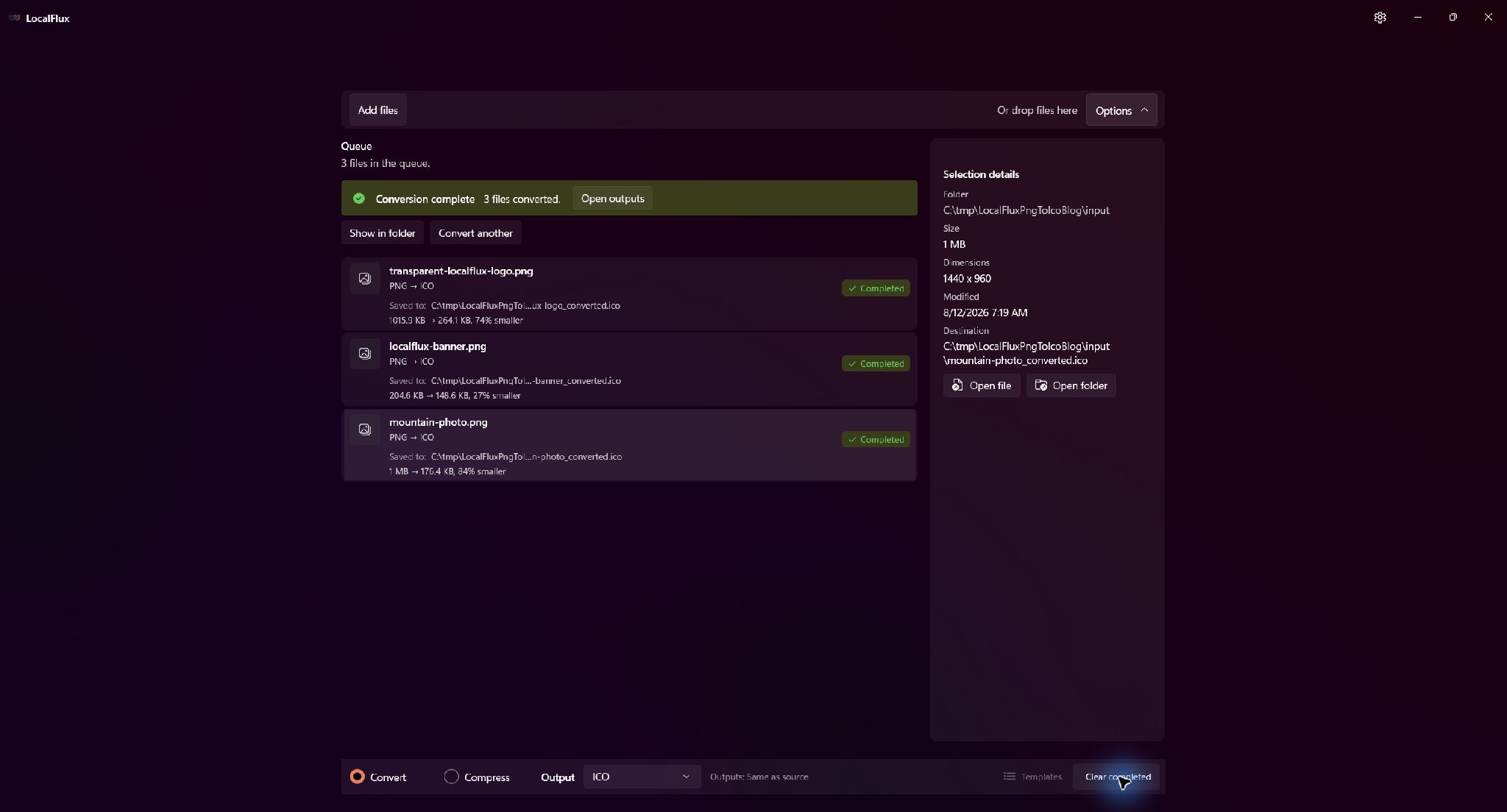
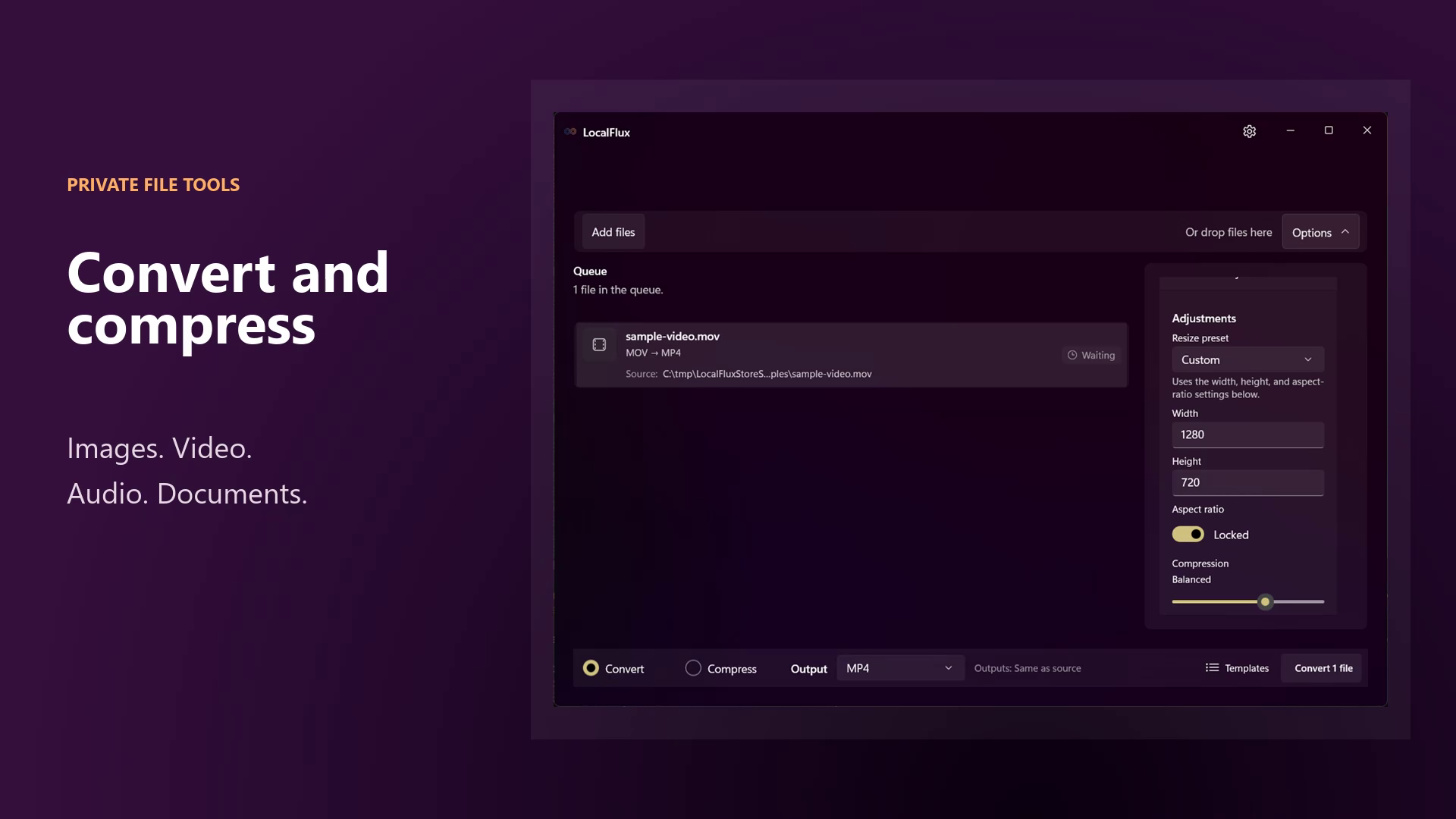
With LocalFlux on Windows 11, add one or more PNG files, choose ICO, and convert them without sending the artwork to an online service. The originals remain unchanged, and the new files are written beside them with names such as transparent-localflux-logo_converted.ico.
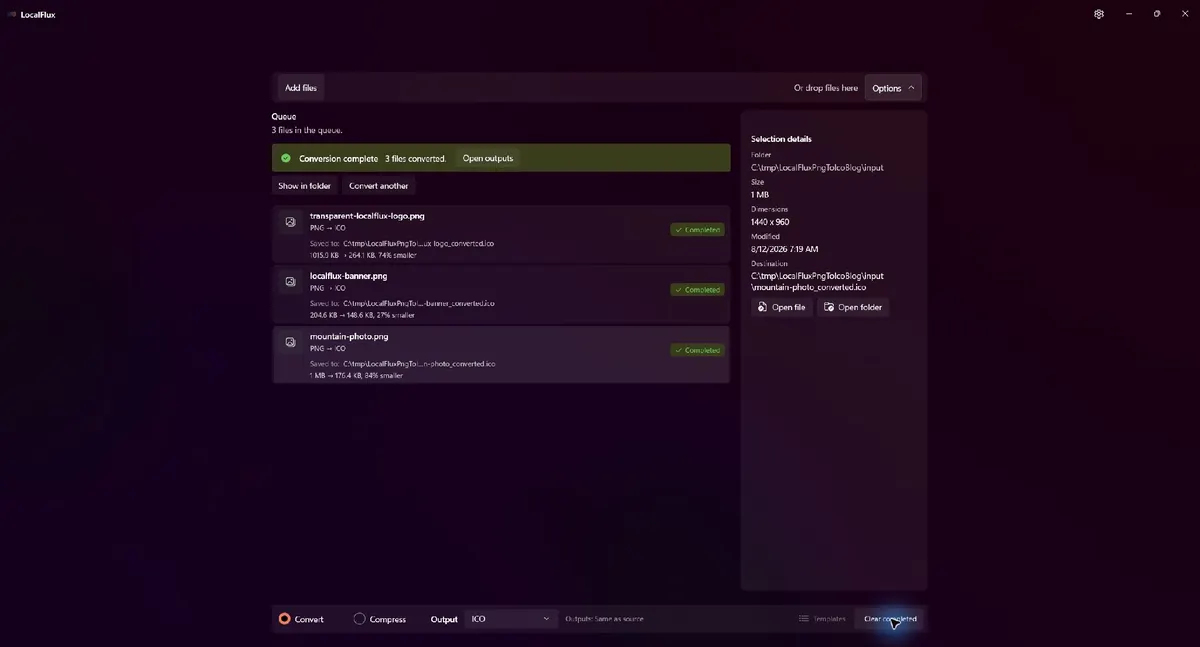
The tested LocalFlux 1.0.7 batch completed three PNG-to-ICO conversions locally. The neutral C:\tmp path avoids exposing a Windows account name or personal folder.
Best for: creating a straightforward Windows ICO copy from a finished PNG, converting several assets locally, and checking how a design survives Windows icon scaling.
Know the limit: each ICO produced in this test contained one 32-bit frame. Microsoft recommends multiple exact sizes for polished production app icons, so use a dedicated multi-frame icon-authoring workflow when that requirement applies.
The short version
- Start with a square PNG that has a transparent background.
- Open LocalFlux on Windows 11 and add the PNG.
- Keep Convert selected.
- Choose ICO as the output.
- Leave Original size, Auto width and height, and the locked aspect ratio in place for the first run.
- Select Convert.
- Inspect the new ICO in File Explorer at both large and small icon sizes.
- If this is a production application icon, verify the frames inside the ICO instead of assuming it contains every recommended size.
Get LocalFlux from the Microsoft Store or review the currently supported conversion routes before starting.
What an ICO file actually is
PNG and ICO are not interchangeable labels for the same bytes. PNG is a general raster-image format with lossless compression and optional transparency. ICO is an icon container used by Windows. One ICO can contain one image or several images at different dimensions and color depths.
That distinction matters because Windows displays icons in many contexts. Microsoft’s current Windows app icon construction guidance says Windows looks for an exact size match first and otherwise chooses the next larger asset and scales it down. For a Windows app, Microsoft lists 16, 24, 32, 48, and 256 pixels as a useful minimum set.
A converter can therefore produce a technically valid ICO without producing a complete production icon family. The three LocalFlux outputs tested for this article were valid ICO files, but each stored exactly one frame. Windows could show them at smaller sizes by scaling that frame. The result was acceptable for the simple logo, less convincing for the banner, and predictably illegible for the photograph.
Start with artwork designed to become an icon
The conversion is the easy part. The source design determines whether the result works at 16 or 32 pixels.
A strong starting PNG usually has:
- a square canvas;
- a simple, recognizable silhouette;
- transparent padding around the subject;
- enough contrast for light and dark Windows surfaces;
- no tiny text or fine photographic detail; and
- room for Windows or an application to scale the image without clipping it.
Microsoft’s Win32 icon guidance similarly emphasizes designing for the actual display sizes rather than treating a large image as the only master that matters. Small icons often need deliberate simplification, optical spacing, and hand-tuned edges.
This walkthrough deliberately tests three very different PNGs:
- a 2048 × 2048 transparent LocalFlux logo;
- a 1920 × 1080 LocalFlux banner with text and interface detail; and
- a 1440 × 960 landscape photograph.
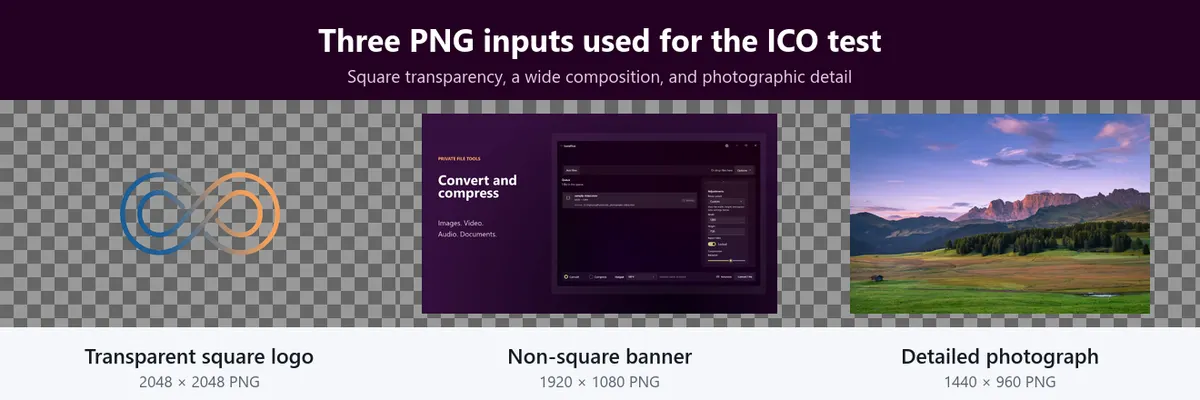
The inputs are rights-cleared repository assets. The square logo represents the intended use; the banner and photograph expose aspect-ratio and small-detail failure modes.
Step 1: Add the PNG files
Open LocalFlux, then drag supported PNG files onto the window or select Add files. Keep Convert selected rather than Compress.
Choose ICO in the output menu and confirm every queued row reads PNG → ICO. One output choice applies to the pending batch, so split the queue if some files need another format.
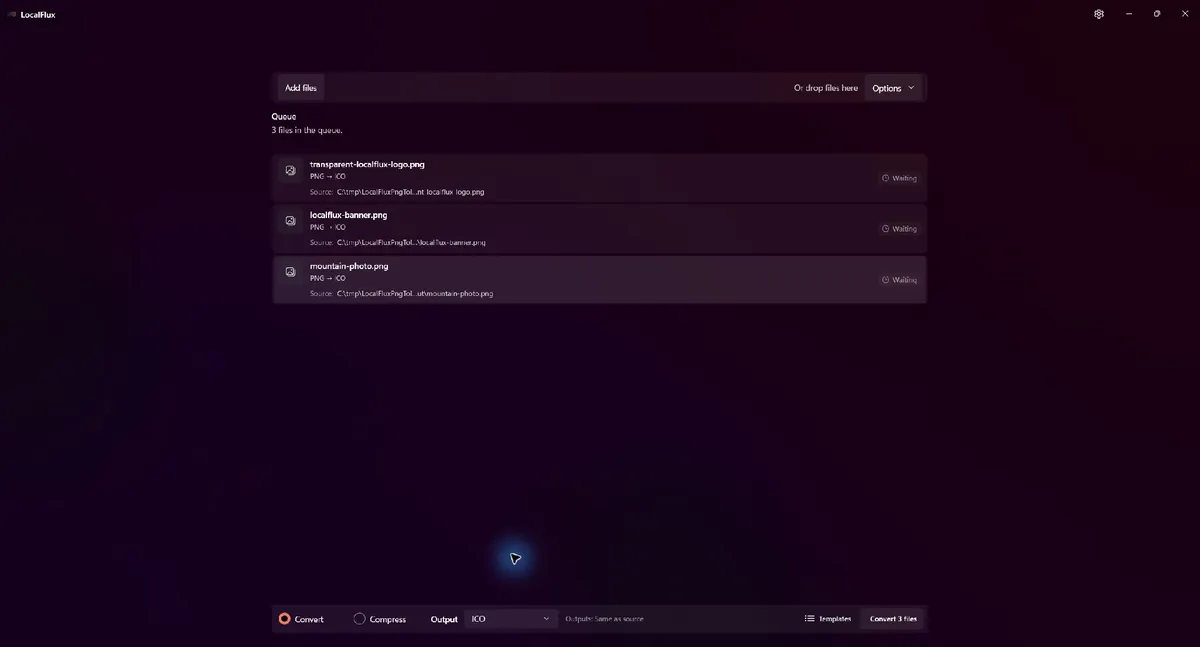
All three routes read PNG → ICO before conversion. LocalFlux will save the new icon files beside the sources.
For this evidence run, every input lived under C:\tmp\LocalFluxPngToIcoBlog\input. That neutral working directory is useful when preparing screenshots or documentation because it does not reveal a personal Windows profile path.
Step 2: Check the ICO options
Open Options, then expand Advanced adjustments. In the tested LocalFlux 1.0.7 build, the initial state showed:
- Share safely: Off;
- Resize preset: Original size;
- width and height: Auto;
- aspect ratio: Locked; and
- no quality or compression slider for ICO output.
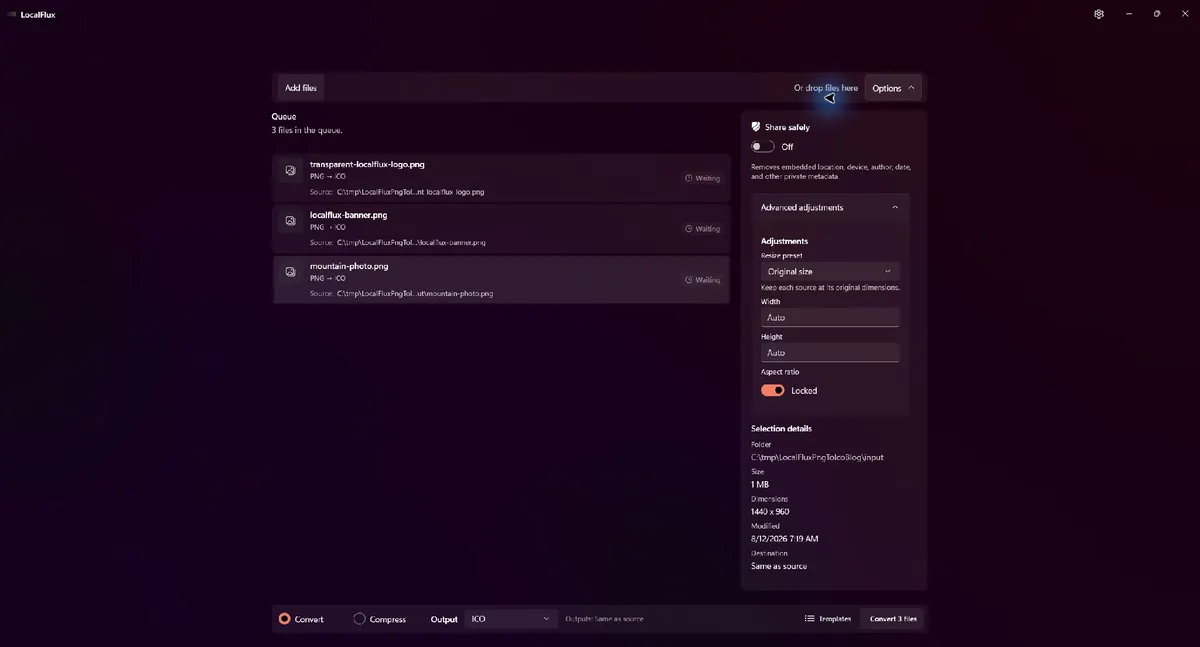
ICO has resizing controls but no quality slider in this build. Ordinary conversion also does not automatically enable the separate Share safely workflow.
The Original size label describes the general visual-adjustment preset. ICO has an output-specific safeguard underneath it: when no explicit resize is requested, this build fits the image within a 256 × 256 bound while preserving its aspect ratio. That is why the square source became 256 × 256, the 16:9 banner became 256 × 144, and the 3:2 photograph became 256 × 171.
Do not type 256 into both fields simply to make a source square. With the aspect ratio locked, LocalFlux derives the other dimension from the selected source. If you unlock the ratio and force a wide image into a square, the artwork will be distorted. Crop or redesign the PNG on a square canvas first instead.
Step 3: Convert and inspect the result
Select Convert 3 files. The tested run ended with a Conversion complete banner and reported three converted files. Each output used the _converted.ico suffix, and none of the source hashes changed.
Do not stop at the green completion state. Check three things:
- Open the destination folder and confirm Windows recognizes the ICO.
- Change File Explorer between large and small icon views.
- Inspect the ICO’s stored frames if the destination has exact requirements.
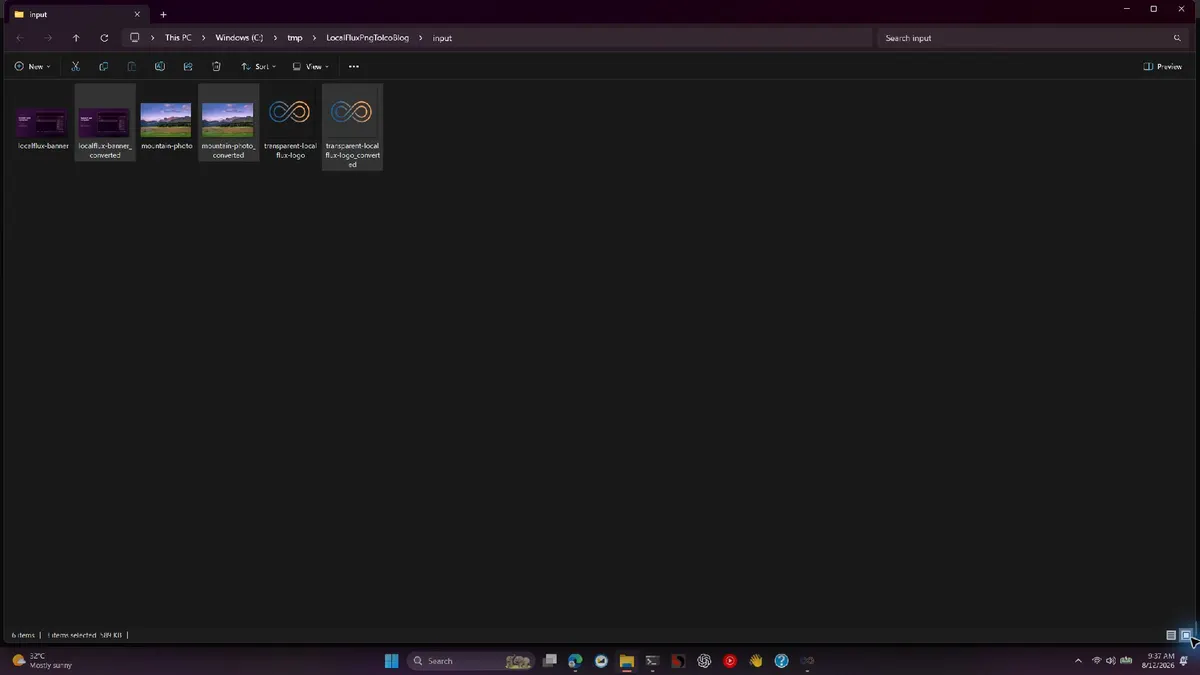
Large-icon view makes the visual difference clear: the square logo remains icon-like, while the banner and photograph still look like reduced rectangular images.
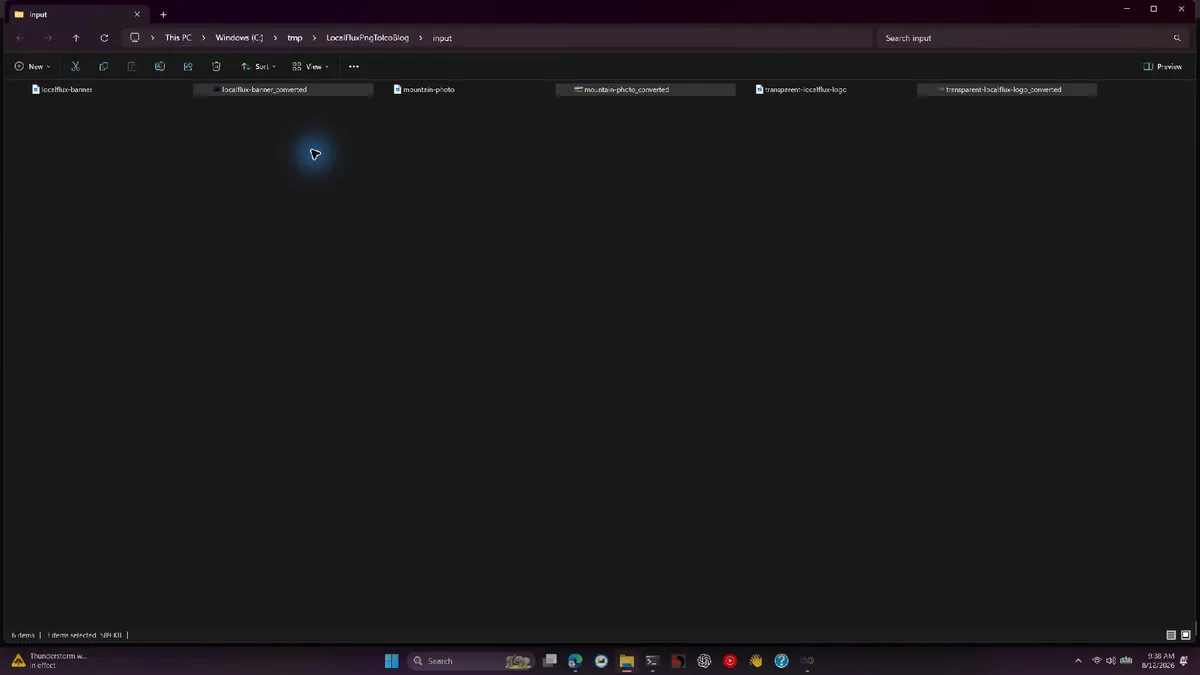
Small-icon view is the more revealing test. Text and photographic detail collapse quickly, while the simple logo remains recognizable.
Windows Explorer thumbnails are useful evidence, but they do not tell you how many frames the file contains. A file can look fine in Explorer because Windows scaled one large frame down. For application packaging, installers, or software distribution, inspect the container with an icon-aware editor or validation tool.
Measured PNG-to-ICO results
The retained LocalFlux 1.0.7 x64 package produced these results:
| Input | PNG bytes | ICO bytes | UI result | Source dimensions | Stored ICO frame | Frames | Bit depth |
|---|---|---|---|---|---|---|---|
| Transparent LocalFlux logo | 1,040,291 | 270,398 | 74% smaller | 2048 × 2048 | 256 × 256 | 1 | 32-bit |
| LocalFlux banner | 209,527 | 152,126 | 27% smaller | 1920 × 1080 | 256 × 144 | 1 | 32-bit |
| Mountain photograph | 1,097,855 | 180,638 | 84% smaller | 1440 × 960 | 256 × 171 | 1 | 32-bit |
These percentages describe this test set. They are not a promise that ICO is always smaller than PNG. The large inputs were reduced to a maximum 256-pixel edge, which explains much of the byte reduction. A small, optimized PNG could be smaller than its ICO copy.
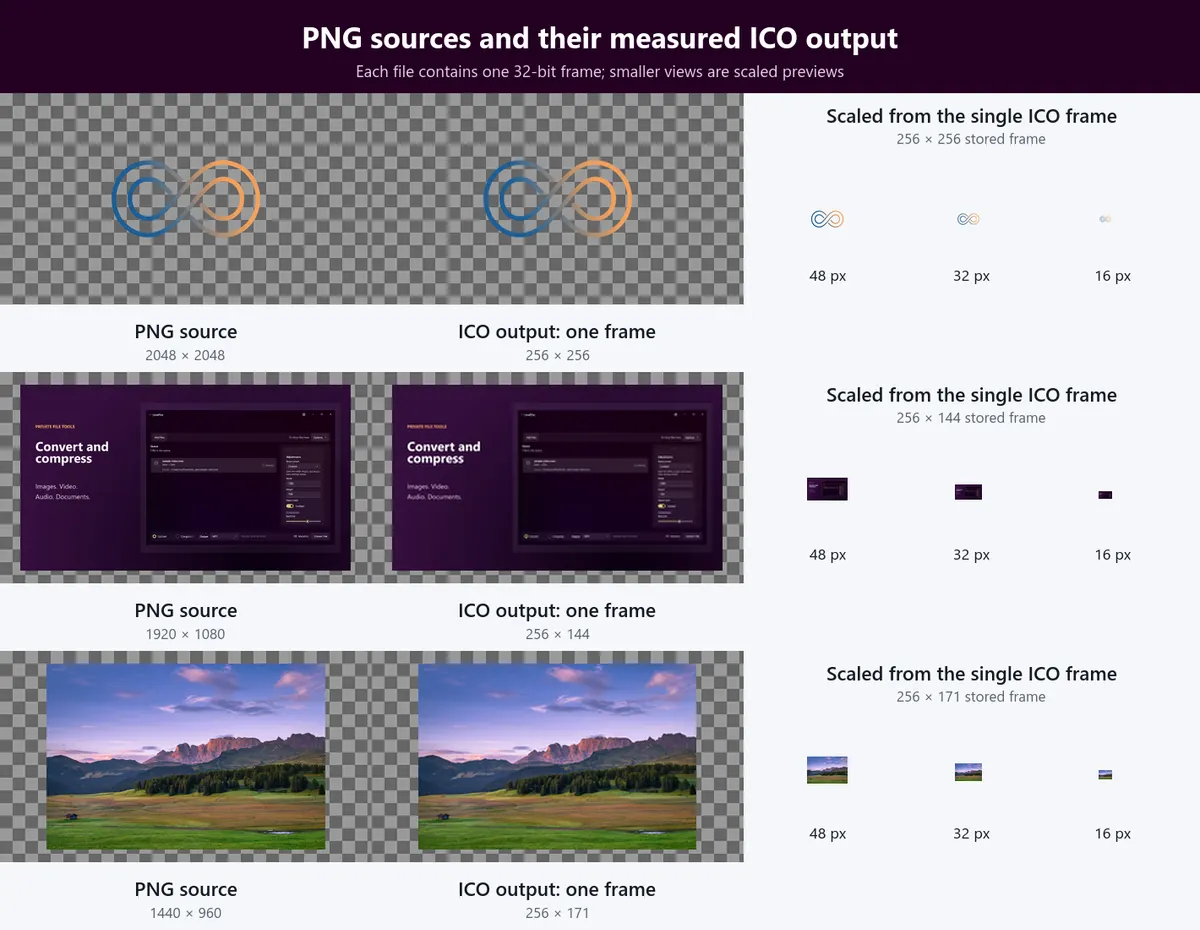
The ICO container stores one frame in each case. The 48, 32, and 16 pixel samples are scaled previews of that frame, not additional embedded frames.
The handoff includes the exact transparent logo PNG and logo ICO, banner PNG and banner ICO, and photo PNG and photo ICO used for these measurements.


Does PNG transparency survive ICO conversion?
It did for the transparent LocalFlux logo in this test. The PNG and ICO both reported an alpha channel, and fully transparent areas remained transparent in the rendered result. The ICO frame was 32-bit, which provides room for full-color pixels and alpha transparency.
That result does not make every transparent PNG a good icon. Semi-transparent shadows and hairline edges can disappear against a different background or when reduced to 16 pixels. Inspect the icon against both light and dark surfaces. If the design depends on a glow or a low-contrast gray edge, make a dedicated small-size variant.
The opaque banner and photograph were also stored as 32-bit ICO frames, but their alpha channels were fully opaque. Adding an alpha-capable container does not invent useful transparency.
Why a non-square PNG stays non-square
The tested default preserves aspect ratio inside the 256 × 256 bound. It does not crop, pad, or stretch the source into a square.
That is a safe conversion policy because it avoids silently cutting off content or distorting it. It also means a 16:9 banner remains 16:9. Windows can display that frame, but the wide image occupies only a thin strip inside a square icon slot. At small sizes, its embedded words and interface elements become unreadable.
If a destination expects a square icon, prepare a square PNG first:
- Put the symbol on a square transparent canvas.
- Leave consistent padding around the recognizable shape.
- Remove slogans, screenshots, and decorative detail.
- Preview the design at 16, 24, 32, and 48 pixels.
- Then convert the finished square asset to ICO.
Conversion should package a design that already works. It should not be responsible for inventing the icon composition.
One-frame ICO versus a production Windows icon
The most important finding in this test is not the file-size reduction. It is the frame count.
Each output contained one frame. For casual use, a shortcut experiment, or a workflow that merely requires a valid .ico, that may be enough. Windows can scale the frame down. For a polished Win32 application icon, however, Microsoft recommends supplying multiple exact sizes so Windows can choose a pixel-perfect match more often.
Microsoft’s current construction guidance names 16, 24, 32, 48, and 256 pixels as a practical minimum for applications. The older Win32 guidance commonly describes 16, 32, 48, and 256 pixel images in one ICO. Small variants are not always mechanical reductions of the 256-pixel design: they may use fewer details, stronger strokes, or different spacing.
Use a purpose-built icon editor or build pipeline when you need to assemble and verify that multi-frame set. In that workflow, LocalFlux can still create a quick ICO proof or convert source assets, but do not claim the single-frame output is a complete app-icon package.
ICO, packaged Windows PNG assets, and favicons are different jobs
It is easy to search for “make an icon” and end up solving the wrong problem.
| Destination | Typical asset | What to verify |
|---|---|---|
| Traditional Win32 executable, shortcut, or icon resource | Multi-frame .ico | Required frame sizes, bit depth, transparency, and small-size legibility |
| Packaged WinUI, UWP, or Microsoft Store app | A named family of PNG assets | Manifest naming, target-size and scale variants, theme treatment, and Store requirements |
| Website favicon | One or more resources referenced by HTML | Browser support, declared sizes, caching, and the site’s actual markup |
| General website image or logo | PNG, WebP, AVIF, or SVG | Layout size, transparency, compatibility, and download weight |
Modern packaged Windows applications often use explicitly named PNG assets rather than one ICO for every shell surface. Microsoft’s app-icon documentation lists target-size and scale-specific PNG filenames for those packages. Converting a logo to ICO does not generate that manifest asset family.
A website favicon is also not synonymous with a Windows application icon. The HTML standard defines the icon link relationship and allows authors to identify icon resources and sizes. Browsers may accept ICO, PNG, SVG, or platform-specific alternatives, but the right answer depends on the site’s compatibility target and markup. Test the favicon in the browsers you support instead of assuming a Windows Explorer preview proves web behavior.
Metadata and privacy are separate from format conversion
This workflow ran locally, so the PNG artwork did not need to be uploaded to a conversion website. That is useful for unpublished brands, client artwork, internal tools, and other files that should remain on the PC.
Local processing does not mean ordinary conversion is automatically a privacy-sanitization workflow. Share safely was Off in the tested options. The mountain PNG contained an EXIF profile, while its ICO output did not; the other inputs and outputs had no identified profiles. That is an observation about these formats and fixtures, not proof that every private field is removed from every possible input.
If metadata removal is the real task, use a supported sanitization workflow and verify the resulting file. The LocalFlux metadata guide explains why changing a format and proving metadata removal are different jobs.
The three source SHA-256 hashes were identical before and after conversion. LocalFlux wrote new ICO copies rather than overwriting the PNG files.
Batch PNG-to-ICO conversion without losing control
Batching saves clicks, but an icon folder can contain assets with very different purposes. Before converting a large collection:
- separate square symbols from banners, screenshots, and photographs;
- group files that share the same destination requirements;
- keep originals so future variants can be generated from the best source;
- test a representative file at small sizes first;
- inspect the output frame count; and
- avoid treating a successful batch as visual approval.
The batch image guide covers the same principle from a compression angle: representative testing is safer than applying one decision blindly to an entire library.
Frequently asked questions
Can I convert PNG to ICO on Windows 11?
Yes. LocalFlux supports a PNG-to-ICO route on Windows 11. Add the PNG, choose ICO, convert, and inspect the new copy in File Explorer.
Can I rename .png to .ico?
No. Renaming changes only the filename. It does not rebuild the file as an ICO container, and software that reads the bytes can reject it.
Will PNG transparency be preserved?
The transparent logo kept alpha transparency in this test. Verify your own result on light and dark backgrounds, especially when the artwork contains soft shadows or semi-transparent edges.
Does LocalFlux create a multi-size ICO?
Not in the tested 1.0.7 workflow. Each of the three outputs contained one 32-bit frame. Windows can scale that frame, but a production app icon commonly benefits from several exact embedded sizes.
Why did my rectangular PNG produce a rectangular ICO frame?
The default fits the source inside a 256 × 256 bound while preserving its aspect ratio. Prepare the composition on a square canvas before conversion if the destination expects square artwork.
Is a PNG-to-ICO conversion enough for a Windows app?
Not necessarily. Traditional Win32 software may require a multi-frame ICO, while packaged WinUI or Store apps use named PNG asset families and manifest rules. Follow the requirements of the actual project type.
Can I use the ICO as a favicon?
Possibly, but a favicon is a web-publishing job. Add it through the site’s HTML and test browser behavior, caching, and the sizes or formats your audience requires.
Will the ICO always be smaller than the PNG?
No. All three ICOs were smaller here largely because the inputs were reduced to a maximum 256-pixel edge. A small optimized PNG may already use fewer bytes.
Are the original PNG files overwritten?
No. The tested batch wrote _converted.ico copies beside the sources, and all three source hashes were unchanged afterward.
Is a photograph a good Windows icon?
Usually not. Photographic texture becomes indistinct at small icon sizes. A simplified symbol with a clear silhouette is easier to recognize.
Create the ICO, then test it where Windows will show it
PNG-to-ICO conversion on Windows 11 takes only a few steps. The quality check takes longer because an icon must work outside the converter: on a desktop, in File Explorer, in a title bar, or inside an application package.
Start with a square transparent design, convert it locally, inspect the stored frames, and preview it at small sizes. If the destination calls for a complete Windows application icon, create the exact multi-size asset set instead of relying on one scaled frame.
Get LocalFlux from the Microsoft Store and keep the original PNG as the editable source.
Publication evidence
The screenshots and samples are rights-cleared and privacy-reviewed. The publication package includes the exact test record, measurements, privacy review, source notes, and SHA-256 media manifest.